A few months ago, I wouldn’t have paid much attention to the display when buying a laptop. Give me a decent IPS screen, a reasonably powerful processor, enough RAM, and a good battery, and I’d probably be happy.
At least, that’s what I thought.
After buying and testing several business laptops, I started noticing something strange. Some newer machines were significantly faster than my old Dell Latitude, yet their screens didn’t necessarily look better. In a few cases, they actually looked worse.
And I’m not talking about cheap laptops with outdated TN panels. These were modern ThinkPads and EliteBooks with Ryzen processors, DDR5 memory, and Full HD or higher-resolution IPS displays.
The more I compared them, the more questions I had. Why did a nearly ten-year-old Dell have such pleasant colors? Why did a modern Ryzen 7 laptop come with a rather unimpressive screen? And how could a premium HP Dragonfly with a 1000-nit display still have noticeable viewing-angle problems?
I ended up spending quite a bit of time researching LCD panels, comparing manufacturer specifications, experimenting with ICC profiles, and even investigating whether replacing a laptop screen would be worthwhile.
It turned out to be a much more interesting subject than I expected.
If you’re shopping for a used or refurbished laptop, especially on eBay, here’s what I wish I’d known earlier.
It Started with My Old Dell Latitude E7470
My previous laptop was a Dell Latitude E7470 with an Intel Core i5-6300U, 8GB of RAM, and a 14-inch Full HD IPS display.
Nothing particularly exciting by today’s standards.
The processor was getting old, performance was limited, and I wanted something faster for everyday tasks and occasional video editing. Replacing it seemed like an obvious decision.
There was one thing I hadn’t really considered, though: I actually liked its screen.
Colors looked pleasant, viewing angles were good, and the display was bright enough for most of my needs. I had never measured its color accuracy with professional equipment, but visually, it was a nice panel.
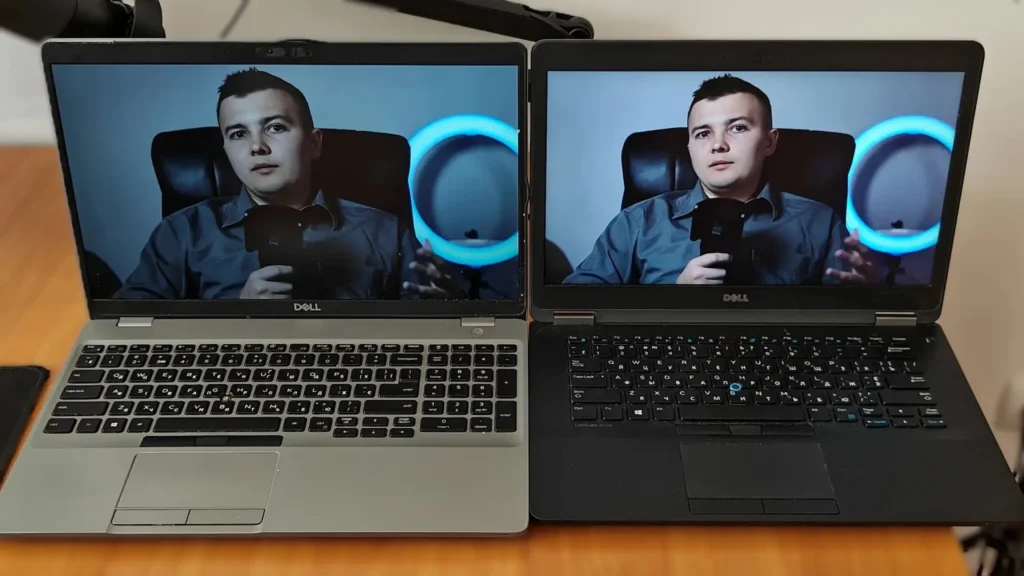
I simply assumed a newer business laptop would offer something similar, if not better.
That assumption didn’t survive my next few purchases.
While researching the E7470, I discovered that Dell had offered several display configurations. Some were fairly ordinary, while others were surprisingly capable.
For example, Notebookcheck’s review of an E7470 with a WQHD IPS touchscreen measured approximately 96% sRGB coverage and excellent contrast for its time.
That wasn’t the same panel as my Full HD version, so I wouldn’t apply those exact figures to my laptop. Still, it demonstrated something important: even back in 2016, manufacturers were putting some genuinely good screens into premium business machines.
A laptop being old doesn’t automatically make its display outdated.
And unfortunately, a laptop being new doesn’t guarantee the opposite.
My ThinkPad E14 Gen 6 Was the First Real Disappointment
One of the laptops I bought was a Lenovo ThinkPad E14 Gen 6 with an AMD Ryzen 5 7535U, 16GB of DDR5 RAM, and a 14-inch 1920 × 1200 IPS display.
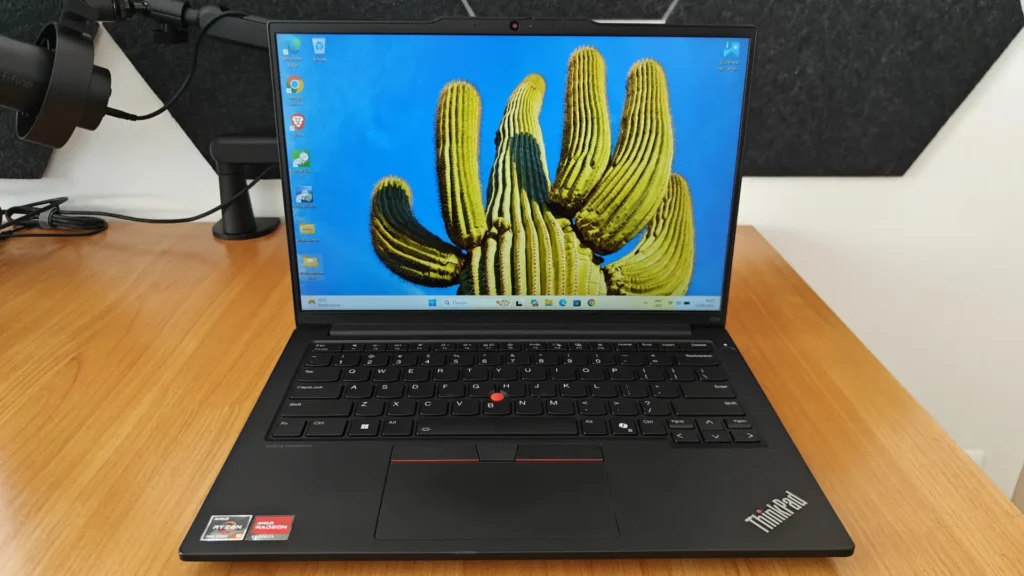
It seemed like a good purchase.
The Ryzen processor was considerably faster than the sixth-generation Intel chip in my Dell. The 16:10 aspect ratio was also a welcome improvement, especially for browsing and productivity.
According to the specifications, the display offered 300 nits of brightness. That sounded fine to me.
But when I started using the laptop, something felt off.
The screen was perfectly readable, yet the colors looked somewhat dull. Compared with my previous experiences, the image lacked richness. It wasn’t a dramatic defect, just a consistently less satisfying picture.
I initially wondered whether the problem was related to Windows settings or color calibration.
Then I checked Lenovo’s official specifications.
The standard WUXGA IPS panel is rated for 300 nits, 45% NTSC color coverage, and an 800:1 contrast ratio.
Suddenly, the appearance made much more sense.
The funny thing is that Lenovo also offered a much better display option for the same ThinkPad E14 Gen 6: a 2240 × 1400 IPS panel with 100% sRGB coverage and a 1500:1 contrast ratio.
Both are IPS screens. Both are rated at 300 nits.
But they’re not remotely equivalent when it comes to color reproduction and contrast.
You can see these options in Lenovo’s official PSREF specifications.
This is where I started looking beyond the usual “Full HD IPS” description in laptop listings.
Those three letters — IPS — simply don’t tell the whole story.
Then Came the HP EliteBook 835 G10 with a Ryzen 7 7840U
My next interesting experience involved an HP EliteBook 835 G10.
This time, the specifications were even more appealing: an AMD Ryzen 7 7840U, Radeon 780M integrated graphics, 16GB of RAM, and a compact 13.3-inch chassis.
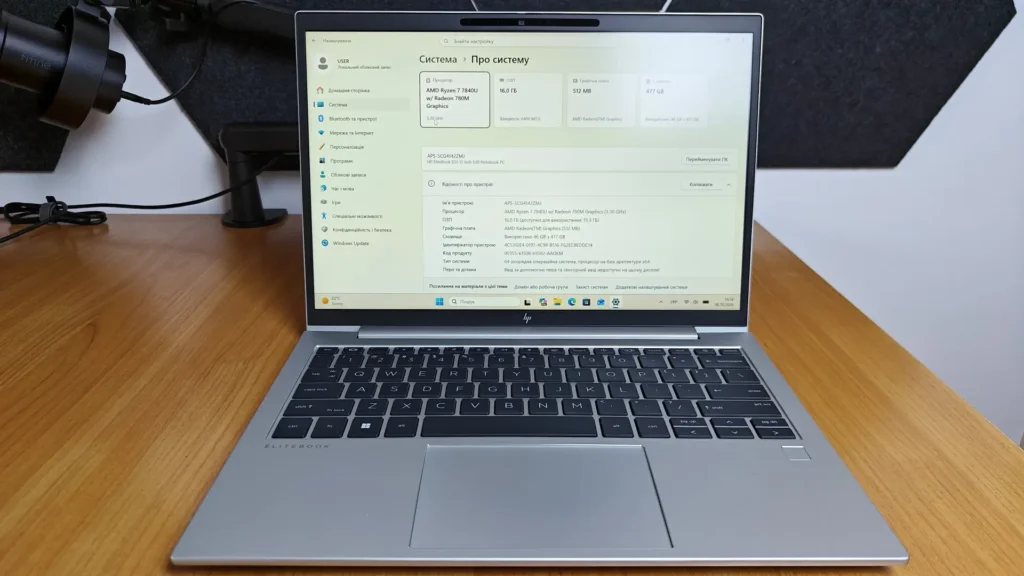
The Ryzen 7 7840U is still a powerful processor, particularly for such a small business laptop. Its integrated graphics are also much more capable than what you’d expect from older ultrabooks.
So I was genuinely excited about this machine.
The laptop arrived in better physical condition than I expected. After cleaning it, replacing the thermal paste, and running diagnostics, I was pleased with the hardware.
But the display?
A basic 250-nit IPS panel with 45% NTSC coverage.
Seriously, HP?
I understand that business laptops are often configured for corporate customers who prioritize cost, battery life, and functionality. Not everyone needs a color-accurate screen.
Still, having such a capable Ryzen 7 processor paired with a modest 250-nit display felt like a strange compromise.
The display was usable, of course. It was fine for documents, web browsing, and ordinary tasks. But considering the rest of the hardware, I expected something better.
What made the situation more frustrating was discovering that HP had offered much nicer display configurations for this exact model.
According to HP’s official EliteBook 835 G10 specifications, some versions have a 400-nit low-power IPS screen with 100% sRGB coverage and HP Eye Ease.
That’s a substantial upgrade on paper.
There are also 1000-nit Sure View privacy configurations, although those come with their own considerations, as I found out with another laptop.
I started wondering whether I could simply buy the better 400-nit panel and install it in my EliteBook.
That question led me into the world of LCD panel part numbers, display cables, connectors, and compatibility lists.
More on that in a moment.
The HP Elite Dragonfly G3 Changed My Expectations Again
Of all these laptops, the HP Elite Dragonfly G3 has probably been the most interesting.
My configuration has an Intel Core i7-1265U, 16GB of RAM, and a 13.5-inch 1920 × 1280 touchscreen.
But the main attraction is its 1000-nit HP Sure View display.
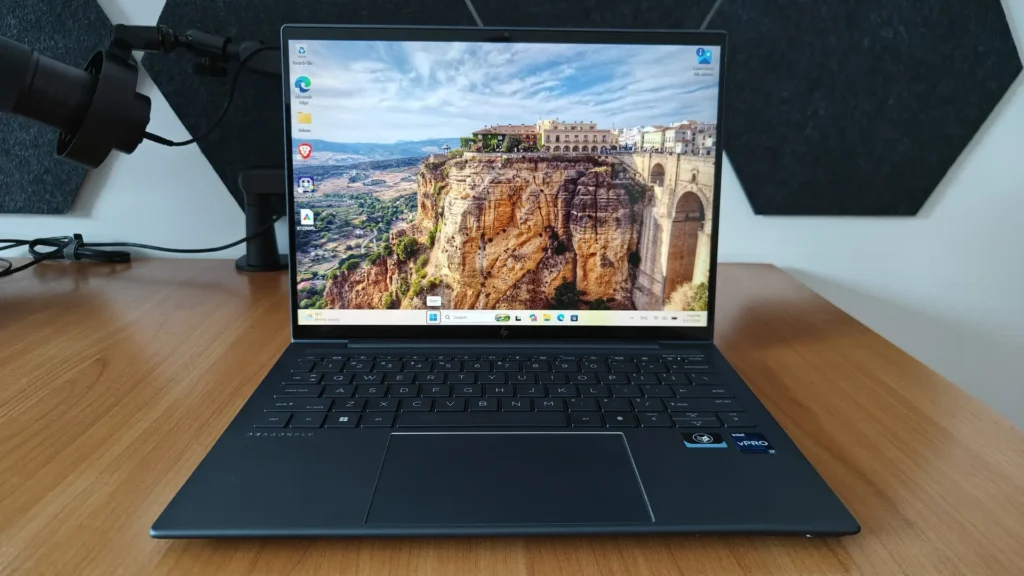
Coming from ordinary 250–300-nit laptop screens, the first impression was impressive.
The Dragonfly looked bright, colorful, and distinctly more premium. I also loved its 3:2 aspect ratio, which gives you extra vertical space for browsing, working with documents, and editing.
In fact, despite trying newer Ryzen-powered laptops, I kept coming back to the Dragonfly for personal use.
However, its display wasn’t quite as straightforward as I’d hoped.
I noticed that whites sometimes had an unusual tint, and the appearance could change noticeably when I tilted the screen.
Viewing angles were particularly sensitive.
At one point, I was adjusting individual green and blue color settings in Intel Graphics, trying to get a more neutral white balance. I also experimented with ICC profiles.
I even noticed differences in how colors appeared between Chromium-based browsers and Firefox during my testing.
Eventually, I managed to make the screen look considerably more natural to my eyes, but the viewing-angle behavior remained.
The reason is related to HP Sure View technology.
Sure View is designed to make the screen harder for other people to read from the side. That can be useful when working with confidential documents in public places.
But restricting viewing angles isn’t necessarily something you want when editing photos, watching movies, or simply adjusting your sitting position.
Depending on the implementation, privacy displays can introduce unusual optical behavior even when the privacy feature isn’t actively enabled.
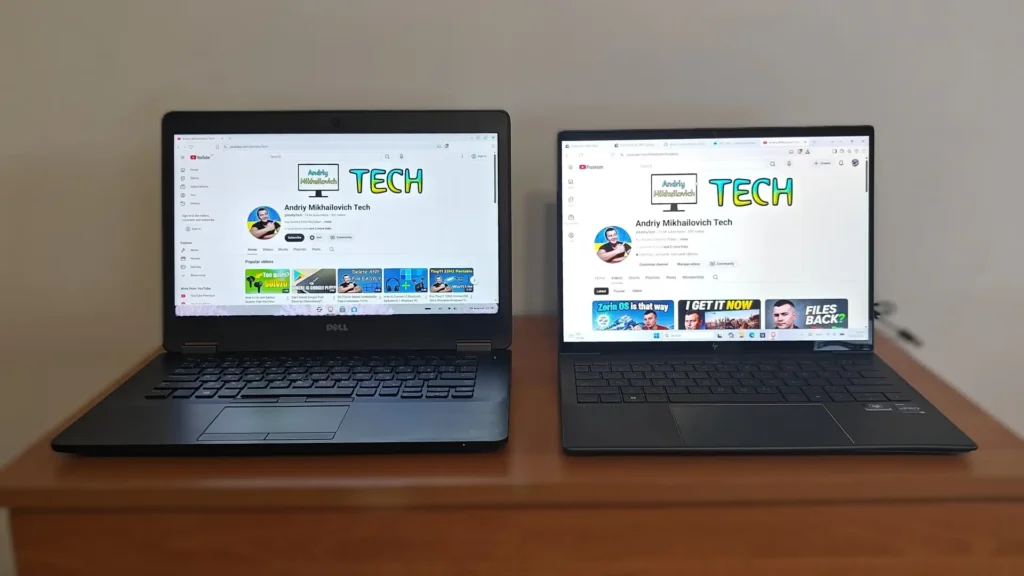
So here’s the irony: my Dragonfly has a far brighter and more impressive display than the basic ThinkPad or EliteBook panels, yet my old Dell can still feel more consistent when viewed from different angles.
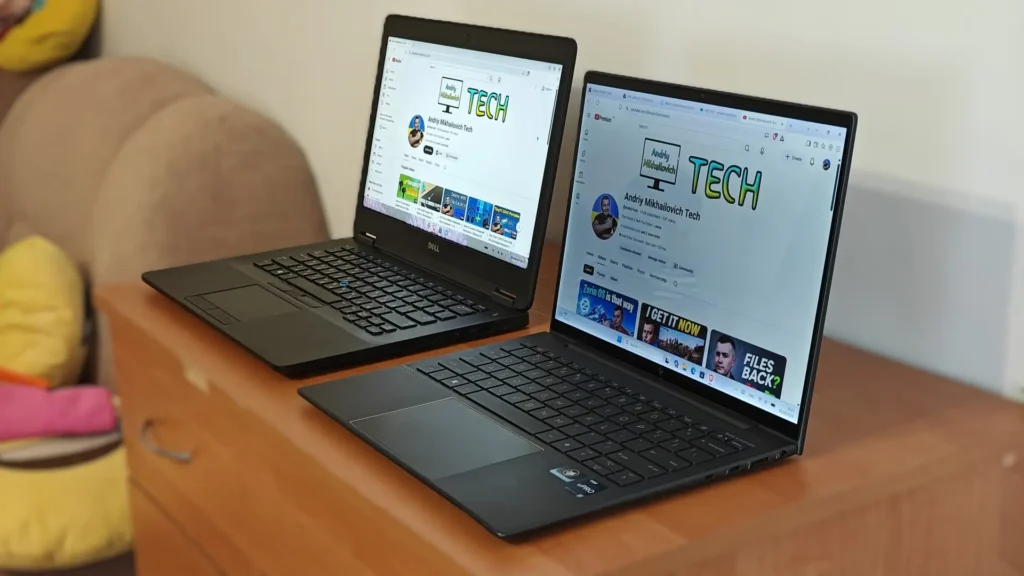
I still prefer the Dragonfly overall. Its combination of brightness, colors, compact design, and 3:2 aspect ratio makes it a very enjoyable laptop.
But it taught me that 1000 nits doesn’t automatically mean a perfect screen.
There is much more to display quality than brightness alone.
The Specification I Started Checking First: Color Gamut
After these experiences, I began paying much closer attention to color gamut.
This is something many buyers overlook, even though it can dramatically affect how a laptop screen looks.
Color gamut describes the range of colors a display can reproduce.
You can have two laptops with identical screen resolutions, identical brightness ratings, and the same IPS technology, yet the images can look noticeably different.
One might reproduce rich greens, reds, and blues, while the other looks comparatively flat.
That’s often where the difference between 45% NTSC and 100% sRGB becomes relevant.
Is 45% NTSC Really That Bad?
Not necessarily.
A 45% NTSC display is generally fine for emails, spreadsheets, programming, and everyday office work.
But it typically covers only around 60–65% of the sRGB color space, depending on the actual panel.
That’s a fairly limited range.
It doesn’t mean everything will look gray or completely inaccurate. It simply means the display cannot reproduce as wide a range of colors as a better panel.
If you’ve only used budget laptop screens, you might not notice the difference immediately.
Put one next to a good 100% sRGB monitor, though, and it can become much more obvious.
The 72% NTSC specification you sometimes see usually indicates a significantly wider-gamut display, often approaching full sRGB coverage.
One detail worth remembering: 72% NTSC and 100% sRGB aren’t mathematically interchangeable. They’re different color spaces, and the advertised percentages don’t provide an exact conversion.
Whenever possible, I’d rather see an actual sRGB coverage figure.
Why I Care About This for Video Editing
I create videos, so display quality matters to me beyond just watching YouTube or browsing websites.
Imagine editing footage on a screen with limited color coverage.
The video might look slightly dull, tempting you to increase saturation or make stronger color adjustments.
Then you watch the finished video on a good monitor or television and realize the colors look more intense than you intended.
That’s not an ideal workflow.
Of course, color gamut is only part of the equation. Color accuracy, calibration, gamma, and white balance also matter.
A display advertised as 100% sRGB isn’t guaranteed to be perfectly accurate straight out of the box.
But at least it has the ability to reproduce that range of colors.
For ordinary SDR video editing, photography, web content, and general use, I now consider 100% sRGB a very desirable feature.
It doesn’t mean everyone needs a professional reference monitor. It simply means having a more trustworthy starting point.
And if you’re working in Premiere Pro or another video editor, that can be genuinely useful.
Brightness, Contrast, and Screen Coating: The Other Things I Check
Color gamut became my main discovery, but it would be a mistake to focus on that number alone.
A laptop with excellent sRGB coverage can still be disappointing if it’s too dim, has poor contrast, or suffers from distracting reflections.
How Bright Should a Laptop Screen Be?
After using everything from a 250-nit EliteBook to a 1000-nit Dragonfly, I have a much better idea of what I personally need.
Here’s my rough guide:
| Brightness | What to expect |
|---|---|
| 200–250 nits | Usable indoors, but limited in bright rooms |
| 300 nits | A reasonable level for everyday indoor use |
| 400 nits | My preferred target for a well-balanced laptop |
| 500 nits | More flexibility near windows and outdoors in shade |
| 600–1000+ nits | Useful for demanding lighting conditions, but not automatically superior |
These are general guidelines rather than guaranteed results.
A matte 400-nit panel may actually be more comfortable outdoors than a glossy 500-nit screen reflecting the sky.
And even a very bright screen can struggle in direct sunlight.
For me, 300 nits is acceptable, but 400 nits is where things start to feel more comfortable in different environments.
I wouldn’t automatically reject a good 300-nit laptop, especially if it had excellent color coverage and contrast.
But I would think carefully before buying another 250-nit machine for personal use.
Contrast Matters More Than I Used to Think
Contrast ratio is another specification worth checking.
It describes the relationship between a display’s brightest white and darkest black.
A basic IPS panel might offer around 800:1 contrast, while a better one might reach 1200:1, 1500:1, or higher.
In practice, stronger contrast can make dark scenes look deeper and improve the sense of depth in photographs and videos.
This doesn’t mean a higher number always guarantees a more attractive picture. Actual measurements, screen coating, ambient lighting, and calibration still matter.
But contrast helps explain why two IPS panels with similar brightness can look different.
Remember my ThinkPad E14 Gen 6?
Lenovo’s standard 300-nit panel is rated at 800:1, while the optional 2.2K display is rated at 1500:1.
That’s quite a difference within the same laptop family.
Matte or Glossy? I’ve Learned to Appreciate Both
My ThinkPad and EliteBook use matte displays. My Dragonfly has a glossy touchscreen.
I can understand why people prefer either one.
A glossy screen often looks especially clear and vivid indoors, where you can control the lighting. Dark scenes can appear more convincing because the surface doesn’t scatter reflections in the same way as some matte coatings.
But glossy screens can also behave like mirrors.
Matte panels are usually more practical in offices, bright rooms, and other places where you can’t control reflections.
Some matte coatings introduce a slightly grainy appearance, but a good matte IPS panel can still look excellent.
I wouldn’t say one is universally better.
Personally, I’d happily choose a matte 400-nit IPS screen with 100% sRGB over a glossy screen with impressive marketing claims but annoying reflections or viewing-angle limitations.
What About Backlight Bleed, IPS Glow, and OLED?
While comparing laptops, I also started checking screen uniformity more carefully.
Backlight bleed, for example, can appear as brighter patches near the edges or corners of an LCD.
IPS glow is different. It’s a characteristic glow visible in darker areas of some IPS displays, and it changes with your viewing position.
The easiest way to notice either is to display a black image in a dark room.
But I wouldn’t judge a screen solely from a photograph of this test. Smartphone cameras can exaggerate the problem dramatically, especially with automatic exposure.
What matters more is whether the glow or bleed is distracting during normal use.
I also check for dead pixels, uneven whites, obvious color tinting, and brightness differences across the panel.
A good specification sheet won’t tell you everything about the condition of an individual used screen.
OLED is another interesting option, and I can certainly understand its appeal.
Deep blacks, excellent contrast, and wide color coverage can make OLED laptops look fantastic.
Still, OLED models often command higher prices, particularly among premium laptops. Long-term burn-in remains a consideration for people who spend many hours with static windows, timelines, and interface elements on screen. Replacement panels can also be expensive.
That doesn’t make OLED a bad choice, and not every OLED laptop is unusually fragile.
I simply think a good IPS panel still offers an excellent balance of price, reliability, brightness, and image quality.
One more thing worth researching is PWM flicker. Some displays use pulse-width modulation to control brightness, which can bother sensitive users. Independent reviews often provide information about PWM behavior that manufacturers don’t include in their basic specifications.
How I Check the Exact Display Panel in a Laptop
Once I realized how different screens could be within the same model, identifying the actual LCD panel became one of my priorities.
And no, you don’t necessarily need to disassemble the laptop to do it.
AIDA64: One of My Favorite Methods
AIDA64 is a useful tool for checking detailed hardware information.
Open the program and navigate to:
Display → Monitor
Depending on the hardware, AIDA64 may show the display manufacturer, monitor ID, model information, resolution, and EDID data.
EDID stands for Extended Display Identification Data. It’s information that the display reports about itself.
Sometimes you’ll get a recognizable panel model. Other times, you might see only a manufacturer identifier.
Even that can be useful.
You can search for the identifier online and compare it with LCD panel databases, manufacturer datasheets, and independent reviews.
The important thing is to verify the result rather than assume every search match refers to the same exact screen.
Also, software detection doesn’t directly measure your panel’s actual color gamut or brightness. It helps identify the hardware so you can research those characteristics.
HWiNFO: Another Excellent Option
I also recommend HWiNFO.
It’s especially useful if you’re already using it to inspect temperatures, battery information, and other laptop hardware.
Look for the internal monitor information and check whether it reports a panel model or EDID identifier.
Sometimes one program provides more useful information than another, so it’s worth trying both.
You Can Also Check Windows Device Manager
If you don’t want to install anything, try this:
- Open Device Manager.
- Expand Monitors.
- Right-click the laptop’s internal display and select Properties.
- Open the Details tab.
- Choose Hardware Ids.
You may see an identifier beginning with MONITOR\.
It won’t necessarily reveal the complete panel model, but it’s a useful starting point.
This is particularly helpful when researching a used laptop that you’ve already purchased.
But what if you’re still shopping on eBay and don’t have physical access to it?
That’s where things get even more interesting.
A Useful Trick for eBay: Check the Laptop’s Factory Configuration
I’ve spent plenty of time looking through used laptop listings.
A seller might describe a machine as having a “14-inch Full HD IPS display,” but that tells me very little about the actual panel.
Even worse, two listings for the same laptop model can have completely different display configurations.
Fortunately, some manufacturers provide tools that can help identify which components a particular laptop originally shipped with.
HP: Serial Number, Product Number, and PartSurfer
HP has a service called HP PartSurfer.
Depending on the product, you can search using the serial number or product number and investigate the associated service parts.
The serial number identifies an individual machine, while the product number provides information about its particular configuration.
For some laptops, the available records can help identify the original LCD assembly or related replacement parts.
I find this especially useful with EliteBook and Dragonfly models because their display options can differ so much.
If you’re researching a used HP laptop, the product number can be almost as valuable as the processor model.
Lenovo: Parts Lookup and the As-Built Configuration
Lenovo has an excellent Parts Lookup service.
For supported machines, searching by serial number can provide an As-Built configuration showing parts originally associated with that individual laptop.
You can also use Lenovo PSREF to examine the official display options for a particular machine type.
For example, I wouldn’t want to assume every ThinkPad E14 Gen 6 has the same 300-nit, 45% NTSC screen when a much better 100% sRGB option exists.
The serial number and exact model information can help narrow things down.
Dell: Service Tag and Original Configuration
Dell makes this process relatively straightforward.
Go to Dell Support and enter the laptop’s Service Tag.
Look for the original system configuration or product specifications.
For supported models, Dell can show details of the hardware installed when the laptop left the factory.
This is particularly useful with Latitude, Precision, and XPS laptops, where display options often vary by configuration.
One Important Warning About Used Laptops
Factory specifications don’t always describe what’s installed today.
A previous owner may have replaced the LCD panel, sometimes with a cheaper aftermarket alternative.
So while manufacturer records are useful, they’re not definitive proof of the current screen.
When the display matters to me, I’d rather ask the seller for an AIDA64 or HWiNFO screenshot.
Something as simple as this can help:
“Hi! Could you please share the LCD panel model or a screenshot of the monitor information from HWiNFO or AIDA64? I’m trying to confirm the screen specifications. Thanks!”
Not every seller will be willing or able to do that, of course.
But even when they can’t, checking the factory configuration is far better than buying completely blind.
Can You Replace a Cheap IPS Panel with a Better One?
This was one of the most tempting ideas I had while investigating my HP EliteBook 835 G10.
If HP offered a 400-nit, 100% sRGB screen for the same model, why not replace the original 250-nit panel?
In theory, that sounds simple.
In practice, laptop display upgrades can become complicated rather quickly.
Two panels may have exactly the same size and resolution but use different connectors, cables, mounting systems, or power requirements.
Touchscreen and non-touchscreen configurations can be especially different.
Before considering a replacement, I’d want to know the exact original LCD model, connector type and position, display cable part number, mounting dimensions, and the manufacturer’s supported spare-part numbers.
An eDP connector with the same pin count isn’t automatically proof of compatibility, either.
Some configurations may also require different cables, lids, or related hardware.
That’s why I strongly recommend checking the manufacturer’s maintenance guide and genuine replacement-part lists before ordering anything.
With my EliteBook, I was specifically interested in the 400-nit HP Eye Ease IPS option. But knowing that HP sold such a configuration doesn’t automatically prove that every 250-nit unit can accept the better panel without additional changes.
Is the Upgrade Worth the Money?
This depends on what you’re planning to do with the laptop.
If you’ve bought a machine for personal use and intend to keep it for several years, replacing a mediocre screen with a genuinely good panel might be one of the most noticeable upgrades you can make.
You interact with the display every single day.
But if you buy used laptops for resale, the calculation is different.
A replacement panel costs money. Shipping adds more. Installation carries some risk, and buyers don’t necessarily value a premium screen as highly as they value a faster processor or more RAM.
In some cases, it makes more financial sense to sell the laptop and purchase another configuration that already has the better display.
That’s increasingly how I look at it.
I’d rather spend extra time finding the right panel from the beginning than pay to correct a disappointing configuration afterward.
My Experience with ICC Profiles: Can Software Fix a Mediocre Screen?
After noticing the washed-out colors on my ThinkPad E14 Gen 6, I experimented with ICC profiles.
I did something similar with my Dragonfly G3 while trying to improve its white balance.
An ICC profile describes the color characteristics of a display and helps compatible software reproduce colors more accurately.
In some cases, a suitable profile can improve the appearance of an uncalibrated screen.
I noticed modest improvements while experimenting with my ThinkPad, although it certainly didn’t transform the display into a premium panel.
And this is the part that’s important to understand:
An ICC profile cannot turn a 45% NTSC screen into a true 100% sRGB display.
It can’t increase maximum brightness, improve the panel’s native contrast, or fix poor viewing angles.
It can only help with color reproduction within the hardware’s existing capabilities, and the actual result depends on the profile and how applications handle color management.
Where Can You Find ICC Profiles?
One useful source is Notebookcheck, which sometimes publishes profiles created during laptop display testing.
If you can identify the exact panel model used in a review, trying the corresponding profile may be worthwhile.
But there’s a catch.
Even two laptops with the same LCD panel model can behave slightly differently due to manufacturing variations, aging, or calibration differences.
A profile created for another unit isn’t guaranteed to improve yours.
For genuinely accurate results, a hardware colorimeter and proper calibration are the better solution.
Installing an ICC Profile in Windows 11
In Windows 11, you can generally go to:
Settings → System → Display → Color profile
Select the display, add the appropriate ICC or ICM file, and set the profile.
You can also press Win + R, type colorcpl, and use the traditional Windows Color Management utility.
Afterward, check the results in a color-managed application rather than assuming every program will display colors identically.
And if you’re also using Intel or AMD graphics color adjustments, HDR, or automatic color-management features, keep track of those settings.
I learned from my Dragonfly experiments that changing too many things at once makes it difficult to understand what actually improved the picture.
Sometimes a small adjustment helps. Sometimes it makes things worse.
And sometimes the real answer is that the display simply has hardware limitations you can’t fix in software.
What I Actually Look for in a Laptop Screen Now
I still care about processors, RAM, SSDs, battery life, and overall build quality. Those are important, especially when buying used hardware.
But I no longer treat the display as an afterthought.
For a laptop that I plan to use personally, my ideal IPS configuration would have approximately 400 nits of brightness, close to 100% sRGB coverage, good native contrast, comfortable viewing angles, and reasonably uniform backlighting.
I’d also pay attention to the screen coating, PWM behavior, and the availability of independent measurements.
I’m perfectly happy with a good 60Hz IPS panel if the rest of its characteristics are strong.
And I don’t necessarily need a 2.8K or 4K display on a small laptop, especially if a lower-resolution option offers better colors, battery life, or affordability.
The experience of actually looking at the screen matters more to me than having another impressive number on a specification sheet.
When shopping for a used laptop, I now ask myself a few simple questions:
- Am I looking at the basic display configuration or a better optional panel?
- What is its real color-gamut coverage?
- Is it bright enough for where I’ll use it?
- Can I identify the exact LCD model before purchasing?
- Does it have any obvious defects or unusual viewing-angle behavior?
- If the screen disappoints me, is replacing it realistic, or would I be better off buying a different laptop?
These questions have already changed how I evaluate eBay listings.
Final Thoughts
Looking back, I find it quite amusing that my old Dell Latitude E7470 was what started this whole investigation.
I originally wanted a faster laptop. I wasn’t expecting to spend so much time learning about LCD panels.
But that’s exactly what happened.
The ThinkPad E14 Gen 6 showed me how underwhelming a modern IPS panel with limited color coverage can feel.
The EliteBook 835 G10 demonstrated that even a laptop with a powerful Ryzen 7 processor can have a very basic display.
And the Dragonfly G3 reminded me that impressive brightness figures and premium branding don’t eliminate every possible compromise.
I still enjoy using the Dragonfly, and I wouldn’t say any of these laptops are bad simply because of their screens.
But I now understand why two machines with seemingly similar display specifications can feel so different in everyday use.
Perhaps the biggest change is that I no longer consider “IPS, Full HD, 300 nits” a complete display specification.
I want to know the actual panel, its color gamut, contrast, brightness, and whether it has any unusual characteristics.
Because sometimes a well-equipped laptop can disappoint you in the one area you’re constantly looking at.
And sometimes an old business laptop can remind you what a decent screen should look like.
If you’re buying a used laptop, especially one you’ll use for photo editing, video work, or other visual tasks, take a few extra minutes to investigate the display.
You might be surprised by what you discover.