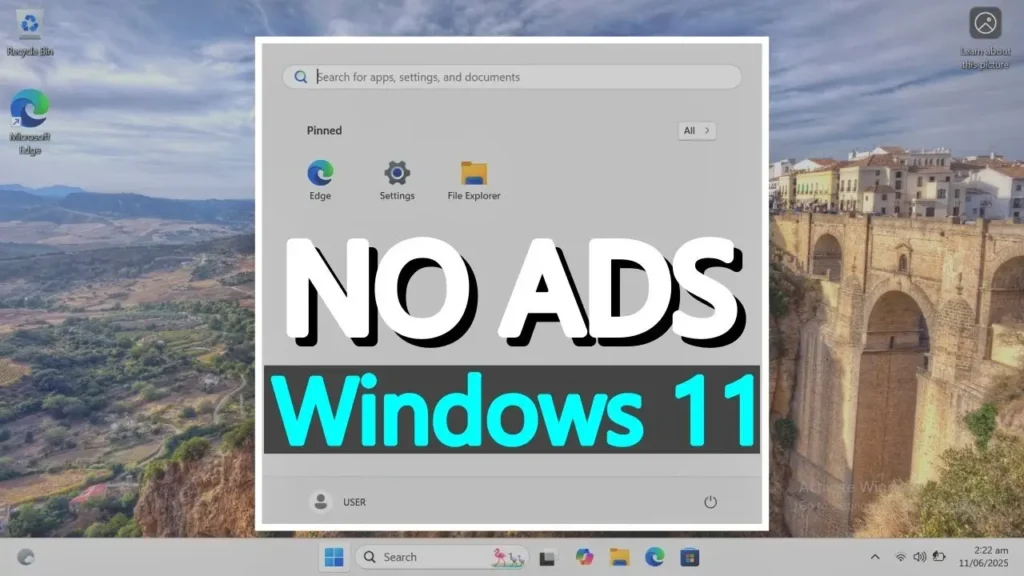
Windows 11 Start menu ads can make a fresh installation feel anything but fresh. You install Windows on your laptop or PC, open the Start menu, and suddenly find shortcuts to apps and services you never asked for.
Netflix, Spotify, and other third-party applications may appear alongside the programs you actually want to use. Some are merely promotional shortcuts rather than fully installed apps, but that doesn’t make them any less annoying.
What if you could prevent some of that clutter before Windows even finishes installing?
There’s a surprisingly simple trick involving just one setting during Windows 11 installation. I’ve demonstrated it on my YouTube channel, and the results were interesting.
But does this trick still work in 2026? And, more importantly, what does it actually remove?
Let’s take a closer look.
The One Windows 11 Installation Setting That Makes a Difference
The trick involves changing the Time and currency format option during Windows 11 setup.
Instead of selecting your usual regional format, choose:
English (World)
That’s it. No registry modifications, complicated PowerShell commands, or third-party debloating scripts.
When I originally tested this method, I selected English (World), completed a clean installation of Windows 11 Pro, and checked the Start menu.
The usual collection of third-party promotional shortcuts was missing.
Of course, I wanted to know whether this was simply because the laptop wasn’t connected to the internet. So I connected to Wi-Fi, downloaded the available Windows updates, and restarted the computer.
After restarting, the Start menu was still free of those promotional shortcuts.
The result was promising, although the test wasn’t a controlled comparison against an otherwise identical installation with a normal regional format.
Important: This trick does not disable every advertisement in Windows 11, and it does not remove all preinstalled Microsoft applications. Its main benefit is reducing the third-party promotional content added during initial setup.
How to Install Windows 11 Without Third-Party Start Menu Ads
If you’re planning a clean Windows 11 installation, here’s how to try the method yourself.
Step 1: Create a Bootable Windows 11 USB Drive
First, you need a bootable USB flash drive containing Windows 11 installation files.
You can create one using Microsoft’s official Media Creation Tool. Another popular option is Rufus, which offers additional installation customization features.
I recommend downloading Windows installation files directly from Microsoft whenever possible.
If you’ve never created a bootable USB drive before, don’t worry. The process is fairly straightforward, and I have a separate video explaining it.
Before continuing, back up your important files. A clean Windows installation can erase your existing operating system, applications, and personal data.
Step 2: Boot Your Computer From the USB Drive
Insert your bootable USB drive into the laptop or desktop PC.
Restart the computer and open its boot menu. Depending on the manufacturer, this may involve pressing F12, F9, Esc, F11, or another designated key immediately after powering on the device.
In my video, I used F12 to access the boot menu.
Select your USB drive and press Enter to launch Windows Setup.
If your computer doesn’t display a boot menu, you may need to change the boot priority in its BIOS or UEFI settings.
Step 3: Select English (World) During Windows Setup
This is the most important part of the entire process.
Once Windows Setup opens, you’ll see the initial language and regional settings.
Find these options:
- Language to install: English (United States), or your preferred installation language.
- Time and currency format: English (World).
Change only the Time and currency format option to English (World).
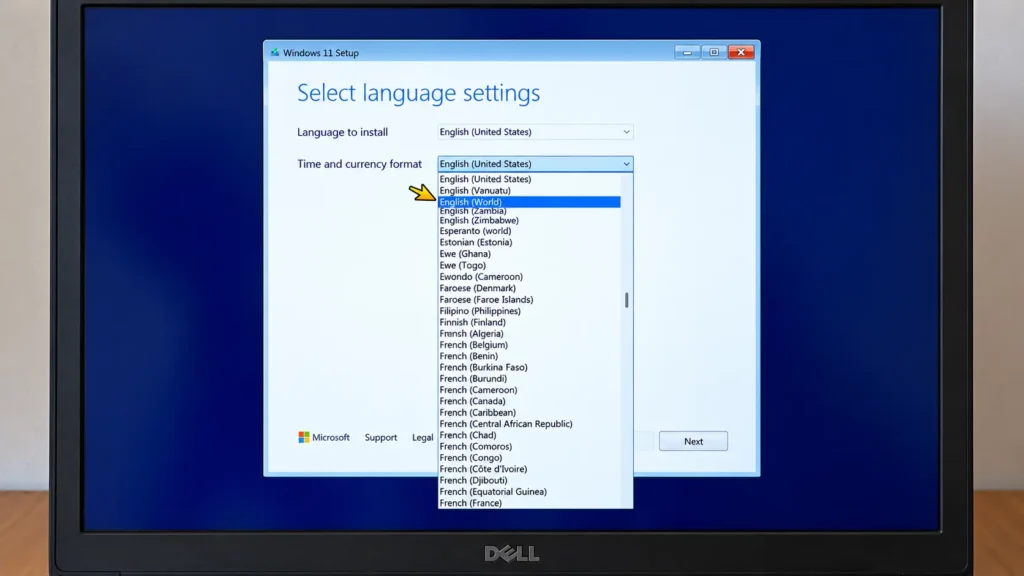
You may also find an English (Europe) option, which has been documented as an alternative.
The exact appearance and order of the setup screens can vary between Windows 11 releases.
After selecting the regional format, click Next and continue with the installation.
The important detail is that we’re changing the regional format during setup, not permanently changing the Windows display language.
Step 4: Complete the Windows 11 Installation
Continue installing Windows 11 normally.
In my original video, I performed a clean installation of Windows 11 Pro and removed the existing partitions from the target SSD before proceeding.
You do not need to delete your partitions specifically to activate the English (World) trick. Partition deletion is part of the clean installation process, not the method itself.
Warning: Deleting a partition permanently removes the data stored on it. If you have multiple drives, carefully identify the correct installation drive before making changes.
During the initial setup experience, Windows might display a regional configuration warning or a “Something went wrong” message. Some users have been able to continue using a Skip option.
However, do not automatically ignore installation errors. Make sure any warning concerns regional configuration rather than a storage, licensing, or hardware problem.
Finish the setup using the account and network options available for your Windows edition.
Step 5: Check Your Windows 11 Start Menu
Once Windows reaches the desktop, open the Start menu.
Look at the pinned applications and check whether the usual third-party promotional shortcuts are present.
In my original test, they were absent.
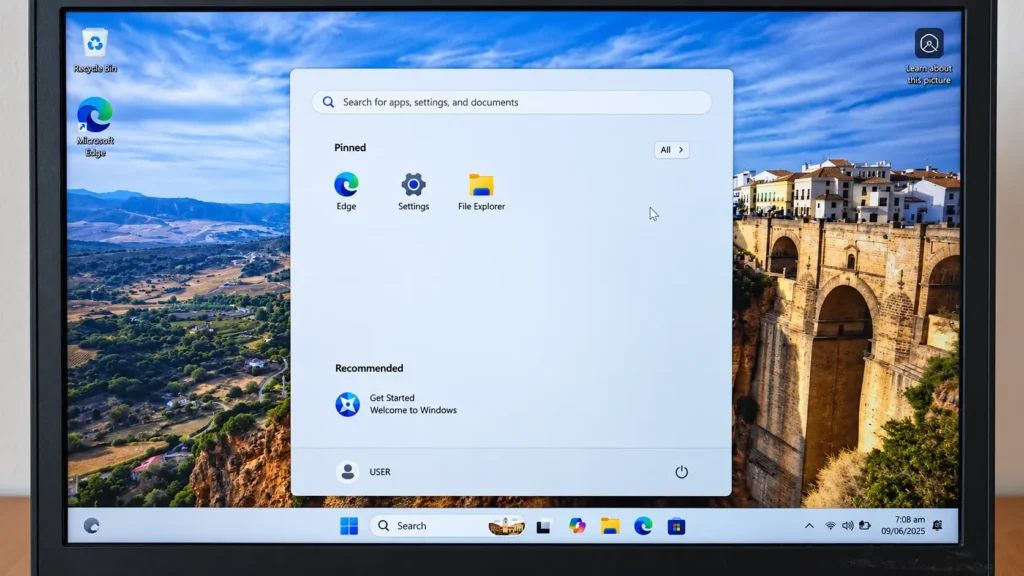
I then connected the laptop to Wi-Fi, installed the available Windows updates, and restarted it.
The Start menu remained clean after the restart.
That was the most interesting part of the experiment. It suggested that the result wasn’t simply caused by leaving the computer offline.
However, your results may depend on the Windows build, installation image, regional configuration, and any additional manufacturer customization.
Why Does English (World) Affect Windows 11 Start Menu Ads?
Windows 11 can customize parts of its initial setup experience based on regional information.
That includes certain promotional shortcuts and app suggestions.
By selecting English (World), Windows may avoid applying some of the region-specific promotional content that would otherwise appear in the Start menu.
Microsoft’s technical documentation confirms that Windows 11 Start menu layouts can include Microsoft-defined apps, dynamically delivered applications, and manufacturer-configured items.
The important distinction is that an app icon in the Start menu doesn’t necessarily mean the complete application has already been installed.
Some promotional entries function as shortcuts that lead to an app download or installation when opened.
This helps explain why choosing English (World) can make the Start menu look noticeably cleaner without removing the core Windows applications.
It’s also worth noting that Microsoft doesn’t officially promote English (World) as a dedicated ad-blocking feature. This is a setup workaround that takes advantage of how regional configuration affects the initial Windows experience.
Does the English (World) Trick Still Work in Windows 11 2026?
This is where things become more interesting.
As of October 19, 2026, the method remains documented in relatively recent Windows 11 installation guides.
For example, Pureinfotech updated its guide on February 19, 2026, describing how selecting English (World) or English (Europe) can prevent third-party promotional applications from appearing during a clean Windows 11 installation.
However, Microsoft officially released Windows 11 version 26H2 on September 29, 2026.
I haven’t independently repeated my original test using a clean installation of Windows 11 26H2 yet. That means I can’t honestly guarantee that every promotional shortcut will be absent on the newest release.
My original video demonstrates that the trick worked in the installation I tested. The more recent documentation suggests it remains relevant, but a fresh 26H2 test would provide stronger confirmation.
For now, I’d consider it a reasonable option to try when you’re already reinstalling Windows, rather than a guaranteed way to block every advertisement.
What This Trick Does — and Doesn’t — Remove
There is a lot of confusion surrounding the term “Windows bloatware.”
People often use it to describe everything from unwanted app shortcuts to fully installed applications and background services.
The English (World) trick is much more limited.
| Windows 11 feature | Expected result |
|---|---|
| Third-party promotional Start menu shortcuts | May be prevented |
| Region-specific suggested apps during setup | May be reduced |
| Built-in Microsoft applications | Remain installed |
| Microsoft Edge and Microsoft Store | Remain available |
| Advertising and suggestions throughout Windows | Not fully disabled |
| Future promotions or Windows updates | No permanent guarantee |
In other words, this is primarily a cleaner installation trick, not a complete Windows debloating solution.
And that’s perfectly fine. I would rather prevent a few unnecessary shortcuts through a normal setup option than blindly run an aggressive debloating script that might remove something important.
Don’t Forget to Restore Your Regional Settings
After Windows 11 finishes installing, I recommend changing your regional settings back to the country where you actually live.
Open:
Settings → Time & language → Language & region
Under the Region section, select your actual country or region and choose the regional format you prefer.
This matters because regional settings can affect date formats, currency formatting, Microsoft Store availability, and other location-dependent features.
You don’t need to keep English (World) selected forever.
Changing your region afterward is part of using this workaround properly, although it doesn’t guarantee that Windows will never introduce new promotional content in the future.
How to Reduce Even More Ads in Windows 11
Even after using the English (World) trick, you may still encounter suggestions and promotional messages elsewhere in Windows.
Fortunately, there are a few additional settings worth checking.
Turn Off Personalized Offers
Open Settings → Privacy & security → Personalized offers.
Look for the option that allows Windows to provide personalized tips, advertisements, and recommendations based on your activity.
Turn it off if you don’t want that type of personalization.
Review Windows Advertising ID Settings
Navigate to:
Settings → Privacy & security → Recommendations & offers
Look for the setting that allows applications to use your advertising ID for personalized ads.
Disabling it can reduce advertising personalization.
One important detail: Microsoft explicitly states that turning off the advertising ID does not necessarily reduce the number of ads. It mainly changes how ads are personalized.
Customize Start Menu Recommendations
Open Settings → Personalization → Start.
Review the available recommendation settings and disable the suggestions you don’t find useful.
You can also right-click unwanted pinned applications and select Unpin from Start.
The exact recommendation controls may vary depending on your Windows 11 version.
These changes won’t completely eliminate every promotional message, but they give you more control over your Windows experience without modifying system files.
What If Windows 11 Is Already Installed?
Here’s something worth mentioning: I wouldn’t reinstall Windows just to use this trick.
If your system is already running perfectly fine, a clean installation is probably unnecessary.
You can manually unpin unwanted shortcuts, uninstall applications you don’t use, and adjust the recommendation settings described above.
The English (World) method makes the most sense when you’re already preparing a fresh installation — perhaps after replacing an SSD, buying a used laptop, or setting up a new PC.
In those situations, changing one option during setup takes almost no additional effort.
Frequently Asked Questions
Does English (World) remove all Windows 11 ads?
No. It primarily helps avoid certain third-party promotional shortcuts during the initial installation. Windows can still display recommendations and advertising in other areas.
Does it work on Windows 11 Home and Pro?
The workaround has been documented for both editions. However, the exact installation experience and results can vary depending on the Windows build.
Does it work on Windows 11 26H2?
As of October 2026, I haven’t independently verified the method with a fresh Windows 11 26H2 installation. Earlier Windows 11 guides support the workaround, but results on the latest release shouldn’t be treated as guaranteed.
Will choosing English (World) change my Windows display language?
Not necessarily. The installation language and regional format are separate settings. You can also restore your normal country and regional format after setup.
Can I use this method without third-party debloating software?
Yes. The workaround uses an option available in Windows Setup. You don’t need debloating applications, custom scripts, or registry edits to try it.
Will Windows updates bring the promotional apps back?
My original test showed that the Start menu remained clean after installing updates and restarting. However, future updates, new user profiles, or changes to Microsoft recommendations could introduce different content.
Final Thoughts: Is the English (World) Trick Worth Trying?
I like simple Windows tweaks, especially when they don’t require downloading questionable optimization tools or making unnecessary system modifications.
The English (World) trick is a good example.
In my original test, changing one regional setting during installation resulted in a noticeably cleaner Windows 11 Start menu. The promotional shortcuts were still absent after connecting to the internet, installing updates, and restarting.
That doesn’t make it a universal solution to Windows advertising, and I wouldn’t pretend otherwise.
But if you’re already planning a clean Windows 11 installation, it’s an interesting and relatively straightforward option to try.
Just remember to restore your proper regional settings afterward.
Have you tried the English (World) trick on Windows 11 25H2 or 26H2? Did it work for you? Let me know in the comments, especially if you’ve tested it on a recent build.
Watch My Original Video Tutorial
I also demonstrated this method step by step in my YouTube video, including the Windows installation, internet connection, updates, and final Start menu check.