Zorin OS for old laptops is becoming one of the best alternatives to Windows 10 and Windows 11 for aging hardware. Many users face a dilemma as Windows 10 loses security updates and Windows 11 officially drops support for older hardware. Zorin OS presents a powerful solution, offering a system that often runs faster than Windows 10 or 11 on legacy devices like the Lenovo ThinkPad X240.
Getting Started: Downloading Zorin OS
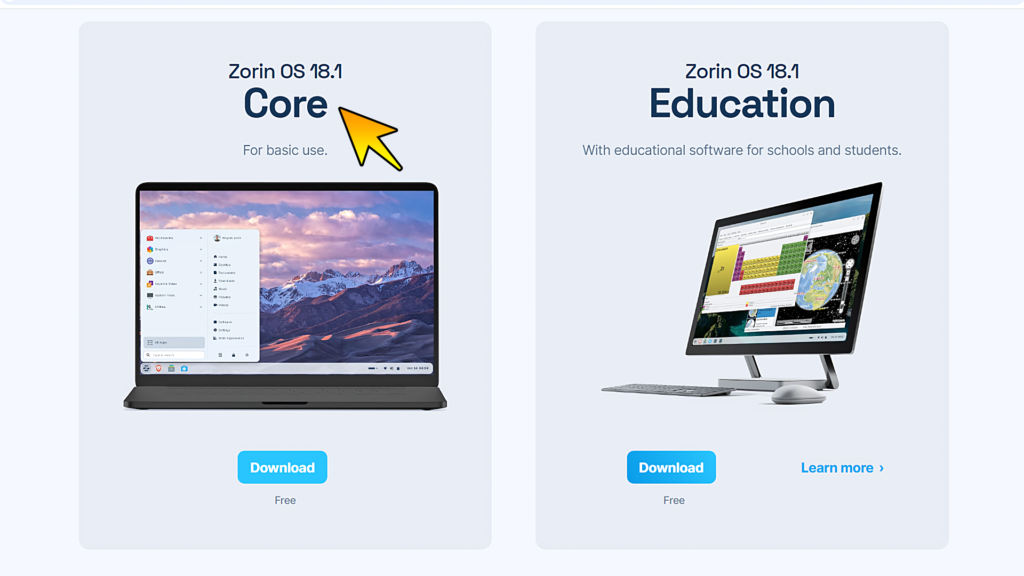
To begin, navigate to zorin.com. You will find several versions available:
- Zorin OS Pro: A paid version with premium layouts and expanded features.
- Zorin OS Core: A free, modern version suitable for most users.
- Zorin OS Education: A free edition pre-loaded with educational software and tools.
- Zorin OS Lite: Specifically designed for very old hardware (e.g., 2GB of RAM) using the XFCE environment.
Note on Desktop Environments: Both Zorin OS Pro and Core editions are based on a heavily customized GNOME desktop environment. This choice ensures maximum stability, modern security features, and seamless integration with a wide range of Linux applications. While GNOME is typically more resource-intensive, the Zorin team has optimized it to feel smooth even on older hardware like the ThinkPad X240. For a modern experience on a laptop with at least 4GB of RAM, Zorin OS Core is recommended.
Preparing the Installation Media
You will need a USB 3.0 flash drive with at least 8GB of space. You can also use a USB 2.0 drive, but be prepared for a significantly longer installation process.
- Download the ISO: Save the Zorin OS ISO to your desktop.
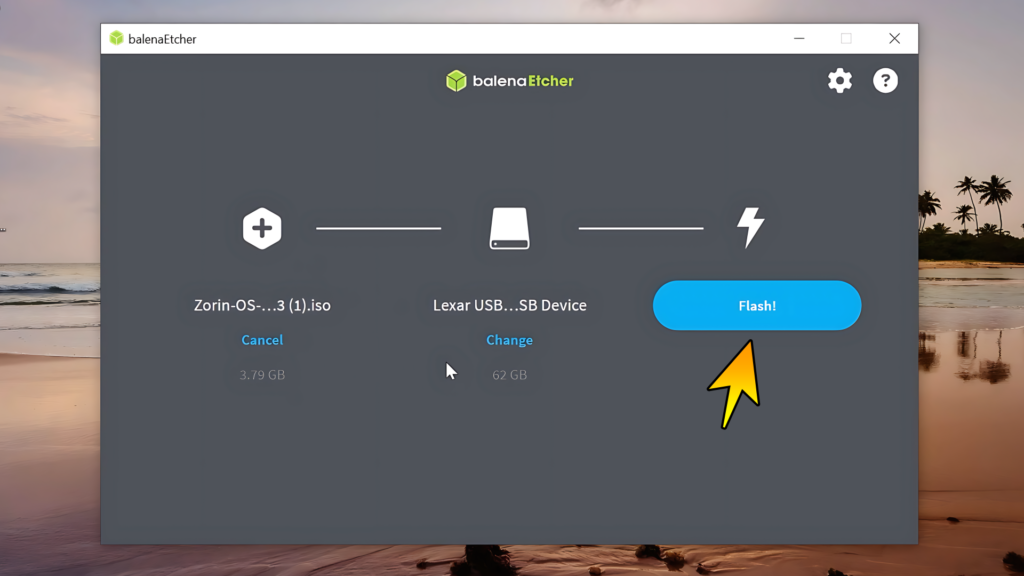
- Download BalenaEtcher: Use this utility to flash the ISO onto your USB stick.
- Flash the Drive: Open BalenaEtcher, select the Zorin ISO, choose your USB drive, and click “Flash.” Warning: This will erase all data on the USB drive.
Installation Steps
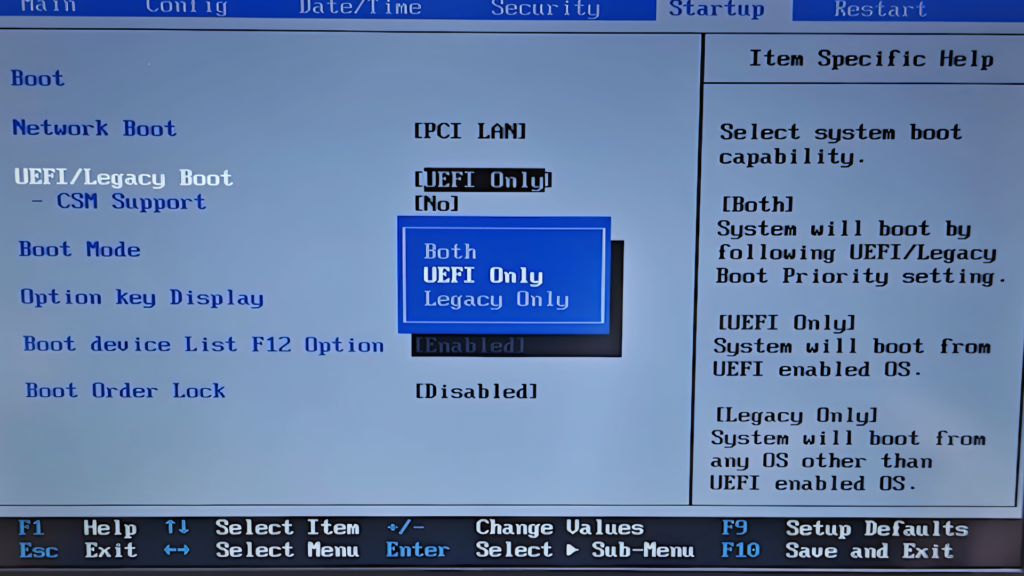
Before booting from the USB drive, enter your laptop’s BIOS (often by pressing F1). However, some devices may require pressing F2, F10, or the Delete key. It is best to check your laptop manufacturer’s website to confirm the exact key for your specific model.
- UEFI Mode: Enable UEFI instead of Legacy mode.
- Secure Boot: Zorin OS supports Secure Boot, but if the USB is not recognized, you may need to disable it.
The Process:
- Insert the USB into a fast USB 3.0 port and boot the laptop, pressing the boot menu key (e.g., F12).
- Select “Try or Install Zorin OS.”
- Connect to Wi-Fi to ensure you receive security updates during installation.
- Select “Erase disk and install Zorin OS” for a clean installation.
- Set your username and a secure password.
Features and Customization
Zorin OS is designed to feel familiar to Windows users.
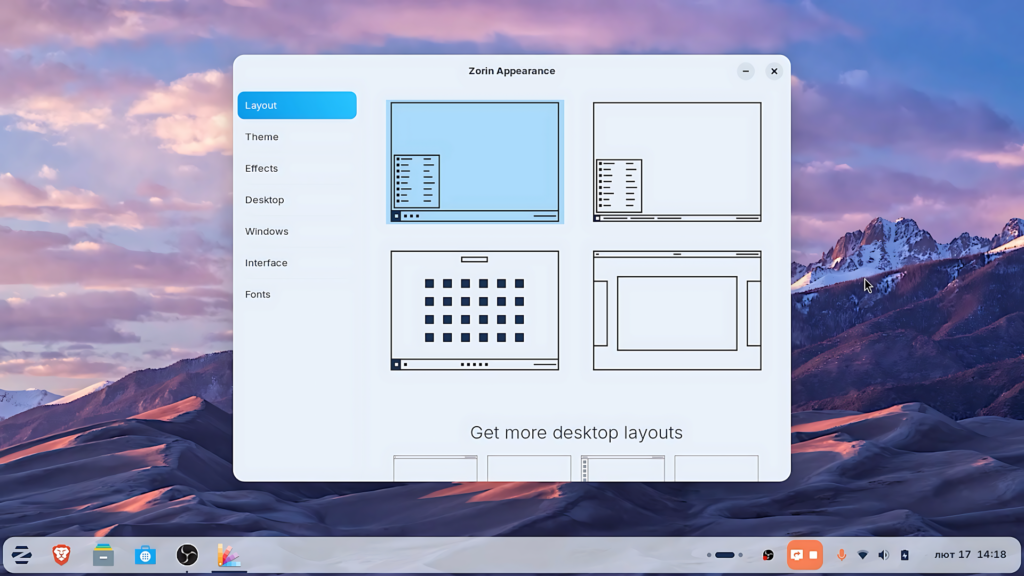
- Zorin Appearance: This tool lets you change the desktop layout with one click to resemble Windows 7, Windows 10, or even a layout similar to Chrome OS Flex.
- Activities Overview: Pressing the “Super” (Windows) key allows you to switch between open applications seamlessly, similar to a mobile OS. Optionally, you can remap this key to open the classic Zorin Menu instead, providing a more traditional Windows-like experience.
- System Monitor: On older hardware, Zorin OS Core typically uses about 2GB of RAM, making it lighter than modern Windows versions.
Running Windows Applications
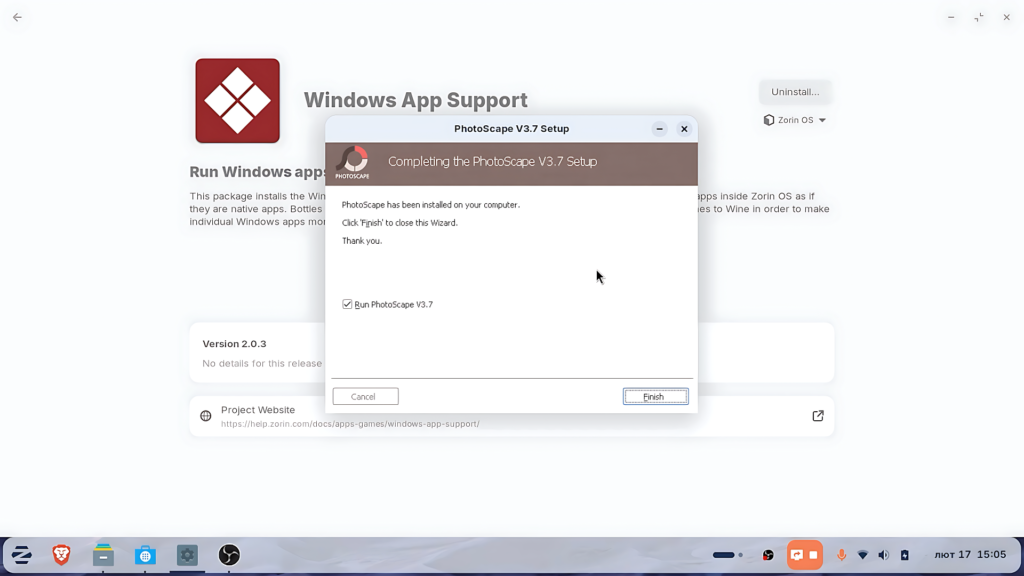
Zorin OS includes Windows App Support, which uses a compatibility layer (Wine) to run .exe files.
- Light Apps: Programs like PhotoScape 3.7 can be installed and run almost natively.
- Limitations: Complex utilities like Rufus may not work perfectly because they require direct hardware access that the compatibility layer sometimes restricts.
- Native Alternatives: For the best performance, use the built-in “Software” store to find Linux-native apps like Kdenlive (a free alternative to Adobe Premiere Pro).
Pros and Cons
| Advantages | Disadvantages |
| Privacy: Does not track or collect personal data. | Professional Software: Adobe Creative Cloud and AutoCAD do not run on Linux. |
| Speed: Lighter on CPU and RAM; stays cooler. | Gaming: Games with kernel-level anti-cheat (e.g., Call of Duty, Roblox) will not run. |
| User Control: You decide when to install updates. | Hardware: Some old printers or fingerprint scanners may require terminal fixes. |
| Zorin Connect: Sync your phone to use it as a remote or track notifications. | Learning Curve: While it looks like Windows, it is a different system. |
Zorin OS is a “best bridge” for those wanting to escape Windows without losing the ability to run essential apps. It breathes new life into aging hardware, making a 10-year-old laptop feel modern and snappy again.