Clicking or beeping hard drive sounds can appear suddenly and without warning.
One day everything works normally, and the next moment your HDD starts:
- clicking;
- beeping;
- spinning strangely;
- or not working at all.
In situations like this, many people panic because important files may still be stored on the drive:
- family photos;
- work documents;
- old projects;
- game saves;
- videos;
- or backups.
The good news is that in some cases, data recovery may still be possible.
However, it is extremely important to understand that opening a hard drive is risky and should only be considered as an absolute last resort after safer methods have failed.
In this guide, I will explain:
- what clicking and beeping sounds may mean;
- safer troubleshooting steps to try first;
- why opening a hard drive is dangerous;
- and when professional data recovery is the better option.
Important Warning Before You Continue
Modern hard drives are extremely sensitive devices.
Inside every HDD are:
- spinning platters;
- read/write heads;
- precision mechanical components;
- and microscopic tolerances.
Even tiny dust particles can damage the platter surface and permanently destroy data.
Professional data recovery companies use:
- clean rooms;
- filtered air environments;
- specialized tools;
- and professional imaging hardware.
Because of this, opening a hard drive outside a proper clean room environment always carries serious risk.
This article is intended for:
- educational purposes;
- troubleshooting guidance;
- and emergency last-resort situations only.
If your data is extremely valuable, irreplaceable, or business-critical, using a professional data recovery service is strongly recommended before attempting any physical repair.
Everything you do is entirely at your own risk.
I also made a video demonstrating this recovery attempt in practice. Please remember that opening a hard drive should only be considered as a last-resort option after safer troubleshooting methods have failed.
If your data is extremely important, professional data recovery is always the safer choice.
Common Signs of a Failing Hard Drive
A failing HDD may show several warning signs before it stops working completely.
Some of the most common symptoms include:
- clicking noises;
- beeping sounds;
- repeated spin-up attempts;
- grinding sounds;
- extremely slow file access;
- random freezing;
- disappearing from BIOS;
- corrupted files;
- or Windows failing to boot.
Different sounds can indicate different hardware problems.
What Does a Clicking Hard Drive Mean?
A clicking hard drive is one of the most common HDD failure symptoms.
This is sometimes called:
The Click of Death
In many cases, clicking may indicate:
- damaged read/write heads;
- head positioning problems;
- firmware issues;
- spindle motor problems;
- or platter damage.
Sometimes the heads repeatedly attempt to recalibrate but fail, creating the characteristic clicking sound.
Unfortunately, persistent clicking is often a sign of serious hardware failure.
What Does a Beeping Hard Drive Mean?
Beeping sounds are usually different from clicking.
A beeping HDD may indicate:
- insufficient power;
- a seized spindle motor;
- stuck read/write heads;
- mechanical resistance inside the drive.
This is especially common on:
- older laptop drives;
- portable external HDDs;
- or drives that experienced physical shock.
Sometimes the platters cannot spin properly because the heads are physically stuck.
Stay Calm and Avoid Common Mistakes
When a hard drive suddenly fails, many users panic.
However, there are several things you should NOT do.
Avoid:
- hitting the drive;
- shaking it aggressively;
- pressing the casing;
- repeatedly reconnecting power dozens of times;
- or forcing the drive to continue spinning for hours.
These actions may worsen mechanical damage and reduce the chances of successful recovery.
Remaining calm is important because every unnecessary action may increase the risk of permanent data loss.
Safer Things to Try Before Opening the HDD
Before even considering opening a hard drive, try safer troubleshooting methods first.
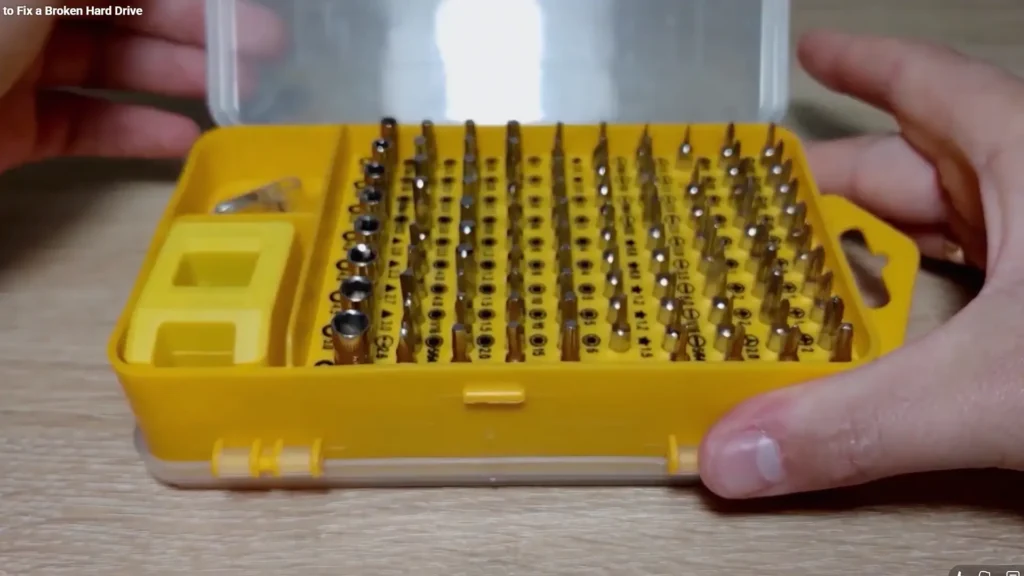
A precision screwdriver kit used for opening small laptop hard drives.In many situations, the problem may not be catastrophic.
Check SATA and Power Connections
A loose cable can sometimes imitate HDD failure symptoms.
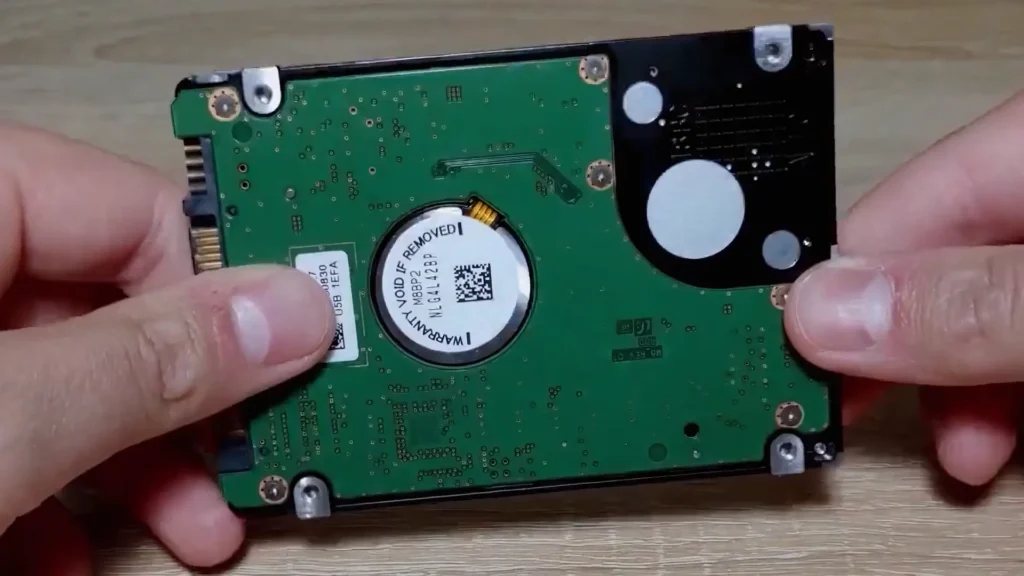
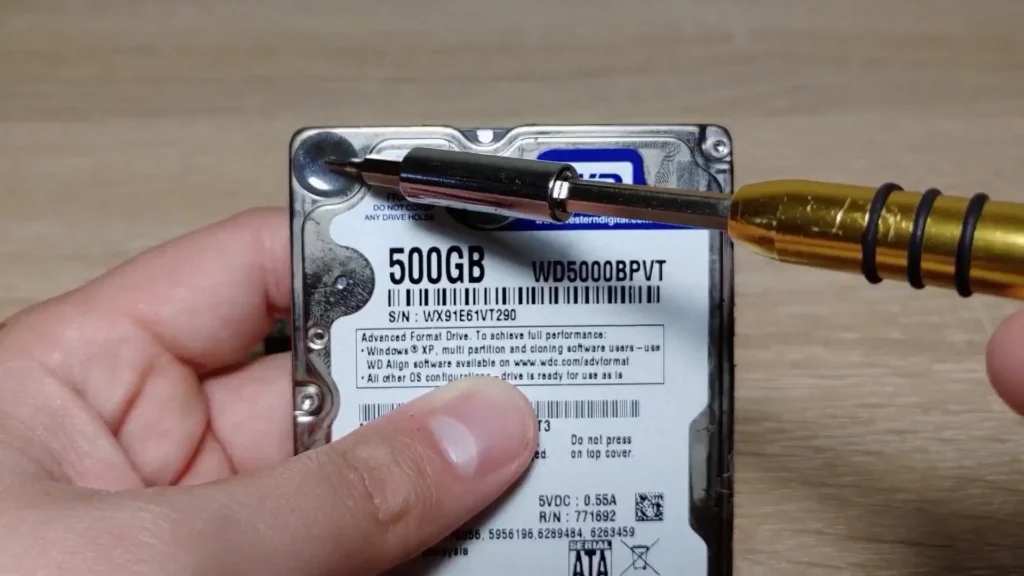
The controller board is located on the back side of the drive.Try:
- another SATA cable;
- another USB adapter;
- another power connector;
- or another computer entirely.
External drives are especially sensitive to faulty USB cables and insufficient power delivery.
Listen Carefully to the Drive
Different sounds may point to different problems.
For example:
- repeated clicking often suggests head issues;
- quiet beeping may suggest spindle resistance;
- grinding sounds may indicate internal mechanical damage.
Do not repeatedly power cycle the drive if it makes severe grinding noises.
Check if the Drive Appears in BIOS
Restart the computer and enter BIOS or UEFI.
If the drive:
- appears inconsistently;
- disappears randomly;
- or is not detected at all,
this may indicate either:
- hardware failure;
- firmware corruption;
- or power-related issues.
Try Reading SMART Data
If the drive still partially works, immediately check SMART health information using tools such as:
- CrystalDiskInfo;
- Hard Disk Sentinel;
- smartmontools.
Warning signs include:
- bad sectors;
- reallocated sectors;
- pending sectors;
- read errors;
- or critical SMART warnings.
If the drive is still readable, backup your files immediately.
Backup Important Files Immediately
This is the single most important step.
If the drive suddenly starts working again:
- do not continue testing it;
- do not run stress tests;
- do not keep using it normally.
Immediately:
- copy important files;
- create a full disk image;
- or clone the drive.
A failing HDD may stop working permanently at any moment.
Why Opening a Hard Drive Is Extremely Risky
Many online videos show people opening HDDs at home.
However, most modern hard drives are not designed to be opened outside professional recovery environments.
Inside the drive:
- platters spin at very high speeds;
- read/write heads float extremely close to the platter surface;
- even microscopic contamination can cause damage.
Opening a drive in a normal room may introduce:
- dust;
- hair;
- fingerprints;
- moisture;
- or static electricity.
Any of these can permanently damage the platters.
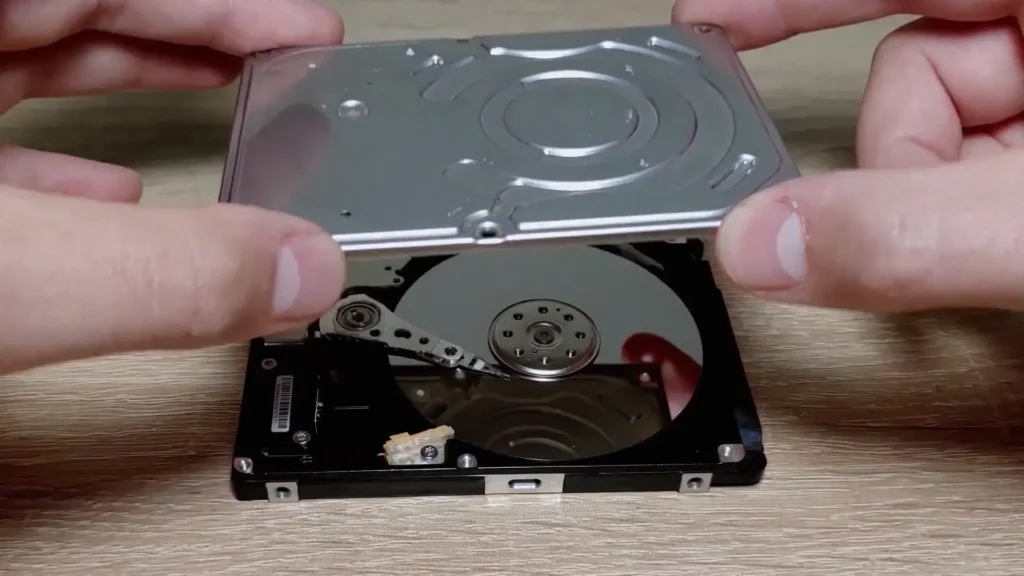
Opening a hard drive outside of a clean environment can permanently damage the drive.This is why professional recovery labs use:
- clean room environments;
- anti-static equipment;
- and specialized tools.
What Are Stuck HDD Heads?
In some HDD failures, the read/write heads become stuck and cannot return to their normal parked position.
This may happen because of:
- sudden power loss;
- physical shock;
- worn components;
- or mechanical failure.
When this happens, the platters may struggle to spin properly.
In certain rare situations, carefully repositioning the heads may temporarily allow the drive to spin again.
However, this procedure is extremely risky and can permanently destroy the drive if done incorrectly.
Because of this, it should never be treated as a guaranteed repair method.
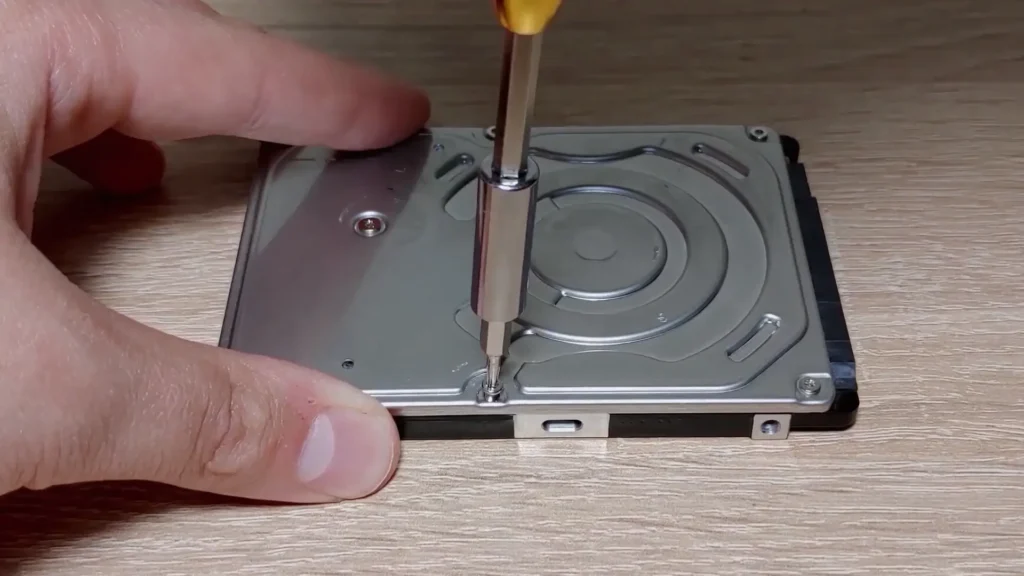
Most laptop hard drives use tiny Torx screws.Can Opening an HDD Sometimes Help Recover Data?
In some emergency situations, users have temporarily recovered access to their data after opening a drive and addressing mechanical issues.
However, it is important to understand:
- this is not a proper repair;
- success is never guaranteed;
- and the drive may fail again immediately afterward.
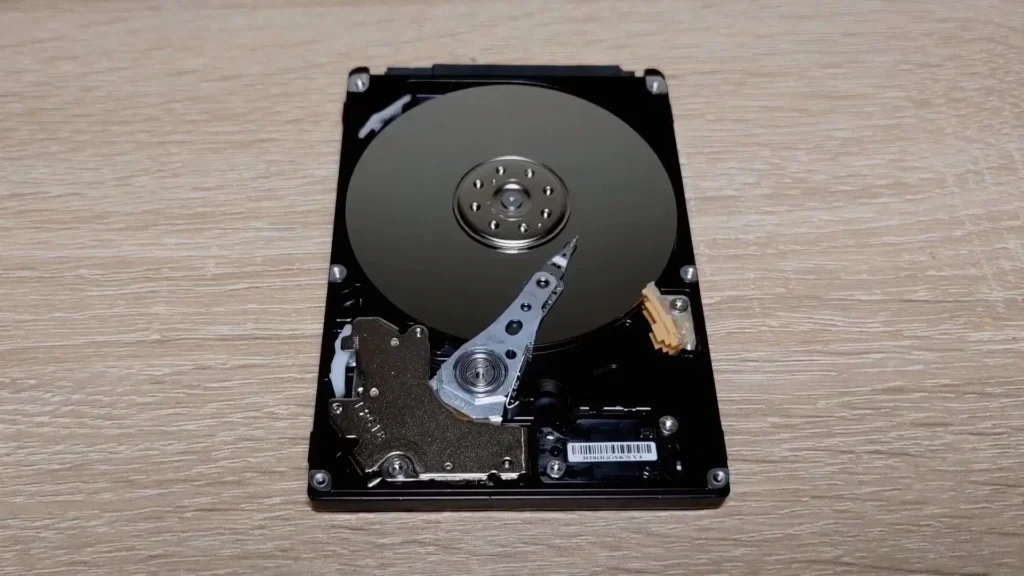
Hard drive platters are extremely sensitive to dust and scratches.Even if the HDD starts working:
- the recovery window may last only minutes;
- or the drive may become unreadable again very quickly.
If you ever regain access to the drive:
backup your data immediately.
Do not:
- install games;
- copy unnecessary files;
- benchmark the drive;
- or continue daily usage.
Focus only on recovering important data.
When Professional Data Recovery Is the Better Choice
Professional recovery services are usually the safest option when:
- the data is extremely important;
- the drive contains family photos or business files;
- the HDD makes severe grinding noises;
- the platters may be scratched;
- or the drive suffered water or fire damage.
Professional labs often have:
- donor parts;
- firmware repair tools;
- clean rooms;
- advanced imaging systems.
Although professional recovery can be expensive, it may offer a much higher chance of successful data recovery.
Why SSDs Are More Reliable for Everyday Use
Traditional HDDs still offer large storage capacity for a lower price, but they contain moving mechanical parts that can wear out over time.
Modern SSDs:
- are significantly faster;
- operate silently;
- generate less heat;
- and are more resistant to physical shock.
While SSDs can also fail, they do not rely on spinning platters or mechanical heads.
Because of this, many users now prefer SSDs for:
- operating systems;
- gaming;
- creative work;
- and important daily storage.
If you are upgrading an older PC or laptop, storage is not the only thing that can improve the overall experience. Proper monitor settings can also make a surprisingly big difference for image quality, eye comfort, and everyday usability.
You can also read my detailed monitor optimization guide.
The Importance of Backups
The best way to avoid catastrophic data loss is simple:
always maintain backups.
A good backup strategy may include:
- external HDD backups;
- SSD backups;
- cloud storage;
- NAS systems;
- or multiple backup copies.
Many people only start thinking about backups after losing important files.
Unfortunately, by that point it may already be too late.
Final Thoughts
A clicking or beeping hard drive does not always mean your data is permanently lost.
Sometimes:
- safer troubleshooting steps;
- cable checks;
- BIOS detection;
- SMART diagnostics;
- or temporary recovery attempts
may still help recover important files.
However, opening a hard drive should always be considered an absolute last resort because of the serious risks involved.
And if the drive suddenly starts working again, your priority should be:
backing up your data immediately.
In the long term, maintaining proper backups and upgrading important systems to SSD storage is usually the safest solution.