Function keys are still extremely useful on modern laptops and keyboards.
They allow you to quickly adjust:
- brightness;
- volume;
- keyboard backlighting;
- media playback;
- and other system controls.
However, many users get frustrated because they constantly need to hold the FN key every time they want to use F1–F12 shortcuts.
The good news is that many modern laptops support something called FN Lock, which allows you to use function keys without pressing and holding the FN key every time.
In this guide, I will show you:
- how FN Lock works;
- how to enable or disable it;
- how to change FN behavior through BIOS;
- and what to do if FN Lock does not work on your laptop or keyboard.
What Is FN Lock?
FN Lock is a feature that changes which function is prioritized by default on your keyboard.
Normally, on many laptops:
- F1–F12 keys control multimedia features such as:
- brightness;
- volume;
- media playback;
- keyboard lighting;
- airplane mode.
To use traditional function keys like:
- F2 for renaming files;
- F5 for refreshing pages;
- F11 for fullscreen mode;
- or shortcuts inside professional applications,
you usually need to hold the FN key.
After enabling FN Lock, the keyboard prioritizes traditional F1–F12 behavior by default.
On many laptops, multimedia controls will then require holding FN instead.
It is also important to understand that on many laptops, the FN key operates at the hardware or firmware level rather than inside Windows itself. Because of this, FN behavior may vary significantly depending on the laptop manufacturer and keyboard design.
How to Enable FN Lock on Most Laptops
On many laptops, enabling FN Lock is very simple.
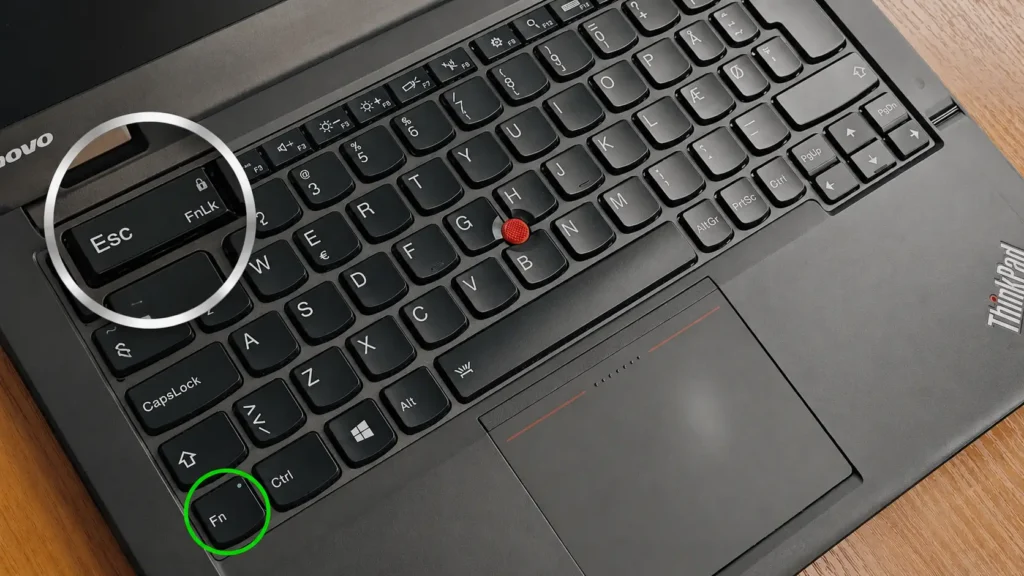
First, locate the FN key on your keyboard.
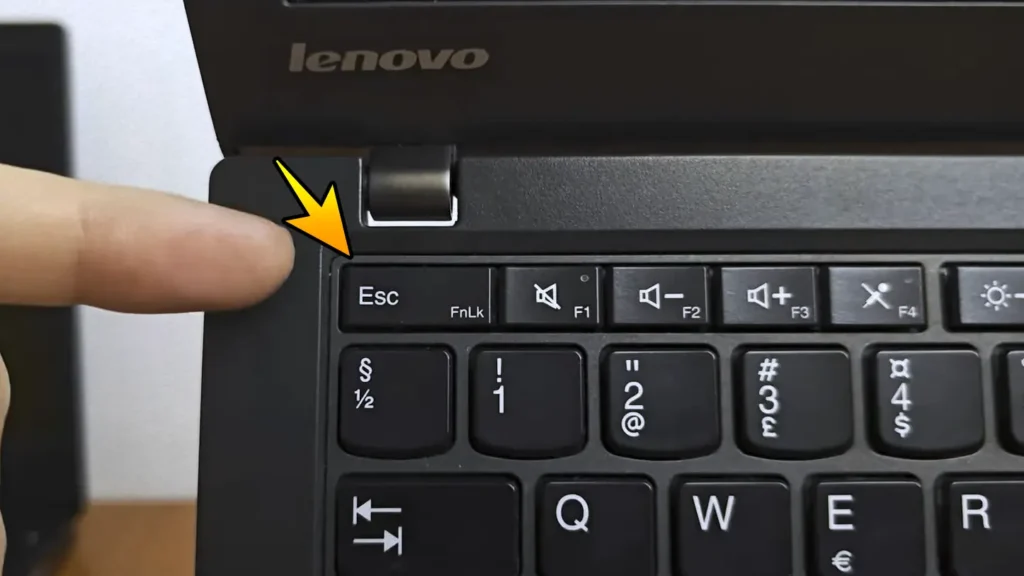
Then look for another key with:
- a small lock icon;
- “FN Lock” symbol;
- or a secondary lock marking.
In many cases, this key is:
- Esc;
- Shift;
- or another function key.
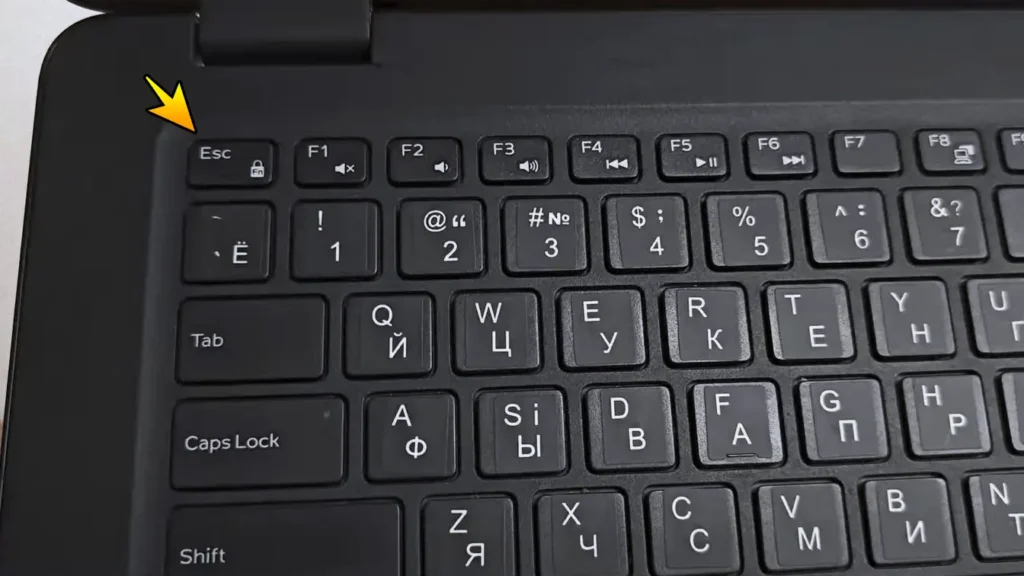
Some laptops include a small lock icon on the Esc key that indicates FN Lock support.On many Dell, Lenovo, ASUS, MSI, and Acer laptops, the shortcut is:
FN + Esc
Press both keys at the same time once.
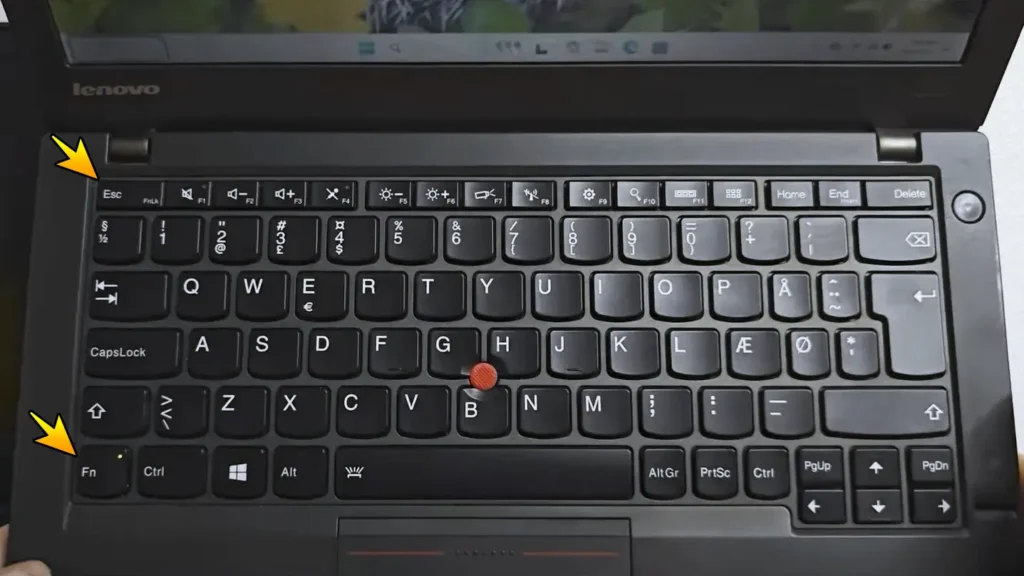
Many Lenovo laptops use the FN + Esc shortcut to enable or disable FN Lock.After that, you should be able to use function keys without holding FN.
For example:
- F2 may rename files directly;
- F5 refreshes pages normally;
- F11 enters fullscreen mode instantly.
To disable FN Lock later, simply press the same shortcut again.
Keep in mind that keyboard layouts and shortcuts vary between manufacturers and laptop generations.
Common FN Lock Methods by Laptop Brand
Different manufacturers use different FN Lock methods.
| Brand | Common FN Lock Method |
|---|---|
| Dell | FN + Esc |
| Lenovo | FN + Esc |
| ASUS | FN + Esc |
| MSI | FN + Esc |
| Acer | FN + Esc or BIOS |
| HP | BIOS or Action Keys Mode |
| Huawei | FN + Esc |
Some laptops may not support FN Lock shortcuts at all.
In those situations, changing FN behavior through BIOS or manufacturer software may be required instead.
Why Function Keys Sometimes Stop Working Normally
Many users accidentally enable FN Lock and then wonder why their keyboard behaves differently.
For example:
- F11 may stop opening fullscreen mode directly;
- F2 may no longer rename files normally;
- browser shortcuts may behave differently;
- some shortcuts inside games or creative applications may stop working as expected.
Instead of prioritizing traditional F1–F12 commands, the laptop starts prioritizing:
- brightness controls;
- volume controls;
- media shortcuts.
This is completely normal behavior on many modern laptops.
If your laptop brightness controls also behave strangely, you can also check my detailed guide about laptop and monitor display settings.
How to Disable FN Lock
If you want your keyboard to return to its original multimedia-focused behavior:
- Press the FN Lock shortcut again.
- Usually this means:
- FN + Esc;
- or another manufacturer-specific combination.
After disabling FN Lock:
- multimedia controls work directly again;
- traditional F1–F12 shortcuts may require holding FN.
How to Change FN Key Behavior in BIOS
Some laptops allow you to permanently change FN key behavior through BIOS or UEFI settings.
This is especially common on:
- HP;
- Lenovo;
- Dell;
- ASUS business laptops.
How to Access BIOS
Usually:
- Restart the laptop.
- Press:
- F2;
- Delete;
- F10;
- or Esc during startup.
The exact key depends on your laptop manufacturer.
Inside BIOS, look for settings such as:
- Function Key Behavior;
- Action Keys Mode;
- Hotkey Mode;
- FN Lock.
BIOS interfaces vary significantly between manufacturers and laptop generations, so the wording may look slightly different on your system.
You will usually see options similar to these:
Multimedia Mode
Function keys prioritize:
- brightness;
- volume;
- media controls.
Function Key Mode
F1–F12 behave as traditional function keys by default.
BIOS settings may provide more permanent control over FN key behavior compared to temporary keyboard shortcuts.
FN Lock on External Keyboards
External keyboards work differently depending on the manufacturer and firmware design.
Some keyboards:
- fully support FN Lock;
- allow remapping function keys;
- include dedicated software customization tools.
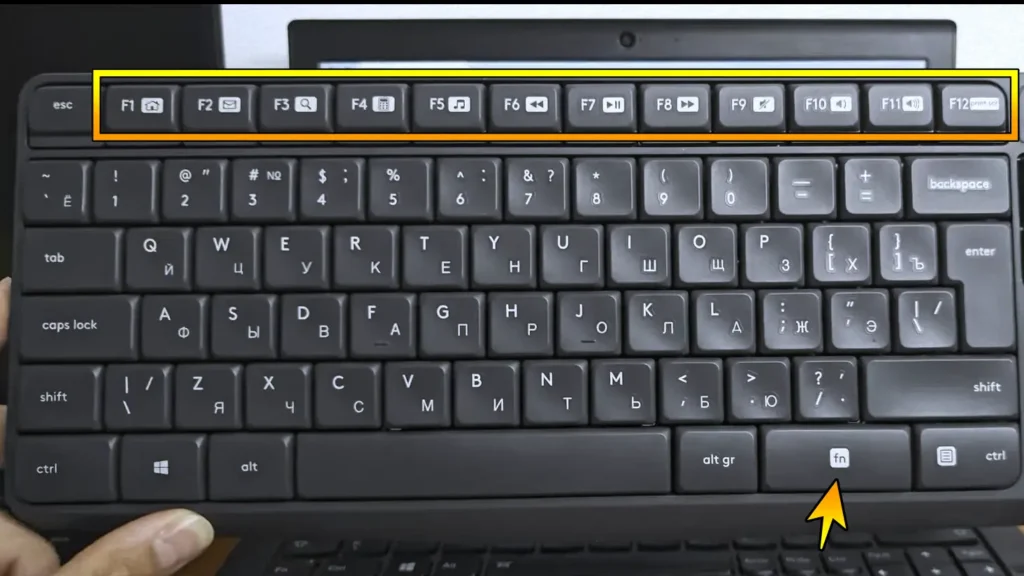
Others do not support FN Lock functionality at the firmware level.
For example, some Logitech keyboards allow users to modify function key behavior using:
- Logitech Options;
- Logitech Options+.
Gaming keyboards may also include:
- Game Mode;
- Macro Mode;
- custom FN profiles.
Because of this, there is no universal solution that works for every desktop keyboard.
Older Dell Laptops and Windows Mobility Center
Some older Dell laptops included additional FN-related controls inside Windows Mobility Center.
Depending on the model, users could sometimes switch between:
- multimedia mode;
- traditional function key mode.
However, this feature is not available on all systems and is much less common on modern laptops.
FN Lock Not Working? Try These Fixes
If FN Lock does not work properly, try the following solutions.
Restart the Laptop
A simple restart can sometimes restore normal keyboard behavior.
Update Keyboard Drivers
Open:
- Device Manager;
- Keyboards;
- update keyboard drivers.
You can also install drivers directly from your laptop manufacturer’s website.
Check BIOS Settings
Many laptops control FN behavior directly through BIOS or firmware settings.
Verify:
- Action Keys Mode;
- Hotkey Mode;
- Function Key Behavior.
Install Manufacturer Software
Some laptops require proprietary software for full keyboard functionality.
Examples include:
- Lenovo Vantage;
- ASUS Armoury Crate;
- Dell Optimizer;
- HP Support Assistant.
These applications may affect hotkey behavior.
Disable Gaming Mode
Some gaming keyboards disable certain shortcuts while Game Mode is enabled.
If you use a gaming keyboard, try disabling Game Mode temporarily.
Try Another Keyboard
If you are using an external keyboard:
- FN Lock support may simply not exist on that specific model.
This is especially common on cheaper office keyboards.
Why Many Users Prefer Traditional Function Keys
Traditional function keys are often more convenient for:
- productivity;
- gaming;
- programming;
- video editing;
- creative software.
Applications such as:
- OBS Studio;
- Adobe Premiere Pro;
- Photoshop;
- browsers;
- development tools,
frequently rely on:
- F2;
- F5;
- F11;
- and other Windows keyboard shortcuts.
Because of this, many advanced users prefer enabling FN Lock permanently.
Final Thoughts
FN Lock is a small feature, but it can make function keys much more convenient for productivity and professional workflows.
Many modern laptops support enabling or disabling FN Lock using a simple keyboard shortcut such as:
FN + Esc
However, some devices may require additional BIOS configuration or manufacturer software.
If your function keys behave differently than expected or require pressing FN every time, enabling FN Lock is usually the first thing worth trying.
And if the shortcut does not work on your laptop, checking BIOS settings is the next logical step.