Introduction
A lot of old laptops are still perfectly usable.
The real problem is usually the operating system.
Modern versions of Windows can feel heavy on older hardware, especially on laptops with weaker CPUs, limited RAM, or older SSDs and hard drives. Over time, background services, startup apps, recommendations, and various extra features slowly make the entire experience feel less responsive.
That is exactly why Chrome OS Flex became so interesting to me.
If you have not installed Chrome OS Flex yet, you can first check my complete Chrome OS Flex installation guide for old laptops.
In my previous setup, I installed Chrome OS Flex on an old ThinkPad to see whether it could bring older hardware back to life. The results were surprisingly good. The system felt lightweight, responsive, and significantly cleaner than a typical Windows installation.
But there was still one major question left:
Can Chrome OS Flex become a real workstation?
Not just a lightweight browser machine, but a laptop capable of handling:
- office work;
- coding;
- lightweight photo editing;
- basic video editing;
- creative software.
The answer is yes — and the key is Linux.
Chrome OS Flex includes a built-in Linux environment that allows you to run real desktop Linux applications inside Chrome OS. That means you can install powerful free software like:
- GIMP;
- Kdenlive;
- LibreOffice;
- Visual Studio Code.
And surprisingly, this setup works very well on older laptops.
In this guide, I will show you how I transformed an old laptop into a lightweight workstation using Chrome OS Flex and Linux.
Important Disclaimer
Before we begin, there are a few important things worth mentioning.
Chrome OS Flex is designed mainly for lightweight computing. While the Linux environment is powerful, it still has limitations compared to a full native Linux installation.
Performance and compatibility can vary depending on:
- your laptop model;
- available RAM;
- CPU performance;
- graphics support;
- SSD or HDD speed.
This setup works best for:
- web browsing;
- office work;
- coding;
- lightweight creative tasks;
- learning Linux;
- reviving older laptops.
It is not designed for:
- heavy 4K editing;
- AAA gaming;
- advanced GPU rendering;
- professional Adobe Creative Cloud workflows.
Also, Linux packages and Chrome OS flags may change over time depending on future Debian or Chrome OS updates.
Still, for many people, this setup can turn an old laptop into something genuinely useful again.
What Is Linux on Chrome OS Flex?
One thing many people do not realize is that Chrome OS Flex can run Linux applications.
Google calls this environment Crostini.
Under the hood, Chrome OS Flex creates a secure Debian-based Linux container. Instead of replacing Chrome OS, Linux runs alongside it in an isolated environment.
That means you get:
- the lightweight feel of Chrome OS;
- access to real desktop Linux applications;
- better flexibility;
- improved security through containerization.
This is one of the reasons Chrome OS Flex is so interesting for older laptops.
You keep the speed and simplicity of Chrome OS while gaining access to professional desktop software that normally would not exist inside a browser-focused operating system.
Why This Setup Works Surprisingly Well on Old Laptops
Older business laptops like ThinkPads are often still very capable machines.
The biggest problem is that modern operating systems and software have become increasingly heavy over the years.
Chrome OS Flex helps solve that problem because:
- the base system is lightweight;
- background activity is lower;
- startup times are fast;
- the interface feels responsive;
- battery life can improve compared to older Windows installations.
Then Linux adds the missing workstation layer.
Instead of relying entirely on browser apps, you can install real desktop software directly inside the Linux environment.
For example:
- GIMP as a free Photoshop alternative;
- Kdenlive for lightweight video editing;
- LibreOffice for offline documents;
- VS Code for development work.
For productivity and lightweight creative tasks, this combination works much better than many people expect.
Before You Start
Before enabling Linux on Chrome OS Flex, there are a few things you should check first.
1. Enable Virtualization in BIOS
The Linux environment depends on hardware virtualization.
On many laptops, this feature is disabled by default.
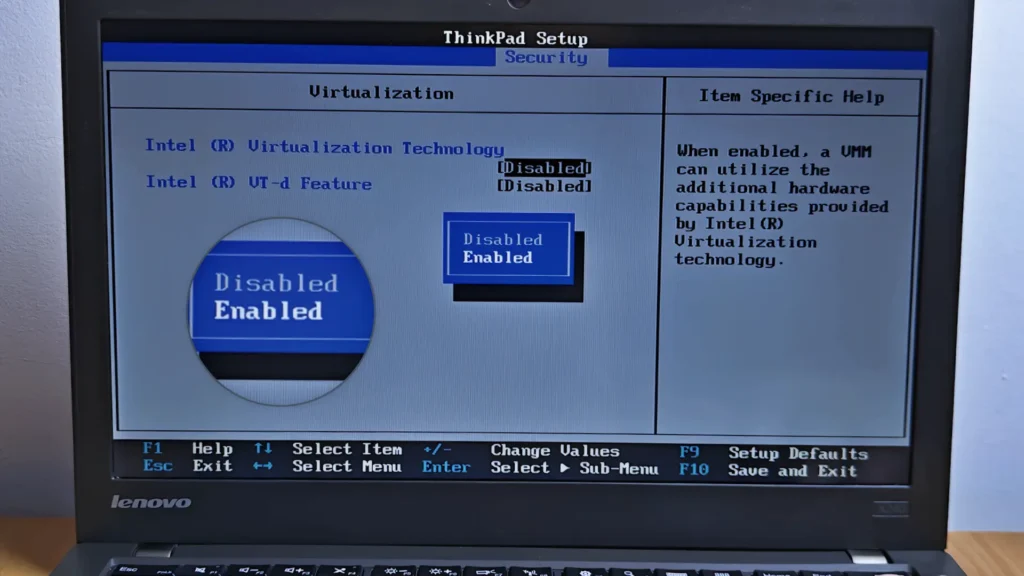
Virtualization must be enabled before Linux can work properly on Chrome OS Flex.For my Lenovo ThinkPad X240, I had to:
- Restart the laptop.
- Press the F1 key repeatedly during startup.
- Open BIOS settings.
- Navigate to the Security section.
- Enable Virtualization Technology (Intel VT-x).
Depending on your laptop manufacturer, the BIOS key may be:
- F1;
- F2;
- F10;
- Delete.
A quick Google search for your laptop model usually helps.
Without virtualization enabled, the Linux environment may fail to start properly.
2. Storage Space Matters
Chrome OS Flex itself is lightweight, but Linux applications still need storage space.
If you plan to install:
- GIMP;
- Kdenlive;
- LibreOffice;
- VS Code;
I strongly recommend allocating:
- at least 10GB minimum;
- ideally 20GB or more.
This gives the Linux environment enough room to breathe long-term.
3. SSD Recommended
Technically, Chrome OS Flex can work on an HDD, but an SSD still makes a huge difference.
Linux applications launch much faster on SSD storage, especially on older laptops.
If you are trying to revive an old machine, upgrading from an HDD to even a cheap SATA SSD can dramatically improve the overall experience.
Enabling Linux on Chrome OS Flex
Activating Linux on Chrome OS Flex is surprisingly easy.
Open:
Settings → About Chrome OS → Developers
There you will find:
Linux Development Environment
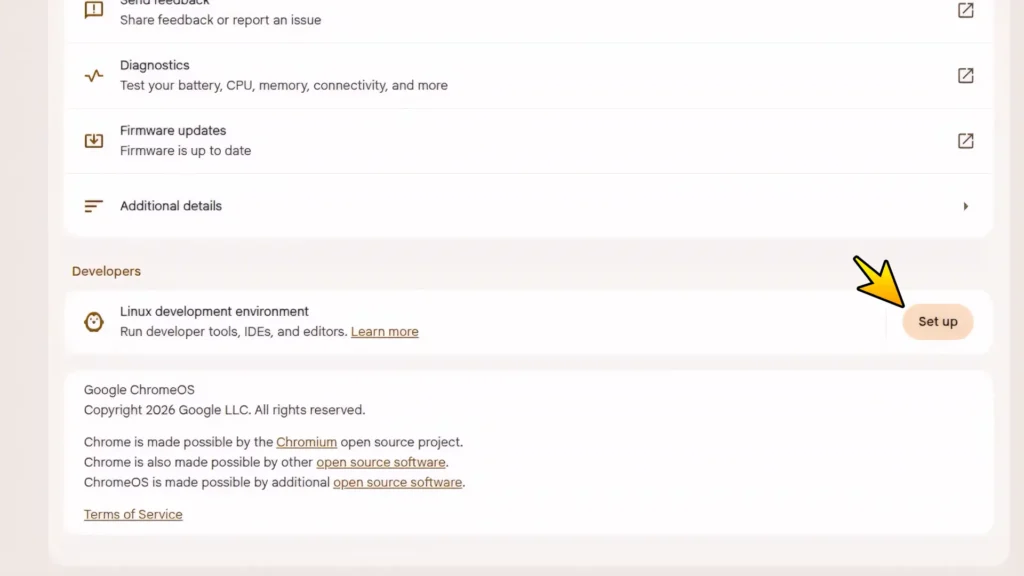
Click:
Set Up
Chrome OS Flex will guide you through the installation process automatically.
You can:
- choose your Linux username;
- select storage size;
- install the Linux container.
For this setup, I allocated around 20GB of space.
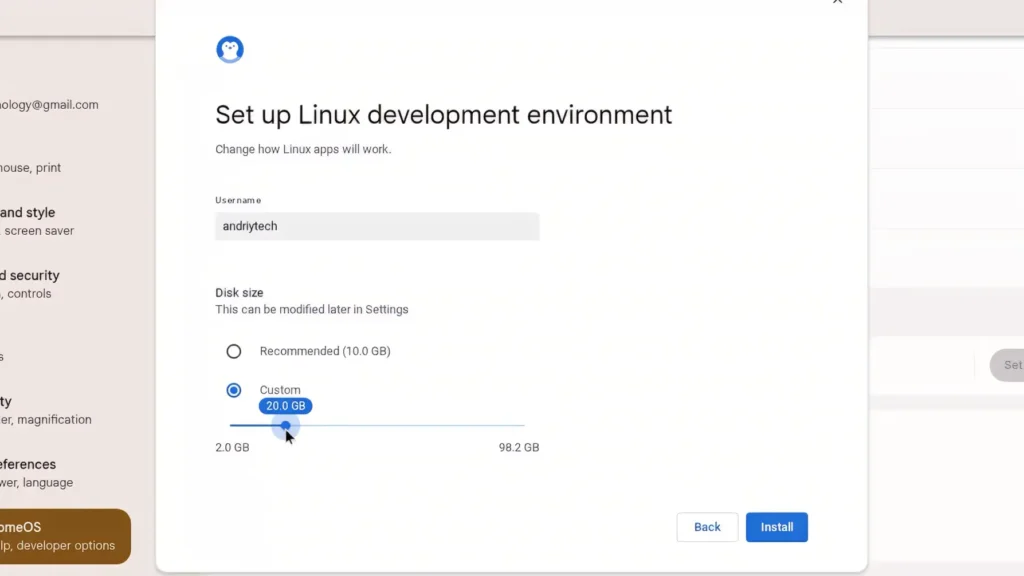
Allocating more storage space helps when installing larger Linux applications.The installation process may take several minutes depending on your hardware and internet speed.
Once completed, the Linux terminal opens automatically.
That is where the real setup begins.
First Terminal Setup
The first time you open the terminal, you may see a warning message related to GPU rendering.
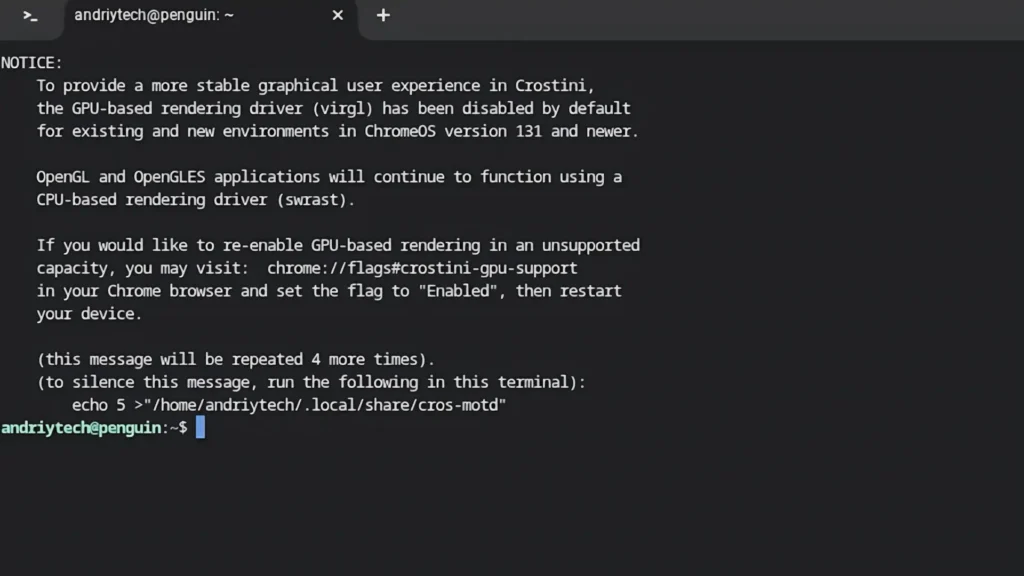
Do not panic.
This is normal on many Chrome OS Flex systems.
To hide the startup notice, run:
echo 5 > "/home/user/.local/share/cros-motd"If you are new to Linux terminals, remember that pasting commands works differently than on Windows. Instead of using the normal Ctrl+V shortcut, you usually need to press:
Ctrl + Shift + Vinside the terminal window.
Alternatively, you can right-click or tap with two fingers on the touchpad to paste commands.
Updating the Linux Environment
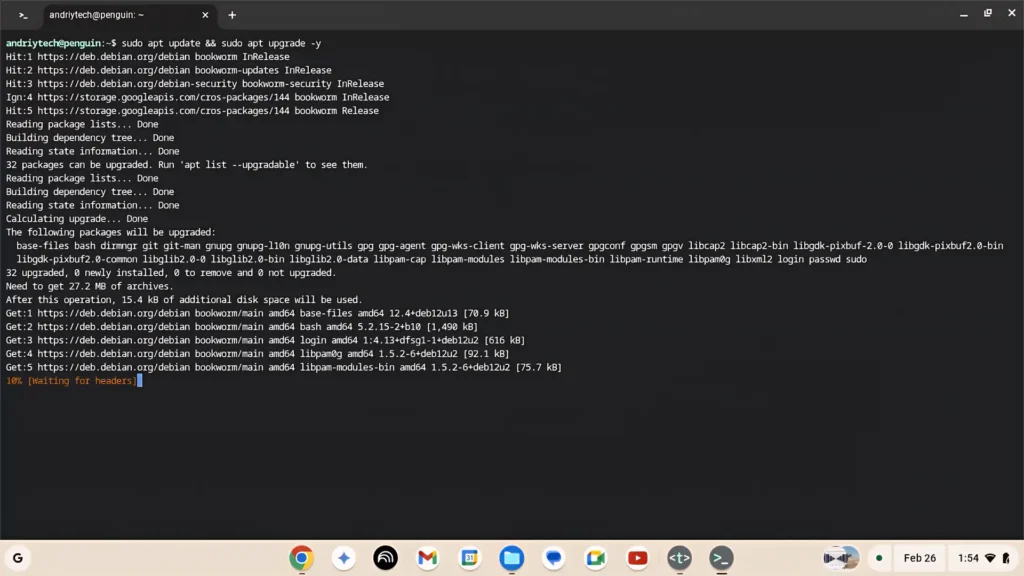
Before installing applications, always update the Linux environment first.
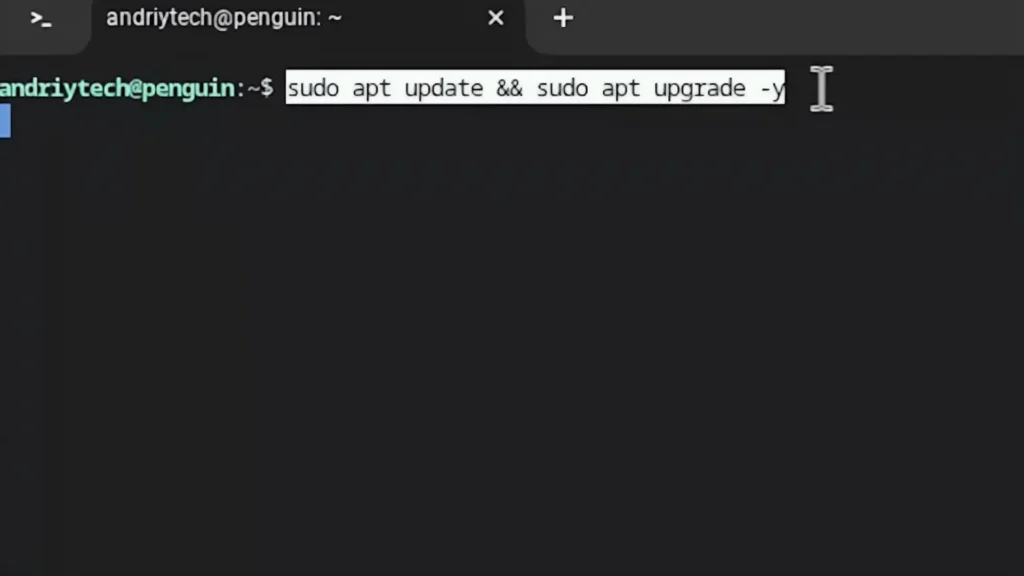
Updating the Linux container helps improve stability and compatibility.Run:
sudo apt update && sudo apt upgrade -yThis synchronizes package lists and installs the latest updates and security fixes available for your Linux container.
Think of this like updating drivers and system components on Windows before installing your main applications.
Enabling GPU Acceleration
One of the most important optimizations is enabling GPU acceleration for Linux applications.
Open Chrome and type:
chrome://flagsSearch for:
Crostini GPU Support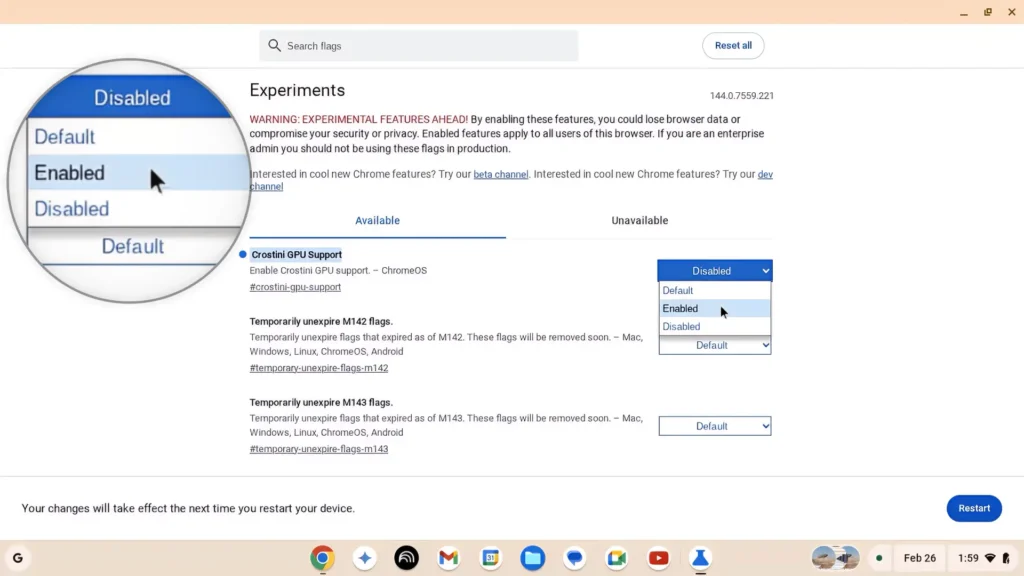
GPU acceleration can noticeably improve Linux application responsiveness.Then switch it to:
Enabled
Restart Chrome OS Flex afterward.
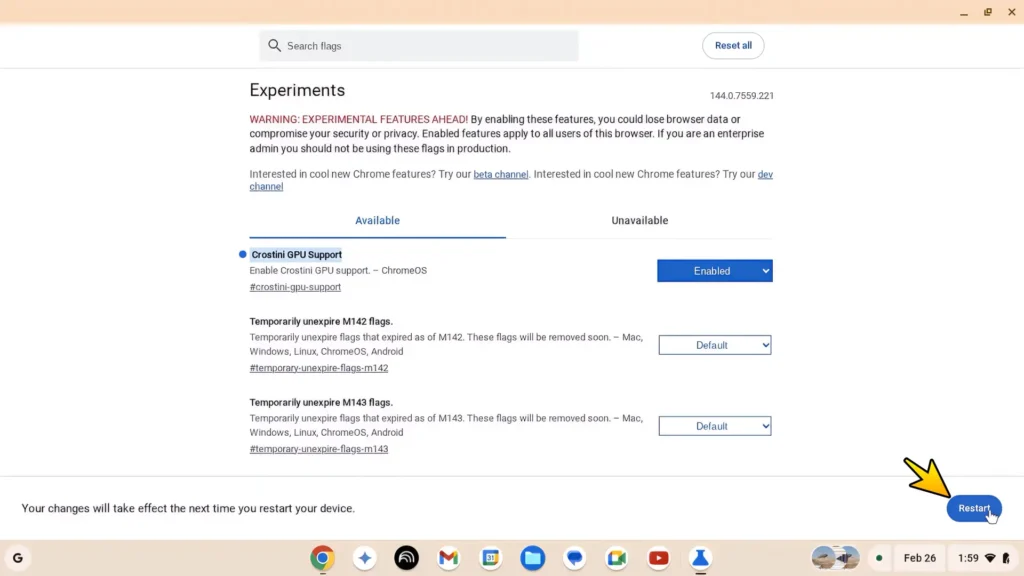
This can noticeably improve:
- interface responsiveness;
- window rendering;
- overall smoothness of Linux applications.
Especially on older hardware, this tweak makes Linux apps feel much more responsive.
Installing Essential Graphics Libraries
To improve compatibility with Linux applications, I also installed several graphics-related libraries.
Run:
sudo apt install mesa-utils libegl1 -yThis package also installs the glxinfo utility that we will use next.
These libraries help Linux applications communicate more properly with your graphics hardware.
To verify GPU detection, run:
glxinfo -BIf your graphics hardware appears under “Device,” everything is working correctly.
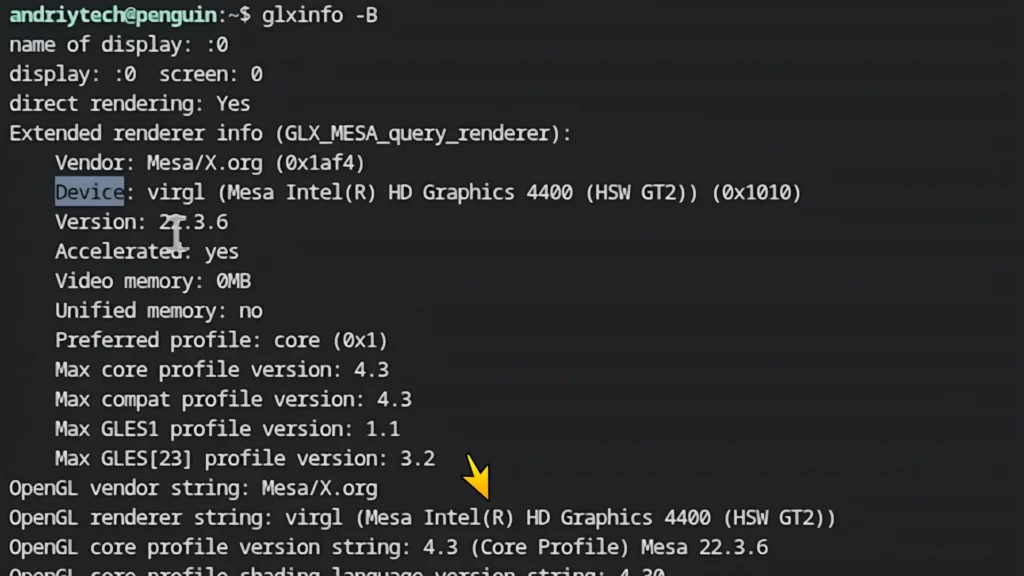
The virgl renderer confirms that GPU acceleration is working properly.Fixing Linux Fonts
One small tweak that immediately improves the visual quality of Linux applications is installing proper fonts.
Without this, some applications can look visually inconsistent or outdated inside Chrome OS Flex.
To install modern fonts, run:
sudo apt install fonts-liberation fonts-roboto -yIt is a tiny adjustment, but it genuinely improves the overall desktop experience.
Why I Installed Visual Studio Code First
Even if you are not a programmer, installing Visual Studio Code is actually a very good system test.
Head to the official VS Code website and download the:
.deb packageversion specifically.
Then install it directly inside the Linux environment.
This helps verify that:
- Linux integration works correctly;
- package installation functions properly;
- desktop applications launch smoothly.
If VS Code launches quickly and feels responsive, your Chrome OS Flex setup is probably in very good shape.
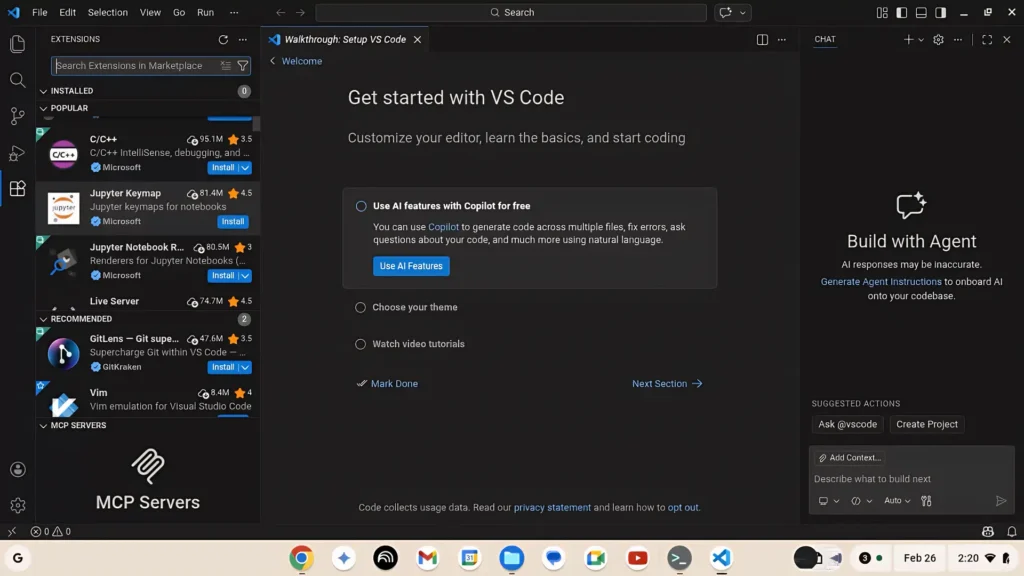
VS Code runs surprisingly smoothly even on older laptops with Chrome OS Flex.Creating a Backup Before Installing Apps
This is one of the most important steps in the entire setup process.
After configuring:
- updates;
- GPU acceleration;
- fonts;
- Linux integration;
I strongly recommend creating a backup.
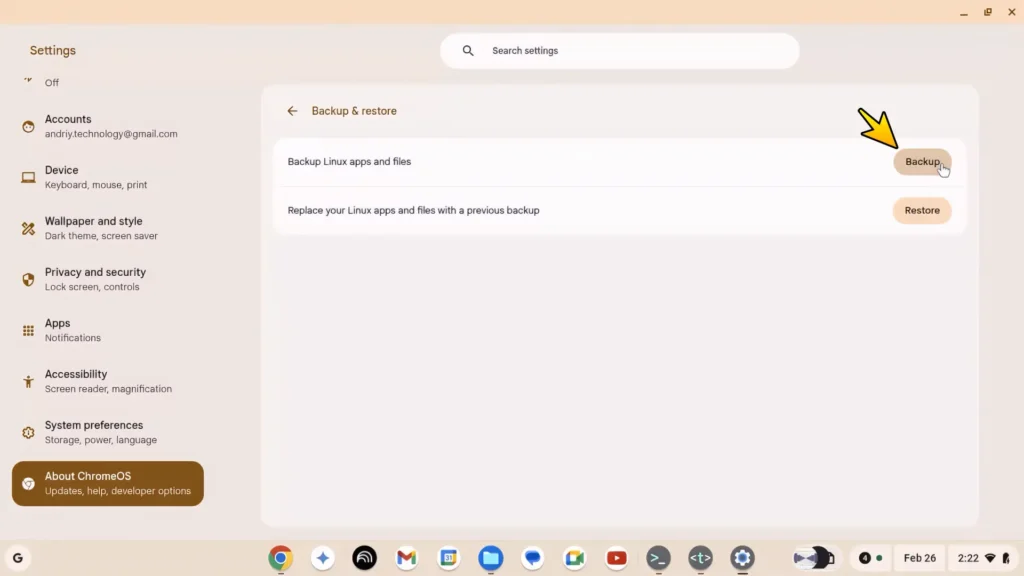
Backups make it much easier to restore your Linux setup later.Go to:
Settings → About Chrome OS → Linux Development Environment → Backup & Restore
Then create a backup file.
This acts almost like a restore point for your Linux workspace.
If something breaks later or you move to another laptop, restoring your Linux environment becomes incredibly easy.
This is easily one of the most underrated features of Chrome OS Flex.
Installing Professional Free Software
Now for the fun part.
This is where Chrome OS Flex transforms from a lightweight browser-focused operating system into a genuinely useful workstation.
GIMP — Free Photoshop Alternative
GIMP is probably the most popular free image editor available on Linux.
It works very well for:
- thumbnail creation;
- basic photo editing;
- graphic design;
- lightweight image manipulation.
Install it with:
sudo apt install gimp -y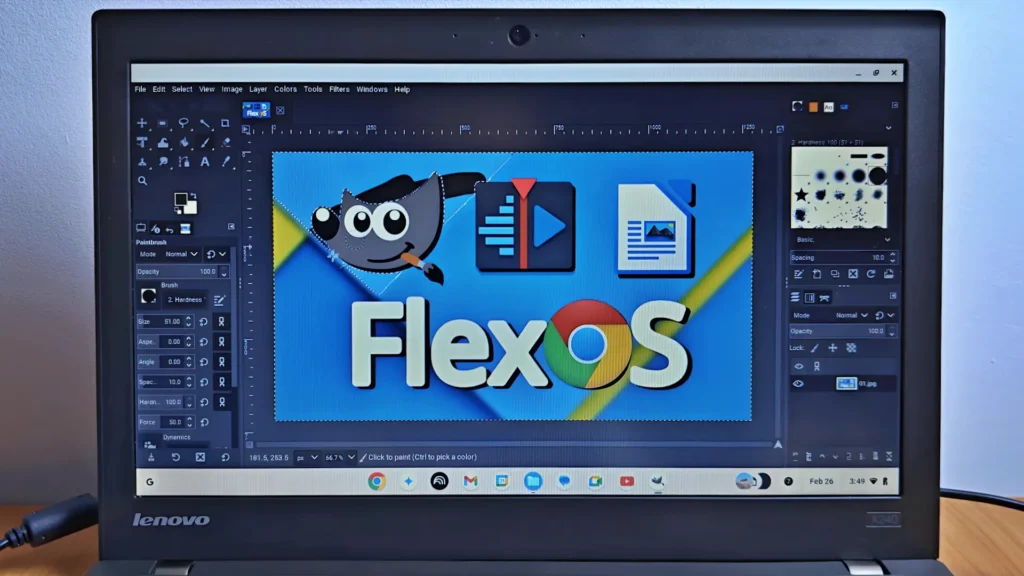
GIMP works surprisingly well for lightweight photo editing on older hardware.After installation, you will find it inside the Linux Apps folder.
While it is not identical to Photoshop, it is surprisingly capable for free software.
Kdenlive — Lightweight Video Editing
For video editing, I installed Kdenlive.
Kdenlive is an open-source non-linear video editor that supports:
- multi-track editing;
- transitions;
- effects;
- timeline-based editing.
Install it with:
sudo apt install kdenlive -yPerformance obviously depends on your laptop hardware, but for lightweight editing and learning video production, it works surprisingly well.
Especially on older ThinkPads, this setup feels much more usable than many people expect.
LibreOffice — Full Offline Office Suite
Web apps are great, but sometimes you still need offline documents.
LibreOffice remains one of the best free office suites available for Linux.
Install it with:
sudo apt install libreoffice -yThis gives you:
- word processing;
- spreadsheets;
- presentations;
- offline document editing.
For older laptops used for school, work, or office tasks, LibreOffice is still an excellent solution.
Important File Management Tip
Linux applications inside Chrome OS Flex use their own isolated file environment.
That means Linux apps may not automatically see files stored in your normal Downloads folder.
The easiest solution is to move project files into:
Linux Files
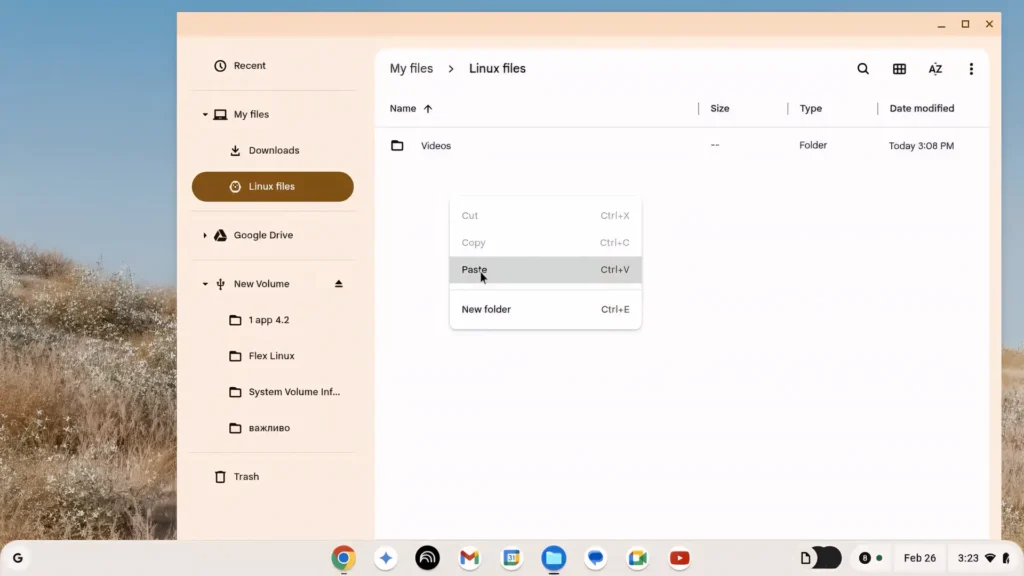
This keeps everything organized and avoids permission-related problems.
Think of Linux as a secure workspace running inside Chrome OS rather than directly replacing it.
Keeping the System Clean
One thing I really like about Linux is how easy it is to properly remove applications.
If you no longer need a program, you can completely remove it using:
sudo apt purge gimp -yThen clean leftover packages with:
sudo apt autoremove -yThis helps:
- free up storage space;
- reduce clutter;
- keep the system lightweight.
On older laptops with smaller SSDs, this matters a lot.
Removing the Entire Linux Environment
If you ever want to start fresh, Chrome OS Flex makes it very easy.
Go to:
Settings → About Chrome OS → Linux Development Environment
Then click:
Remove
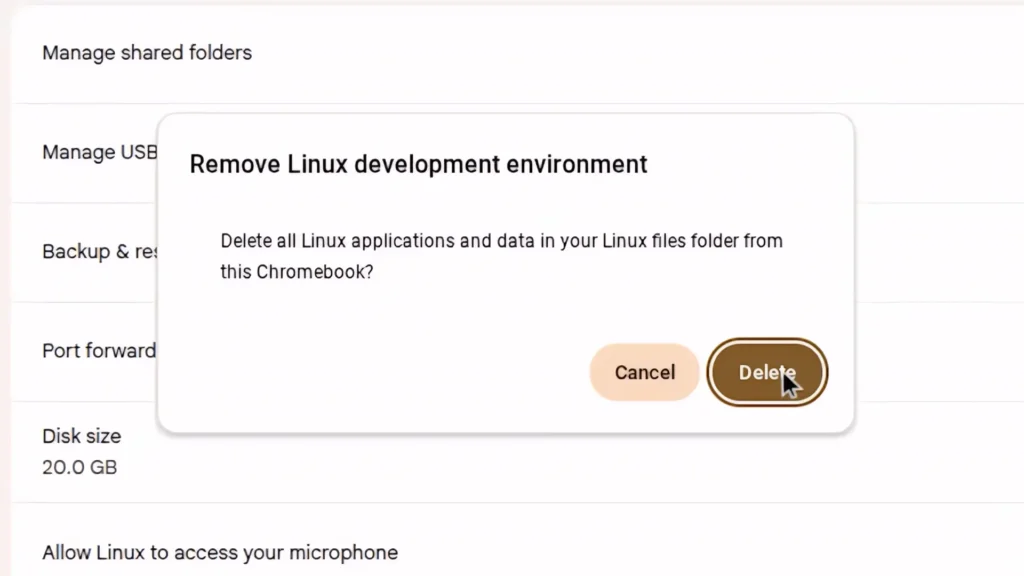
Within seconds, the Linux container disappears and the allocated storage space becomes available again.
This is one reason Chrome OS Flex feels much safer for beginners compared to traditional Linux installations.
You can experiment much more freely without permanently affecting the entire operating system.
Real Limitations You Should Know About
While this setup is genuinely impressive, it is important to stay realistic.
Chrome OS Flex with Linux is not a perfect replacement for a high-end Windows workstation.
Some limitations still exist:
- heavy Adobe software is unavailable;
- gaming support is limited;
- GPU acceleration varies by hardware;
- some Linux applications launch slowly the first time;
- older CPUs still struggle with demanding workloads.
For lightweight productivity and learning, however, the experience is genuinely excellent.
Who Is This Setup Good For?
Great For
- old laptops;
- students;
- lightweight office work;
- web browsing;
- coding;
- basic creative work;
- learning Linux;
- reviving old ThinkPads.
Probably Not Ideal For
- AAA gaming;
- professional Adobe workflows;
- advanced 3D rendering;
- heavy 4K editing;
- high-end gaming laptops.
Final Thoughts
This setup impressed me much more than I expected.
Chrome OS Flex already feels lightweight and responsive on older hardware, but enabling Linux completely changes what the system is capable of.
Instead of becoming just a browser machine, the laptop turns into:
- a lightweight workstation;
- a coding machine;
- an office computer;
- a basic creative workstation.
And the best part is that most of this software is completely free.
For older ThinkPads and similar business laptops, this combination makes a surprising amount of sense.
It will not replace a powerful modern desktop workstation, but it absolutely proves one thing:
Old laptops are still far more useful than many people think.