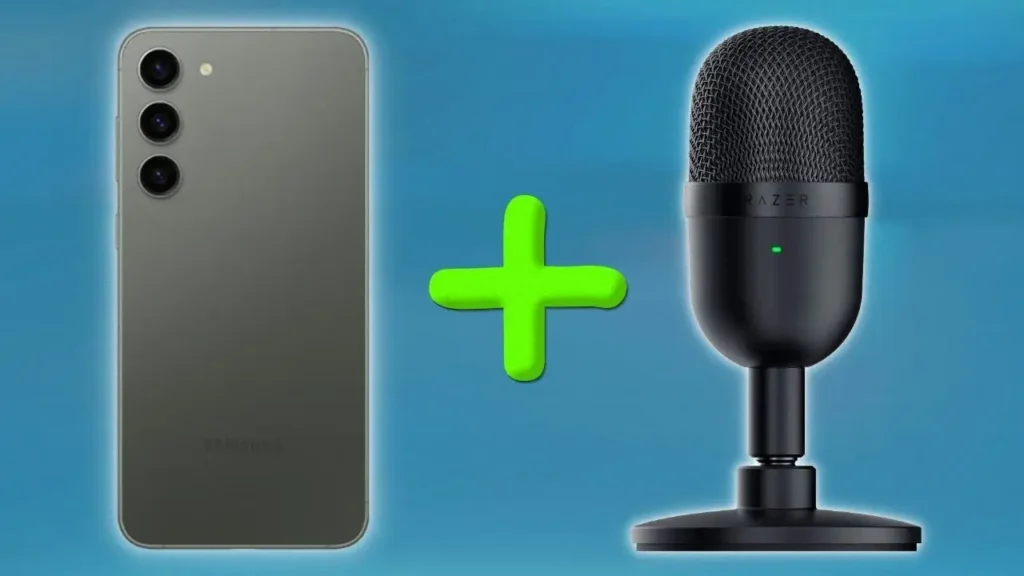
Learning how to connect a USB microphone to a smartphone is one of the easiest ways to improve audio quality for videos, interviews, and content creation.
Have you ever recorded a video on your smartphone and felt disappointed by the audio quality? While modern smartphones have excellent cameras, their built-in microphones often struggle with background noise, room echo, and overall sound clarity.
The good news is that many USB microphones can be connected directly to a smartphone. Whether you want to create YouTube videos, record interviews, film tutorials, or simply improve your audio quality, connecting a USB microphone to your phone is usually much easier than most people think.
In this guide, I’ll show you how to connect a USB microphone to an Android phone or iPhone, what equipment you need, and how to solve the most common issues that users encounter.
What You Need to Connect a USB Microphone to a Smartphone
Before getting started, you’ll need three basic things:
1. A USB Microphone
Almost any USB microphone should work, including:
- Razer Seiren Mini
- FIFINE K688
- Blue Yeti
- HyperX SoloCast
- Audio-Technica ATR2500x-USB
In my case, I used a Razer Seiren Mini, but the process is very similar for most USB microphones.
2. A Smartphone
The next requirement is a smartphone with a compatible port.
Most modern Android phones use USB-C.
Older Android devices may use Micro USB.
Apple devices vary depending on the model:
- iPhone 14 and older use Lightning
- iPhone 15 and newer use USB-C
Because of this, the adapter you need will depend entirely on your phone.
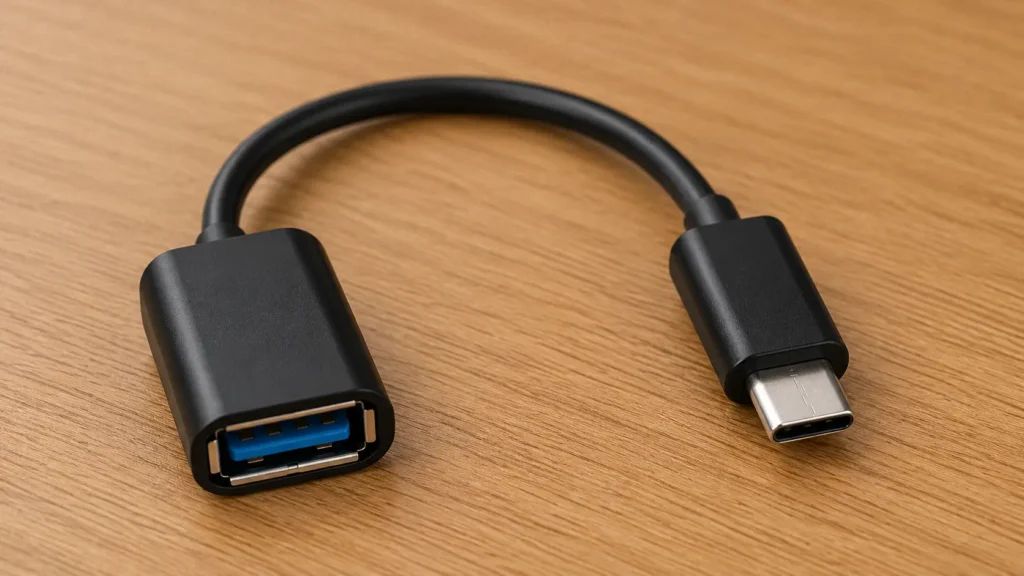
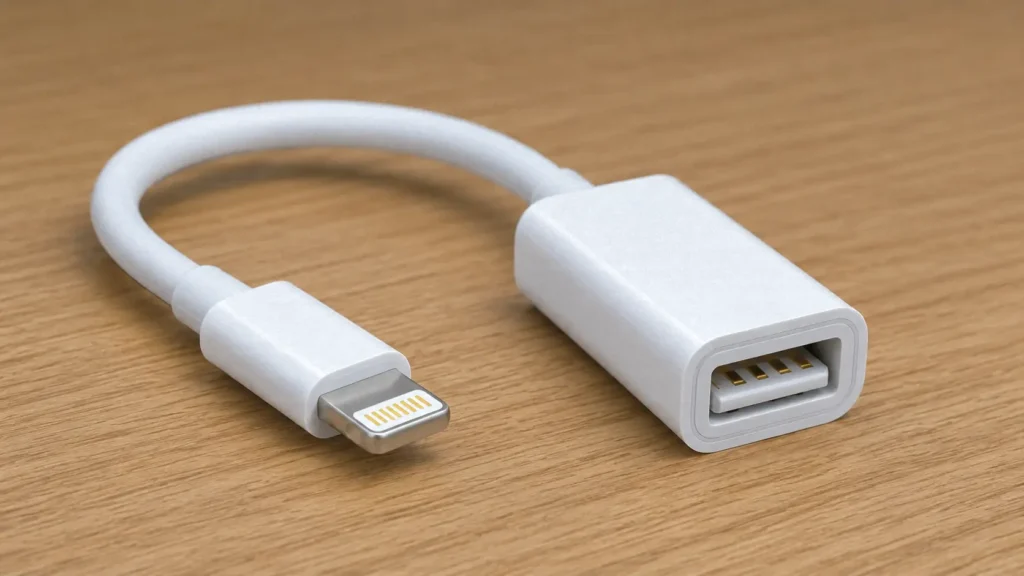
3. An OTG Adapter
OTG stands for “On-The-Go” and allows external USB devices to communicate with your smartphone.
Common options include:
These adapters are inexpensive and widely available online.
How to Check Which Port Your Phone Uses
Before purchasing an adapter, make sure you know which charging port your smartphone has.
USB-C
Most Android phones released in recent years use USB-C.
Examples include:
- Samsung Galaxy devices
- Google Pixel phones
- OnePlus smartphones
- Xiaomi smartphones
Lightning
Older iPhones use Apple’s Lightning connector.
Examples include:
- iPhone 11
- iPhone 12
- iPhone 13
- iPhone 14
Micro USB
Some older Android devices still use Micro USB.
Although less common today, they can still work with USB microphones when paired with the correct OTG adapter.
How to Connect a USB Microphone to an Android Phone
The process is surprisingly simple.
Step 1: Connect the OTG Adapter
Insert the OTG adapter into your smartphone.
Step 2: Connect the USB Microphone
Plug the microphone into the adapter.
If your microphone has a removable cable, make sure the cable is securely attached.
Step 3: Wait for Detection
Most Android devices automatically detect USB audio devices.
In many cases, no drivers or additional software are required.
Step 4: Open Your Camera App
Launch the camera application and record a short test clip.
Play the recording back to verify that the external microphone is being used.
Step 5: Test Audio Levels
If the audio sounds too quiet or distorted, try adjusting microphone gain settings if your microphone supports them.
Some recording applications also allow manual volume adjustment.
How to Connect a USB Microphone to an iPhone
The process is very similar on iPhones.
For iPhone 14 and Older
You’ll need:
- Lightning to USB adapter
- USB microphone
Connect the adapter to the phone and then connect the microphone.
For iPhone 15 and Newer
Since Apple switched to USB-C, the process is even simpler.
You’ll typically only need a USB-C adapter or compatible USB-C cable depending on your microphone.
After connecting the microphone, test the audio by recording a short video.
Best Apps for Recording Video with a USB Microphone
Although many phones can use an external microphone with the built-in camera app, third-party applications often provide more control.
Mcpro24fps
This is one of my favorite video recording applications for Android.
It offers:
- Manual video controls
- Audio source selection
- Microphone level adjustment
- Professional recording features
While it is a paid application, many content creators find it worthwhile.
Open Camera
A popular free alternative for Android users.
Features include:
- External microphone support
- Manual controls
- Lightweight design
Blackmagic Camera
A professional recording app available on several platforms.
It offers advanced controls and excellent video quality options.
Native Camera App
Always test your phone’s default camera application first.
Some smartphones automatically switch to the external microphone, while others may continue using the built-in microphone.
Why Your USB Microphone Is Not Working
Sometimes everything appears connected correctly, but the microphone still doesn’t work.
Here are the most common reasons.
The Adapter Does Not Support OTG
Not all adapters are equal.
Some inexpensive adapters only provide charging functionality.
Make sure your adapter specifically supports OTG.
The Camera App Ignores External Audio
Certain camera applications may continue using the internal microphone.
Try another recording application and perform additional tests.
The Microphone Requires More Power
Some larger USB microphones require more power than a smartphone can provide.
In these cases, a powered USB hub may help.
Faulty Cable
A damaged USB cable can prevent proper communication between the microphone and smartphone.
Testing a different cable is often a quick troubleshooting step.
Software Compatibility Issues
Occasionally, a specific phone model may have compatibility limitations with certain microphones.
Checking manufacturer documentation can help identify known issues.
My Experience Recording Video with USB Microphones on Smartphones
Over the years, I’ve tested several USB microphones on both computers and smartphones.
One interesting thing I’ve noticed is that some microphones occasionally sound surprisingly good when connected directly to a smartphone.
In certain situations, the audio can actually sound more pleasant than when the same microphone is connected to a desktop PC.
My theory is that many modern smartphones apply subtle audio processing behind the scenes. Depending on the device, this may include noise reduction, automatic gain adjustments, voice enhancement, or other audio algorithms that improve perceived sound quality.
Of course, results vary between devices, and this isn’t always the case. A properly configured computer setup can still provide excellent audio quality. However, I have definitely encountered situations where a smartphone produced cleaner and more polished audio than expected straight out of the box.
This is one reason why I always recommend testing both setups before deciding which one sounds better for your specific microphone.
Can You Use a USB Microphone for YouTube Videos?
Absolutely.
Many beginner creators assume they need expensive cameras or dedicated audio recorders.
In reality, a smartphone combined with a decent USB microphone can produce excellent results.
Benefits include:
- Better voice clarity
- Reduced background noise
- More professional audio
- Easy setup
- Lower cost compared to dedicated equipment
For tutorials, reviews, vlogs, and educational content, a smartphone and USB microphone combination can be more than sufficient.
Frequently Asked Questions
Can I connect a USB microphone directly to my phone?
Yes. Most modern smartphones can use USB microphones with the correct OTG adapter.
Do I need special drivers?
Usually not.
Most USB microphones are plug-and-play devices.
Does this work on Android?
Yes. Most Android phones support USB audio devices.
Does this work on iPhone?
Yes. You simply need the correct adapter depending on whether your iPhone uses Lightning or USB-C.
Can I use a USB microphone for YouTube videos?
Absolutely. Many creators record high-quality audio using USB microphones connected directly to their smartphones.
Why is my phone still using the built-in microphone?
This is often caused by app limitations, adapter compatibility issues, or smartphone-specific software behavior.
Final Thoughts
Connecting a USB microphone to a smartphone is one of the easiest ways to improve your video audio quality.
In most cases, all you need is a compatible USB microphone, an OTG adapter, and a smartphone. The setup process usually takes less than a minute, and no additional drivers are required.
Whether you’re creating YouTube videos, recording interviews, filming tutorials, or simply looking for better sound quality, using an external USB microphone can make a noticeable difference.
Before spending money on expensive recording equipment, try connecting a USB microphone to your smartphone first. You may be surprised by just how good the results can be.