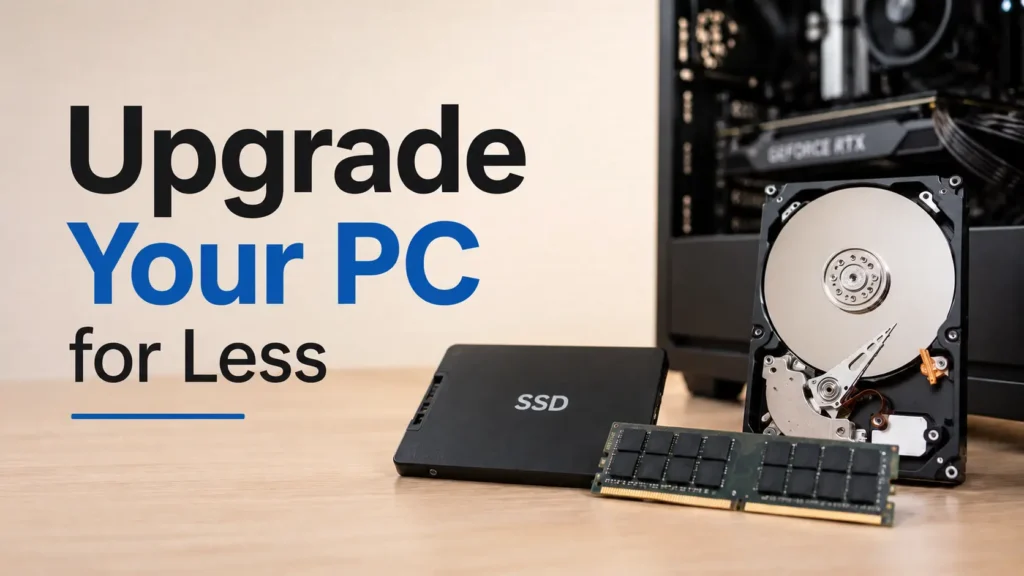
A budget PC upgrade does not have to be expensive.
Building or upgrading a PC has become increasingly expensive. Whether you’re looking for more storage, additional memory, or simply trying to extend the life of your current computer, hardware upgrades can quickly add up.
Many users assume the only solution is to buy the latest SSD, upgrade to the newest memory standard, or replace an entire system. In reality, there are several practical ways to improve your PC without spending a fortune.
Over the years, I’ve tested many computers, upgraded old hardware, and experimented with different storage solutions. Some of the best upgrades I’ve made were also the cheapest.
In this guide, I’ll share three smart ways to save money on PC upgrades while still improving performance, storage capacity, and overall usability.
Why PC Upgrades Have Become More Expensive
Computer hardware prices rarely stay constant.
Storage devices, memory modules, and other components often fluctuate in price depending on manufacturing capacity, market demand, and supply chain conditions.
When SSD and RAM prices rise, many users feel pressured to postpone upgrades entirely. However, waiting isn’t always necessary.
The key is understanding where performance actually matters and where you can save money without sacrificing the user experience.
Before spending hundreds of dollars on new hardware, consider the following alternatives.
Why Many People Waste Money on PC Upgrades
One of the biggest mistakes PC users make is upgrading the wrong component.
When a computer feels slow, many people immediately start looking for the newest SSD, the fastest RAM, or even a completely new system. In reality, the source of poor performance is often somewhere else.
For example, installing a premium SSD in a system that still has only 8GB of memory may not solve multitasking issues. Likewise, upgrading RAM will not magically improve loading times if the operating system is still installed on an aging hard drive.
Another common mistake is focusing on synthetic benchmarks instead of real-world performance. Marketing materials often make new hardware look dramatically faster, but many everyday tasks such as web browsing, office work, media playback, and casual gaming show only minor differences between hardware generations.
Before spending money, it’s important to identify the actual bottleneck in your system.
Ask yourself:
- Do programs take too long to open?
- Is storage space running out?
- Does the computer freeze during multitasking?
- Are games limited by the graphics card?
Understanding the problem often leads to a much cheaper solution.
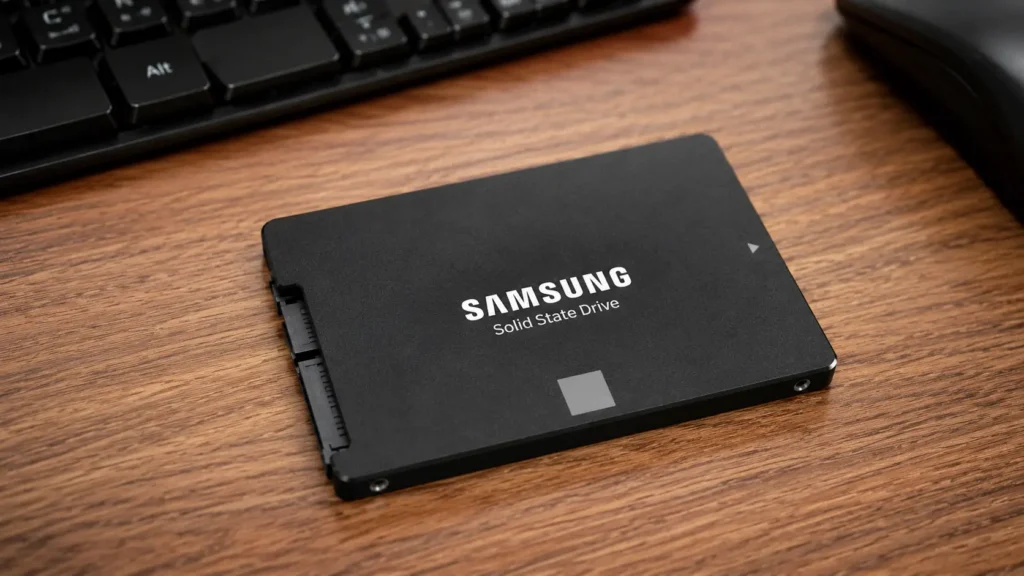
Solution #1: Use an SSD for Your System and an HDD for Storage
One of the most practical and affordable upgrade strategies is combining a solid-state drive with a traditional hard drive.
Many people assume hard drives are obsolete, but they still have a place in modern computers.
My recommendation is simple:
- Install Windows or Linux on an SSD.
- Store games, videos, backups, and large files on an HDD.
This approach allows you to enjoy fast boot times and responsive system performance while maintaining plenty of storage space.
Why This Combination Still Works
The operating system benefits more from SSD speeds than almost anything else.
When Windows is installed on an SSD:
- The system boots faster.
- Applications launch quicker.
- Updates install more efficiently.
- Overall responsiveness improves significantly.
At the same time, many files simply do not require SSD speeds.
For example:
- Movies
- Photos
- Music libraries
- Archived projects
- Backup files
These files can live perfectly well on a hard drive.
Even many games remain completely playable when installed on an HDD, although loading times may be longer.
Advantages of Using an HDD
Lower Cost Per Gigabyte
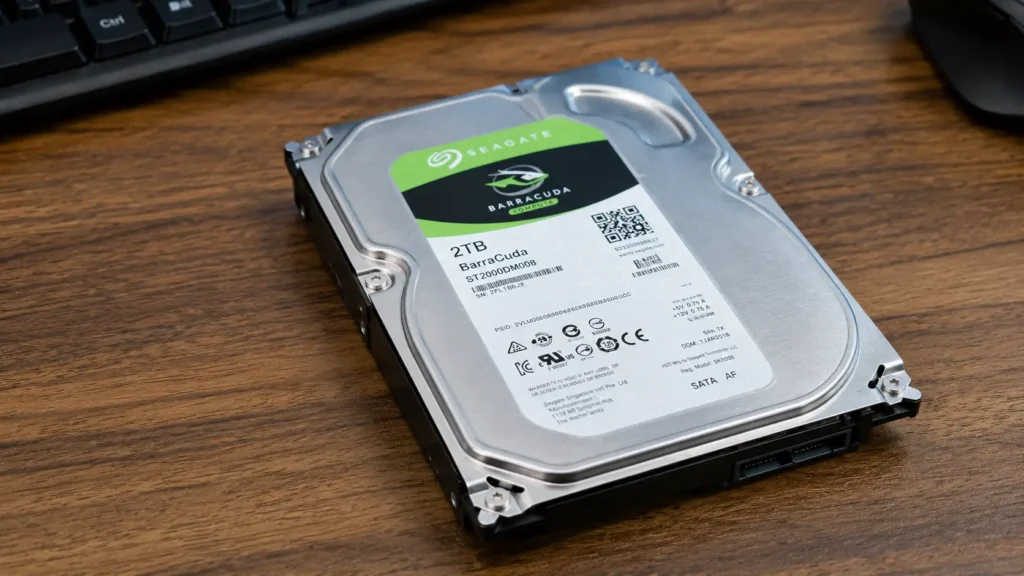
This remains one of the biggest advantages.
For the cost of a relatively small SSD, you can often purchase a much larger hard drive.
If you need several terabytes of storage, HDDs are still difficult to beat from a value perspective.
Great for Media Storage
Content creators often accumulate large amounts of data:
- Video recordings
- Edited projects
- RAW photos
- Screen captures
- Backups
Keeping all of this on SSD storage can become expensive very quickly.
A large HDD is often a more practical solution.
Excellent for Backups
Every PC user should have backups.
Whether you’re protecting family photos, important documents, or work files, hard drives remain one of the most affordable backup options available.
Easier Data Recovery
This is something many people rarely discuss.
Both SSDs and HDDs can fail.
However, when a traditional hard drive develops problems, professional data recovery services often have a better chance of retrieving information.
This doesn’t mean HDDs are indestructible.
It simply means recovery options are frequently more accessible compared to modern SSD failures.
Drawbacks of HDDs
Hard drives still have disadvantages.
Slower Performance
There is no denying it.
SSDs are dramatically faster.
Large game installations, file transfers, and application loading times will usually take longer on an HDD.
Noise
Unlike SSDs, hard drives contain moving mechanical parts.
You may hear:
- Spinning sounds
- Clicking noises
- Vibrations
Some users don’t mind this, while others prefer the silent operation of SSDs.
Higher Power Consumption
Hard drives generally consume more power than SSDs.
For most desktop users this is not a major concern, but it’s worth mentioning.
Common Misconceptions About Hard Drives
Many users believe that hard drives are completely obsolete.
This misconception comes from the fact that SSDs are significantly faster. While this is true, storage performance is only one part of the overall user experience.
A modern computer with:
- Windows installed on an SSD
- Games on an HDD
- Enough RAM
can still provide a surprisingly good experience.
Many content creators, photographers, and video editors continue to use hard drives because storing several terabytes of footage on SSDs can become extremely expensive.
Hard drives may not be ideal for everything, but they remain one of the most economical ways to store large amounts of data.
HDD vs SSD for Different Types of Files
Not every file benefits equally from SSD speeds.
Best Stored on SSD
- Operating systems
- Frequently used applications
- Competitive multiplayer games
- Video editing software
Best Stored on HDD
- Movies
- Photos
- Music collections
- Archives
- Backup files
- Older games
Separating files in this way helps maximize performance while minimizing upgrade costs.
Who Should Consider This Upgrade?
An SSD + HDD combination is ideal for:
- Gamers with large libraries
- Content creators
- Students
- Home office users
- Budget PC builders
For many people, it remains one of the smartest and most cost-effective upgrade strategies available.
Solution #2: Don’t Rush to Upgrade Your RAM
One of the most common mistakes I see is users feeling pressured to upgrade their memory immediately.
Newer does not always mean necessary.
Many people assume that upgrading to the latest memory standard will dramatically improve performance.
In reality, the situation is often more complicated.
Does Faster RAM Really Matter?
The answer depends on how you use your computer.
If you primarily:
- Browse the web
- Watch videos
- Work with documents
- Play single-player games
You may notice little difference between memory generations.
Modern CPUs and GPUs often have a much greater impact on overall performance.
The Resolution Factor
Gaming performance depends heavily on resolution.
At higher resolutions such as:
- 1440p
- Ultrawide
- 4K
The graphics card becomes the primary performance bottleneck.
In these situations, spending large amounts of money on faster RAM may produce only minimal gains.
My Experience
In my own testing and daily use, I’ve found that memory upgrades often provide smaller improvements than many users expect.
For general productivity, content consumption, and gaming, a well-configured system with sufficient RAM remains more important than simply chasing the newest memory technology.
When Upgrading RAM Makes Sense
There are situations where additional memory is worthwhile.
Examples include:
Heavy Multitasking
If you regularly keep:
- Dozens of browser tabs open
- Multiple applications running
- Virtual machines active
More RAM can provide a noticeable improvement.
Content Creation
Video editing, 3D rendering, and large creative projects can consume significant amounts of memory.
In these workloads, additional RAM often makes a meaningful difference.
Competitive Gaming
Some esports titles benefit from higher memory frequencies and lower latency.
Competitive players may see measurable gains in certain scenarios.
How Much RAM Do You Actually Need?
One of the most frequently asked questions is how much memory is enough.
The answer depends on your workload.
8GB RAM
Suitable for:
- Basic web browsing
- Office work
- Streaming video
16GB RAM
Recommended for most users.
Provides a comfortable experience for:
- Gaming
- Multitasking
- Content consumption
- Productivity work
32GB RAM
Ideal for:
- Video editing
- Professional workloads
- Virtual machines
- Heavy multitasking
64GB RAM and Beyond
Usually reserved for specialized workloads such as:
- Professional content creation
- Software development
- Scientific computing
Many users discover that upgrading from 8GB to 16GB produces a larger improvement than upgrading to a newer RAM generation.
Capacity Is Often More Important Than Speed
When comparing memory upgrades, capacity often matters more than frequency.
For example:
16GB DDR4 may provide a better experience than 8GB DDR5.
Running out of memory forces the operating system to use storage as temporary memory, which dramatically reduces performance.
This is why increasing capacity is often the first upgrade worth considering.
Why Waiting Can Be a Smart Strategy
Technology changes constantly.
Prices rise.
Prices fall.
New products launch.
Manufacturing improves.
Sometimes the best upgrade decision is simply waiting.
If your current system performs well, there may be little reason to spend money immediately.
Solution #3: Buy a Used Business Laptop
This is probably my favorite money-saving strategy.
It sounds unusual at first, but it can provide exceptional value.
Why Business Laptops Are Different
Corporate laptops are often built to a higher standard than many consumer models.
They are designed for:
- Reliability
- Longevity
- Serviceability
- Professional use
When companies upgrade entire fleets of computers, thousands of perfectly functional laptops enter the second-hand market.
This creates excellent opportunities for buyers.
What You Get for the Money
A used business laptop often includes:
- An SSD
- A battery
- A display
- A keyboard
- A processor
- A motherboard
Sometimes the entire machine costs only slightly more than purchasing storage alone.
My Personal Experience
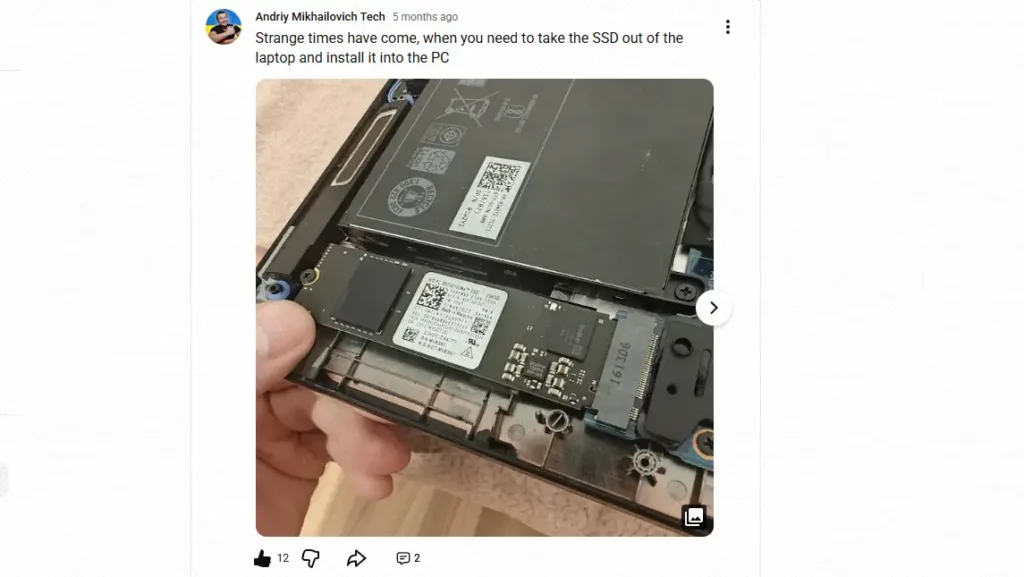
I purchased a used business laptop that included a quality NVMe SSD.
After installing the SSD in my desktop PC, I effectively gained storage while still having a functional laptop available.
This made far more financial sense than buying storage separately.
The experience completely changed how I look at hardware upgrades.
What to Check Before Buying
Not all laptops are equal.
Before purchasing one, verify the following.
Storage Type
Ideally, look for:
- NVMe SSD
- M.2 SSD
- SATA SSD
Knowing what type of drive is installed can help you determine whether it will fit your desktop system.
Display Quality
If you plan to keep the laptop, an IPS display is highly recommended.
Benefits include:
- Better viewing angles
- Better colors
- Improved overall experience
Battery Condition
Used laptops often have aging batteries.
This may not matter if you primarily want the SSD, but it is worth checking.
Upgrade Potential
Some business laptops allow:
- Storage upgrades
- Battery replacement
- Memory upgrades
This can increase their long-term value.
Recommended Business Laptop Series
Some commonly respected business laptop families include:
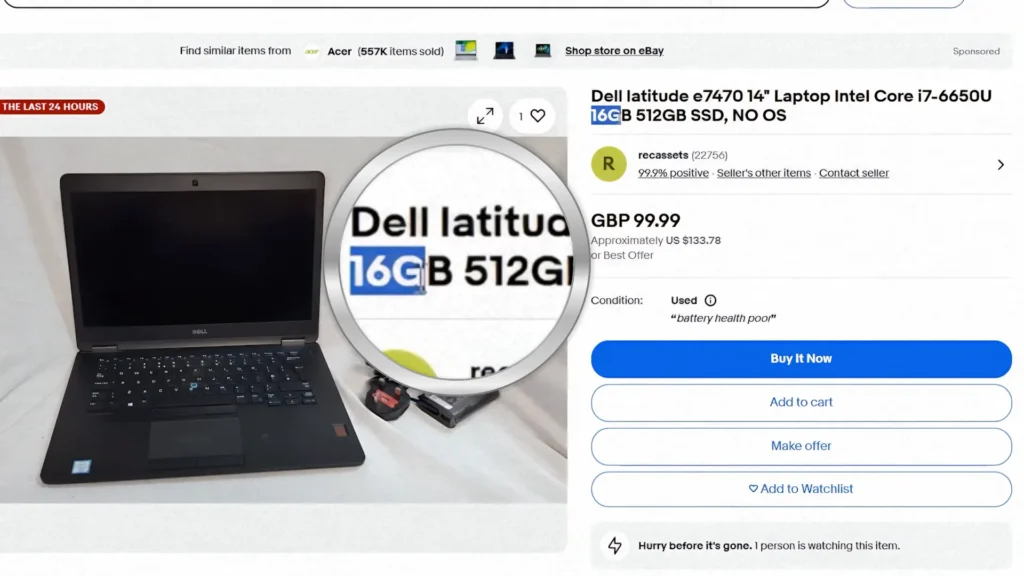
- Dell Latitude
- Lenovo ThinkPad T-Series
- Lenovo ThinkPad X-Series
- HP EliteBook
These systems are generally known for reliability and upgradeability.
Why Business Laptops Are Often Better Than Cheap Consumer Models
Many budget consumer laptops are designed to hit the lowest possible price point.
As a result, manufacturers often compromise on:
- Build quality
- Cooling systems
- Upgradeability
- Keyboard quality
Business laptops are usually designed differently.
Companies expect these systems to survive years of daily use, frequent travel, and constant productivity workloads.
This often results in:
- Better hinges
- Stronger chassis
- Easier maintenance
- Higher reliability
Even after years of use, many business laptops remain perfectly functional.
Other Benefits of Buying a Used Laptop
Even if you initially purchase a laptop only for its SSD, you may discover additional value.
A spare laptop can be useful as:
- A backup computer
- A Linux testing machine
- A travel device
- A media center
- A home server
This flexibility makes the purchase even more attractive.
Bonus Tip: Can You Use Laptop RAM in a Desktop PC?
This is an interesting trick that many enthusiasts may not know about.
Laptop memory uses a different physical form factor called SO-DIMM.
Desktop systems typically use DIMM modules.
However, special adapters exist that allow laptop memory to be installed in certain desktop motherboards.
How SO-DIMM to DIMM Adapters Work
These adapters do not:
- Increase memory capacity
- Improve performance
- Convert one memory generation into another
They simply provide a physical connection.
For example:
DDR4 SO-DIMM → DDR4 DIMM
The memory remains exactly the same.
Why This Is Experimental
I would not recommend this as a primary upgrade strategy.
Compatibility can vary significantly.
Potential issues include:
- BIOS incompatibility
- Stability problems
- Reduced performance
- Memory training failures
- Limited support for advanced memory profiles
When It Might Make Sense
You may consider trying this if:
- You already own spare laptop memory.
- You enjoy experimenting with hardware.
- You are building a low-cost office PC.
For most users, buying standard desktop memory remains the safer and more reliable choice.
Comparing the Three Solutions
| Solution | Cost | Performance | Risk Level |
|---|---|---|---|
| SSD + HDD Combination | Low | Good | Very Low |
| Waiting Before Upgrading | Free | Unchanged | None |
| Used Business Laptop | Medium | Excellent Value | Low |
| SO-DIMM Adapter (Bonus) | Very Low | Varies | Medium |
Which Solution Would I Choose?
If I had to recommend only one option, I would choose the used business laptop approach.
It offers:
- The best overall value
- Useful spare components
- Upgrade flexibility
- Additional hardware for future projects
That said, combining an SSD with an HDD remains the safest option for most users.
The right choice ultimately depends on your budget, workload, and upgrade goals.
Additional Budget Upgrade Ideas
The three solutions discussed above are my favorites, but they are not the only options.
Here are a few additional ways to improve your PC without spending a lot of money.
Clean Your System
Dust buildup can significantly impact temperatures.
Lower temperatures often allow hardware to maintain higher performance levels.
Cleaning fans and heatsinks may improve performance at no cost.
Replace Thermal Paste
Older computers often suffer from dried thermal paste.
A simple replacement can reduce temperatures and improve system stability.
Reinstall Your Operating System
Over time, software clutter can slow down a computer.
A clean installation of Windows or Linux can make an aging system feel surprisingly responsive.
Upgrade to an SSD Before Anything Else
If your operating system is still running from a hard drive, upgrading to an SSD usually provides the most noticeable improvement per dollar.
In fact, if you are planning such an upgrade, you may also find my guide on how to upgrade an HDD to an SSD without reinstalling Windows helpful.
Final Thoughts
Upgrading a PC does not always require buying the newest or most expensive hardware.
In many cases, smarter decisions can save hundreds of dollars while still delivering an excellent experience.
Using an SSD for your operating system and an HDD for storage remains a practical approach.
Avoiding unnecessary RAM upgrades can prevent wasted spending.
And purchasing a used business laptop may provide far more value than buying individual components.
Before opening your wallet, take a step back and ask yourself a simple question:
Do I really need the newest hardware, or do I simply need a smarter upgrade strategy?
More often than not, the smarter option wins.
FAQ
Are HDDs still worth buying?
Yes. HDDs remain an excellent choice for mass storage, backups, media libraries, and large game collections.
Should I install games on an HDD or SSD?
Competitive and frequently played games benefit from SSD storage. Older games and large libraries can still work well on an HDD.
Is upgrading RAM always worth it?
No. Many users see little benefit if they already have enough memory for their workload.
Can I move an SSD from a laptop to a desktop PC?
Yes, provided the drive uses a compatible interface and your motherboard supports it.
Are used business laptops reliable?
Many business laptops are built to a high standard and can provide excellent value when purchased from reputable sellers.
Can I use laptop RAM in a desktop PC?
Sometimes. SO-DIMM to DIMM adapters exist, but compatibility and stability are not guaranteed.
What is the cheapest way to add more storage?
For most users, adding a large HDD alongside an existing SSD remains one of the most affordable solutions available.