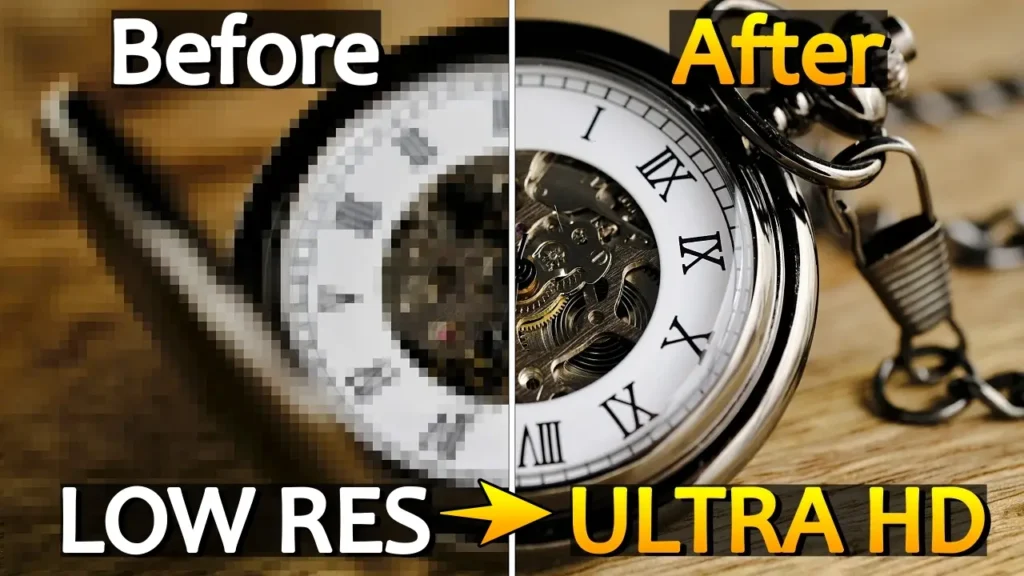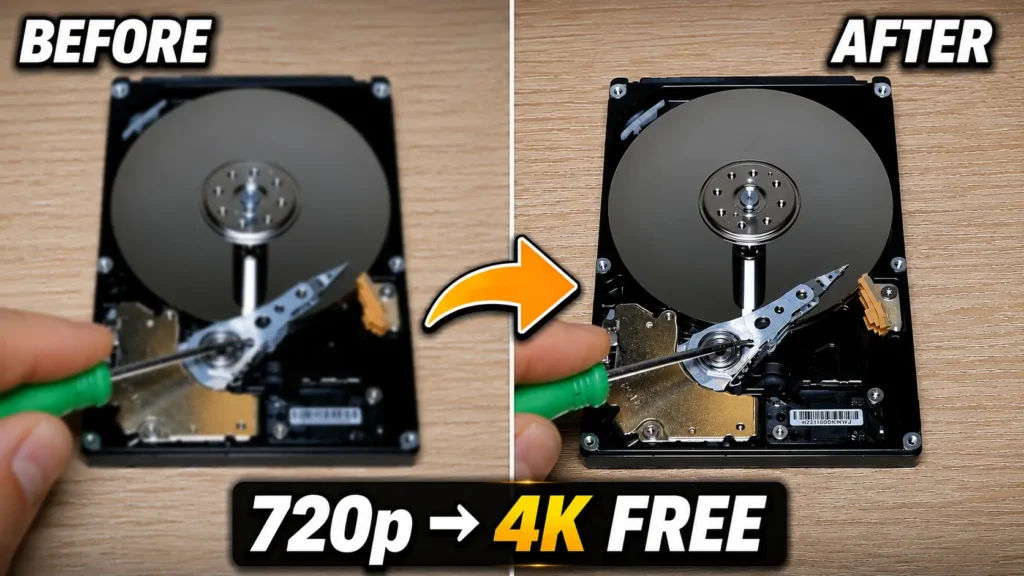
How to Upscale Video to 4K for Free is a question many creators ask when trying to improve old videos, gameplay recordings, and screen recordings without paying for expensive software.
Artificial intelligence has made video enhancement more accessible than ever. Just a few years ago, improving old videos or increasing their resolution often required expensive software and powerful hardware. Today, there are free tools that can deliver surprisingly good results using advanced AI models.
One of the most popular options is Waifu2x-Extension-GUI. Despite its unusual name, this software is much more than a simple anime upscaler. It supports video upscaling, image enhancement, noise reduction, frame interpolation, and multiple AI engines designed for different types of content.
In this guide, I will show you how to upscale videos to 4K for free using Waifu2x-Extension-GUI. I will also share the settings that produced the best results during my own testing on an AMD Radeon RX 9070 XT graphics card.
Whether you want to improve old YouTube videos, gameplay recordings, tutorials, family videos, or screen captures, this guide will help you get started.
What Is AI Video Upscaling?
Traditional video upscaling simply stretches an image to a higher resolution. While this increases the number of pixels, it does not create additional detail. As a result, the image often looks soft or blurry.
AI upscaling works differently.
Instead of merely enlarging existing pixels, AI models analyze patterns within the image and attempt to reconstruct missing details. The software has been trained on millions of images and video frames, allowing it to predict what higher-resolution content should look like.
This does not magically turn a low-quality video into native 4K footage. However, it can:
- Improve sharpness
- Enhance fine details
- Reduce compression artifacts
- Improve readability of text
- Produce cleaner-looking footage
The effectiveness of AI upscaling depends heavily on the source material. Desktop recordings, tutorials, and high-bitrate footage typically benefit more than heavily compressed videos.
What Is Waifu2x-Extension-GUI?
Waifu2x-Extension-GUI is a free Windows application that combines multiple AI enhancement technologies into a single user-friendly interface.
The software supports:
- Video upscaling
- Image upscaling
- GIF enhancement
- APNG enhancement
- AI noise reduction
- Video frame interpolation
- Batch processing
- GPU acceleration
Unlike many commercial alternatives, Waifu2x-Extension-GUI can be downloaded and used completely free of charge.
Another major advantage is its support for multiple AI engines, allowing users to choose different enhancement methods depending on their content and hardware.
Key Features of Waifu2x-Extension-GUI
Before diving into the installation process, let’s look at some of the software’s most useful features.
Free and Open Source
The software can be downloaded and used without purchasing a license.
Multiple AI Engines
Users can choose from several AI technologies, including RealESRGAN, Waifu2x, Anime4K, Real-CUGAN, and other enhancement engines.
Hardware Acceleration
The software can utilize modern graphics cards to significantly reduce rendering times.
Batch Processing
Multiple videos can be processed automatically without manual intervention.
Frame Interpolation
In addition to increasing resolution, the software can generate intermediate frames to increase video frame rates.
Multi-GPU Support
Advanced users can utilize multiple graphics cards for faster processing.
System Requirements
One of the most common questions is whether the software requires a high-end computer.
The good news is that Waifu2x-Extension-GUI supports a wide range of hardware.
Supported Graphics Cards
| Hardware | Supported |
|---|---|
| AMD Radeon GPUs | Yes |
| NVIDIA GeForce GPUs | Yes |
| Intel Graphics | Yes |
For my testing, I used an AMD Radeon RX 9070 XT, and performance was excellent.
A 15-second 720p video was successfully upscaled to 4K in approximately two minutes using the Universal-FastV2 model.
Your results will vary depending on:
- GPU performance
- Video duration
- Selected AI model
- Source resolution
- Output resolution
If you have a modern graphics card from the last few years, the software should perform well.
How to Download Waifu2x-Extension-GUI
To download the software, visit the official GitHub repository.
Downloading from the official source ensures you receive the latest version and avoid modified installers from third-party websites.
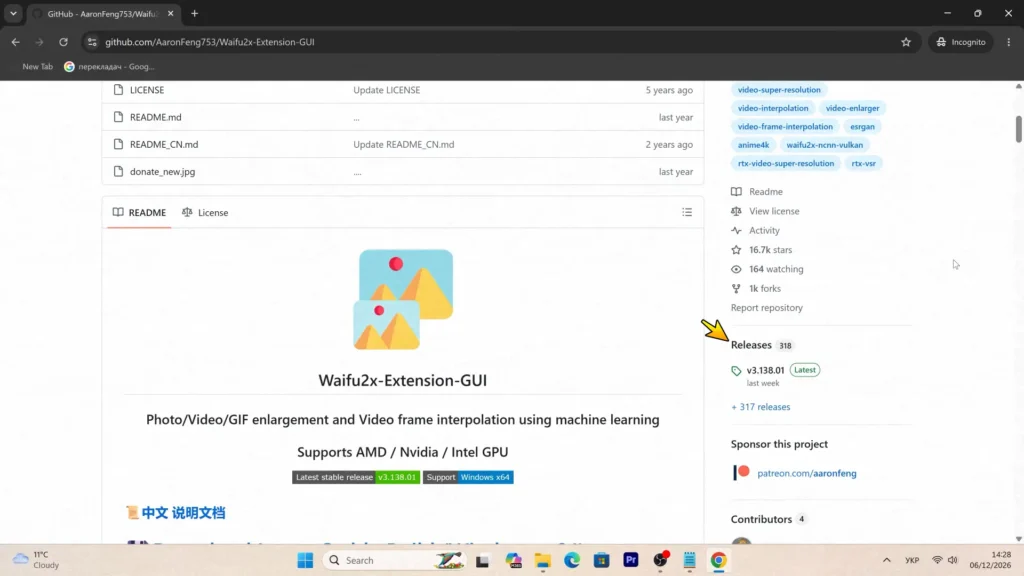
Once on the GitHub page:
- Open the Releases section.
- Scroll down to the latest release.
- Locate the Windows executable archive.
- Download the file.
- Save it to your preferred location.
The version number may change over time, but the file name and size usually make it easy to identify the correct download.
How to Install Waifu2x-Extension-GUI
Installation is straightforward.
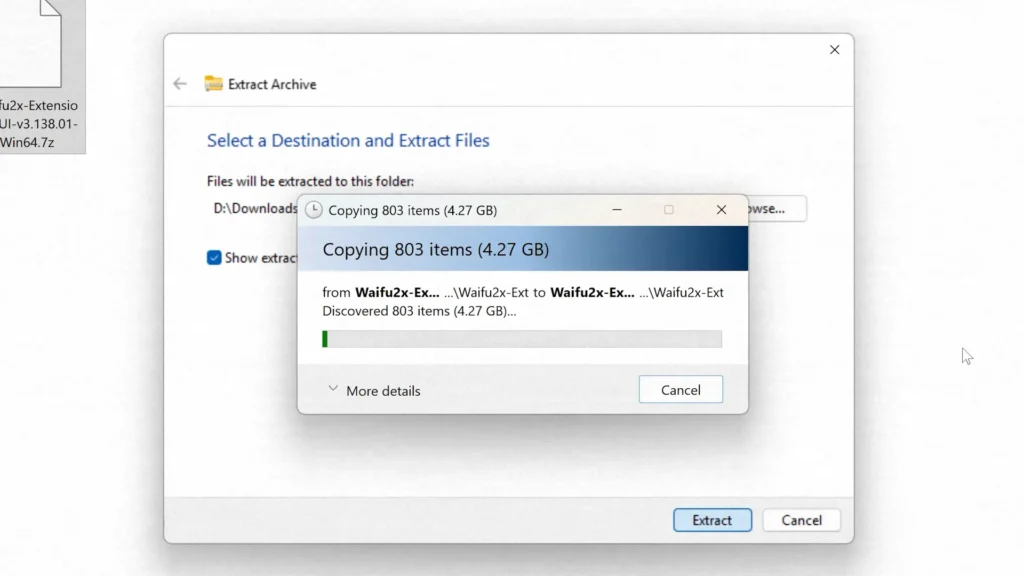
Step 1: Extract the Archive
After downloading the archive:
- Right-click the file.
- Select Extract All.
- Choose a destination folder.
- Click Extract.
Step 2: Launch the Program
Open the extracted folder and locate the Waifu2x batch file.
Double-click the file to launch the application.
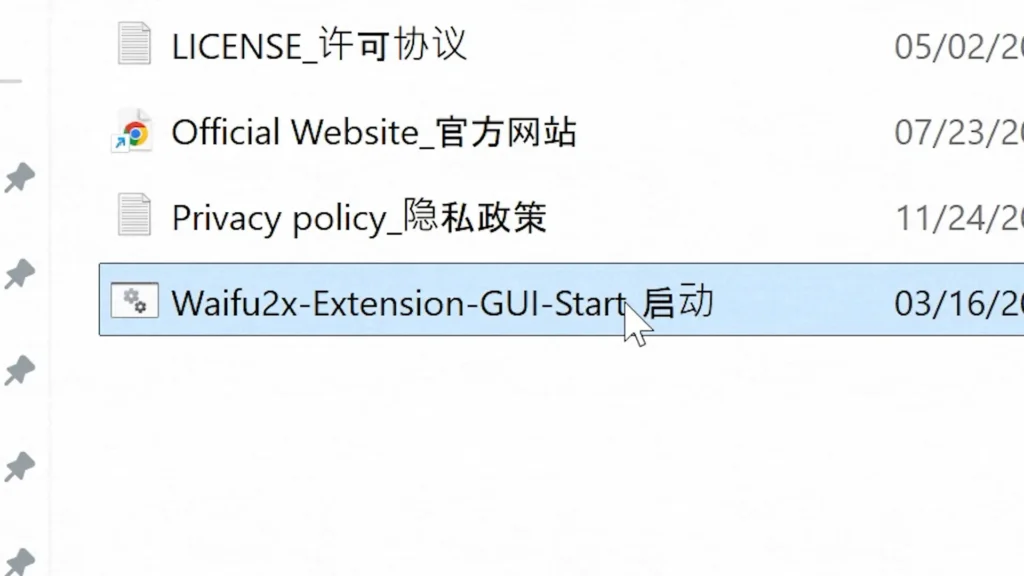
During the first startup, you may see a terminal window. This is completely normal and does not require any user interaction.
Step 3: Select a Language
Choose your preferred language.
For this guide, I selected English.
Step 4: Compatibility Test
The software automatically performs a hardware compatibility test during the first launch.
Wait until the process completes and then close the window.
Step 5: Enable Hardware Decoding
You may be prompted to enable hardware-accelerated decoding.
I recommend selecting Enable because it can improve video processing performance and reduce rendering times.
Best Settings for 4K Video Upscaling
One reason some users feel overwhelmed by Waifu2x-Extension-GUI is the large number of settings available.
Fortunately, only a few settings are necessary to achieve excellent results.
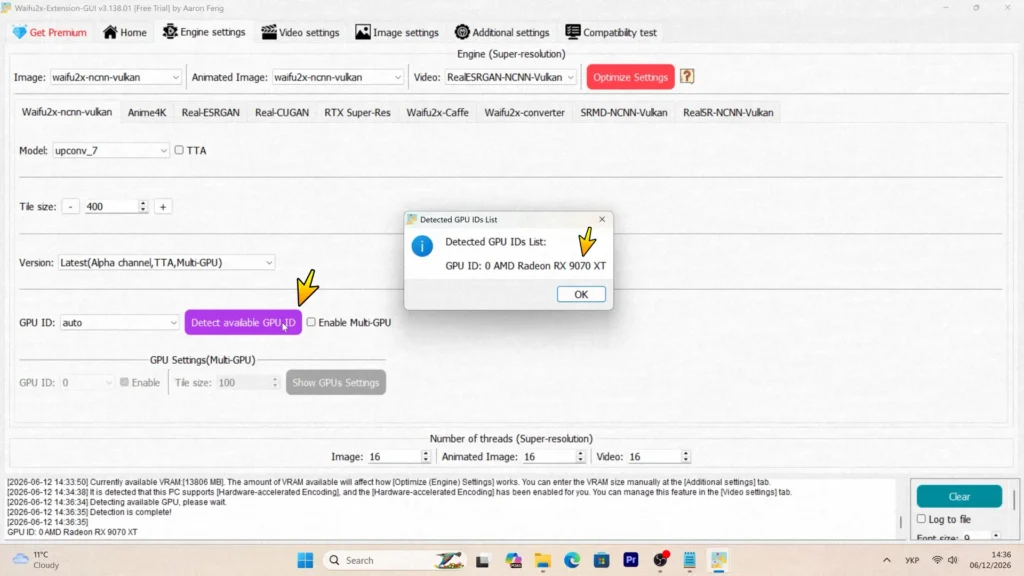
Open Engine Settings
Navigate to the Engine Settings tab.
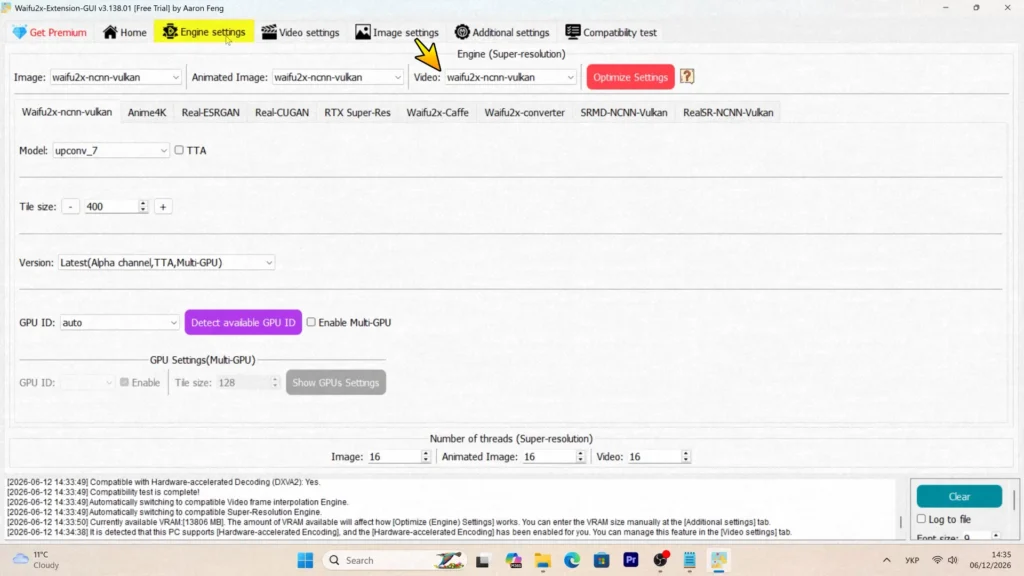
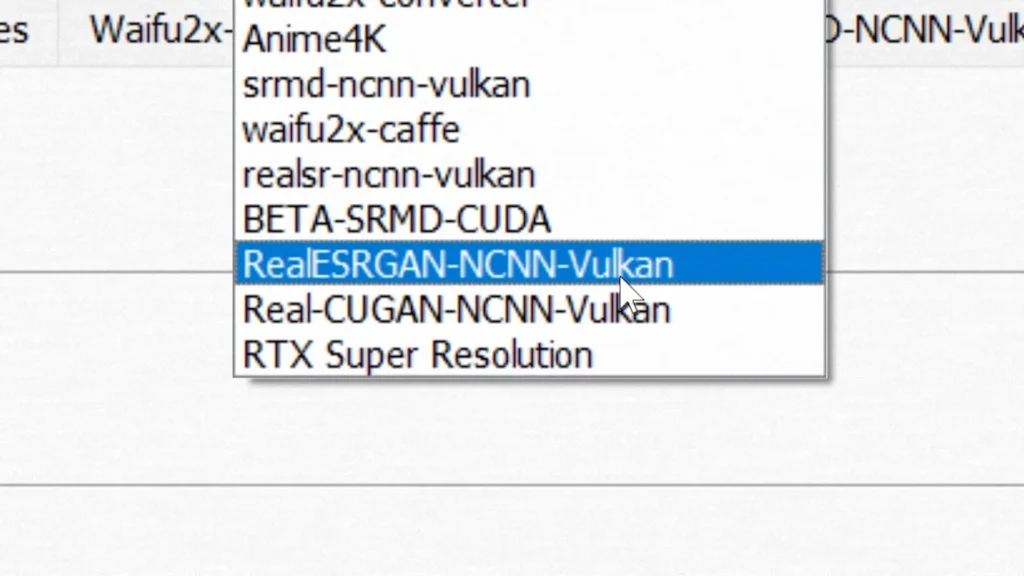
For Video Engine, select:
RealESRGAN-NCNN-Vulkan
This engine provides excellent compatibility and performance across a wide range of graphics cards.
Detect Your GPU
Click:
Detect Available GPU ID
This ensures the software uses your graphics card instead of your processor.
Using GPU acceleration can dramatically reduce rendering times.
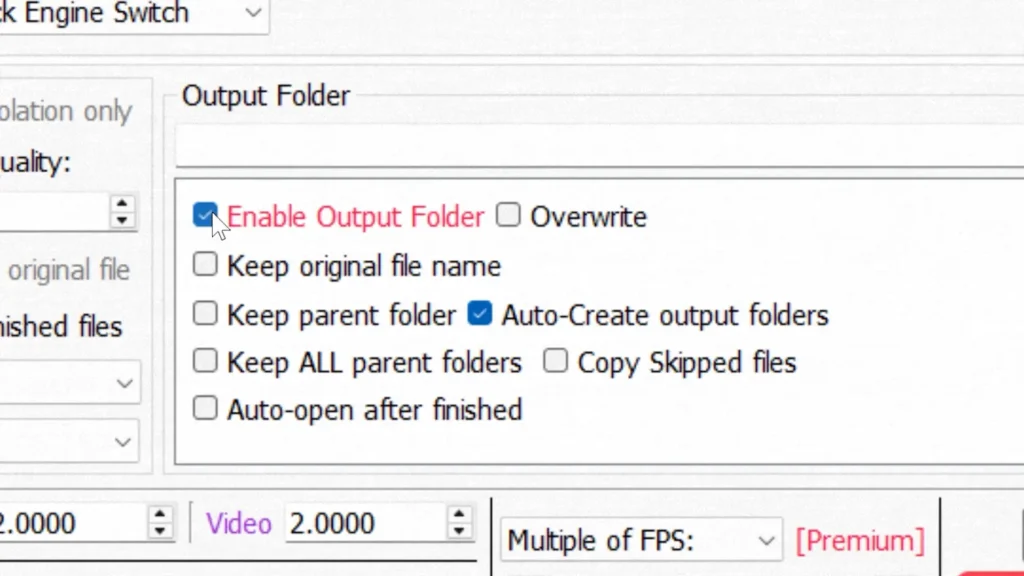
Configure Output Folder
Return to the Home tab.
Enable:
Output Folder
Then select a location for your completed videos.
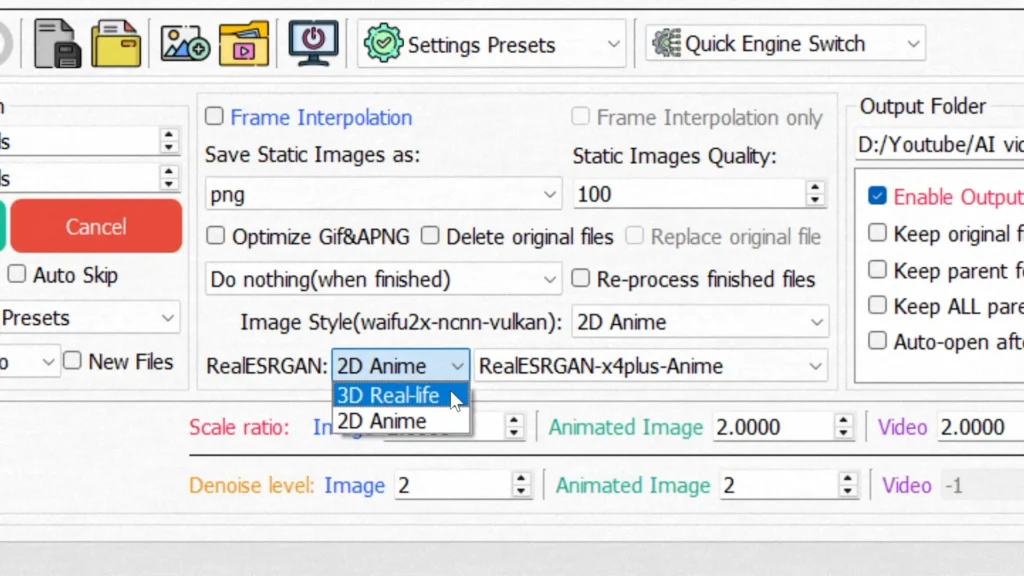
Select Content Type
Change:
2D Anime → 3D Real-Life
This setting is generally more appropriate for real-world footage and tutorials.
Recommended AI Models
After testing several AI models, I found clear differences between them.
AI Model Comparison
| AI Model | Speed | Quality | Best For |
| Universal-FastV2 | Excellent | Excellent | Most users |
| Omni-TurboV1.5 | Outstanding | Good | Fast rendering |
| RealESRGAN-x4plus | Slow | Very Good | Maximum detail |
Universal-FastV2
This became my preferred model.
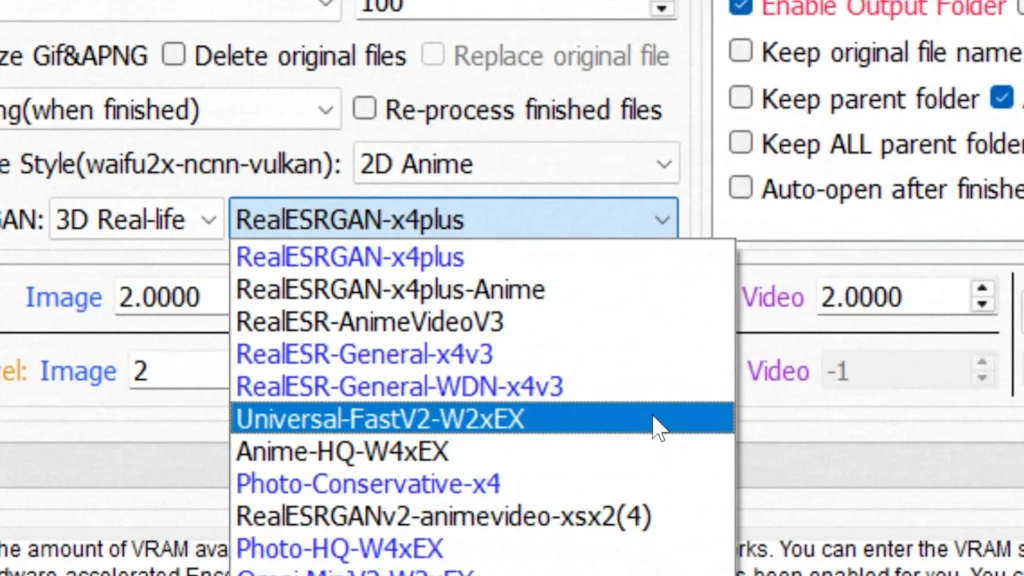
It delivered the best balance between:
- Rendering speed
- Detail preservation
- Natural appearance
- Artifact control
For most users, this is the model I recommend.
Omni-TurboV1.5
If rendering speed is your highest priority, Omni-TurboV1.5 is worth considering.
Quality remains good, but fine details may not be preserved as effectively as Universal-FastV2.
RealESRGAN-x4plus
This model produced good results but required significantly longer processing times.
On my system, the additional rendering time did not provide enough visual improvement to justify using it regularly.
How to Upscale a Video to 4K
Now let’s process a video.
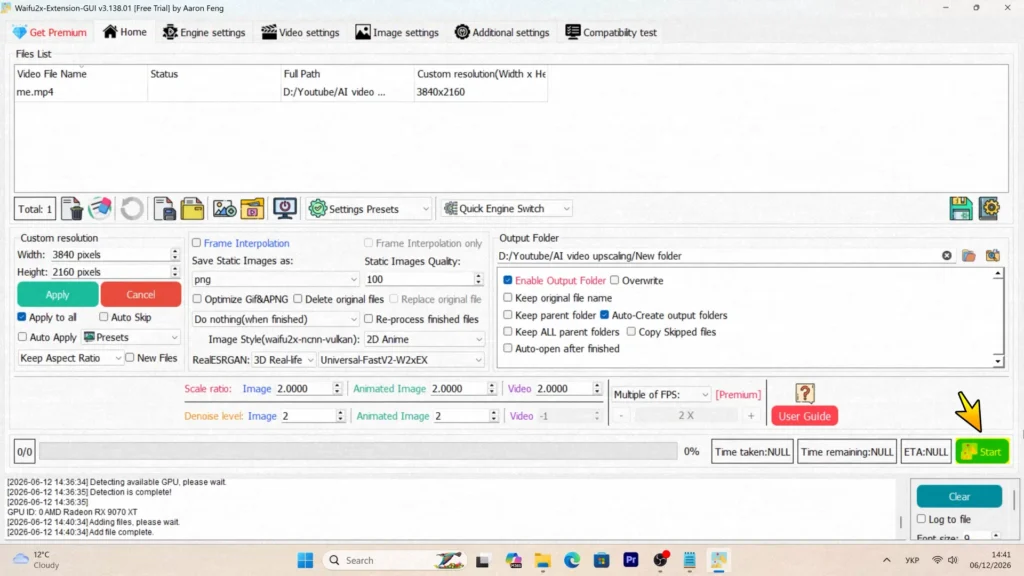
Step 1: Import the Video
Drag your video file directly into the application window.
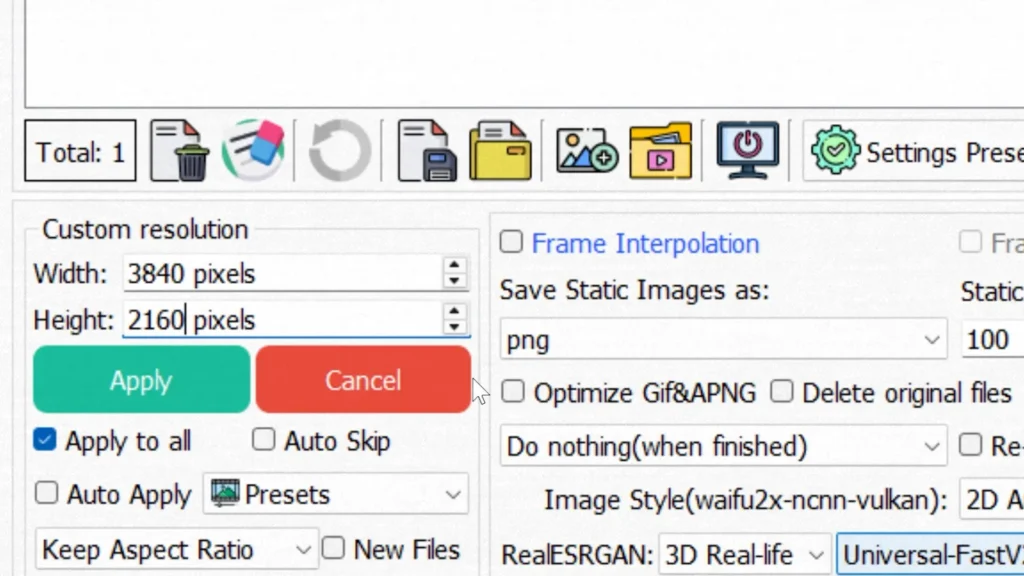
Step 2: Configure Resolution
Under Custom Resolution, enter:
3840 × 2160
Then click Apply.
Step 3: Verify Settings
For most videos, the remaining settings can remain at their default values.
Step 4: Start Processing
Click:
Start
The software will begin processing your video.
Rendering time depends on:
- Video length
- Hardware performance
- AI model
- Output resolution
Step 5: Review the Output
Once processing finishes, open the output folder and compare the original and enhanced versions.
Real-World Test Results
To evaluate the software, I tested four different types of content.
Talking Head Video
The first test involved a typical YouTube talking-head video.
This type of footage includes:
- Facial features
- Skin texture
- Hair details
- Various lighting conditions
The results were surprisingly natural.
Facial details appeared slightly sharper while avoiding the artificial look often associated with aggressive AI processing.
Most importantly, the software preserved the overall character of the image.
Hard Drive Repair Footage
The second test involved small objects and fine details, including a screwdriver and a disassembled hard drive.
This scenario is more challenging because tiny details are often difficult for AI models to reconstruct.
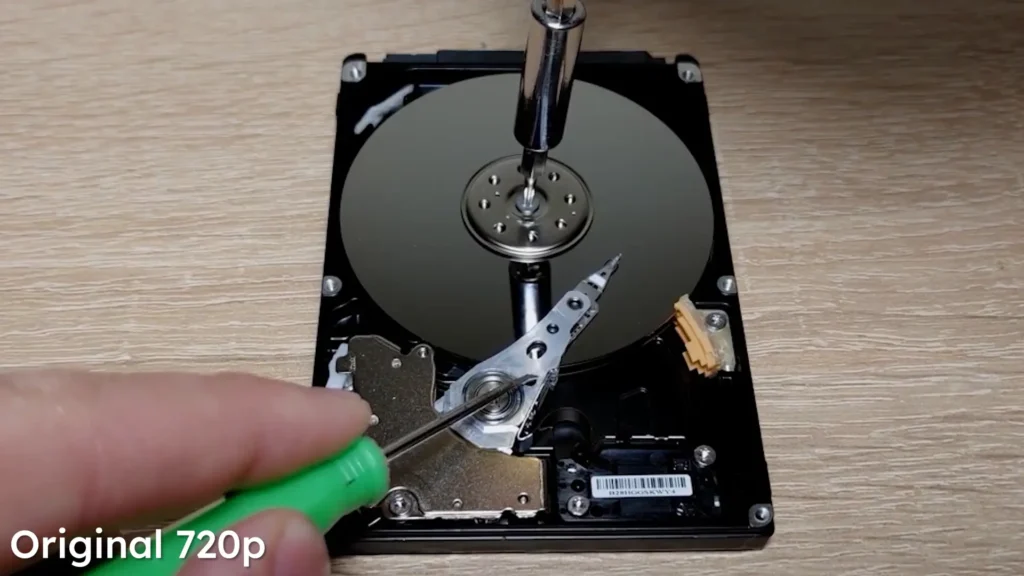
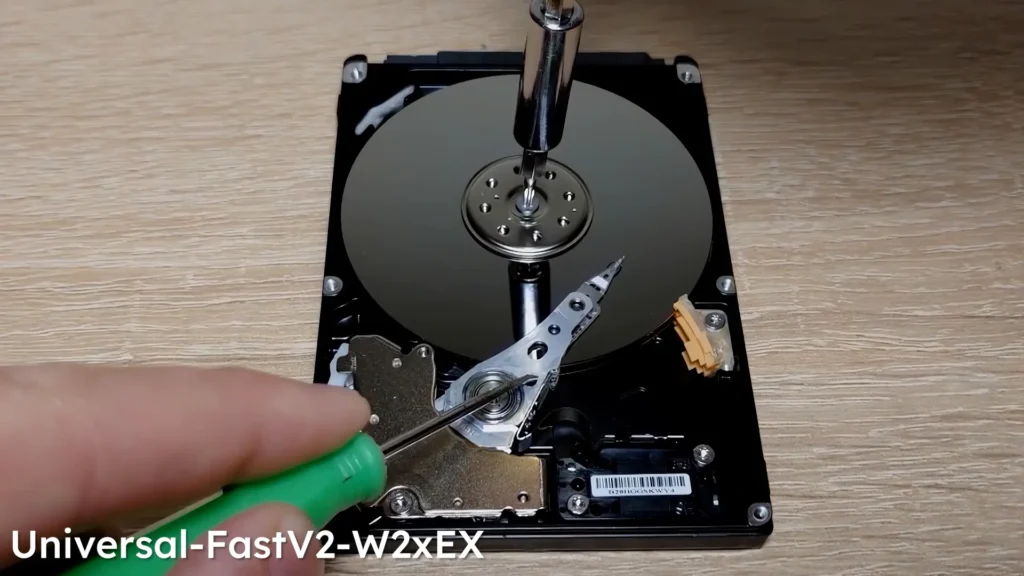
Even so, the results remained impressive.
Edges appeared cleaner, and small details remained well defined without excessive sharpening.
Hollow Knight: Silksong Gameplay
Gameplay footage presented a different challenge.
The original recording already looked relatively clean, which reduced the visible impact of upscaling.
The improvements were more subtle:
- Cleaner character edges
- Slightly sharper details
- Improved visual clarity in 4K
While the difference was not dramatic, the enhanced version still looked better overall.
Windows Desktop Tutorial
Desktop recordings produced the most noticeable improvements.
Text, icons, menus, and interface elements appeared significantly clearer after upscaling.
In my experience, screen recordings and tutorial videos are among the best candidates for AI enhancement.
Because desktop footage contains many small details, increasing resolution can greatly improve readability.
If you create software tutorials, technical guides, or educational content, AI upscaling can be especially valuable.
Does Waifu2x Work on AMD, NVIDIA, and Intel GPUs?
Yes.
One of the strongest advantages of Waifu2x-Extension-GUI is broad hardware compatibility.
Unlike some AI applications that primarily target NVIDIA users, this software also works well with AMD and Intel graphics solutions.
My own testing was performed on an AMD Radeon RX 9070 XT, and the experience was excellent.
The software successfully detected the graphics card and utilized GPU acceleration without requiring any manual tweaking.
This makes it a practical choice regardless of which graphics ecosystem you use.
Additional Features You Should Know About
Most users only explore the upscaling functionality, but the software includes several other useful tools.
Video Frame Interpolation
Frame interpolation can increase the frame rate of a video by generating intermediate frames using AI.
Examples include:
- 30 FPS → 60 FPS
- 60 FPS → 120 FPS
This can create smoother motion in certain types of content.
Batch Processing
If you have multiple videos to enhance, batch processing can save considerable time.
Instead of processing videos individually, you can queue multiple files and let the software work automatically.
This is especially useful for:
- YouTube archives
- Home video collections
- Recorded tutorials
Multi-GPU Support
Advanced users with multiple graphics cards can benefit from multi-GPU acceleration.
This feature can reduce rendering times when working with large projects.
Waifu2x vs Paid AI Video Enhancers
Many users wonder whether free software can compete with commercial alternatives.
Here is a general comparison.
| Feature | Waifu2x | Paid Alternatives |
| Price | Free | Paid |
| Video Upscaling | Yes | Yes |
| Image Upscaling | Yes | Yes |
| Frame Interpolation | Yes | Usually |
| Multiple AI Models | Yes | Yes |
| Ease of Use | Moderate | Usually Easier |
| GPU Acceleration | Yes | Yes |
Commercial software often offers a more polished interface and additional automation.
However, for many users, Waifu2x-Extension-GUI provides excellent value considering its zero cost.
If you are looking for another free AI video upscaling solution, you may also want to read my detailed guide on Video2X AI upscaling, where I tested a different open-source tool and compared its real-world performance and image quality.
Pros and Cons
Pros
- Completely free
- Multiple AI models
- Supports AMD, NVIDIA, and Intel GPUs
- Excellent 4K upscaling capabilities
- Batch processing support
- Frame interpolation support
- Hardware acceleration
- Active development
Cons
- Interface may appear complex to beginners
- Some AI models are significantly slower
- Results vary depending on source material
- Initial setup can be intimidating for new users
Final Verdict
I was genuinely impressed by the results produced by Waifu2x-Extension-GUI.
For a free application, it delivers excellent video enhancement capabilities and supports a wide variety of AI technologies.
During my testing, Universal-FastV2 consistently provided the best balance between image quality and rendering speed, making it my preferred model for everyday use.
While AI upscaling cannot transform every low-resolution video into perfect native 4K footage, it can noticeably improve clarity, sharpen details, and make older content more enjoyable to watch.
If you have old YouTube videos, gameplay recordings, desktop tutorials, or personal footage that could benefit from higher resolution, Waifu2x-Extension-GUI is absolutely worth trying.
FAQ
Is Waifu2x-Extension-GUI really free?
Yes. The software can be downloaded and used free of charge.
Can I upscale 1080p videos to 4K?
Yes. The software supports a wide range of input and output resolutions.
Does Waifu2x work with AMD graphics cards?
Yes. During my testing, the software worked very well with an AMD Radeon RX 9070 XT.
Which AI model is best?
For most users, Universal-FastV2 provides the best balance between quality and speed.
Can AI restore blurry videos?
AI can improve clarity and recover some details, but it cannot completely recreate information that was never captured.
How long does video upscaling take?
Rendering time depends on video length, resolution, hardware performance, and the selected AI model.
Is Waifu2x better than paid software?
Paid solutions may offer additional features and easier workflows, but Waifu2x delivers excellent results considering that it is completely free.
Is AI upscaling useful for tutorial videos?
Absolutely. Desktop recordings, software tutorials, and screen captures are among the content types that benefit most from AI upscaling because text and interface elements become easier to read.
Can I process multiple videos at once?
Yes. The software includes batch processing functionality.
Does Waifu2x support Windows 11?
Yes. The software works on modern Windows systems, including Windows 11.