Laptop overheating is one of the most common problems users face, especially on older machines or thin laptops with limited cooling systems. Loud fans, thermal throttling, reduced battery life, and uncomfortable surface temperatures can quickly turn a good laptop experience into a frustrating one.
One solution many users talk about is disabling Turbo Boost technology. Some people claim it dramatically improves temperatures and noise levels, while others argue that turning it off wastes performance you already paid for.
So, should you disable Turbo Boost on your laptop?
The answer is not completely black and white.
Over the years, I tested multiple older laptops and mobile workstations, including systems used for video editing, 3D applications, and general productivity. In some cases, disabling aggressive boost behavior noticeably improved temperatures and fan noise. However, on other laptops — especially devices with decent cooling systems — the performance loss was simply not worth it.
That is why this topic is more complicated than many people think.
In this guide, we will explain what Turbo Boost actually does, why it can increase temperatures, when disabling it makes sense, and when you should absolutely leave it enabled. We will also look at better alternatives that may help reduce temperatures without sacrificing too much performance.
What Is Turbo Boost Technology?
Turbo Boost is an automatic CPU performance feature developed by Intel. AMD processors use a similar technology called Precision Boost.
In simple terms, Turbo Boost allows the processor to temporarily run at much higher clock speeds when additional performance is needed.
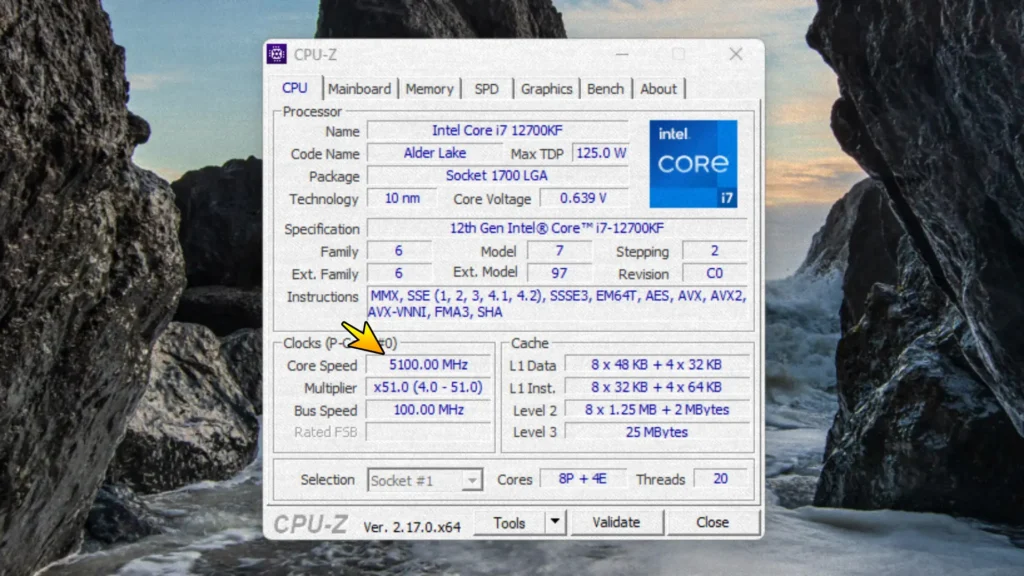
For example:
- a CPU with a base clock of 2.4 GHz might boost to 4.0 GHz or higher;
- this happens automatically depending on:
- temperatures;
- power limits;
- workload;
- cooling performance.
This is not traditional manual overclocking. The processor dynamically adjusts its frequency on its own.
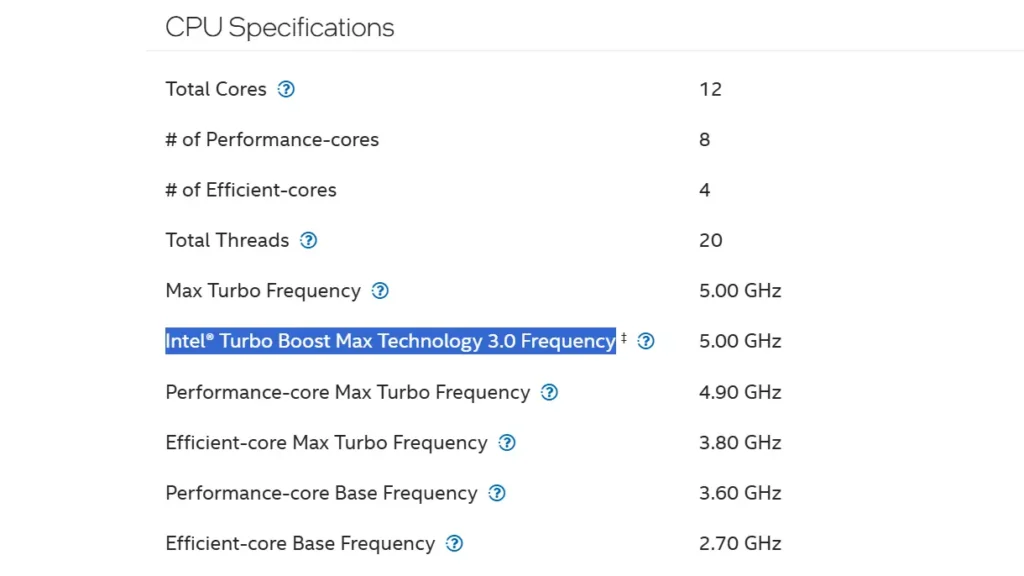
Turbo Boost is extremely useful for:
- gaming;
- video editing;
- 3D rendering;
- compiling code;
- multitasking;
- heavy workloads.
Modern processors are designed to intelligently balance performance, temperatures, and power consumption.
However, laptops often have one major limitation compared to desktop PCs:
Cooling.
Why Turbo Boost Can Increase Laptop Temperatures
Turbo Boost itself is not dangerous. Modern CPUs include multiple safety protections designed to prevent immediate hardware damage.
The real issue is that many laptops — especially thin ultrabooks, budget laptops, or older gaming laptops — simply cannot cool the processor effectively under sustained boost clocks.
When Turbo Boost activates:
- CPU frequency increases;
- voltage often increases;
- power consumption rises;
- heat output increases significantly.
This can quickly push laptop temperatures into the 90°C range or higher.
In real-world usage, I noticed this behavior most often on thinner laptops and older budget gaming machines. During short tasks everything looked fine, but after 10–20 minutes of gaming or rendering, temperatures started climbing aggressively and the fans became extremely loud.
As temperatures rise, several problems may appear:
- louder fans;
- thermal throttling;
- reduced sustained performance;
- uncomfortable keyboard temperatures;
- reduced battery life;
- increased wear on thermal paste and cooling components over time.
This is especially common on:
- older laptops;
- dusty systems;
- ultrabooks with limited airflow;
- laptops with weak factory thermal paste;
- machines with compact cooling systems.
Ironically, some laptops actually perform worse during long workloads with Turbo Boost enabled because the CPU repeatedly overheats and throttles.
Instead of maintaining stable performance, the processor constantly jumps between high frequencies and aggressive throttling. In games, this can sometimes feel like inconsistent frame pacing rather than smooth performance.
Turbo Boost vs Thermal Throttling
Many users confuse these two technologies.
Turbo Boost
Turbo Boost increases CPU frequency for better performance.
Thermal Throttling
Thermal throttling reduces CPU performance to prevent overheating.
This means the processor may initially boost to very high frequencies, but after temperatures become too high, the system lowers clock speeds to cool down.
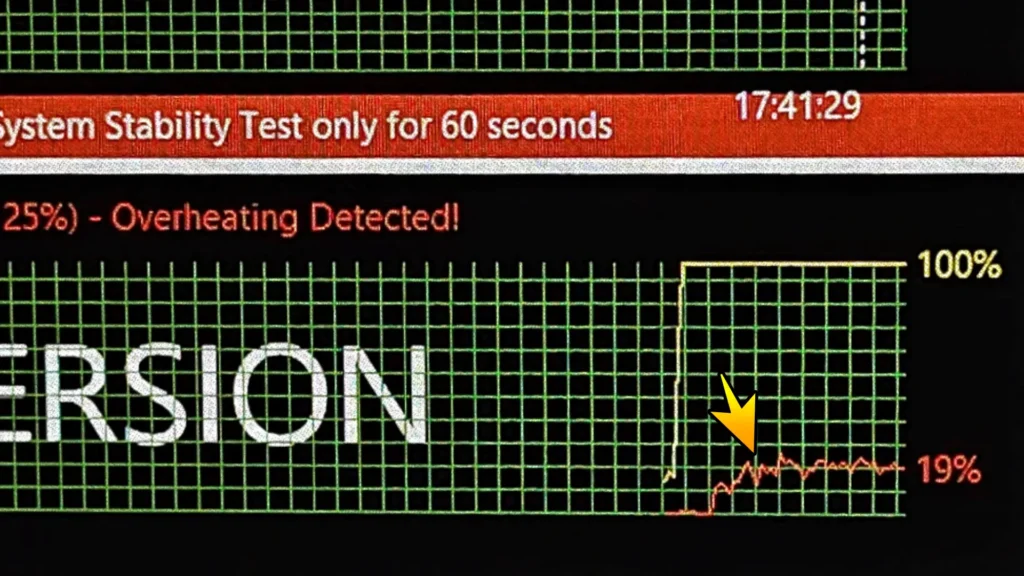
On laptops with weak cooling systems, this cycle can repeat constantly:
- CPU boosts aggressively;
- temperatures rise rapidly;
- throttling starts;
- performance drops;
- temperatures cool slightly;
- boost activates again.
This creates unstable performance and unnecessary heat.
In some situations, disabling Turbo Boost can actually improve long-term consistency because the CPU maintains lower but stable frequencies instead of constantly bouncing between thermal limits.
What Happens When You Disable Turbo Boost?
When Turbo Boost is disabled:
- the CPU no longer boosts above its base clock;
- power consumption decreases;
- temperatures usually drop noticeably;
- fan noise is reduced;
- battery life often improves.
On some older laptops, temperatures may drop by roughly 5–15°C depending on:
- the cooling system;
- ambient room temperature;
- thermal paste condition;
- and workload type.
However, results vary significantly from one laptop to another.
For example, on some well-cooled gaming laptops, disabling Turbo Boost may only reduce temperatures slightly while causing a much larger performance loss.
The impact also depends heavily on your workload.
For light tasks like:
- web browsing;
- YouTube;
- office work;
- studying;
- document editing;
you may barely notice any difference.
But for heavier workloads like:
- gaming;
- rendering;
- video editing;
- AI workloads;
- 3D applications;
the performance loss can become significant.
Depending on the laptop and application, performance reductions may range anywhere from:
- 5–10% in lighter workloads;
- to 20–35% or more in demanding tasks.
Advantages of Disabling Turbo Boost
Lower Temperatures
This is the biggest reason people disable Turbo Boost.
On many laptops, temperatures can drop noticeably during sustained workloads. In some older machines I tested, the difference was surprisingly large, especially when the cooling system was already struggling near thermal limits.
Lower temperatures may also reduce thermal throttling and improve overall system comfort.
Quieter Fans
Turbo Boost can cause fans to ramp up aggressively even during moderate tasks.
Disabling it often makes laptops noticeably quieter, especially during:
- browsing;
- office work;
- watching videos;
- light multitasking.
Some laptops become much more pleasant to use on a daily basis after reducing aggressive boost behavior.
Better Battery Life
Higher CPU frequencies require more power.
Disabling Turbo Boost can improve battery life because:
- power consumption decreases;
- the cooling system works less aggressively;
- background power spikes become smaller.
The improvement depends on the laptop and workload, but many users notice longer battery runtime during lighter usage.
More Stable Temperatures
Some laptops constantly jump between hot and cool states.
Disabling Turbo Boost can create:
- more consistent temperatures;
- less aggressive thermal spikes;
- smoother fan behavior.
This often matters more in real-world use than maximum benchmark scores.
Disadvantages of Disabling Turbo Boost
Now let’s discuss the downsides, because they are important.
Reduced Performance
This is the biggest tradeoff.
Turbo Boost exists for a reason:
- modern applications benefit heavily from high frequencies;
- many games rely on strong single-core performance;
- creative workloads can become significantly slower without boost clocks.
On powerful gaming laptops or workstation laptops, disabling Turbo Boost may unnecessarily limit performance.
Worse Gaming Performance
Many modern games benefit from Turbo Boost.
Disabling it may:
- reduce FPS;
- lower 1% lows;
- increase stuttering in CPU-heavy games.
This depends on:
- the GPU;
- cooling system;
- CPU model;
- game engine.
Some GPU-limited games may show only small differences, while CPU-heavy titles can lose noticeably more performance.
Slower Professional Workloads
Applications like:
- Adobe Premiere Pro;
- Blender;
- DaVinci Resolve;
- Visual Studio;
- Unreal Engine;
often benefit significantly from higher boost clocks.
Rendering and export times may increase noticeably when Turbo Boost is disabled.
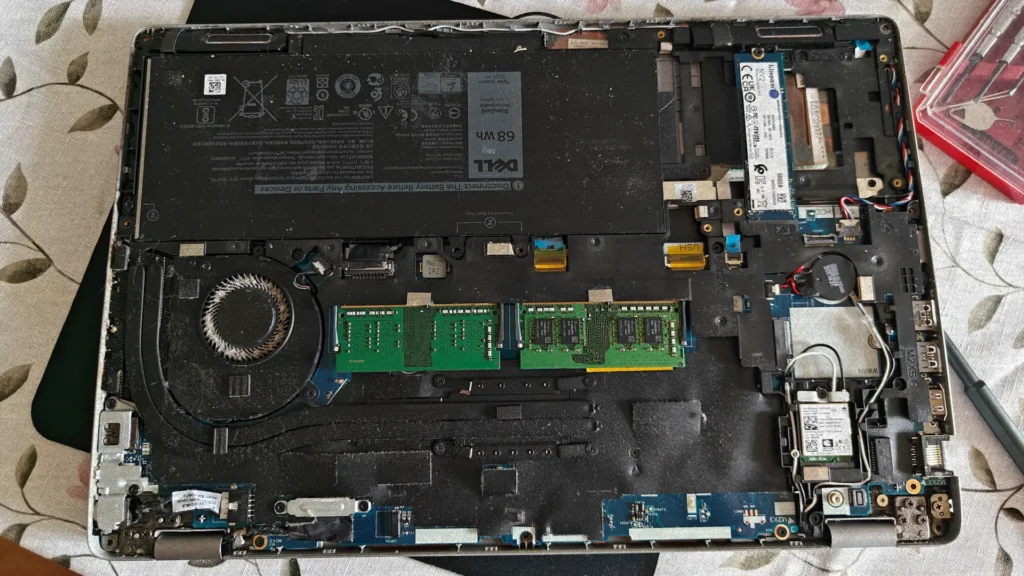
You Might Be Treating the Symptom Instead of the Problem
This is extremely important.
If your laptop overheats badly, the real issue may actually be:
- dust buildup;
- old thermal paste;
- poor airflow;
- blocked vents;
- worn-out fans.
Disabling Turbo Boost can help, but sometimes it only hides the underlying problem.
It is also important to understand that disabling Turbo Boost is not a universal fix for every overheating issue. For example, some gaming laptops may still run hot because the GPU or VRM components generate most of the heat under load.
When You Should Consider Disabling Turbo Boost
Disabling Turbo Boost makes the most sense in these situations:
Older Laptops
Older cooling systems often struggle with modern workloads.
If temperatures constantly exceed:
- 90°C;
- 95°C;
- or thermal throttling becomes severe;
disabling Turbo Boost may improve stability and reduce fan noise considerably.
If you’re trying to extend the life of an aging machine, you may also find my guide on Linux Mint for old laptops useful.
Thin and Light Ultrabooks
Many ultrabooks prioritize portability over cooling performance.
In some models:
- the cooling system is simply too small;
- fan noise becomes excessive;
- temperatures spike constantly.
I personally noticed this on several thin laptops where even basic multitasking triggered aggressive fan behavior for no good reason.
Disabling Turbo Boost made those systems feel calmer and more consistent during everyday use.
Office and Productivity Usage
If you mainly use your laptop for:
- browsing;
- Office applications;
- YouTube;
- studying;
- programming;
- remote work;
you may barely notice the performance difference.
But you will likely notice:
- lower temperatures;
- quieter fans;
- better battery life.
Persistent Thermal Throttling
If the CPU constantly throttles under load, disabling Turbo Boost may actually create more stable sustained performance.
A stable 2.8 GHz can sometimes feel smoother than unstable jumps between:
- 4.5 GHz;
- aggressive throttling;
- and loud fan spikes.
When You Should Keep Turbo Boost Enabled
There are also many situations where disabling Turbo Boost is not recommended.
Gaming Laptops with Good Cooling
If your gaming laptop has:
- strong cooling;
- stable temperatures;
- reasonable fan behavior;
then disabling Turbo Boost may unnecessarily reduce performance.
Many modern gaming laptops are specifically designed to sustain higher boost clocks under load.
Professional Creative Work
For:
- video editing;
- rendering;
- 3D modeling;
- AI applications;
- software development;
Turbo Boost can save significant time.
If temperatures are acceptable, keeping it enabled usually makes more sense.
Desktop PCs
Desktop PCs generally have:
- larger coolers;
- better airflow;
- customizable cooling systems.
For most desktop systems, there is usually little reason to disable Turbo Boost entirely.
Better Alternatives Before Disabling Turbo Boost
Before disabling Turbo Boost completely, consider trying these solutions first.
Clean Your Laptop
Dust buildup can dramatically reduce cooling efficiency.
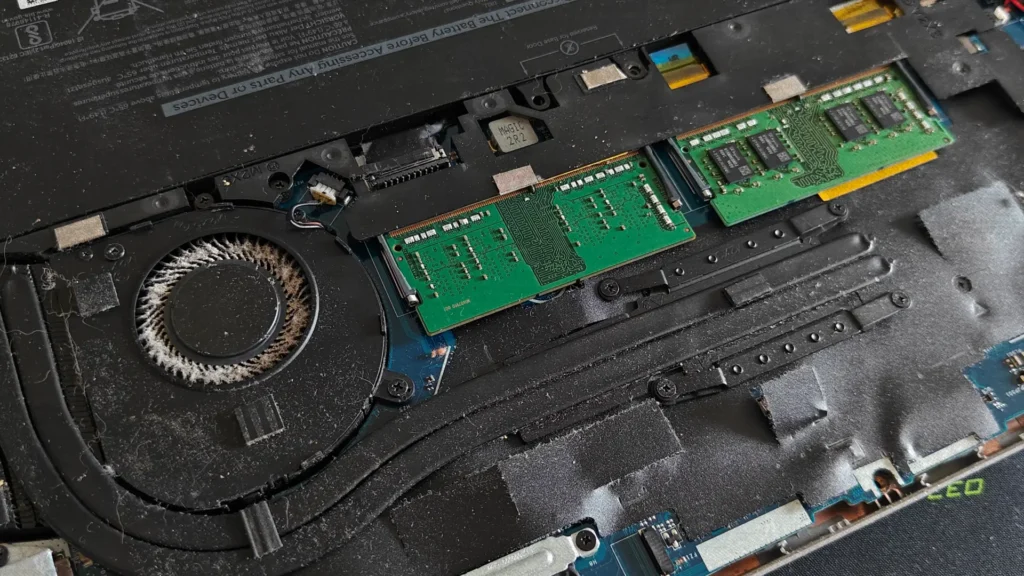
Cleaning:
- fans;
- heatsinks;
- vents;
can significantly improve temperatures.
Honestly, many older laptops simply suffer from years of dust buildup rather than Turbo Boost itself.
Replace Thermal Paste
Factory thermal paste often dries out over time.
Replacing it with quality thermal paste may reduce temperatures considerably.
This is especially important for:
- older gaming laptops;
- heavily used systems;
- laptops older than 3–5 years.
Use a Cooling Pad
Laptop cooling pads are not magic solutions, but they can help improve airflow.
Results vary depending on:
- laptop design;
- fan placement;
- airflow configuration.
Some laptops benefit a lot more than others.
Undervolting
Undervolting is often a better solution than disabling Turbo Boost.
It reduces CPU voltage while keeping performance mostly intact.
In many cases, undervolting can reduce temperatures and fan noise without sacrificing too much performance.
Popular tools include:
- Intel XTU;
- ThrottleStop;
- Ryzen Controller.
However, undervolting support varies depending on:
- CPU generation;
- BIOS restrictions;
- manufacturer limitations.
Modern Intel laptops may also have undervolting restrictions because of security mitigations introduced in newer BIOS updates.
Always research your specific laptop model carefully before changing voltage settings.
Adjust Windows Power Settings
Some users reduce temperatures by:
- limiting maximum processor state;
- using balanced power plans;
- lowering aggressive boost behavior.
This can sometimes provide a good middle ground between:
- full Turbo Boost;
- and completely disabling it.
Does Disabling Turbo Boost Damage Performance Permanently?
No.
Disabling Turbo Boost does not permanently reduce or damage CPU performance. The change is completely reversible.
You can re-enable Turbo Boost at any time through:
- BIOS settings;
- power settings;
- or performance tuning software.
This makes experimenting relatively safe as long as you monitor temperatures and system stability carefully.
How to Disable Turbo Boost
The exact process depends on your laptop manufacturer.
Method 1: BIOS/UEFI
Many laptops allow Turbo Boost to be disabled directly in BIOS.
Look for settings such as:
- Intel Turbo Boost;
- Turbo Core;
- Precision Boost;
- CPU Performance Boost.
These settings are often located under:
- Advanced;
- CPU Configuration;
- Performance;
- Power settings.
Keep in mind that some manufacturers lock these options completely.
Method 2: Windows Power Settings
Another common method is limiting the maximum processor state.
Basic steps:
- Open Power Options;
- Select your power plan;
- Open Advanced Power Settings;
- Find Processor Power Management;
- Set Maximum Processor State below 100%.
For many Intel CPUs:
- setting 99% disables Turbo Boost behavior.
This method is simple and reversible.
Final Verdict: Should You Disable Turbo Boost?
There is no universal answer.
Disabling Turbo Boost can:
- reduce temperatures;
- lower fan noise;
- improve battery life;
- create a quieter and more stable laptop experience.
But it can also reduce performance significantly in demanding workloads.
For many older laptops or ultrabooks with weak cooling systems, disabling Turbo Boost can genuinely improve everyday usability.
For gaming laptops and professional workstations with strong cooling, keeping Turbo Boost enabled usually makes more sense.
The best approach is to:
- monitor temperatures;
- identify whether throttling is occurring;
- improve cooling first;
- test both modes yourself.
In many cases, a combination of:
- cleaning the laptop;
- replacing thermal paste;
- undervolting;
- adjusting power settings;
may provide a better balance than completely disabling Turbo Boost.
At the end of the day, the goal is not simply maximum benchmark performance — it is achieving the best balance between:
- temperatures;
- noise;
- battery life;
- and real-world usability.
For some laptops, Turbo Boost is incredibly useful.
For others, especially older machines with limited cooling, turning it off may actually create a noticeably better everyday experience.