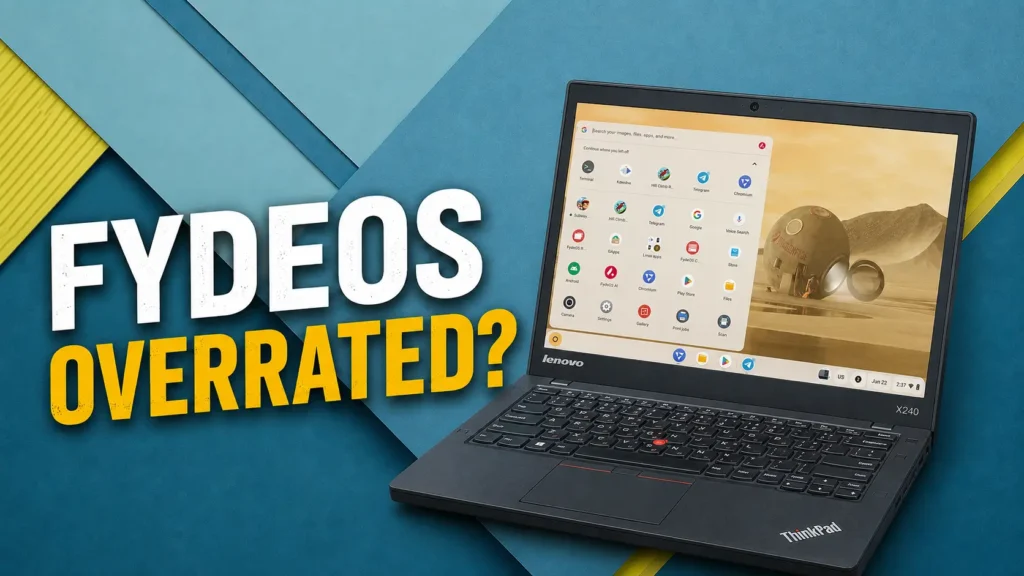
This FydeOS review answers one simple question: can it really bring an old laptop back to life? A few years ago, many people looked at old laptops and assumed the same thing: they were simply too slow for modern operating systems.
And to be fair, that opinion made sense. Windows can feel heavy on older machines, especially if the laptop has only 4 GB of RAM, a low-power processor, and a basic SATA SSD. Even simple tasks like opening a browser, watching YouTube, or switching between apps can sometimes feel slower than they should.
But lightweight operating systems have changed that conversation.
FydeOS is one of the more interesting options because it promises a ChromeOS-like experience on regular PCs and laptops. It is designed around web apps, Android applications, Linux support, fast boot times, and a simple desktop interface. On paper, that sounds almost perfect for older hardware.
But the important question is not whether FydeOS looks good in a feature list. The real question is whether it actually works well in daily use.
To find out, I installed FydeOS on my Lenovo ThinkPad X240, an older business laptop with a 4th-generation Intel Core i5 processor, 4 GB of RAM, and a SATA SSD. I tested boot time, YouTube playback, Android apps, Google Play Store setup, Linux applications, hardware compatibility, and multitasking performance.
This is not a theoretical review. It is based on real testing on old hardware.
Test Laptop Specifications
For this review, I used a Lenovo ThinkPad X240. This is not a modern laptop, but that is exactly why it is useful for this kind of test. If FydeOS can run well on this machine, it may also be a good option for many older laptops that are no longer enjoyable to use with Windows.
| Component | Specification |
|---|---|
| Laptop | Lenovo ThinkPad X240 |
| CPU | Intel Core i5-4300U |
| RAM | 4 GB DDR3L |
| Storage | SATA SSD |
| Graphics | Intel HD Graphics 4400 |
| Device type | Older business laptop |
This is the kind of hardware many people still have at home, in the office, or sitting unused in a drawer. It is not powerful by modern standards, but it is still good enough for web browsing, office work, video playback, and light productivity if the operating system is efficient.
What Is FydeOS?
FydeOS is a desktop operating system based on ChromiumOS technologies. In simple terms, it tries to deliver a Chromebook-like experience on regular hardware.
The interface feels familiar if you have used ChromeOS before. You get a clean desktop, a launcher, a browser-first workflow, quick settings, and a lightweight environment focused on web apps. However, FydeOS is more flexible than ChromeOS Flex in one important area: it can support Android apps and Linux applications, depending on the device and configuration.
That makes FydeOS interesting because it sits somewhere between ChromeOS Flex, Linux, and Windows.
It is not exactly ChromeOS. It is not a traditional Linux distribution either. And it is obviously not Windows. Instead, it tries to combine a simple browser-based system with Android and Linux compatibility.
That sounds very attractive for older laptops, but it also creates some complexity. More features usually mean more things that can go wrong, and that became clear during my testing.
FydeOS vs ChromeOS Flex vs Windows
Before going into the installation and testing, it is useful to understand where FydeOS fits compared to other operating systems.
| Feature | FydeOS | ChromeOS Flex | Windows 11 |
|---|---|---|---|
| Web browsing | Excellent | Excellent | Excellent |
| Android apps | Supported on many builds | Not supported | Not native |
| Linux apps | Supported | Supported on many devices | Supported through WSL, but not the same experience |
| Google Play Store | Possible, but may require setup | Not available | Not available |
| Performance on old hardware | Usually very good | Very good | Depends heavily on hardware |
| Best use case | Web apps, Android apps, light productivity | Web browsing, cloud work, simple old PC revival | Full desktop software and gaming |
| Main weakness | Some setup and compatibility issues | Limited app flexibility | Can feel heavy on older machines |
For a simple web browsing machine, ChromeOS Flex is probably easier and more polished. For full desktop software compatibility, Windows is still much more powerful. But FydeOS is interesting because it gives you a lightweight system with Android app support, which ChromeOS Flex does not offer.
That is the main reason to consider FydeOS.
Downloading FydeOS
To download FydeOS, you need to visit the official FydeOS website and go to the download section. From there, choose FydeOS for PC.
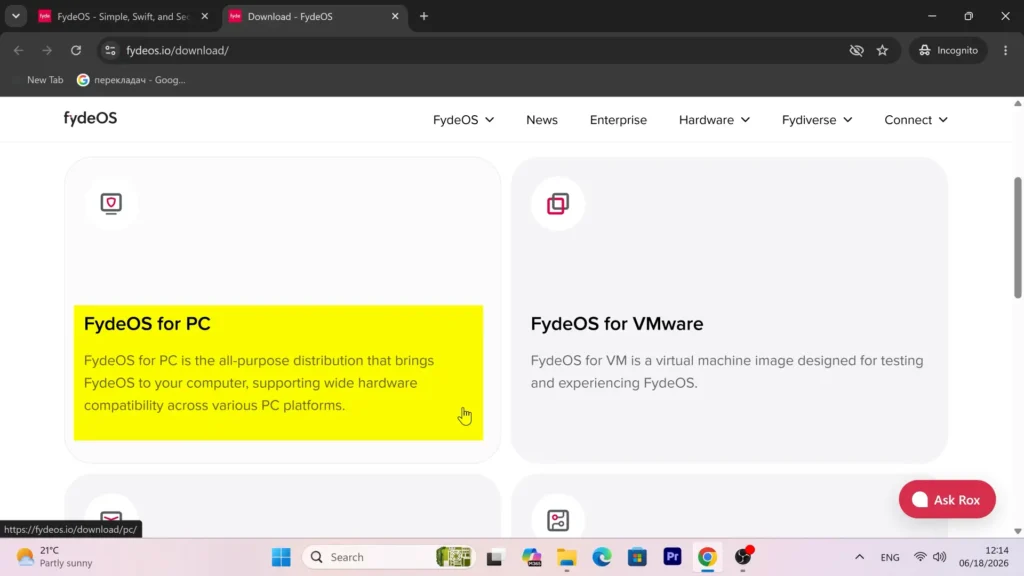
One thing I like is that FydeOS offers different builds depending on your hardware. There are versions for modern Intel systems, older Intel PCs, and some AMD configurations. This matters because using the wrong image can cause compatibility problems.
For my ThinkPad X240, I used a build designed for older Intel hardware. Since this laptop uses a 4th-generation Intel processor and integrated Intel graphics, that made the most sense.
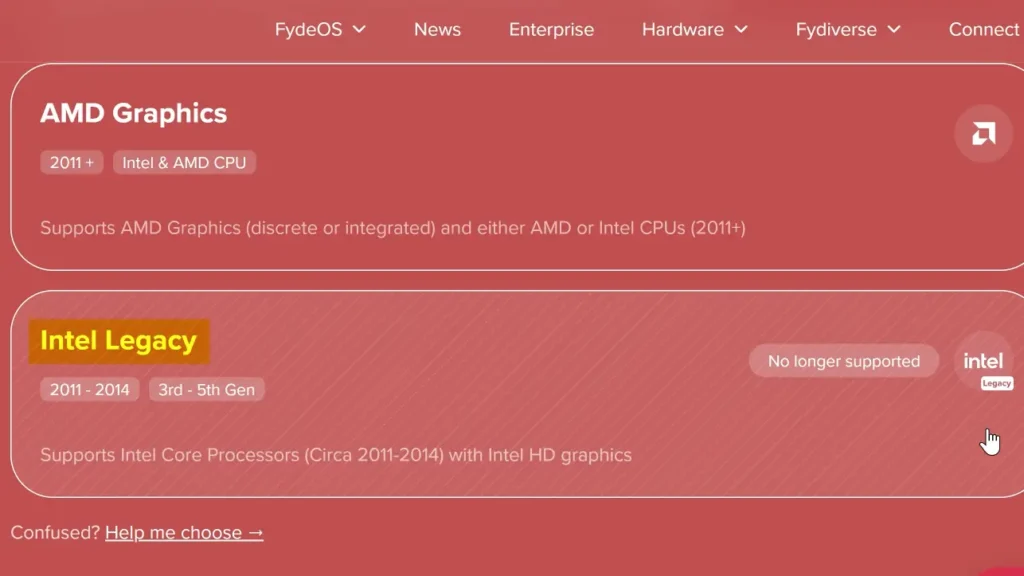
If you are installing FydeOS on your own device, do not randomly download the first option you see. Take a moment to choose the version that matches your hardware as closely as possible.
Creating a Bootable USB Drive
After downloading FydeOS, the next step is creating a bootable USB drive.
For this, I used Balena Etcher, which is one of the tools recommended for writing the FydeOS image to a USB drive. You can also use Rufus in some cases, but Etcher is simple and works well for most users.
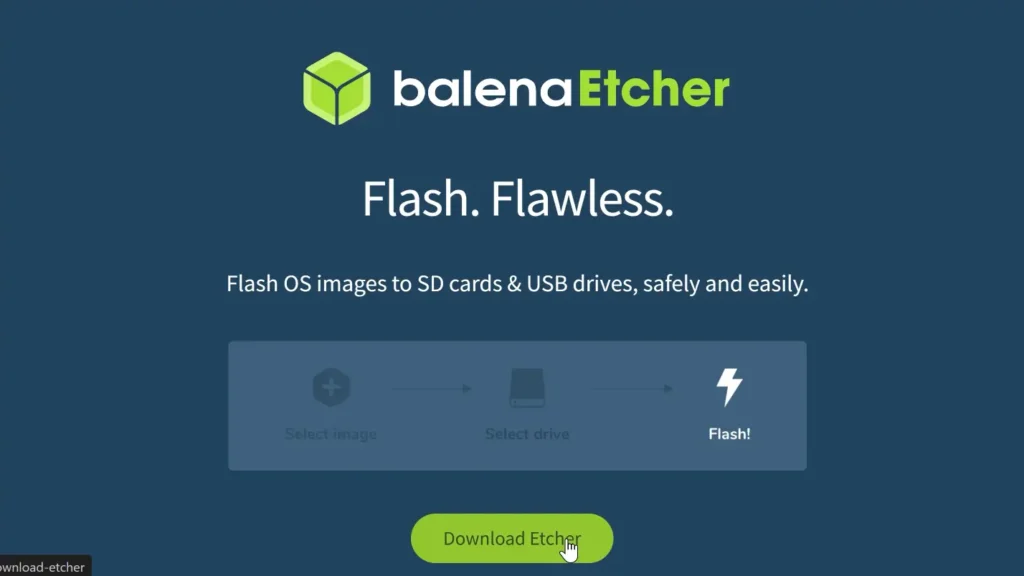
You will need:
- A USB flash drive with at least 8 GB of storage
- The correct FydeOS image for your device
- Balena Etcher or Rufus
- A laptop or desktop where you can create the installation media
Keep in mind that the USB drive will be erased during the flashing process, so make sure there is nothing important on it.
One important detail is that FydeOS is not always distributed like a traditional ISO file. Depending on the version, the downloaded file may be a compressed image. In my case, because I was using an older build for legacy Intel hardware, I had to manually extract the downloaded archive before flashing it.
When I tried to write the archive directly, Balena Etcher returned an error before completing the process. After extracting the image first, the flashing process worked normally.
So if Etcher fails, do not immediately assume your USB drive is broken. Try extracting the image manually and then flash the extracted file.
BIOS Settings and Installation
Once the USB drive is ready, connect it to the laptop where you want to install FydeOS.
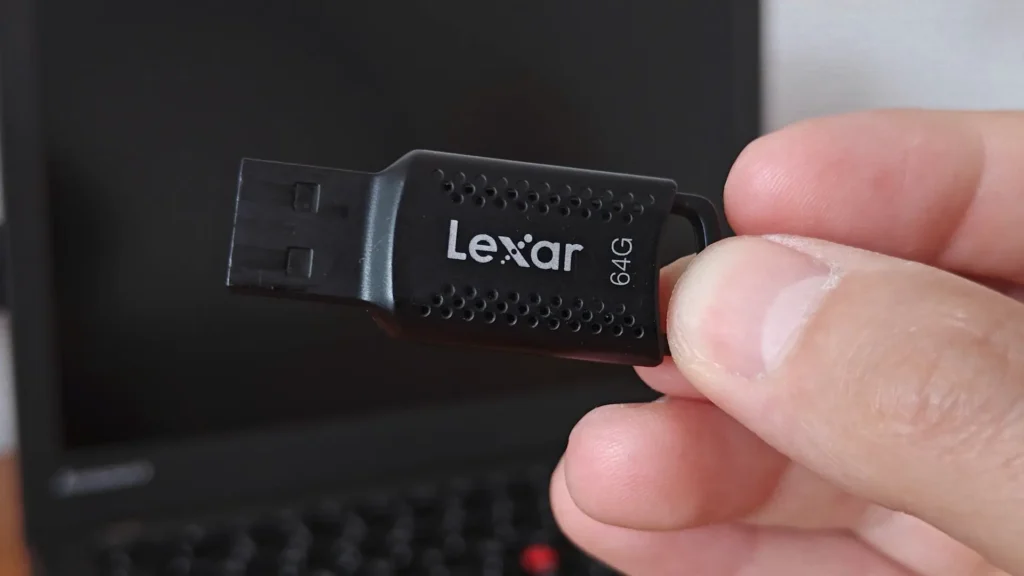
Before booting from it, enter the BIOS or UEFI settings. On many laptops, this is done by pressing F1, F2, F10, F12, Delete, or another key during startup. On my ThinkPad X240, I used the boot menu to select the USB drive.
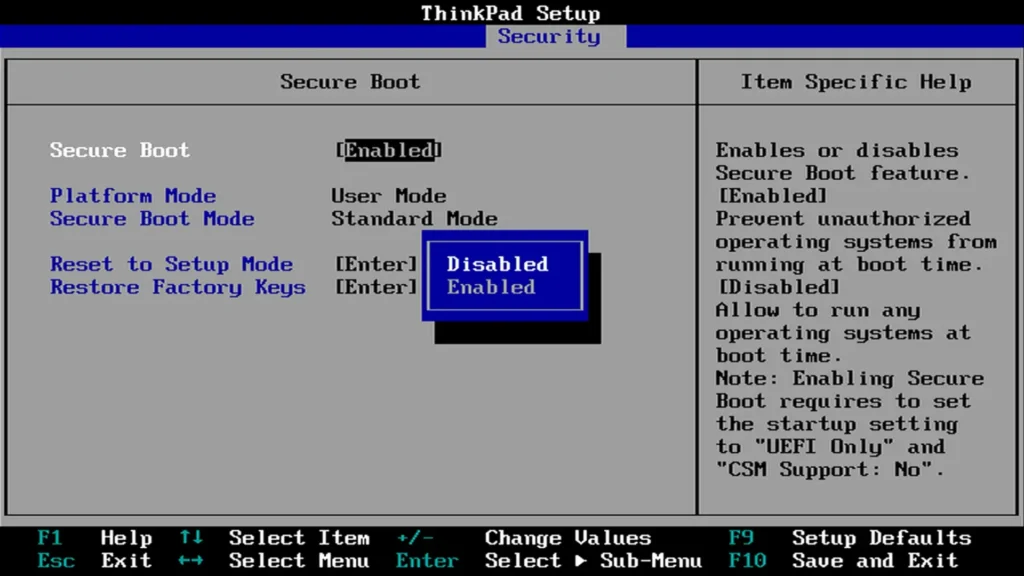
For better compatibility, I recommend checking a few settings before installation:
| Setting | Recommended Option |
|---|---|
| Boot mode | UEFI |
| Secure Boot | Disabled |
| Boot device | FydeOS USB drive |
| Installation type | Full disk installation, if you want to replace the existing OS |
In my case, I disabled Secure Boot and used UEFI boot mode. After saving the settings, I restarted the laptop and selected the FydeOS USB drive from the boot menu.
The installer loaded quickly. At first, I selected the language and keyboard layout, then continued to the installation options.
For this test, I chose Full Disk Installation. This means FydeOS completely replaced the previous operating system on the drive.
This is important: Full Disk Installation will erase the selected drive. If you have important files, back them up before continuing.
The installation itself was fast. On my ThinkPad X240, it took only a few minutes. After the process finished, I shut down the laptop, removed the USB drive, and started the system again from the internal SSD.
First Boot and Setup Experience
After the first boot from the SSD, I ran into a strange issue.
The interface became unresponsive, and I could not click the OK button or interact with the setup options. At first, it looked like the system had frozen. Fortunately, pressing the Esc key immediately fixed the problem and allowed me to continue.
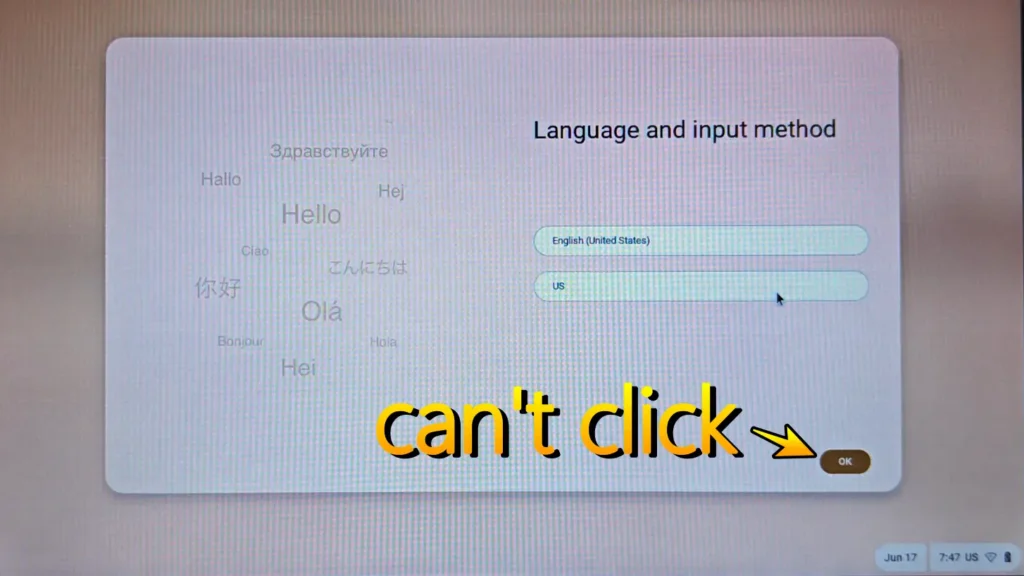
I experienced the same bug earlier while booting from the USB drive, so it was not a one-time issue. It is not a huge problem if you know the solution, but for a new user it could be confusing.
After that, the rest of the setup was straightforward.
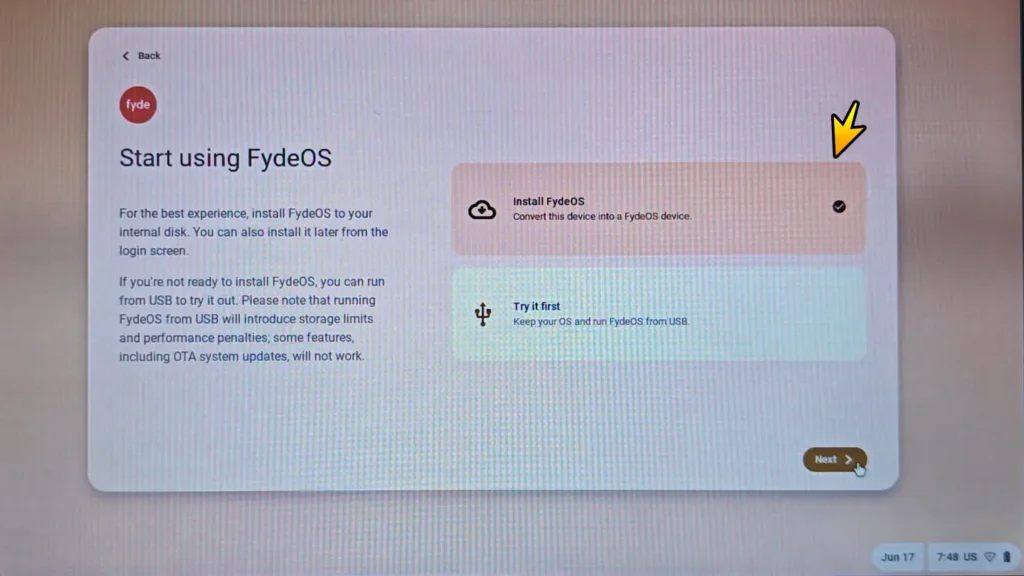
I selected my language and keyboard layout, connected to Wi-Fi, accepted the required terms, and reached the sign-in options. FydeOS offered several ways to continue, including a FydeOS account and a Google account.
For this test, I chose a local account. I like that this option exists because not everyone wants to sign into an online account just to use a lightweight operating system.
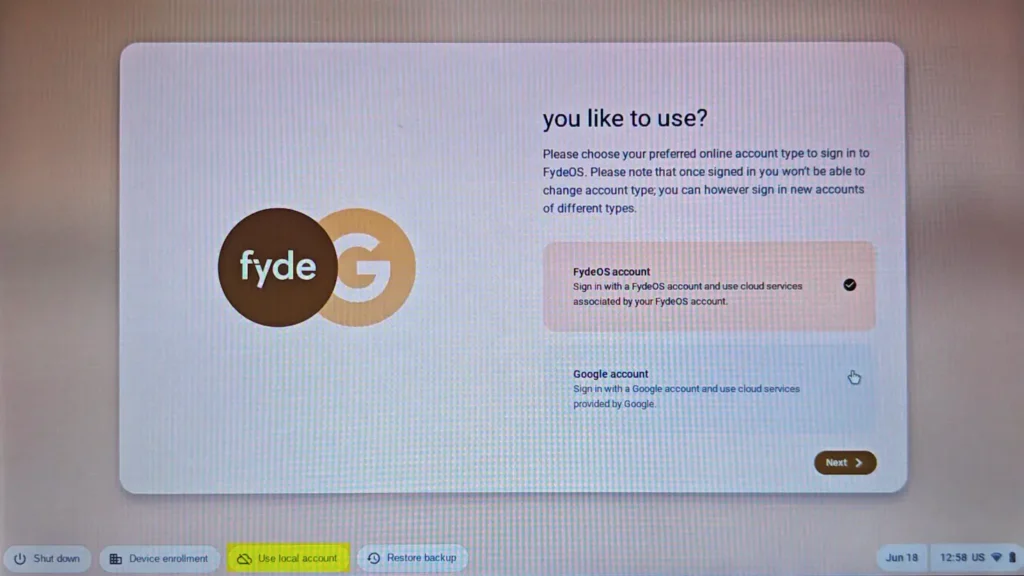
After completing the setup, FydeOS loaded into the desktop environment and was ready for testing.
Boot Time Test
One of the claims often associated with lightweight operating systems is fast boot performance. FydeOS also promotes quick startup times, so I wanted to test this on real hardware.
Using a stopwatch, my ThinkPad X240 took about 12 seconds to reach the login screen.
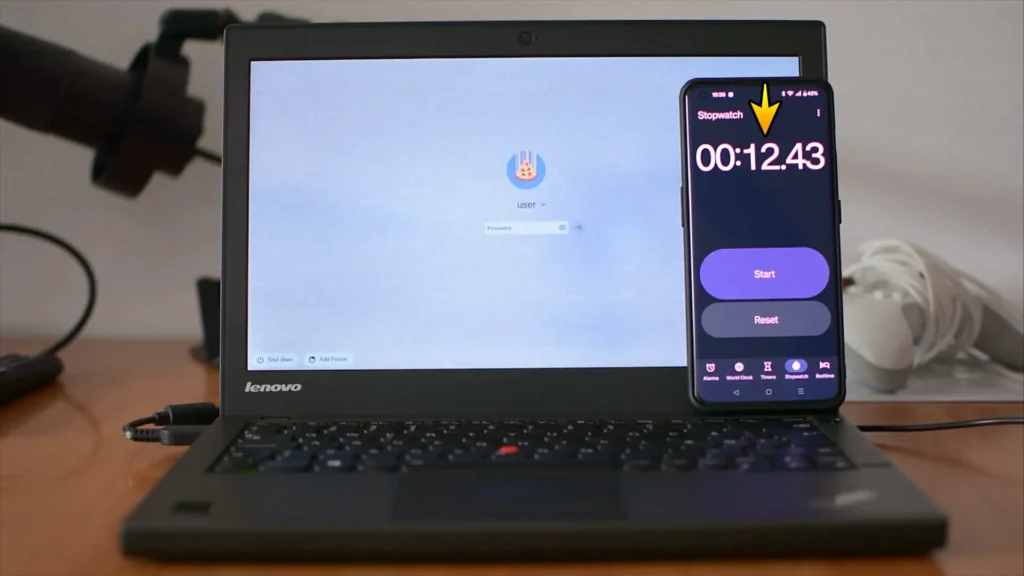
That is not quite the “as little as eight seconds” type of result you may see in marketing material, but for an old laptop with a 4th-generation Intel processor, 4 GB of RAM, and a SATA SSD, it is still very impressive.
In daily use, this makes the laptop feel much more modern than it actually is. You press the power button, wait a short moment, and the system is ready.
For an older machine, that is a strong result.
Hardware Compatibility
The good news is that most hardware worked correctly out of the box.
Display output worked. Audio worked. Wi-Fi worked. The touchpad was detected automatically. Two-finger scrolling also worked without any extra setup.
That is important because driver problems can quickly ruin the experience on alternative operating systems. In this case, FydeOS handled the basic hardware much better than I expected.
However, not everything felt perfect.
The first issue was right-click behavior. On Windows, I am used to pressing the right side of the touchpad as a physical right-click. In FydeOS, that did not work the same way on this ThinkPad. Instead, I had to use a two-finger tap or configure shortcuts such as Search + Click or Alt + Click.
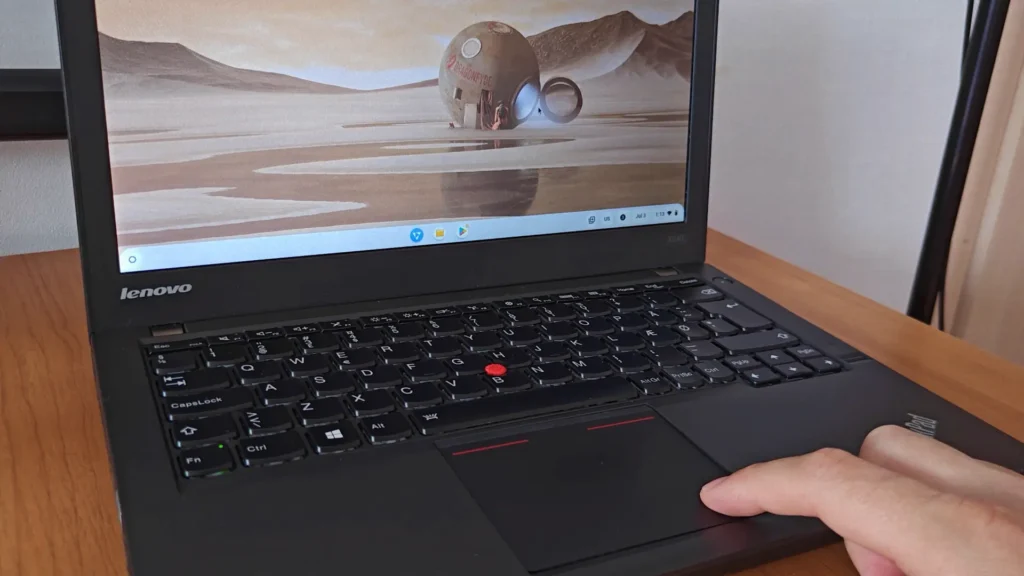
This is not a dealbreaker, but it felt less natural.
I also noticed unusual function key behavior. Brightness and volume controls worked, but not always through the keys originally labeled for those functions on my laptop. It seems that FydeOS uses more generic keyboard mappings instead of perfectly matching every laptop model.
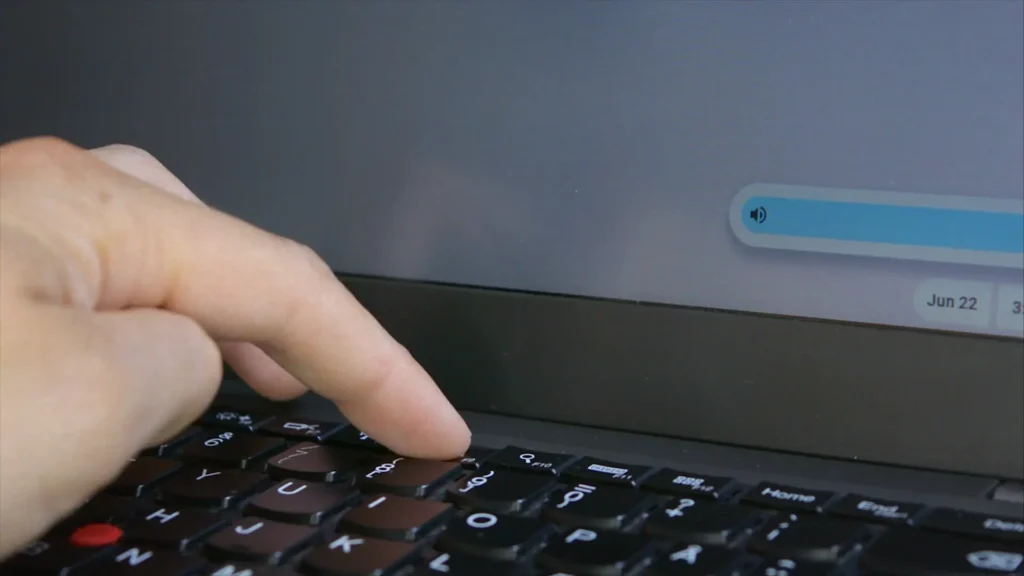
Again, this is not a serious problem, but it shows that FydeOS may not feel as polished as Windows or ChromeOS on every device.
Built-in Diagnostics Tool
FydeOS includes a built-in Diagnostics tool that can show system activity and run CPU or memory stress tests.
I tested both the CPU and memory stress tests, and they completed without any major issues. The laptop remained responsive, and the tests were easy to start.
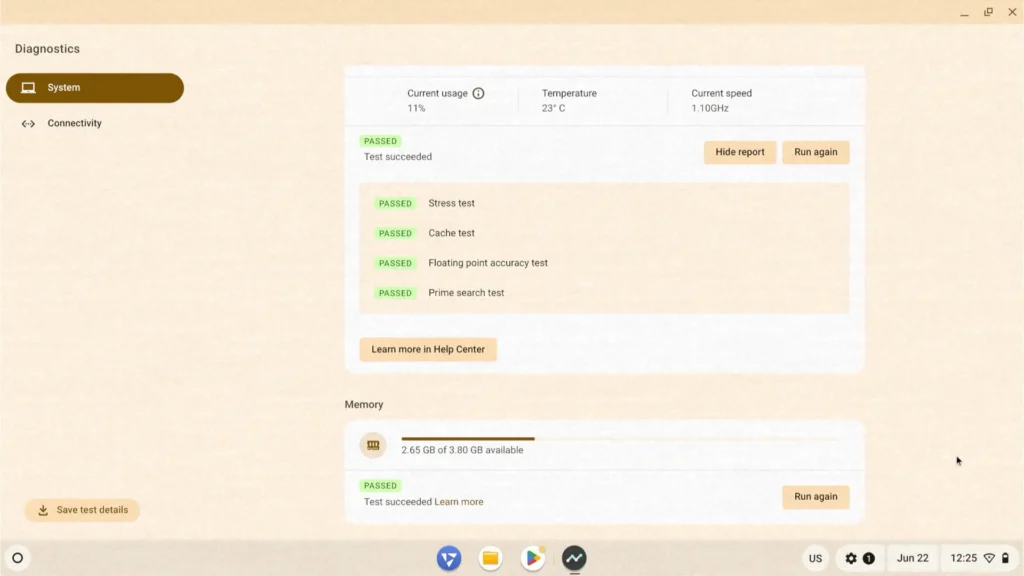
However, the temperature readings looked inaccurate. During the CPU stress test, FydeOS reported temperatures around 22 to 24 degrees Celsius. That is unrealistically low for a laptop under load.
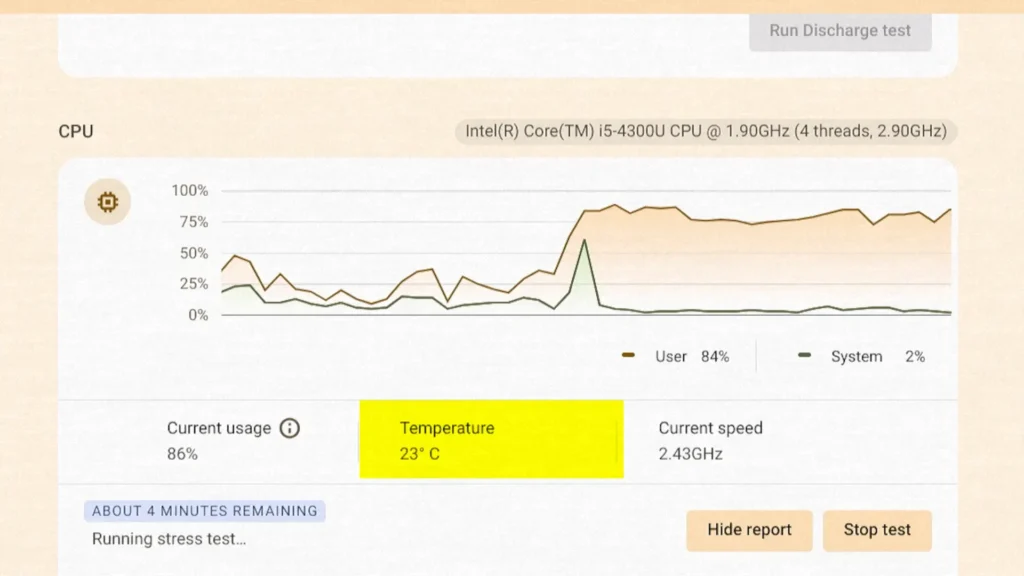
So the Diagnostics tool is useful, but I would not fully trust its temperature reporting on this hardware.
If you need accurate temperatures, it may be better to verify them using another tool or compare results with a different operating system.
YouTube Playback Test
Next, I tested video playback because this is one of the most important tasks for an old laptop.
For this test, I opened the official Nine Sols trailer on YouTube and selected 1080p at 60 frames per second. I also enabled Stats for Nerds to monitor dropped frames.
The first attempt was not perfect. The video refused to start. It is possible that this was related to my capture setup, but I did not experience the same issue on Windows 11 IoT LTSC or ChromeOS Flex during previous tests.
After a quick reboot, the video played normally.
At 1080p60, FydeOS performed extremely well. According to Stats for Nerds, only 16 frames were dropped out of roughly 4,600 rendered frames, and those drops happened right at the beginning of playback.
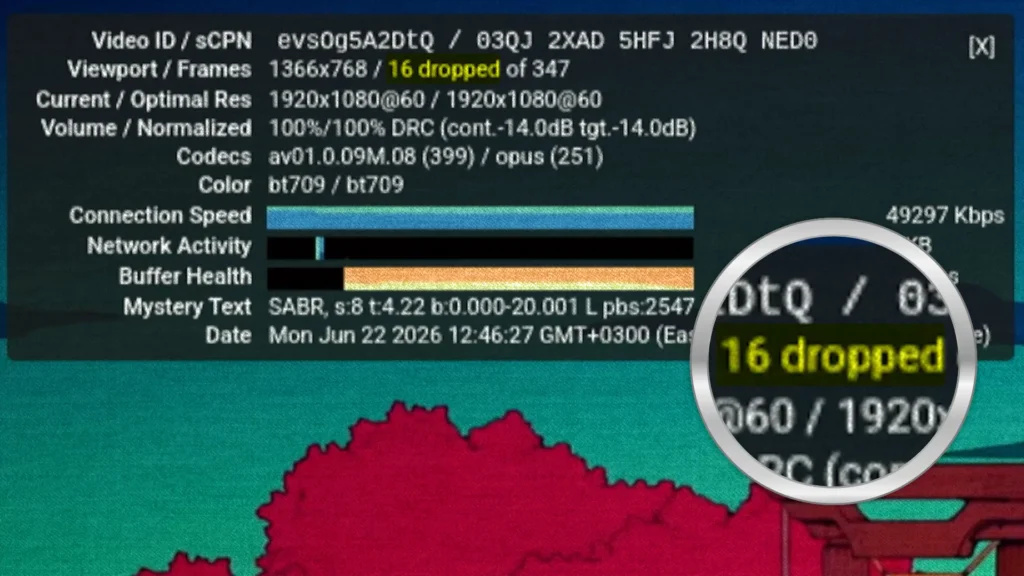
Once the video started playing, I did not notice additional frame drops.
That is an excellent result for a laptop of this age.
Interestingly, this was better than what I recorded on Windows 11 IoT LTSC, where the same test produced more than 500 dropped frames over a similar number of rendered frames.
For YouTube, web browsing, and media consumption, FydeOS feels like a very strong option.
Installing the Linux Environment
FydeOS also includes a Linux development environment. This is useful if you want to install Linux applications, use terminal tools, or experiment with open-source software.
The setup process was simple. I enabled Linux support and allocated 20 GB of storage for the Linux environment.
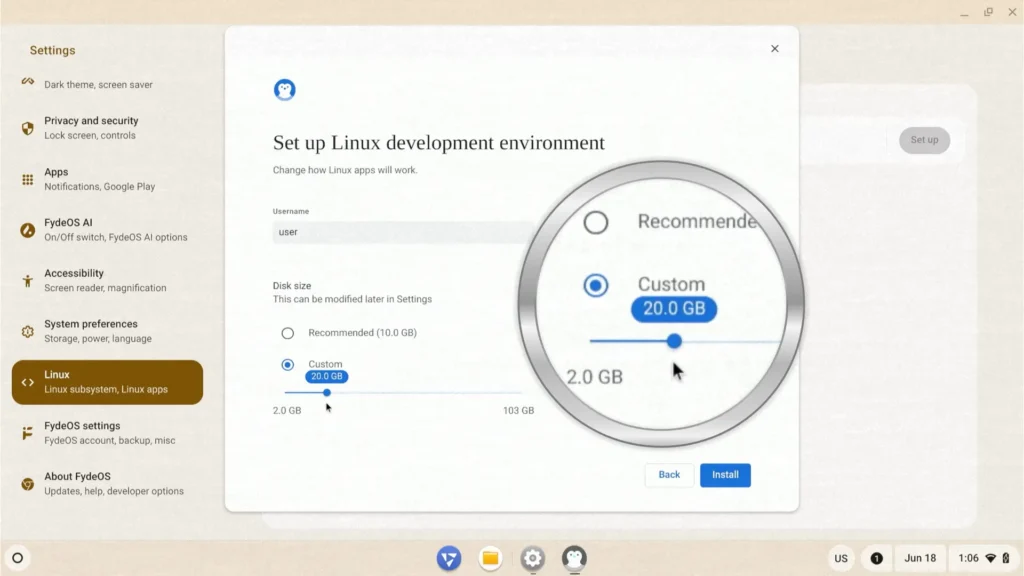
The installation took a few minutes and did not require much configuration. For basic users, this part is surprisingly easy.
However, enabling Linux support is only the first step. The real question is how well Linux applications actually run on old hardware inside FydeOS.
I tested that later with Kdenlive, and the result was not as good as I hoped.
Setting Up Google Play Store
One of the main reasons to use FydeOS instead of ChromeOS Flex is Android app support.
However, setting up Google Play Store was more complicated than expected.
I started by launching the Android subsystem. Then I opened the FydeOS App Store and installed the Configure GApps utility. At first, everything looked normal. I accepted the required prompts and expected Google services to install.
Instead, FydeOS showed an error saying that rootfs verification was enabled. This prevented GApps from being activated.
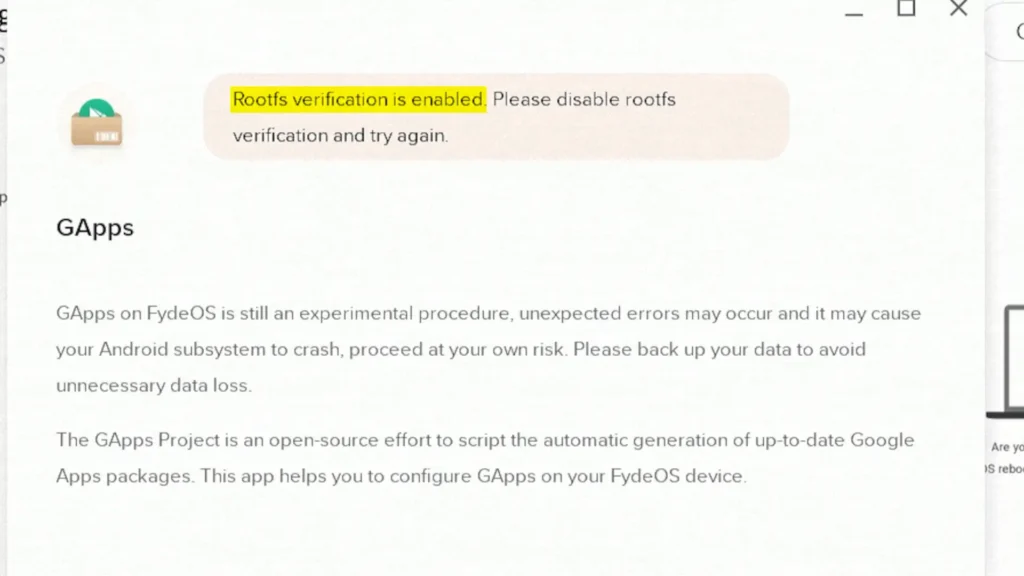
The fix was not impossible, but it was more complicated than before.
I had to open FydeOS settings, enable Developer Mode, confirm the warning message, and reboot the system. After that, I opened the terminal and followed the official FydeOS instructions to disable Rootfs Verification.
For experienced users, this is manageable. For beginners, it may feel intimidating.
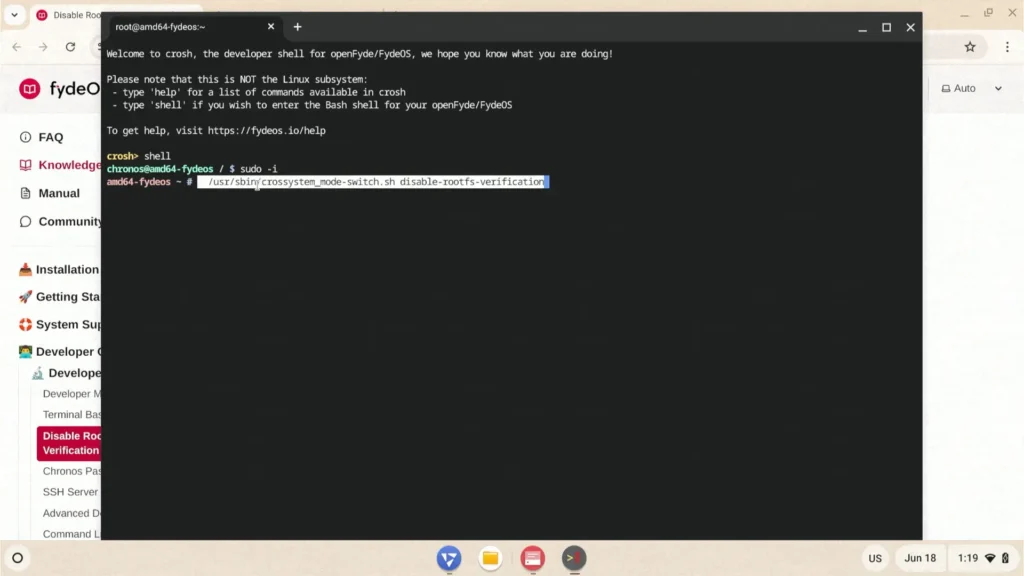
This is one of the biggest weaknesses of FydeOS. Android app support is powerful, but the setup process can still require extra steps. If someone expects a simple “click and install Google Play” experience, they may be disappointed.
After disabling Rootfs Verification, I launched the GApps installer again, selected the installation option, confirmed the prompts, and waited for the required files to download.
After another reboot, Google Play Store finally appeared.
Then I signed in with my Google account. This step is required if you want to install apps from the Play Store.
Once everything was configured, Android applications were ready to run inside FydeOS.
Android App Testing
To test Android compatibility, I first installed Telegram from the Play Store.
The app installed without problems and launched successfully. I was able to access my chats, browse conversations, and send messages normally.
For basic messaging, Telegram worked well.
However, video playback inside Telegram was less reliable. Some videos did not play properly, and eventually the app displayed an error message.
Based on this test, messaging apps can be usable on FydeOS, but media playback inside Android apps may still be inconsistent.
I also tested several Android games. Many popular titles installed successfully and supported keyboard controls through FydeOS key mapping features. This is one of the most interesting parts of the system because it allows Android games to feel more natural on a laptop.
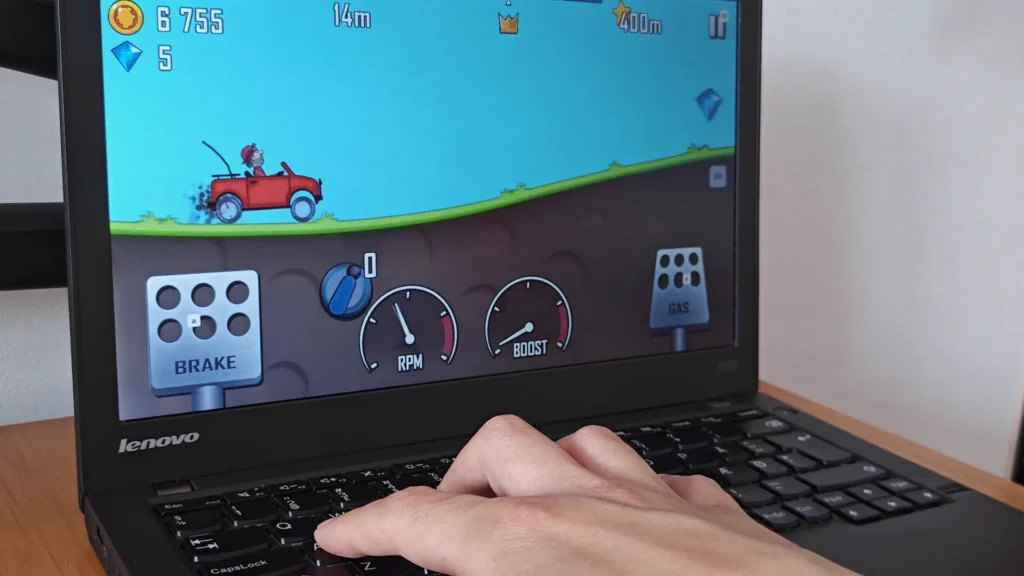
But compatibility is not universal.
For example, I was unable to get Subway Surfers working properly with keyboard controls despite several attempts. This does not mean every game will fail, but it does show that Android gaming on FydeOS still requires patience.
Gamepad and Controller Support
One of the strangest issues I encountered involved game controllers.
I tested both wired and wireless gamepads. FydeOS detected the USB devices, but the controllers did not work correctly in the games I tried.
There may be a workaround, but I did not want to spend hours troubleshooting controller support. From a normal user’s perspective, this is exactly the kind of issue that can become frustrating.
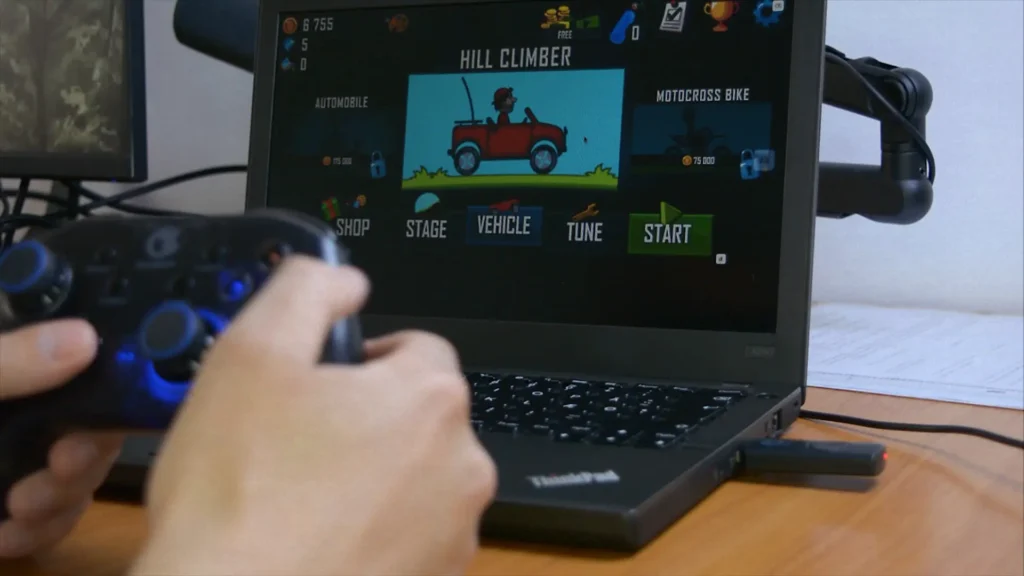
Android games are one of the reasons people may want to try FydeOS, but if controller support is unreliable, the experience becomes less attractive.
Keyboard mapping is useful, but for many games, a proper controller still feels better.
Linux Apps Performance
After testing Android apps, I returned to the Linux environment.
I installed available updates first. This process took quite a long time, which already made the Linux side feel heavier than the rest of the system.
Then I installed Kdenlive, a popular open-source video editing application.
Unfortunately, the experience was disappointing.
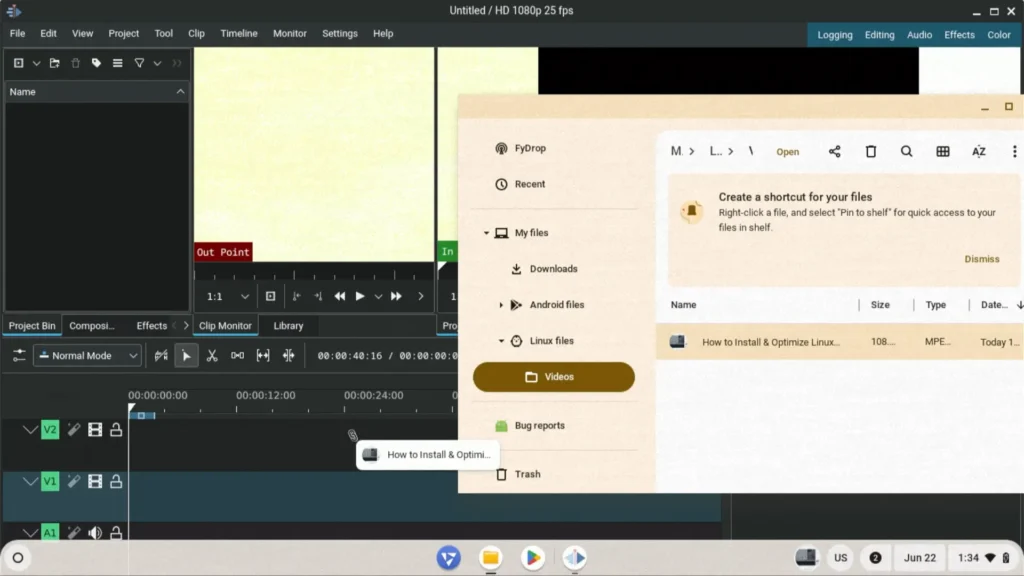
Kdenlive took a long time to launch. It frequently became unresponsive. It crashed several times during testing. I was not even able to import video files into the timeline reliably.
That made the software practically unusable for real editing work.
To be fair, this is an old laptop with only 4 GB of RAM. Kdenlive is not a lightweight application. Still, the result matters because FydeOS advertises Linux app support as one of its strengths.
Based on my experience, Linux apps technically work, but heavier desktop software can quickly expose the limitations of both the hardware and the platform.
Simple Linux utilities may be fine. A text editor, terminal tool, or lightweight app should probably work much better. But I would not recommend FydeOS as a serious Linux workstation, especially on older hardware.
If you’re interested in running Linux applications on lightweight operating systems, I also have a detailed guide showing how to turn Chrome OS Flex into a lightweight Linux workstation using applications like Kdenlive, GIMP, VS Code, and LibreOffice.
Multitasking Performance
For the multitasking test, I opened multiple browser tabs, played a YouTube video, launched Telegram, opened several Android apps and games, and attempted to run Kdenlive in the background.
After the issues with Linux apps and Android media playback, I expected the system to struggle.
Surprisingly, it handled multitasking better than expected.
Web browsing remained smooth. Scrolling through websites felt responsive. Switching between apps was quick. I did not notice major freezes or constant stuttering during normal use.
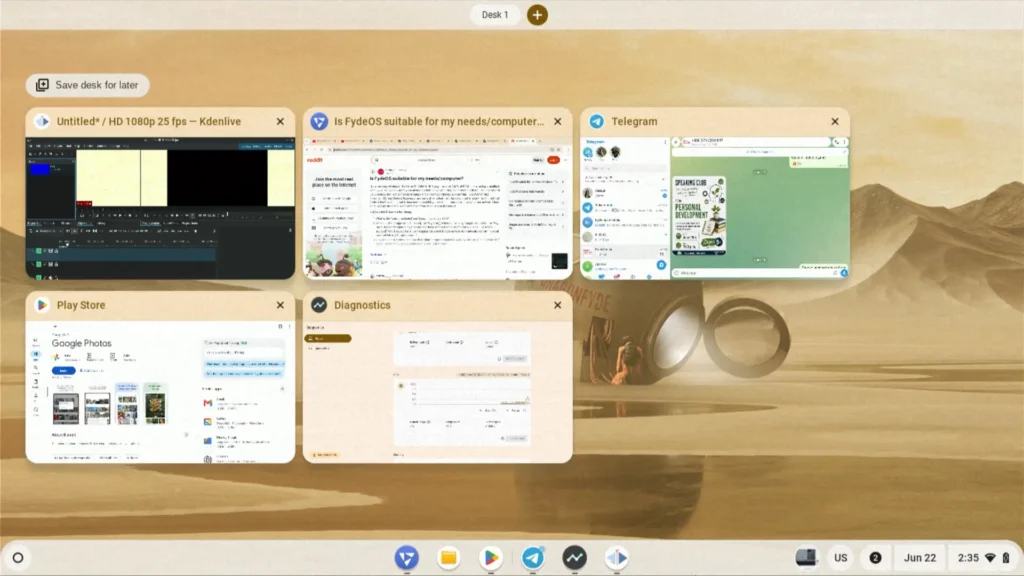
Even Android games continued to run without obvious performance problems.
This is where FydeOS impressed me. It seems to manage resources well enough to keep the system responsive even when several things are open at the same time.
Memory usage, however, was very high. During the test, the system consumed almost all available RAM, leaving only around 0.5 GB free out of 4 GB.
That is not surprising. Modern browsers, Android apps, and Linux containers can use a lot of memory. But FydeOS still felt smoother than I expected.
Kdenlive remained unusable during the stress test, but that was not really new. It was already unstable when running alone.
Overall, multitasking performance was one of the strongest parts of this review.
Real-World Experience
After spending time with FydeOS, I would describe the experience as mostly positive, but not completely polished.
For web browsing, YouTube, light productivity, and Android apps, FydeOS can make an old laptop feel useful again. The interface is clean, boot time is fast, and general responsiveness is good.
It feels much lighter than Windows on the same type of hardware.
At the same time, it is not a perfect replacement for every user.
Google Play Store setup required extra steps. Some Android apps had media playback problems. Gamepad support was unreliable in my testing. Linux apps were not impressive, especially heavier software like Kdenlive.
So FydeOS is best when you treat it as a lightweight web and Android-focused operating system, not as a full Linux desktop replacement.
Pros and Cons
| Pros | Cons |
|---|---|
| Fast boot time | Google Play setup can be complicated |
| Excellent YouTube 1080p60 playback | Some Android app issues |
| Good general responsiveness | Gamepad support was unreliable |
| Android app support | Linux apps can feel slow or unstable |
| Clean ChromeOS-like interface | Some keyboard and touchpad quirks |
| Good option for older laptops | Not ideal for heavy desktop software |
Who Should Use FydeOS?
FydeOS makes the most sense for people who mainly use their laptop for web browsing, YouTube, Google Docs, messaging, light productivity, and some Android apps.
It is also a good choice for users who like experimenting with operating systems and want something more flexible than ChromeOS Flex.
You may enjoy FydeOS if:
- You have an old laptop that feels slow with Windows
- You mostly use web apps
- You want Android app support
- You like the ChromeOS-style interface
- You do not mind fixing occasional compatibility issues
However, FydeOS may not be the best choice if:
- You need full Windows software compatibility
- You want a polished plug-and-play experience
- You rely heavily on Linux desktop applications
- You need perfect controller support
- You do not want to use terminal commands during setup
Is FydeOS Better Than ChromeOS Flex?
This depends on what you need.
ChromeOS Flex feels simpler and more polished. It is a good choice if you only need a fast browser-based system for an old laptop. It is easy to install, clean, and stable.
FydeOS is more flexible because it can run Android apps and Linux applications. That gives it a major advantage for users who want more than just web browsing.
But flexibility also brings complications. Google Play Store setup may require extra steps. Android compatibility is not perfect. Linux apps can be inconsistent.
So the short answer is this:
ChromeOS Flex is better for simplicity. FydeOS is better for features.
Is FydeOS Better Than Windows on Old Laptops?
For basic tasks, yes, FydeOS can feel much faster than Windows on old hardware.
On my ThinkPad X240, boot time was fast, YouTube playback was excellent, and general navigation felt smooth. Windows is still far more powerful for traditional desktop software, gaming, drivers, and professional applications, but it also feels heavier on low-end hardware.
If you only need a browser, YouTube, messaging, and light apps, FydeOS may be more enjoyable than Windows on a laptop with 4 GB of RAM.
But if you need Adobe software, full Microsoft Office, Windows-only apps, or PC games, Windows is still the better choice.
Final Verdict
FydeOS impressed me more than I expected.
On an old ThinkPad X240, it delivered fast boot times, smooth web browsing, excellent YouTube playback, decent Android app support, and surprisingly good multitasking. For a laptop with a 4th-generation Intel Core i5, 4 GB of RAM, and a SATA SSD, that is a strong result.
However, FydeOS is not perfect.
Linux applications were unstable during my testing. Google Play Store setup required more effort than it should. Some Android features were inconsistent, and controller support did not work properly for me.
Still, for the right user, FydeOS is definitely worth considering.
If your goal is to revive an old laptop for web browsing, YouTube, Android apps, and light everyday work, FydeOS can be a very good option. It is fast, clean, and much more capable than I expected.
But if you want a serious Linux workstation or a full Windows replacement, I would look elsewhere.
For older laptops, FydeOS is not perfect, but it is genuinely interesting — and in some situations, it can make aging hardware feel useful again.
FAQ
Is FydeOS free?
FydeOS can be downloaded and installed on supported hardware, but some features and services may depend on the version, account options, or device type. For most users who simply want to test it on an old laptop, it is easy to try.
Can FydeOS run Android apps?
Yes, FydeOS can run Android apps on supported builds. However, setting up Google Play Store may require additional steps, especially if GApps installation is blocked by rootfs verification.
Does FydeOS support Linux apps?
Yes, FydeOS includes a Linux environment. Simple Linux tools may work fine, but heavier desktop applications can be slow or unstable on older hardware.
Is FydeOS good for old laptops?
Based on my testing, yes. FydeOS worked surprisingly well on a Lenovo ThinkPad X240 with a 4th-generation Intel Core i5, 4 GB of RAM, and a SATA SSD.
Is FydeOS better than ChromeOS Flex?
FydeOS offers more flexibility because it can support Android apps, while ChromeOS Flex is simpler and more polished. If you want Android apps, FydeOS is more interesting. If you want a clean browser-first system, ChromeOS Flex may be easier.
Can FydeOS replace Windows?
For web browsing, YouTube, messaging, and light tasks, FydeOS can replace Windows for some users. But if you depend on Windows software, PC games, or professional desktop apps, Windows is still the better option.