Buying a good graphics card is not easy anymore. GPU prices are still unpredictable in many regions, and even mid-range upgrades can cost far more than most gamers expect. Because of this, many PC users are trying to get more performance out of the hardware they already own instead of rushing into a new upgrade.
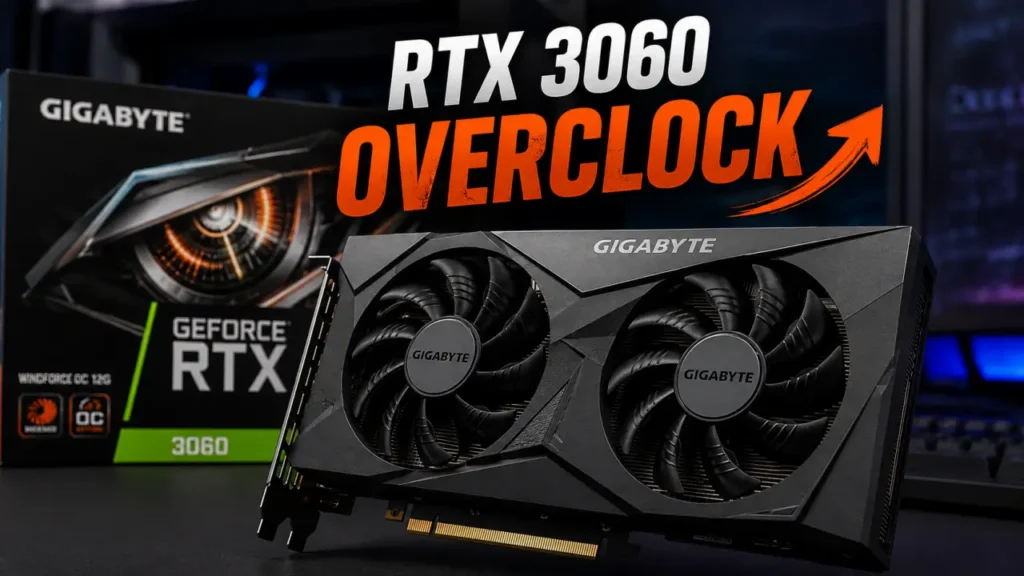
That is exactly why I decided to test how far I could push my RTX 3060 using a safe overclock with MSI Afterburner.
After multiple tests, benchmarks, and gaming sessions, I managed to improve performance noticeably while keeping the system stable and fully usable for everyday gaming. In synthetic benchmarks, the results even started getting closer to RTX 4060-level performance in certain workloads.
The most interesting part is that the RTX 3060 still has one major advantage:
12GB of VRAM.
Even today, many modern AAA games can use more than 8GB of video memory at higher settings, especially at 1440p. That makes the RTX 3060 surprisingly relevant despite its age.
In this guide, I will show:
- the RTX 3060 overclock settings I used;
- how to safely overclock with MSI Afterburner;
- how I tested stability;
- benchmark improvements;
- important warnings;
- and whether this tweak is actually worth trying.
Why the RTX 3060 Is Still a Great GPU
The RTX 3060 may no longer be NVIDIA’s newest mid-range GPU, but it still remains one of the most balanced graphics cards for gamers who want decent performance without spending a fortune.
There are several reasons why this GPU continues to hold up surprisingly well.
12GB of VRAM Still Matters
One of the biggest reasons the RTX 3060 remains relevant is its 12GB memory configuration.
Many modern games now use significantly more VRAM than older titles, especially when:
- using high-resolution textures;
- enabling ray tracing;
- playing at 1440p;
- or installing texture mods.
While some newer GPUs offer better raw performance, many of them still come with only 8GB of VRAM, which can become limiting in certain games.
The RTX 3060 avoids this issue surprisingly well.
DLSS Still Helps a Lot
NVIDIA DLSS remains one of the most useful gaming technologies available today.
Even though the RTX 3060 does not support DLSS Frame Generation like RTX 40-series GPUs, standard DLSS upscaling still provides large FPS improvements in many games.
Combined with a stable overclock, DLSS can significantly extend the lifespan of this card.
GPU Prices Are Still Not Ideal
Another reason why overclocking makes sense today is simple:
Upgrading GPUs is expensive.
If you already own an RTX 3060, getting free extra performance through tuning and optimization is often more practical than replacing the card entirely.
That was exactly my goal.
Is GPU Overclocking Safe?
This is probably the most important question.
The short answer is:
Yes — if done properly.
Modern GPUs already include multiple safety protections:
- thermal limits;
- power limits;
- automatic throttling;
- voltage protections.
That said, there is still one thing I strongly recommend avoiding.
Do NOT Increase Voltage
This is the biggest warning in this entire guide.
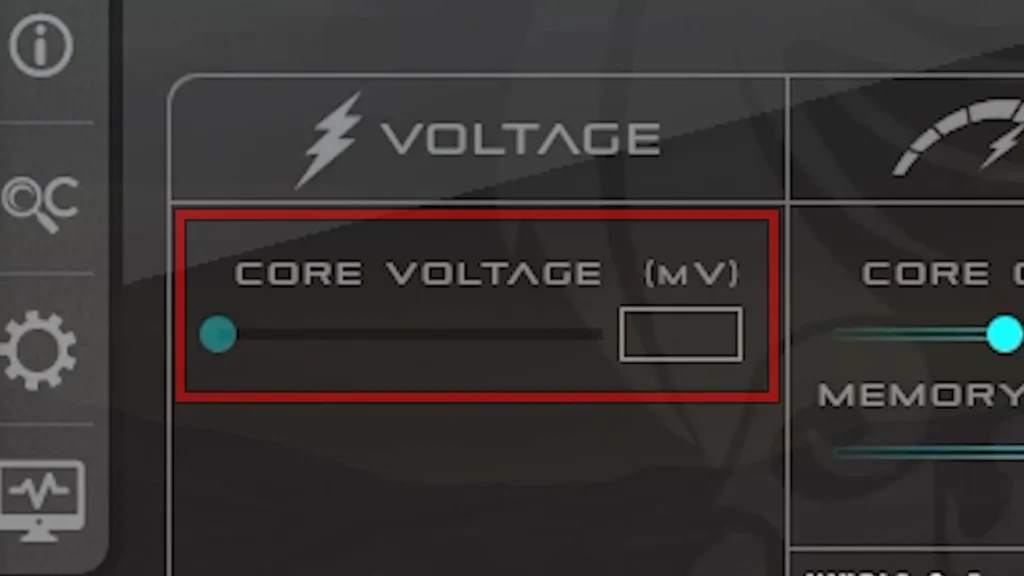
Increasing voltage can:
- increase heat dramatically;
- reduce hardware lifespan;
- cause instability;
- and potentially damage hardware if done irresponsibly.
For my testing, I completely avoided voltage tuning.
Instead, I only adjusted:
- power limit;
- core clock;
- memory clock.
This approach is much safer for beginners and still provides noticeable improvements.
Download and Install MSI Afterburner
For this overclock, I used MSI Afterburner.
It remains one of the most popular and trusted GPU tuning tools available.
What MSI Afterburner Allows You To Do
With MSI Afterburner, you can:
- monitor temperatures;
- adjust fan behavior;
- increase power limits;
- overclock memory;
- overclock core clock;
- monitor GPU usage;
- create performance profiles.
Even though the interface may look intimidating at first, the actual process is fairly simple.
My RTX 3060 Overclock Settings
After testing multiple configurations, these settings worked best for my GPU:
| Setting | Value |
|---|---|
| Power Limit | Maximum |
| Core Clock | +150 |
| Memory Clock | +1000 |
| Voltage | Default |
| Fan Speed | Auto |
These settings provided the best balance between:
- performance;
- stability;
- temperatures;
- and noise levels.
However, every GPU is slightly different.
Even two identical RTX 3060 cards may behave differently due to:
- silicon quality;
- cooling design;
- ambient temperature;
- power delivery;
- and manufacturing variance.
Because of this, your ideal settings may be slightly lower or higher.
Step-by-Step RTX 3060 Overclock Guide
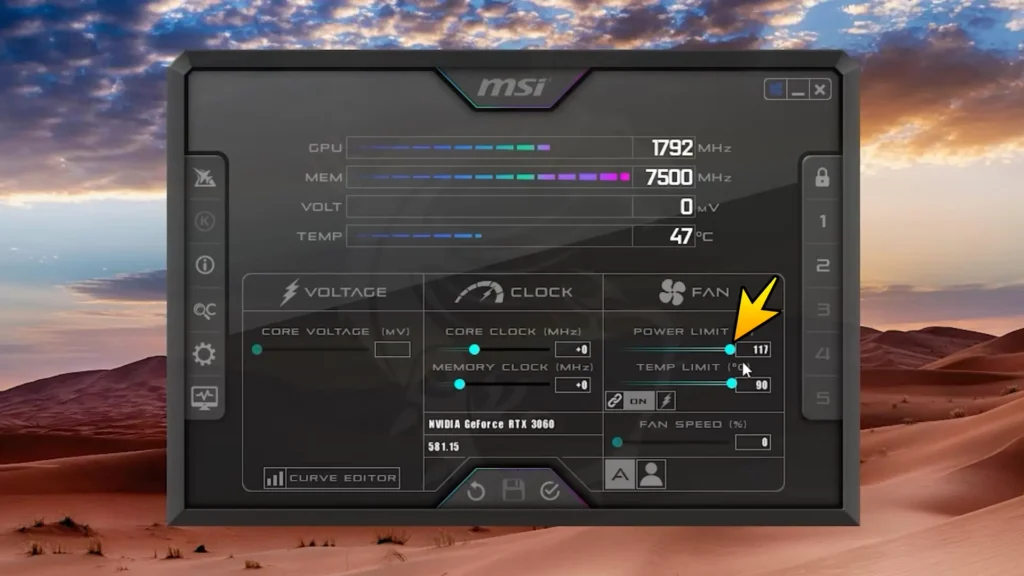
1. Increase the Power Limit
The first thing I did was increase the Power Limit slider to its maximum value.
This allows the GPU to consume more power when needed instead of being artificially restricted.
In many cases, this alone can slightly improve boost behavior.
2. Leave Voltage Untouched
Again:
Do not touch voltage.
There is no reason to risk hardware damage just for a few extra benchmark points.
For everyday gaming, safe tuning is far more important than extreme overclocking.
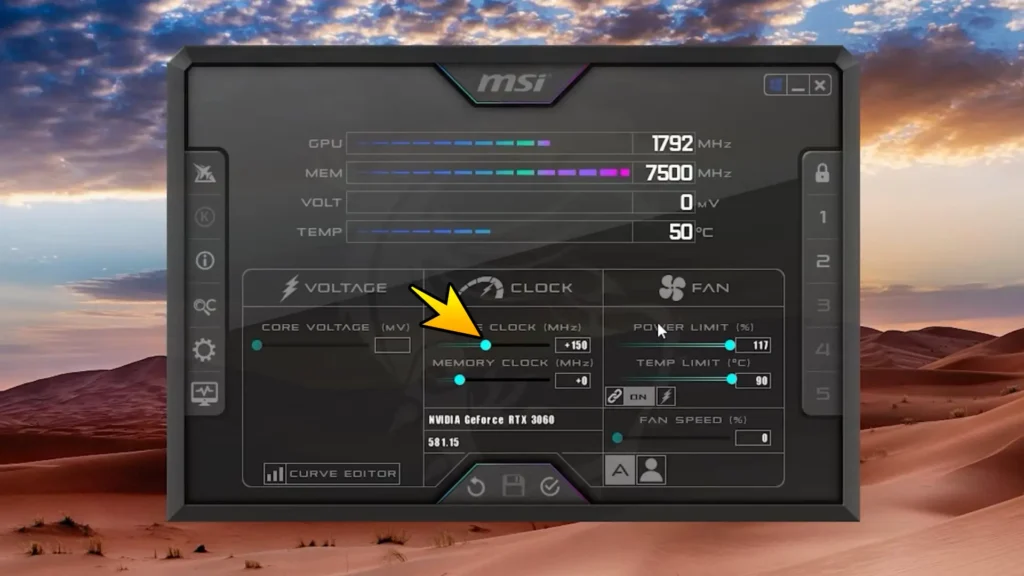
3. Increase Core Clock
I increased the Core Clock by:
+150 MHz
This improved gaming performance noticeably while remaining stable during stress testing.
If your GPU crashes or becomes unstable, reduce the value slightly.
Good starting points include:
- +100
- +120
- +150
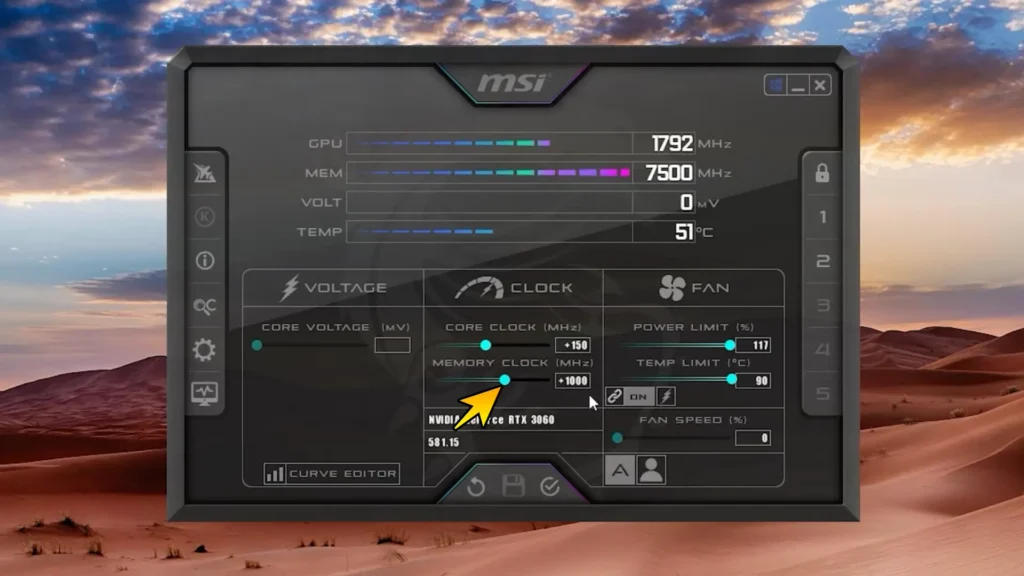
4. Increase Memory Clock
For memory, I used:
+1000 MHz
This produced one of the biggest improvements overall.
VRAM overclocking can help especially in:
- higher resolutions;
- texture-heavy games;
- memory-sensitive workloads.
However, memory instability can sometimes produce strange visual issues.
How To Check GPU Stability
A stable benchmark does not always mean a stable gaming experience.
That is why stress testing matters.
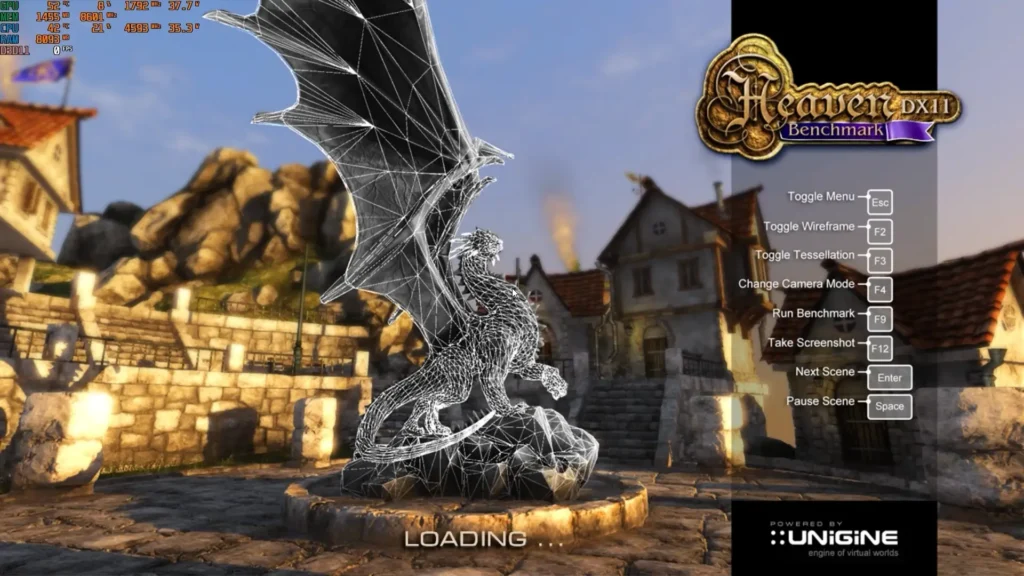
For my testing, I used:
It is lightweight, easy to use, and still useful for testing GPU stability.
What To Look For During Benchmarking
When stress testing your GPU, pay attention to the following things.
Artifacts
Artifacts are visual glitches like:
- flashing textures;
- colored squares;
- broken lighting;
- weird geometry.
If you see them, reduce the overclock.
Crashes
If the benchmark closes itself or the driver crashes, the overclock is unstable.
Lower either:
- memory clock;
- or core clock.
FPS Stability
You should also watch for:
- sudden FPS drops;
- freezing;
- stuttering.
These may indicate instability.
Temperatures
Temperature monitoring is extremely important.
Ideally, try to keep the GPU below:
75∘C
during long gaming sessions, although temperatures closer to:
80∘C
are still generally considered safe for modern NVIDIA GPUs.
Good airflow inside the case can make a surprisingly large difference here.
My Benchmark Results
The biggest surprise during testing was how much the RTX 3060 improved after tuning.
Before overclocking, my benchmark scores were noticeably lower.
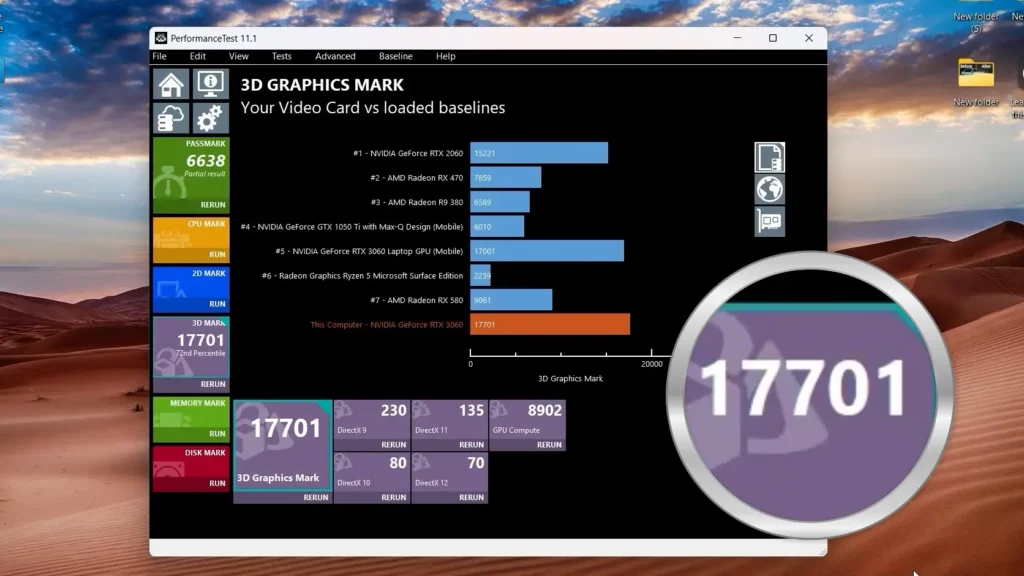
After applying the settings:
- benchmark scores increased significantly;
- gaming FPS improved;
- frame pacing felt smoother;
- minimum FPS improved in some games.
In synthetic benchmarks, the GPU started producing results that were noticeably closer to RTX 4060-level scores in certain workloads.
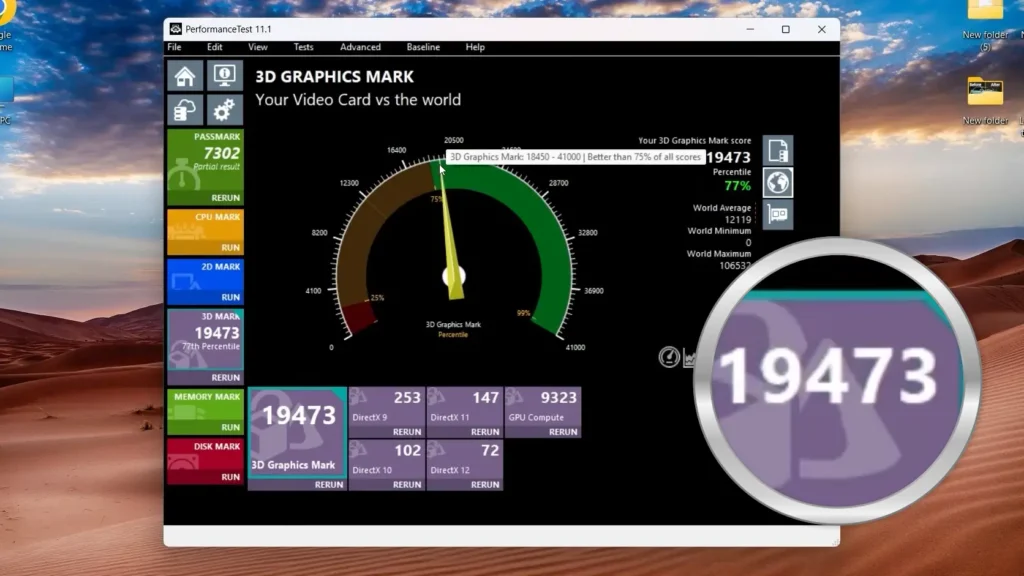
That does NOT mean the RTX 3060 suddenly becomes faster than an RTX 4060 in every scenario.
However, it does show how much unused performance still exists inside many RTX 3060 cards.
If you want a more detailed long-term comparison between these two GPUs, I also tested the RTX 3060 and RTX 4060 specifically for VRAM usage, gaming longevity, power efficiency, and modern AAA games.
Real Gaming Improvements
Synthetic benchmarks are useful, but real gaming matters more.
In actual games, I noticed:
- smoother gameplay;
- fewer FPS drops;
- better 1% lows;
- improved stability in demanding scenes.
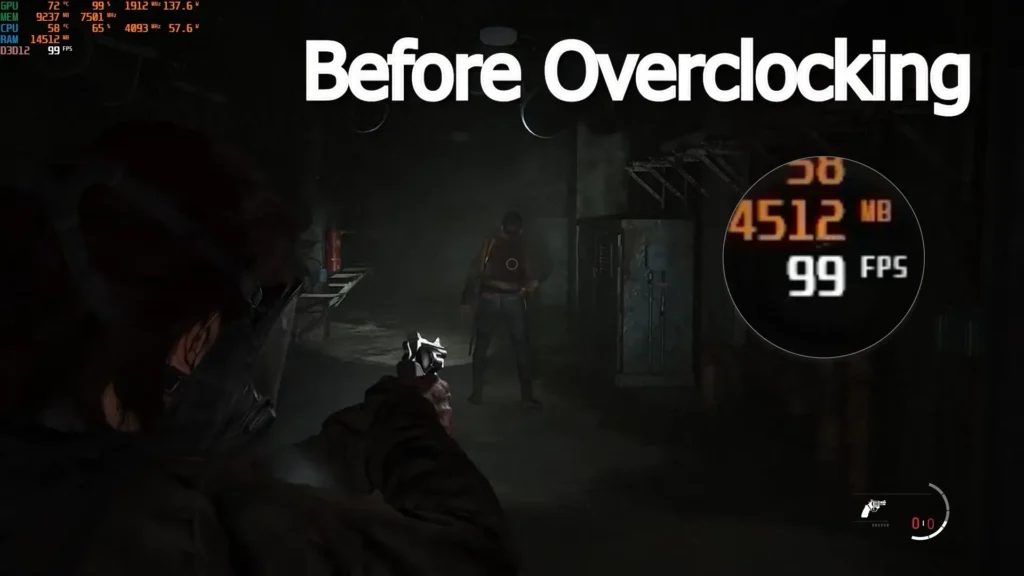
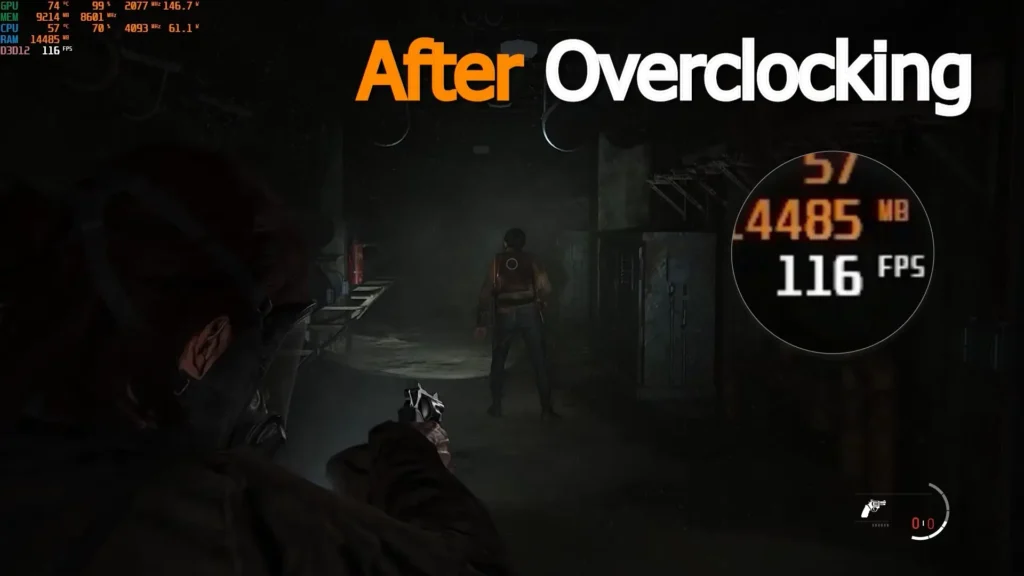
In some GPU-limited scenarios, I noticed gains of around 10 FPS, with certain games showing even larger improvements depending on the settings and resolution.
That is a surprisingly noticeable improvement considering it costs absolutely nothing.
RTX 3060 vs RTX 4060
This comparison is more complicated than many people think.
The RTX 4060 is generally:
- more power efficient;
- newer;
- better in ray tracing;
- and supports DLSS 3 Frame Generation.
However, the RTX 3060 still offers some advantages.
VRAM Advantage
The RTX 3060 includes:
12 GB VRAM
The RTX 4060 includes:
8 GB VRAM
Some modern games already push beyond 8GB usage at higher settings.
Because of this, the RTX 3060 sometimes ages better than people expected, especially in VRAM-heavy workloads.
Overclocking Helps Close the Gap
A properly tuned RTX 3060 can narrow the performance gap significantly in many rasterized games.
Especially when:
- ray tracing is disabled;
- DLSS is enabled;
- or the game benefits from larger VRAM capacity.
Still, the RTX 4060 remains the faster and more efficient GPU overall in most situations.
Things You Should NOT Do
There are several common mistakes beginners make while overclocking.
Avoid these.
Do Not Copy Settings Blindly
Every GPU behaves differently.
Even if my settings work perfectly, your GPU may require adjustments.
Do Not Ignore Temperatures
A stable overclock with bad temperatures is not a good overclock.
Always monitor thermals carefully.
Do Not Push Voltage Aggressively
Again:
Voltage tuning is the riskiest part of overclocking.
For most users, it is unnecessary.
Do Not Expect Miracles
Overclocking improves performance, but it does not completely transform a GPU into a different product.
Think of it as:
free optimization.
Not magic.
Why I Think This Is Worth Doing
Honestly, this experiment surprised me more than I expected.
Instead of immediately replacing my GPU, I managed to get a noticeable performance boost completely for free.
That makes the RTX 3060 even more attractive for gamers who still want strong 1080p or 1440p performance without spending money on a new graphics card.
Especially for users who:
- already own the card;
- play at 1080p or 1440p;
- want better FPS;
- or simply want to extend the lifespan of their current hardware.
With proper optimization, the RTX 3060 still feels far from obsolete.
Final Thoughts
After spending time testing different settings, benchmarks, and games, I can confidently say that safe RTX 3060 overclocking is still worth trying.
Using MSI Afterburner, I managed to improve performance noticeably while keeping the system stable and safe.
The most important part is being realistic:
- do not touch voltage unnecessarily;
- test stability carefully;
- monitor temperatures;
- and increase settings gradually.
For me, the biggest win was not only the FPS increase itself.
It was extending the usefulness of existing hardware without spending money on a new GPU.
And honestly, with the current GPU market still being unpredictable, that feels more relevant than ever.
FAQ
Is RTX 3060 overclocking safe?
Yes, if done responsibly and without aggressive voltage tuning.
Modern GPUs include multiple protections that make moderate overclocking relatively safe.
What software should I use?
MSI Afterburner remains one of the best options for most users.
Can overclocking damage my GPU?
Unsafe voltage increases and excessive temperatures can potentially damage hardware.
Moderate tuning without voltage changes is significantly safer.
Is RTX 3060 Still Worth Using?
Yes.
The RTX 3060 still performs well at 1080p and even 1440p in many games, especially because of its 12GB VRAM configuration.
Should I upgrade to RTX 4060?
That depends on:
- pricing;
- your current performance;
- ray tracing needs;
- and interest in DLSS 3 features.
For many users, optimizing an RTX 3060 first may be the smarter decision before upgrading.