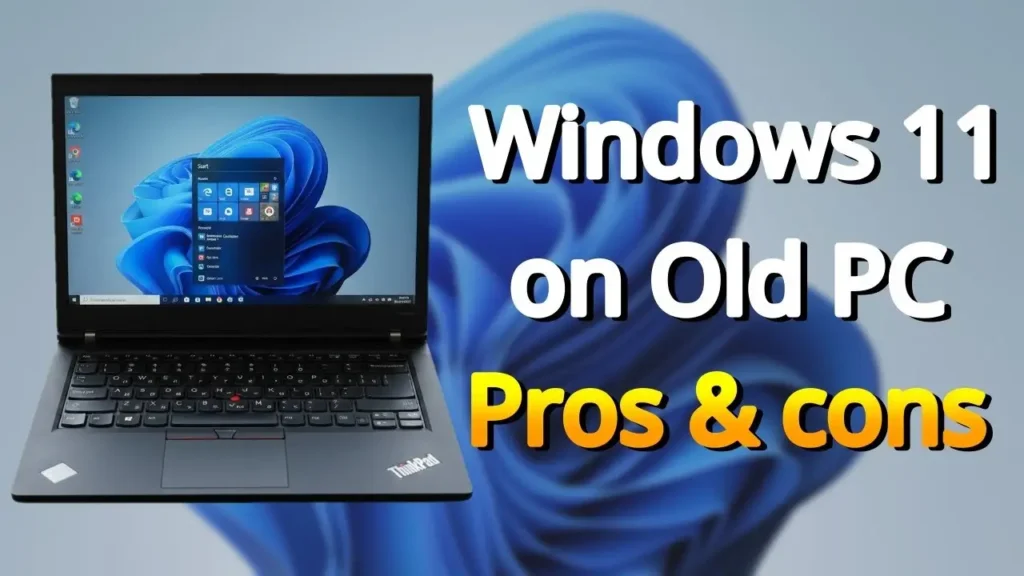
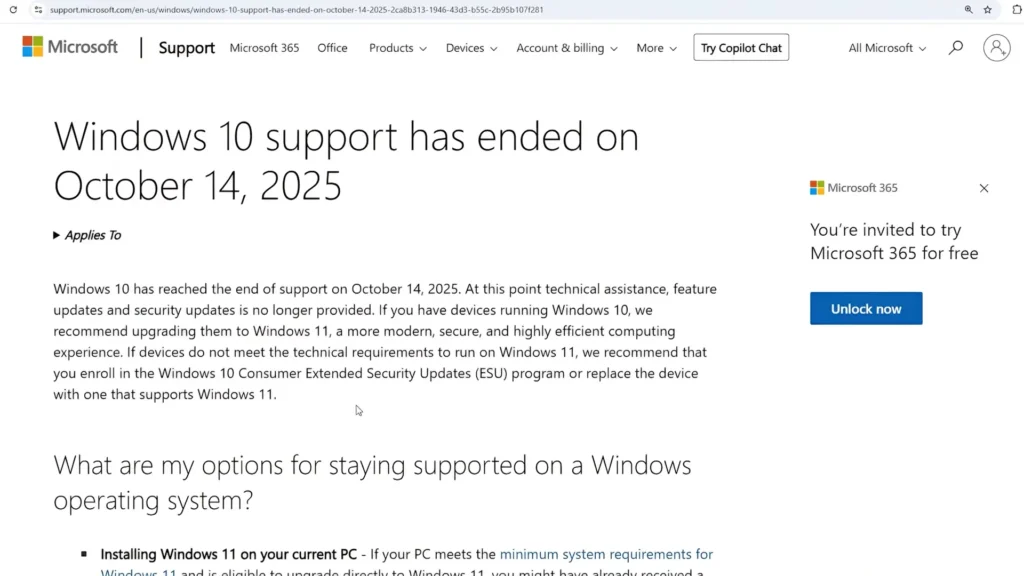
If you still have an old laptop sitting in a drawer collecting dust, there’s a good chance it’s struggling with modern versions of Windows. Many older systems no longer officially support Windows 11, while Windows 10 is approaching the end of its lifecycle and gradually becoming a security concern for everyday users.
The good news is that you do not necessarily need to buy a new computer immediately.
One of the most interesting solutions in 2026 is Chrome OS Flex — a lightweight operating system created by Google specifically for older hardware. It is designed to breathe new life into aging laptops and desktops by replacing heavy Windows installations with a fast, cloud-focused environment.
In this guide, we will cover:
- What Chrome OS Flex actually is
- Why it can be a great alternative to Windows
- Important limitations you should know before installing it
- How to install Chrome OS Flex step-by-step
- Real-world advantages and disadvantages
- Who should actually use it in 2026
This article is based on my real experience and video demonstration.
What Is Chrome OS Flex?
Chrome OS Flex is a lightweight operating system developed by Google for older PCs and laptops.
Unlike traditional Windows installations, Chrome OS Flex focuses primarily on:
- web browsing;
- cloud applications;
- online productivity;
- streaming;
- lightweight daily tasks.
The operating system is based around the Google Chrome ecosystem and is optimized for speed, simplicity, and security.
In simple terms:
if your computer mostly exists for YouTube, email, web browsing, office documents, Netflix, or online learning, Chrome OS Flex may actually feel faster and smoother than Windows on old hardware.
And perhaps the most important thing:
it is completely free.
Why Old Windows Laptops Struggle in 2026
Modern versions of Windows are significantly heavier than they were years ago.
Even decent laptops from 2014–2018 can struggle with:
- background updates;
- antivirus software;
- browser memory usage;
- startup times;
- system indexing;
- telemetry processes.
This becomes especially noticeable on older systems using:
- dual-core CPUs;
- HDD drives;
- 4GB RAM;
- older Intel integrated graphics.
Many people think their laptop is “dead,” when in reality the operating system is simply too demanding.
That is exactly where Chrome OS Flex becomes interesting.
Why Chrome OS Flex Makes Sense in 2026
1. Extremely Fast Performance
The first thing most users notice is speed.
Chrome OS Flex boots incredibly quickly compared to Windows. Apps launch almost instantly, and the interface feels responsive even on old hardware.
Tasks like:
- opening YouTube;
- browsing websites;
- writing documents;
- watching Netflix;
- using Google Docs;
- checking email;
feel surprisingly smooth.
In many cases, an old laptop that felt unusable under Windows suddenly becomes enjoyable again.
2. Better Security Than Unsupported Windows Systems
Security is one of the biggest reasons to consider switching.
Older Windows installations eventually stop receiving proper security updates.
This can expose users to:
- malware;
- ransomware;
- browser exploits;
- phishing attacks;
- security vulnerabilities.
Chrome OS Flex handles updates automatically through Google’s infrastructure and is generally far more resistant to traditional Windows malware.
For casual users, this means:
- less maintenance;
- fewer security worries;
- no heavy antivirus software running in the background.
3. Excellent Battery Life Improvements
Older Windows laptops often waste battery life on unnecessary background services.
Because Chrome OS Flex is lightweight, the CPU usually works less aggressively, which can improve battery life noticeably.
In real-world usage, many users gain:
- 1–2 additional hours of battery life;
- lower temperatures;
- quieter fan operation.
This can make an old laptop feel modern again.
4. Very Simple User Experience
Not everyone needs a professional workstation.
A huge percentage of users spend most of their time doing only a few things:
- watching videos;
- browsing websites;
- using social media;
- writing documents;
- online studying;
- video calls.
Chrome OS Flex is built exactly for this type of workflow.
The interface is clean, minimalistic, and beginner-friendly.
Important Limitations You Must Know Before Installing Chrome OS Flex
Chrome OS Flex is not perfect for everyone.
Before installing it, you absolutely need to understand its limitations.
No Traditional Windows Applications
This is probably the biggest drawback.
You cannot install traditional Windows programs like:
- Adobe Photoshop;
- Adobe Premiere Pro;
- many PC games;
- specialized engineering software;
- legacy Windows applications.
Chrome OS Flex is mainly a browser-focused operating system.
If your workflow depends heavily on Windows software, this operating system may not be suitable.
No Android App Support
This is another important distinction.
Regular Chromebooks often support the Google Play Store and Android applications.
However, Chrome OS Flex currently does not officially support Android apps.
That means:
- no Play Store;
- no Android gaming;
- no Android mobile apps.
Instead, you mainly rely on:
- browser applications;
- web apps;
- Chrome extensions.
Limited Offline Usage
Chrome OS Flex is heavily cloud-oriented.
Without internet access, the experience becomes more limited.
Some offline functions still work, but the operating system clearly performs best with a stable Wi-Fi connection.
Bonus Feature: Linux Environment Support
One thing many people overlook is that Chrome OS Flex can also support a Linux development environment.
This is actually a very important feature because it dramatically expands what the system can do.
With Linux enabled, advanced users can:
- install Linux applications;
- use development tools;
- run terminal commands;
- program software;
- use lightweight Linux desktop applications;
- access advanced utilities.
For example, users can install:
- code editors;
- development environments;
- certain productivity tools;
- terminal-based applications.
This makes Chrome OS Flex much more flexible than many people initially expect.
While it still is not a full replacement for a traditional Linux desktop distribution like Linux Mint, the Linux environment feature adds serious functionality for students, developers, and power users.
Professionally speaking, this is one of the biggest hidden strengths of Chrome OS Flex in 2026.
How to Install Chrome OS Flex
Now let’s move to the installation process.
The installation is surprisingly simple and beginner-friendly.
What You Need
You only need:
- a USB flash drive with at least 8GB capacity;
- access to another computer;
- an internet connection.
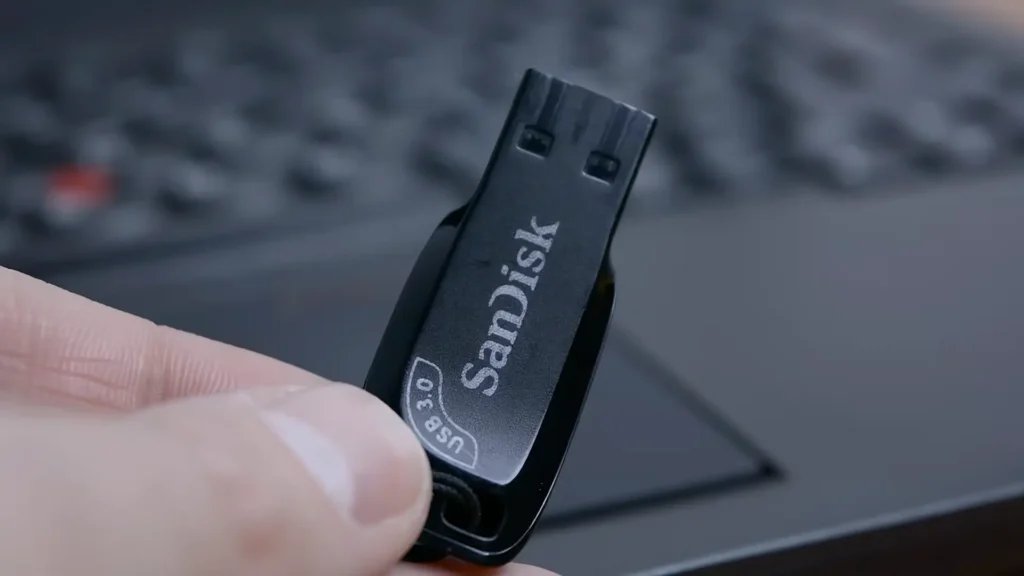
Important:
everything on the USB drive will be erased.
Step 1 — Install Chromebook Recovery Utility
Open Google Chrome on any computer.
Then go to the Chrome Web Store and install:
This tool creates the installation USB for Chrome OS Flex.
Step 2 — Create the Installation USB
After installing the utility:
- Open the extension
- Click Get Started
- Select:
- Manufacturer → Google Chrome OS Flex
- Product → Chrome OS Flex
- Insert your USB drive
- Select the USB drive
- Click Create Now
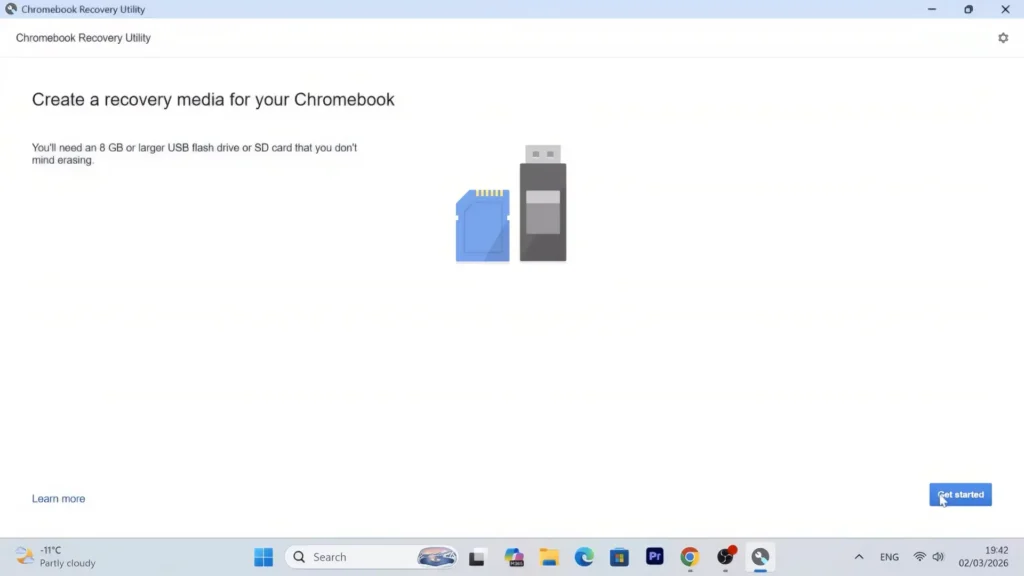
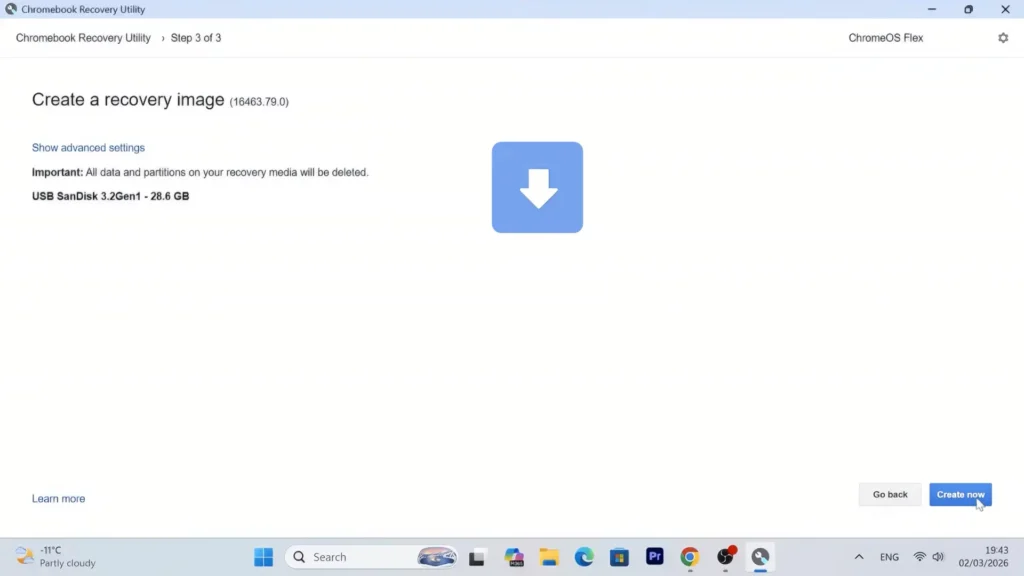
The tool will automatically download and prepare the installation media.
Usually this process takes around 5–10 minutes depending on your internet speed.
Step 3 — Boot From the USB Drive
Insert the USB drive into your old laptop.
When powering on the laptop, repeatedly press the boot menu key.
Common keys include:
- F12
- F9
- ESC
depending on the laptop manufacturer.
Important BIOS Tip
Chrome OS Flex requires:
- UEFI mode enabled.
If your system is using:
- Legacy Mode;
- CSM Mode;
the installation may fail.
If the USB drive does not appear in the boot menu, try:
- disabling Secure Boot.
Step 4 — Try Chrome OS Flex First
One of the best things about Chrome OS Flex is the ability to test it before installing.
After booting into the installer:
choose:
Try It First
This allows you to:
- test Wi-Fi;
- test sound;
- check compatibility;
- explore the interface;
without deleting Windows.
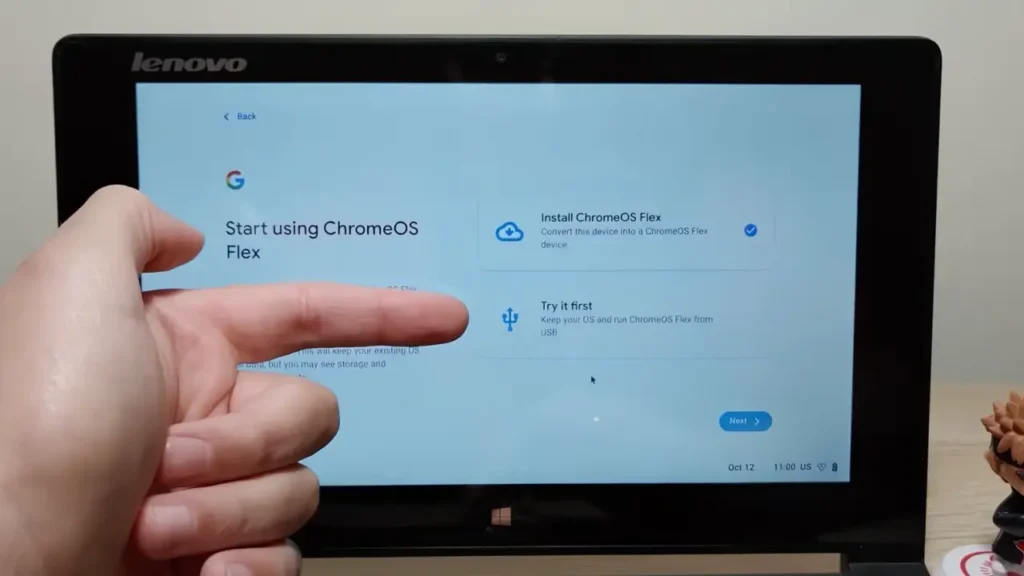
This is highly recommended.
Step 5 — Install Chrome OS Flex
If everything works properly:
click:
Install Chrome OS Flex
Important:
this will erase your hard drive completely.
The installation itself is extremely fast.
In many cases it finishes within 5–15 minutes.
Step 6 — Initial Setup
After restarting:
- remove the USB drive;
- sign into your Google account.
One of the nicest parts of the experience is how quickly everything syncs.
Your:
- bookmarks;
- passwords;
- browser history;
- Chrome settings;
can instantly appear on the new system.
For many users, it genuinely feels like getting a brand-new laptop.
Real-World Experience With Chrome OS Flex
After using Chrome OS Flex, the biggest difference is how responsive older hardware suddenly feels.
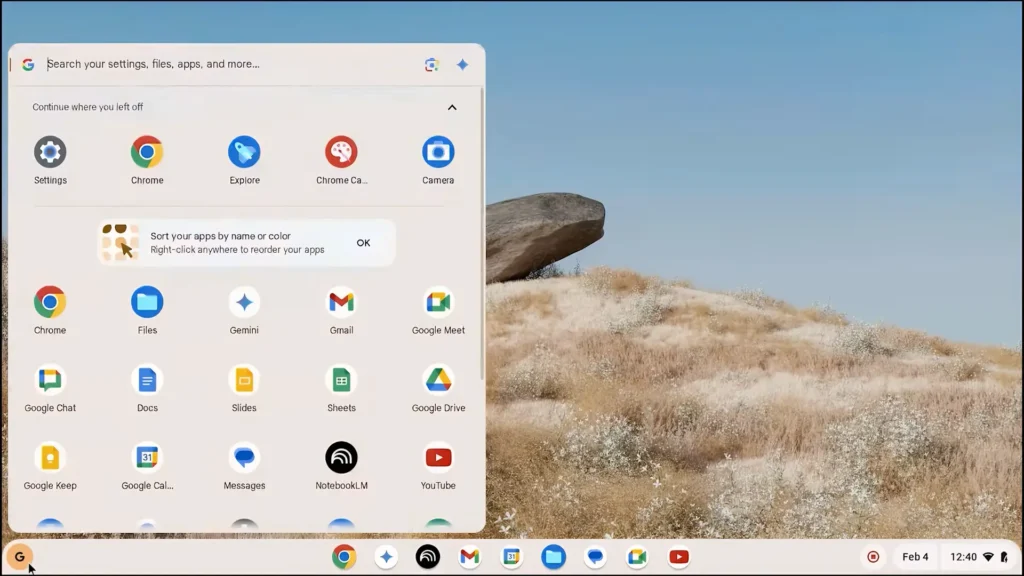
Even laptops previously considered “too slow” for Windows often become:
- quiet;
- smooth;
- responsive;
- stable.
Especially on SSD-equipped systems, the improvement can feel dramatic.
Tasks that previously took minutes may now happen almost instantly.
Who Should Use Chrome OS Flex?
Chrome OS Flex is excellent for:
Students
Perfect for:
- online classes;
- research;
- Google Docs;
- YouTube;
- Zoom meetings.
Casual Users
If you mainly:
- browse the web;
- watch movies;
- check email;
- use social media;
then Chrome OS Flex is often more than enough.
Older Family Members
Because the interface is simple and secure, it can be ideal for parents or grandparents who only need basic computer functionality.
Secondary Laptops
Old laptops can become excellent:
- travel devices;
- backup machines;
- kitchen laptops;
- media systems.
Who Should Avoid Chrome OS Flex?
Chrome OS Flex is probably not ideal for:
- professional video editors;
- hardcore gamers;
- advanced content creators;
- users dependent on Windows-only software.
If you need traditional desktop software compatibility, a Linux distribution such as Linux Mint or Zorin OS may be a better alternative.
Cloud Gaming on Chrome OS Flex
One interesting workaround for gaming is cloud gaming.
Services such as:
GeForce NOW
allow users to stream games directly through the browser.
This means even weak laptops can technically play demanding games — as long as the internet connection is good enough.
Of course, this is very different from native gaming performance.
Is Chrome OS Flex Better Than Windows 10 on Old Hardware?
For basic usage:
often yes.
Especially on weak hardware, Chrome OS Flex can feel:
- significantly faster;
- more stable;
- cleaner;
- less frustrating.
Windows still offers better compatibility and flexibility, but Chrome OS Flex often provides a much smoother experience for lightweight daily tasks.
Final Verdict: Is Chrome OS Flex Worth Installing in 2026?
For the right type of user, absolutely.
If your old laptop is mostly used for:
- YouTube;
- Netflix;
- browsing;
- writing;
- online work;
- studying;
then Chrome OS Flex can genuinely transform the experience.
It is fast, secure, lightweight, and surprisingly polished.
Most importantly:
it can extend the life of old hardware for several more years without spending money on a new device.
It is not a perfect replacement for Windows, and it definitely is not designed for every workflow.
But for casual computing in 2026, Chrome OS Flex remains one of the best free ways to revive an aging PC.