Introduction
Modern versions of Windows 11 can feel surprisingly heavy on older laptops.
Even after a fresh installation, many systems come with background apps, extra services, recommendations, AI features, online account prompts, and various consumer-focused additions that not everyone actually needs. On powerful modern hardware this is not always a problem, but on an older laptop the difference becomes noticeable very quickly.
That is exactly why Windows 11 IoT Enterprise LTSC has become so interesting among PC enthusiasts.
It still looks and behaves like Windows 11, but the overall experience feels significantly cleaner. There are fewer preinstalled apps, fewer distractions, and less background activity right from the start.
So I decided to test it on a real old laptop instead of a modern desktop.
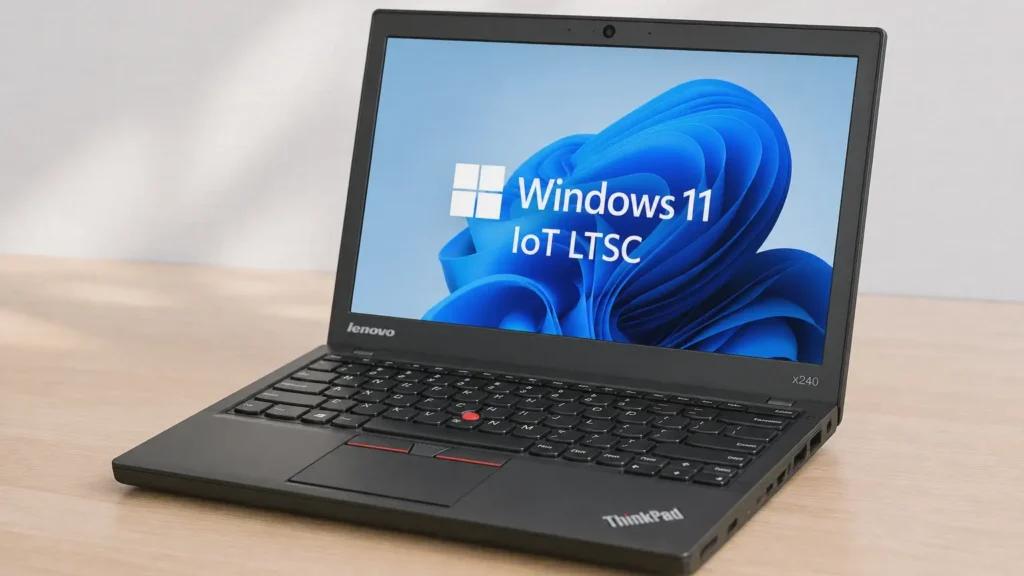
For this experiment, I installed Windows 11 IoT Enterprise LTSC Evaluation on a Lenovo ThinkPad X240 to see how well it performs in real-world use. I wanted to check RAM usage, storage usage, background processes, driver compatibility, and overall responsiveness on older hardware.
This is not a “magic tweak” or a guide for bypassing licensing. The goal of this article is simply to explore how this specialized edition of Windows behaves on an older machine using Microsoft’s official evaluation ISO.
And honestly, the results were surprisingly interesting.
Important Disclaimer
Windows 11 IoT Enterprise LTSC is not a normal consumer version of Windows.
It is primarily designed for embedded systems, industrial devices, specialized enterprise environments, kiosks, medical equipment, and long-life machines where stability is more important than constantly receiving new features.
For this article, I used the official Windows 11 IoT Enterprise LTSC Evaluation ISO provided by Microsoft. The evaluation version is intended for testing purposes and has a limited evaluation period. Long-term use requires proper licensing through official Microsoft channels.
I also strongly recommend avoiding unofficial modified Windows builds downloaded from random websites or forums. When testing operating systems, especially Windows, using official sources is always the safest approach.
What Is Windows 11 IoT Enterprise LTSC?
Windows 11 IoT Enterprise LTSC is a specialized long-term servicing version of Windows 11.
LTSC stands for Long-Term Servicing Channel. Unlike standard consumer editions of Windows 11, LTSC versions are designed to remain stable over a long period of time and mainly receive security and quality updates instead of major feature changes every year.
Microsoft lists support for Windows 11 IoT Enterprise LTSC 2024 until October 2034, which is one of the reasons many enthusiasts are interested in it.
Another reason is the cleaner default setup.
Compared to a regular Windows 11 installation, LTSC editions usually include:
- fewer preinstalled consumer apps;
- less background activity;
- fewer consumer-focused recommendations;
- easier local account setup;
- a more minimal default environment.
That does not automatically make it the best version of Windows for everyone, but it definitely makes it interesting for testing older hardware.
Why Enthusiasts Are Interested in It
One thing that immediately stands out about Windows 11 IoT LTSC is how clean the system feels after installation.
The Start menu is almost empty.
There is no Copilot integration by default. The system feels less cluttered and far less focused on consumer-oriented extras. For people who prefer a simpler Windows experience, that alone can make a big difference.
Another important detail is hardware flexibility.
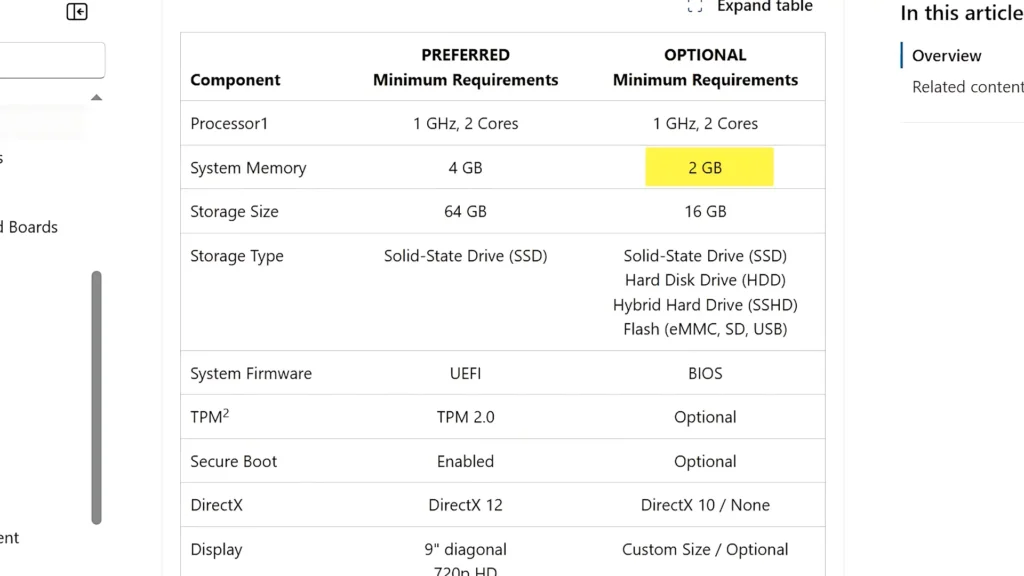
Microsoft’s Windows IoT Enterprise documentation lists more flexible optional minimum requirements compared to standard consumer Windows 11 configurations. TPM 2.0 and Secure Boot are listed as optional in certain IoT Enterprise hardware requirement scenarios, which makes this edition especially interesting for older systems that may not fully meet standard Windows 11 consumer requirements.
However, that does not mean every old PC will suddenly run Windows 11 perfectly.
CPU performance, SSD speed, RAM capacity, and driver support still matter a lot.
You can also read my separate guide about running Windows 11 on unsupported hardware for additional performance and compatibility insights.
The Test Laptop: Lenovo ThinkPad X240
For this experiment, I used a Lenovo ThinkPad X240.
This is exactly the type of laptop many people still own today:
- older business hardware;
- modest specifications;
- upgradeable storage;
- decent keyboard;
- still usable for lightweight tasks.
It is not a powerful modern laptop by any means, which makes it perfect for testing whether a lighter Windows setup can genuinely improve the user experience.
The goal here was not synthetic benchmarking.
I simply wanted to answer one question:
Can Windows 11 IoT LTSC make an older ThinkPad feel usable and reasonably smooth in daily use?
Downloading the ISO Safely
For this installation, I downloaded the official Windows 11 IoT Enterprise LTSC Evaluation ISO directly from Microsoft’s Evaluation Center.
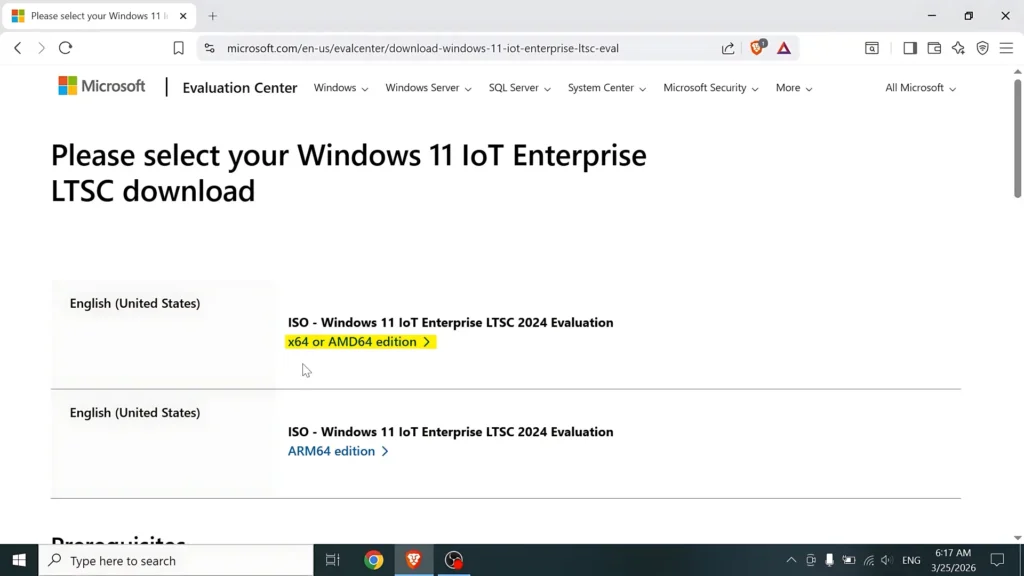
That part is important.
There are many unofficial Windows builds online that claim to be “optimized,” “debloated,” or “ultra-light.” Personally, I avoid those kinds of builds because there is no easy way to verify what has actually been modified inside the operating system.
With an official Microsoft ISO, at least you know what you are installing.
The ISO itself was around 4.7GB, which is fairly normal for a modern Windows installation image.
Creating the Bootable USB Drive
To create the bootable USB drive, I used Rufus.
Rufus is a lightweight and reliable utility that makes the installation process very simple. I also recommend using a USB 3.0 flash drive if possible because installation speeds can be noticeably faster, especially on older laptops.
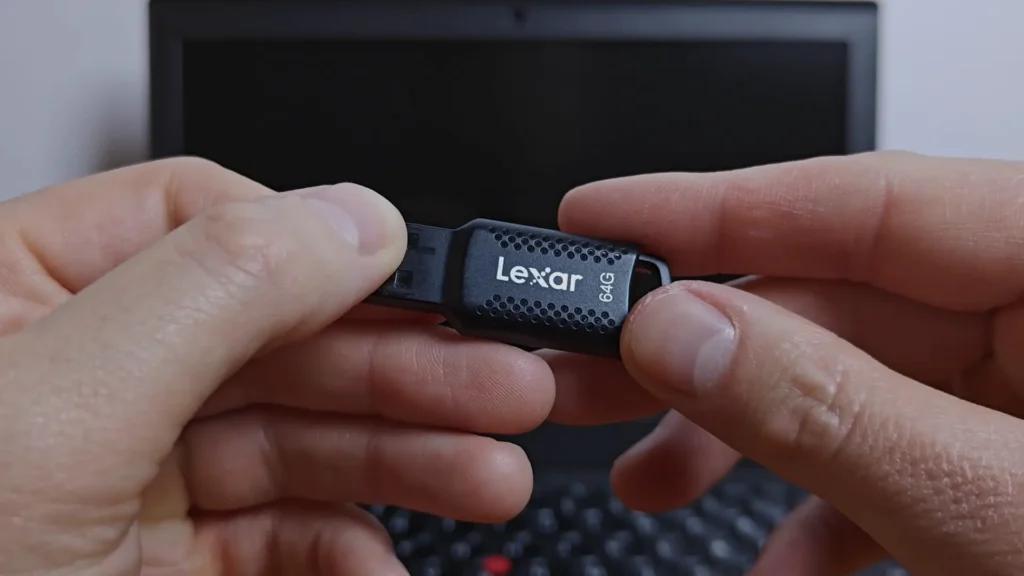
The process itself was straightforward:
- Insert the USB drive.
- Open Rufus.
- Select the Windows 11 IoT LTSC ISO.
- Choose the partition scheme.
- Start the process.
For most relatively modern systems, GPT with UEFI is still the best option.
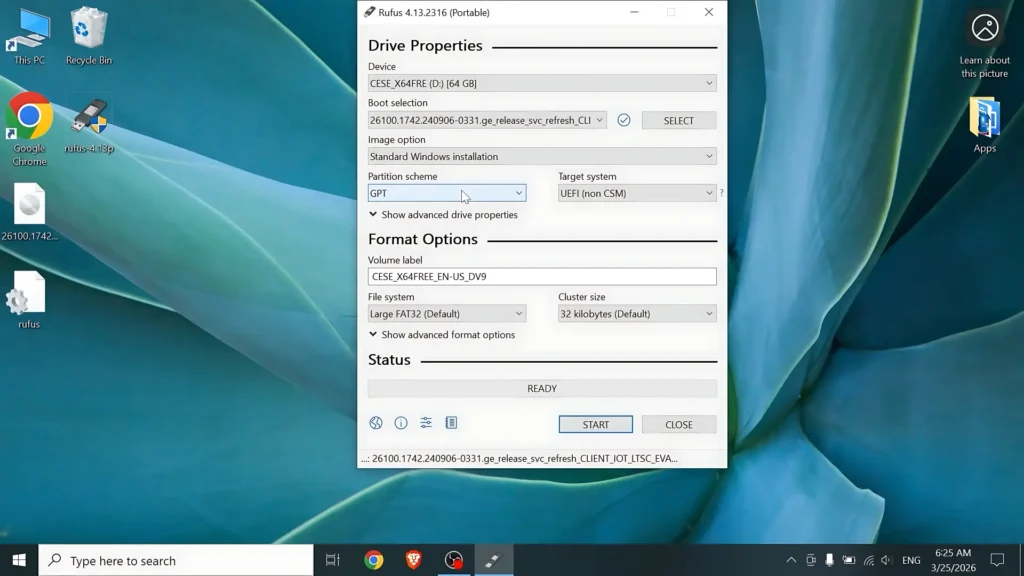
However, one interesting detail about Windows 11 IoT LTSC is that it can still work in older installation scenarios more easily than standard consumer Windows 11 configurations. Some older systems that struggle with standard Windows 11 requirements may still handle this edition surprisingly well.
That said, if your laptop supports UEFI properly, I still recommend using UEFI/GPT whenever possible.
Before Installing: Back Up Your Data
Before doing any clean installation, make sure to back up your important files.
In my case, I completely erased the existing partitions on the internal SSD because I wanted a clean testing environment. That means all existing files and operating systems were removed.
Always save:
- documents;
- photos;
- browser data;
- passwords;
- project files;
- anything important stored locally.
Also, connect your laptop charger during installation. Interrupting an operating system installation because of low battery is never a good idea.
Installation Experience
The installation process felt very familiar to anyone who has installed Windows before.
After booting from the USB drive, I selected the language and keyboard layout, accepted the terms, deleted the previous partitions, and installed Windows 11 IoT Enterprise LTSC Evaluation onto the SSD.
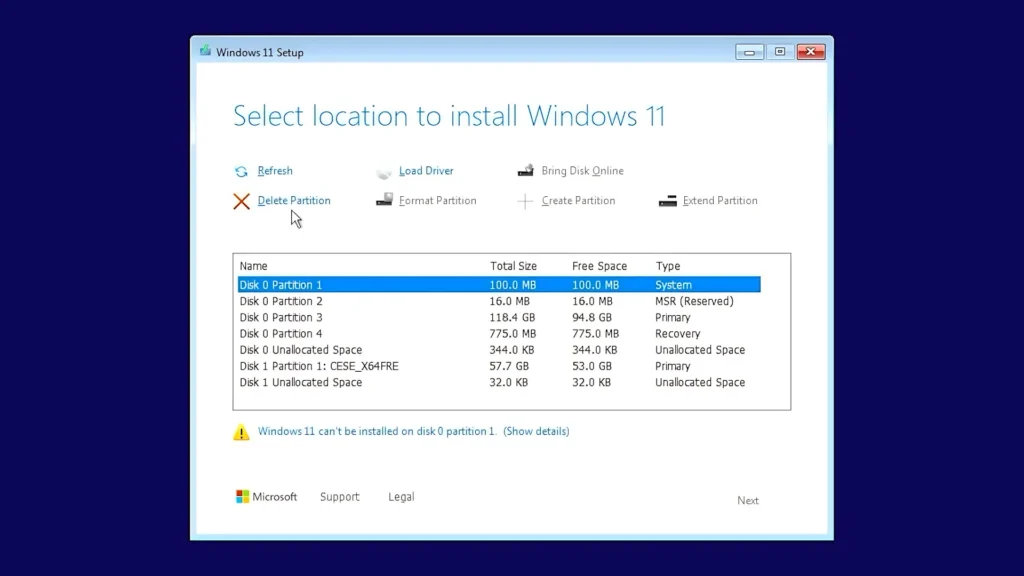
One thing I immediately noticed was how clean the setup process felt.
After connecting to Wi-Fi, the system still allowed me to continue without forcing a Microsoft account sign-in. Instead, I could continue using a local account setup directly.
That alone already made the experience feel less frustrating compared to many standard Windows 11 installations.
First Boot: A Surprisingly Clean Desktop
After the first boot, Windows 11 IoT LTSC immediately felt different from a normal Windows 11 installation.
The Start menu was almost empty.
There were no obvious promotional apps, no Copilot button, and far fewer distractions overall. The desktop felt closer to what many people probably expected Windows 11 to look like from the beginning.
It still looked modern and familiar, but the system felt quieter.
This is honestly where LTSC makes the strongest first impression.
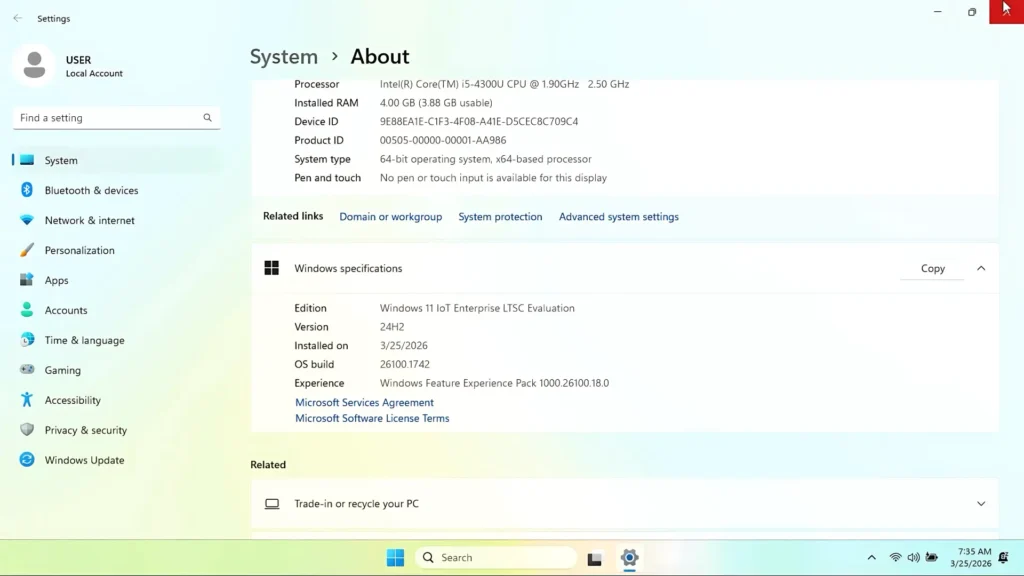
RAM Usage Before Updates
Before installing updates and drivers, I opened Task Manager to check resource usage.
In my test installation, the system used around:
- 2.2GB RAM
- around 44 background processes
For Windows 11, that is surprisingly reasonable.
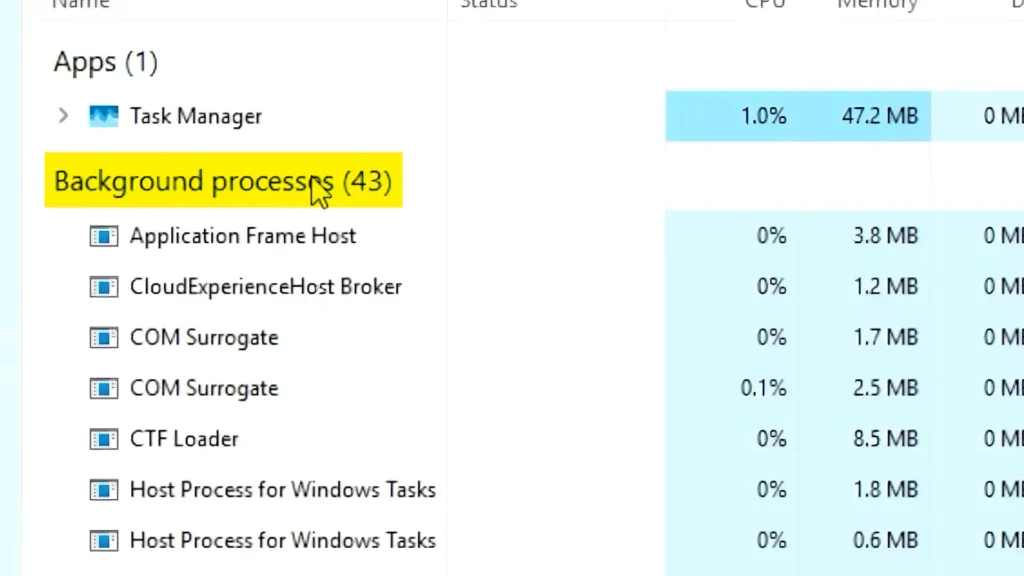
Of course, this does not mean 2GB RAM is ideal for actual daily use. Modern web browsers alone can consume a huge amount of memory. But compared to many standard Windows 11 installations, the system definitely felt lighter in the background.
Personally, I would still recommend:
- 4GB RAM minimum for basic use;
- 8GB RAM for a comfortable experience;
- an SSD whenever possible.
Storage Usage Before Updates
After installation, Windows 11 IoT LTSC used around 13.6GB of storage space.
That is actually impressive for a modern Windows installation.
However, this is only the starting point. Once updates, drivers, browser cache, and additional applications are installed, the final storage usage becomes higher.
Still, for older laptops with smaller SSDs, this cleaner starting point is definitely welcome.
Installing Updates
After the initial setup, I checked for Windows Updates.
The system downloaded security updates and several drivers automatically. The process took some time, which is completely normal on older hardware.
After multiple restarts, the system updated successfully.
One interesting thing about LTSC editions is that the interface itself stays relatively consistent. You still receive security and quality updates, but the operating system does not constantly change visually with large feature rollouts.
For some users, that stability is actually a major advantage.
Driver Installation on Older Hardware
Windows Update installed some drivers automatically, including basic graphics support.
However, on older laptops you should not rely entirely on automatic drivers.
After opening Device Manager, I still noticed several missing or incomplete drivers. This is very common on older ThinkPads and many older business laptops in general.
To fix this properly, I manually downloaded drivers from Lenovo’s official support page.
The easiest method is:
- Find your laptop serial number.
- Open the manufacturer’s support website.
- Search using the serial number.
- Download chipset drivers first.
- Install graphics drivers.
- Install audio drivers.
- Install the remaining drivers afterward.
Interestingly, Windows 10 drivers still work correctly in many cases on Windows 11, especially for older hardware where official Windows 11 driver support may be limited.
After restarting the laptop, all drivers worked correctly.
RAM Usage After Updates and Drivers
After installing updates and drivers, I checked Task Manager again.
In my test, the system now used:
- around 2.4GB RAM
- around 54 background processes
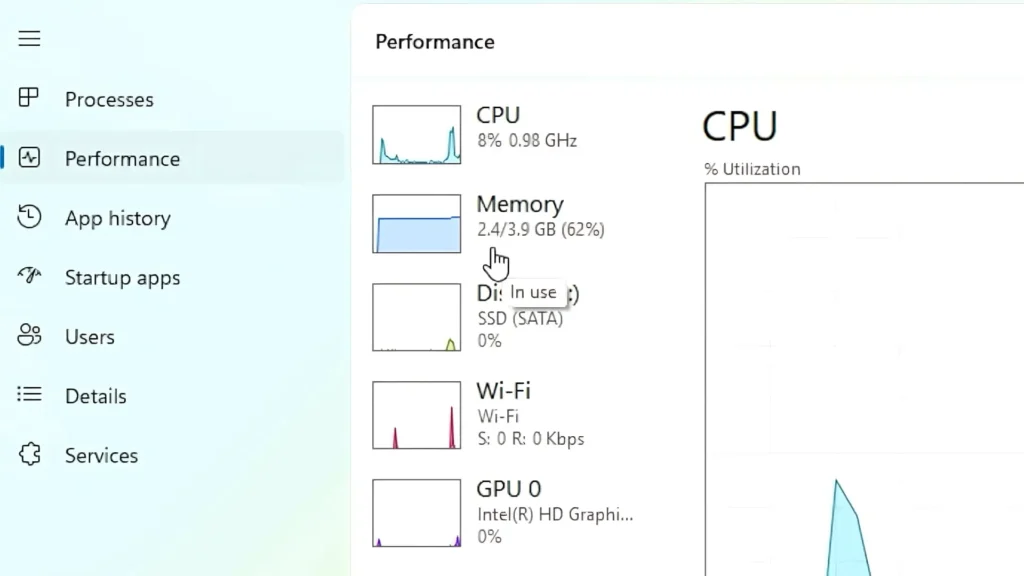
That is still very good for a Windows 11-based operating system.
The RAM usage increased slightly after updates and drivers, which is expected. But overall, the system still remained noticeably cleaner than a typical consumer Windows 11 installation.
This is where Windows 11 IoT LTSC makes the most sense.
It does not magically transform weak hardware into a powerful machine, but reducing unnecessary background activity can absolutely improve the overall feel of an older laptop.
Storage Usage After Updates
After installing all updates and drivers, the final storage usage increased to around 22.9GB.
That is still fairly reasonable.
It is obviously larger than lightweight Linux distributions, but for a modern Windows installation, the result is respectable.
On a 120GB SSD, there is still enough room for:
- browsers;
- office applications;
- utilities;
- media files;
- documents.
For the best experience, I would still recommend using at least a 120GB or 240GB SSD if possible.
Microsoft Store Is Missing by Default
One thing some users may notice immediately is that Microsoft Store is not installed by default.
Depending on your workflow, this may or may not matter.
Some people barely use the Microsoft Store at all. Others rely on applications that are distributed primarily through it.
The Store can be restored manually if needed, but the important point is that LTSC intentionally starts with a cleaner setup and fewer bundled components.
That is part of the reason the system feels lighter.
Can You Remove Microsoft Edge?
Microsoft Edge is still included by default.
There are many discussions online about uninstalling Edge, but the actual behavior can depend on region, system policies, and Windows configuration.
In my case, after selecting the United States during installation, Edge could not be removed normally through the Installed Apps section.
Personally, I do not think this is a major issue. If you prefer another browser, simply install it and set it as default.
Does It Actually Feel Faster?
Yes — surprisingly, it does.
Not because the CPU suddenly becomes more powerful, but because the system itself feels less busy.
The cleaner setup, lower background activity, simpler Start menu, and reduced number of bundled components genuinely improve the overall experience on older hardware.
Basic tasks felt comfortable:
- web browsing;
- watching videos;
- office work;
- file management;
- lightweight multitasking.
However, expectations still need to remain realistic.
If your laptop has:
- a very slow CPU;
- 4GB RAM or less;
- an old mechanical HDD;
there will still be limitations.
Windows 11 IoT LTSC helps reduce unnecessary overhead, but it cannot completely overcome hardware bottlenecks.
SSD vs HDD: Is an SSD Still Recommended?
Absolutely.
One interesting detail is that Windows IoT Enterprise hardware documentation is more flexible regarding storage requirements than standard consumer Windows 11 guidance.
However, in real-world usage, an SSD still makes an enormous difference.
Technically, the operating system can run on an HDD. But modern Windows on a mechanical hard drive usually feels slow during:
- startup;
- updates;
- browser loading;
- multitasking;
- application installation.
If you want to revive an old laptop properly, upgrading to an SSD is still one of the best investments you can make.
Even a basic SATA SSD can dramatically improve responsiveness.
Windows 11 IoT LTSC vs Standard Windows 11
Here is the biggest difference in simple terms:
| Feature | Standard Windows 11 | Windows 11 IoT LTSC |
|---|---|---|
| Consumer apps | More preinstalled apps | Much cleaner |
| Copilot | Usually included | Not included by default |
| Microsoft account pressure | Stronger | Easier local setup |
| Background activity | Higher | Lower in my test |
| Feature updates | Frequent feature additions | Long-term servicing approach |
| Microsoft Store | Included | Missing by default |
| Main audience | Regular consumers | Specialized enterprise/embedded scenarios |
For normal users, standard Windows 11 is still the easier and more mainstream choice.
But for enthusiasts who want a cleaner Windows environment on older hardware, IoT LTSC is genuinely interesting.
Windows 10 IoT LTSC vs Windows 11 IoT LTSC
After testing both, I still think Windows 10 IoT LTSC feels faster on very old hardware.
That honestly was not surprising.
Windows 10 is generally lighter overall, especially on systems with weaker CPUs or limited RAM.
However, Windows 11 IoT LTSC still has advantages:
- newer Windows base;
- better compatibility with some modern applications;
- modern UI;
- longer future support window;
- cleaner Windows 11 experience.
So the choice depends on your priorities.
If maximum speed matters most, Windows 10 IoT LTSC may still be the better option for extremely old hardware.
If you want a cleaner Windows 11 experience with long-term support, Windows 11 IoT LTSC is surprisingly good.
Is It Good for Gaming?
For gaming, I would be careful.
While many games and launchers work normally, Windows 11 IoT LTSC is not designed specifically for gaming systems.
Some anti-cheat systems, Xbox-related features, Microsoft Store dependencies, or launcher integrations may require additional setup.
For lightweight gaming or older titles, it can still work fine. But if gaming is your primary focus, standard Windows 11 or Windows 10 is usually the safer and simpler choice.
Security Considerations
A cleaner installation does not automatically make a system more secure.
Security still depends heavily on:
- installing updates regularly;
- using official drivers;
- avoiding suspicious software;
- using safe browsing habits;
- keeping backups.
One advantage of LTSC is that it still receives long-term security updates while avoiding constant large feature changes.
But good security practices still matter regardless of what operating system you use.
Who Should Consider Windows 11 IoT LTSC?
This edition may be interesting for:
- enthusiasts;
- advanced users;
- people testing older laptops;
- users who dislike unnecessary Windows clutter;
- people who prefer local accounts;
- users who want a cleaner Windows environment.
It is especially interesting if you want to see how Windows 11 behaves without many consumer-focused additions.
Who Probably Should Not Use It
Windows 11 IoT LTSC is probably not ideal for:
- beginners;
- users unfamiliar with drivers or Windows setup;
- people expecting a permanent free Windows license;
- users who heavily rely on Microsoft Store apps;
- users who want the standard consumer Windows experience.
For many people, regular Windows 11 or even a beginner-friendly Linux distribution may still be the more practical choice.
Final Verdict
Honestly, Windows 11 IoT LTSC impressed me more than I expected.
On the ThinkPad X240, the system felt noticeably cleaner and lighter than a standard Windows 11 installation. After updates and drivers, RAM usage stayed around 2.4GB, background activity remained relatively low, and overall responsiveness was surprisingly decent for older hardware.
The biggest advantage is not raw performance.
The real advantage is the cleaner experience:
- fewer distractions;
- fewer bundled apps;
- less unnecessary background activity;
- simpler setup process;
- long-term servicing stability.
At the same time, this is not a perfect solution for everyone.
Driver installation can still require manual work. The Microsoft Store is missing by default. Licensing is different from normal consumer Windows editions. And older hardware limitations still exist regardless of operating system optimization.
Still, as a technical experiment, Windows 11 IoT LTSC was genuinely interesting.
It shows that Windows 11 can feel significantly cleaner when using a long-term servicing edition focused more on stability and simplicity rather than consumer-focused extras.
And on an old ThinkPad, that difference is surprisingly noticeable.
FAQ
Is Windows 11 IoT LTSC free?
No. The official Microsoft Evaluation ISO is time-limited and intended for testing purposes.
Does Windows 11 IoT LTSC require TPM 2.0?
Microsoft’s IoT Enterprise documentation lists TPM 2.0 as optional in certain hardware requirement scenarios.
Is Windows 11 IoT LTSC lighter than regular Windows 11?
In my experience, yes. It used fewer background processes and felt cleaner overall.
Is Windows 10 IoT LTSC still faster?
On very old hardware, Windows 10 IoT LTSC still generally feels lighter and faster.
Can Windows 11 IoT LTSC run on an HDD?
Technically yes, but an SSD is still strongly recommended for a good experience.
Is this version good for gaming?
It can work for some games, but standard Windows editions are usually better for gaming-focused systems.
Should beginners install Windows 11 IoT LTSC?
Probably not. This edition is better suited for enthusiasts and advanced users comfortable with drivers and manual setup.