Many older laptops are still perfectly usable today — but modern operating systems often make them feel obsolete.
That is exactly what happened to one of my old laptops.
For years, I used Windows 10 on almost every computer I owned. But over time, my older systems started feeling slower, louder, and far less responsive than they used to. Background processes kept growing, RAM usage increased, and newer versions of Windows became noticeably heavier on aging hardware.
And with support for Windows 10 slowly coming to an end, many older laptops are now stuck in an awkward position:
still functional, but officially unsupported by Windows 11.
So instead of throwing this laptop away, I decided to try something different.
I took an old Lenovo ThinkPad X240 with:
- Intel Core i5 4th Gen processor;
- 4 GB RAM;
- 128 GB SSD;
and completely replaced Windows with Linux Mint Cinnamon Edition.
At first, I expected several compromises.
But after spending real time with Linux Mint, optimizing the system, testing applications, tweaking battery life, and even trying some gaming, I started understanding why so many people recommend Linux for older laptops.
This guide is based on my real experience switching from Windows to Linux Mint as a long-time Windows user. I’ll show you:
- how to install Linux Mint;
- which version to choose;
- how to make it feel more familiar;
- which settings to change first;
- which applications to install;
- the biggest downsides you should know about;
- and whether Linux Mint is actually worth using in 2026.
My Test Laptop
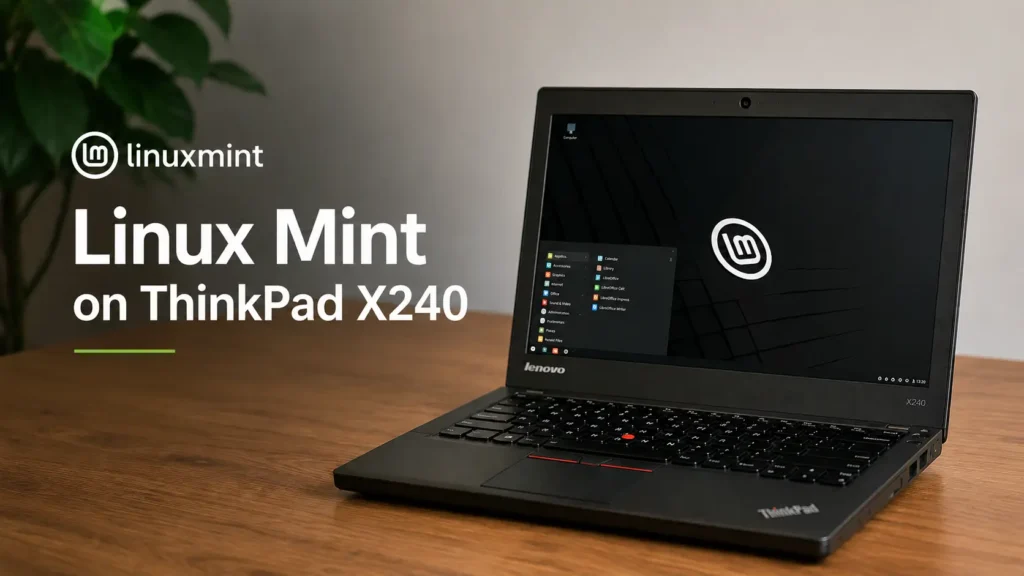
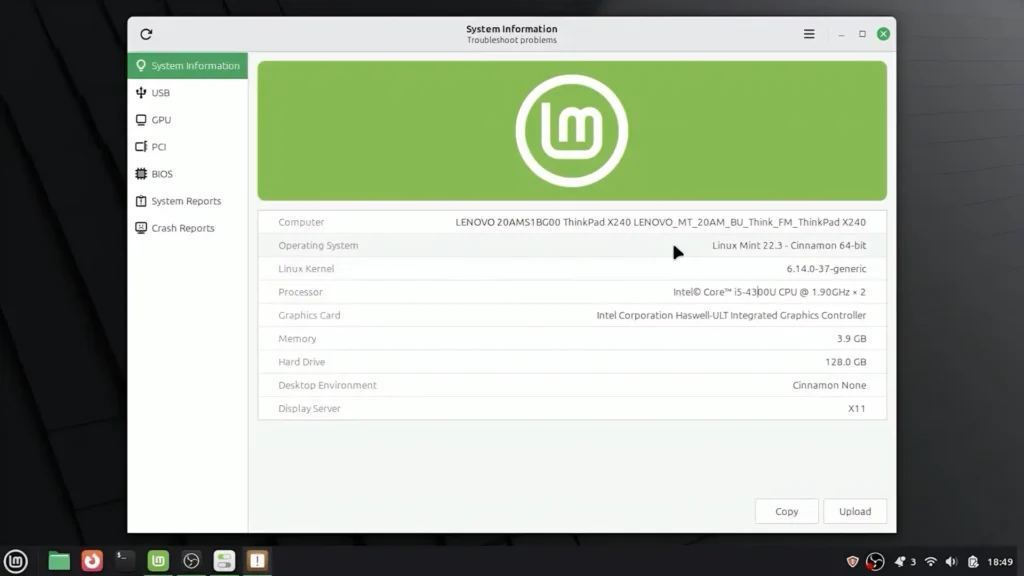
For this guide, I used a Lenovo ThinkPad X240.
| Component | Specification |
|---|---|
| CPU | Intel Core i5 4th Gen |
| RAM | 4 GB DDR3L |
| Storage | 128 GB SSD |
| GPU | Intel Integrated Graphics |
| Previous Operating System | Windows 10 |
This is exactly the type of laptop many people still own today.
And despite its age, this hardware is still capable of:
- web browsing;
- YouTube playback;
- office work;
- lightweight editing;
- coding;
- writing;
- media consumption;
- casual gaming.
The real issue is that modern operating systems often demand significantly more resources than they did years ago.
Why I Decided to Try Linux Mint
There are many Linux distributions available today, but Linux Mint is usually considered one of the best options for beginners.
The main reason is simple:
it feels familiar.
The desktop layout looks surprisingly close to Windows:
- taskbar at the bottom;
- start menu;
- desktop shortcuts;
- system tray;
- settings panel.
That familiarity makes the transition much easier for people who never used Linux before.
Another reason I chose Linux Mint is its reputation for stability and simplicity.
Unlike many modern operating systems, Linux Mint does not constantly push:
- telemetry;
- ads;
- Microsoft account integration;
- background cloud services.
And on older hardware, that lighter approach can make a surprisingly large difference.
Linux Mint Editions Explained
One thing that confuses many beginners is choosing the correct Linux Mint edition.
Linux Mint currently offers three main desktop environments:
| Edition | Best For | Resource Usage |
|---|---|---|
| Cinnamon | Most users | Moderate |
| MATE | Older hardware | Lower |
| XFCE | Very old laptops | Lowest |
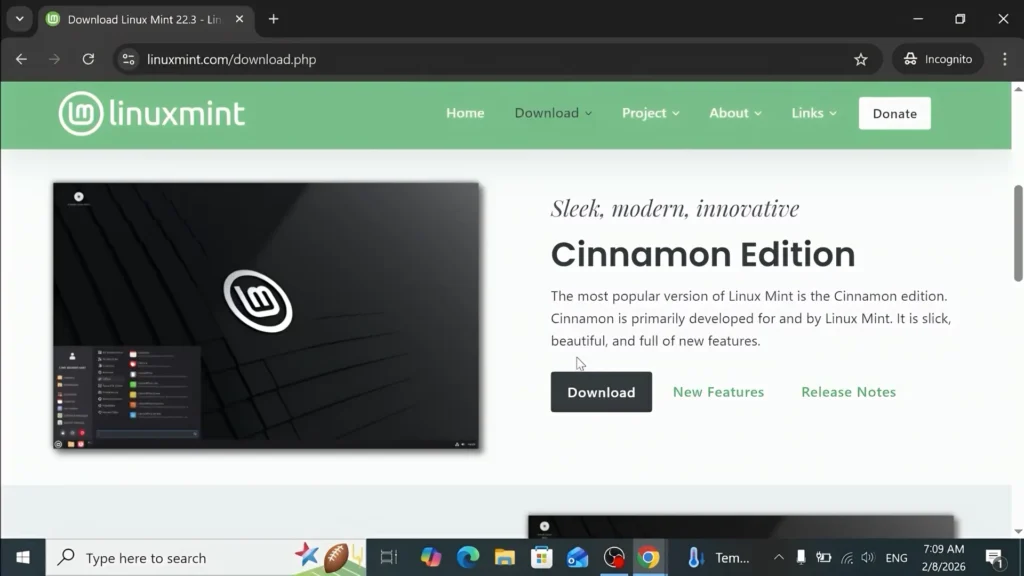
Cinnamon Edition
This is the version I installed.
It looks the most modern and polished while still remaining beginner-friendly.
If your laptop has:
- SSD;
- dual-core CPU;
- 4 GB RAM or more;
Cinnamon is usually a good choice.
Even on my 4 GB ThinkPad, the system felt smoother than Windows 10 after some basic optimization.
MATE Edition
MATE is lighter than Cinnamon but still keeps a traditional desktop layout.
It offers a good balance between:
- performance;
- simplicity;
- visual polish.
XFCE Edition
XFCE is the lightest option.
If your laptop has:
- very limited RAM;
- slow HDD;
- weak CPU;
XFCE may perform significantly better.
The downside is that it looks slightly older and less modern compared to Cinnamon.
Why Linux Mint Feels Faster on Older Hardware
This was probably the biggest surprise for me.
Linux Mint simply feels lighter.
The system uses:
- fewer background services;
- fewer startup tasks;
- less RAM;
- less telemetry.
Even the Cinnamon edition felt more responsive than Windows 10 on my ThinkPad.
Applications opened faster, desktop navigation felt smoother, and multitasking became noticeably less frustrating.
Even opening Firefox together with YouTube, several browser tabs, and a few lightweight applications felt smoother than I expected on such old hardware.
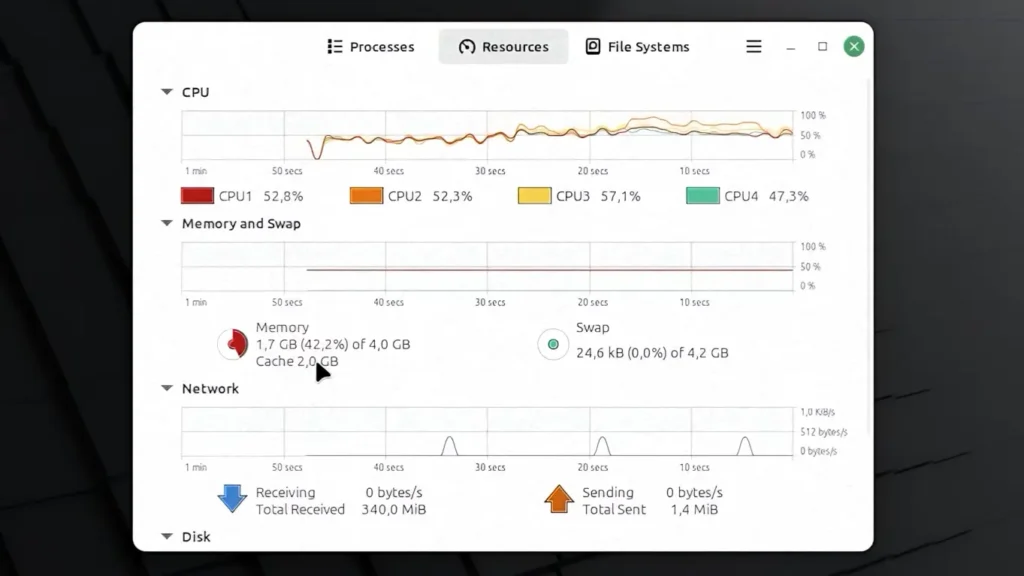
RAM Usage Comparison
One thing that immediately stood out was RAM usage.
While testing the system, Linux Mint Cinnamon was using around:
| System | Approximate Idle RAM Usage |
|---|---|
| Windows 10 | ~2.5–3.2 GB |
| Linux Mint Cinnamon | ~1.7 GB |
That difference matters a lot on a 4 GB laptop.
Lower RAM usage means:
- smoother multitasking;
- less swapping;
- faster browser responsiveness;
- better overall usability.
And on older hardware, those small improvements add up quickly.
Downloading Linux Mint
To download Linux Mint, visit the official website:
Open the Download section and choose the edition you want.
I recommend selecting a nearby mirror server for faster download speeds.
Creating a Bootable USB Drive
To install Linux Mint, you need a bootable USB drive.
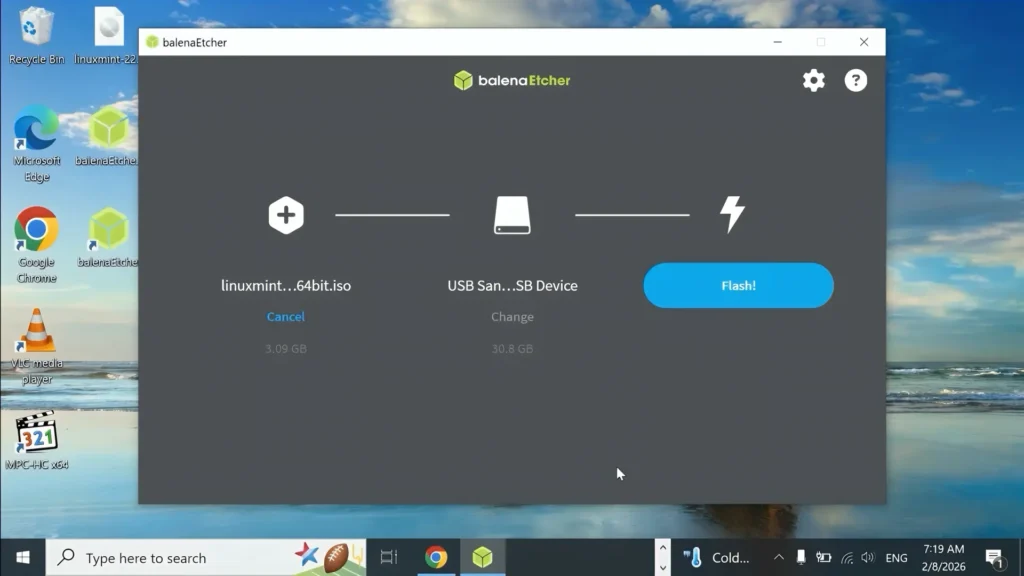
One of the easiest tools for this is:
It works on:
- Windows;
- Linux;
- macOS.
How to Create the USB Installer
1. Insert Your USB Drive
Important:
all data on the USB drive will be erased.
2. Open balenaEtcher
Select:
- Linux Mint ISO;
- your USB drive.
Then click:
Flash
If you have:
- USB 3.0 port;
- fast USB stick;
the flashing process will complete much faster.
Entering the Boot Menu
After creating the USB drive:
- Insert it into your laptop;
- Restart the system;
- Open the boot menu.
On many laptops:
- F12 opens Boot Menu;
- F2 enters BIOS.
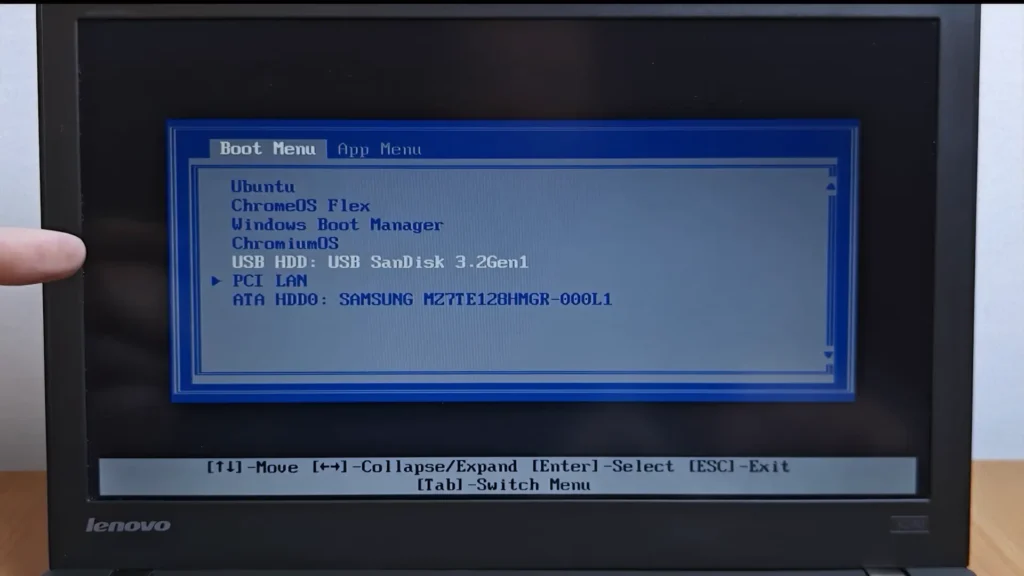
However, this depends on the manufacturer.
Should You Disable Secure Boot?
In many cases Linux Mint works without changing anything.
However, older laptops sometimes have compatibility issues with Secure Boot enabled.
If Linux refuses to boot properly, disabling Secure Boot is often the easiest solution.
Installing Linux Mint
Once Linux Mint boots from USB:
- select “Start Linux Mint”;
- wait for the desktop to load.
At this stage, Linux Mint runs directly from the USB drive.
You can already test:
- Wi-Fi;
- sound;
- touchpad;
- display;
- keyboard.
But performance improves significantly after proper installation.
Important Tip Before Installation
Connect your charger before starting the installation process.
You definitely do not want the laptop shutting down halfway through installation.
Linux Mint Installation Process
Double-click:
Install Linux Mint
Then follow the installer.
Select Language and Keyboard Layout
Choose:
- your language;
- keyboard layout.
Connect to Wi-Fi
I strongly recommend connecting to Wi-Fi during installation.
This allows Linux Mint to:
- download updates;
- install codecs;
- configure additional packages.
Install Multimedia Codecs
Enable:
Install Multimedia Codecs
This improves compatibility with:
- videos;
- media playback;
- websites;
- audio formats.
Erase Disk and Install Linux Mint
This is the most important step.
If you select:
Erase disk and install Linux Mint
your previous operating system and all files will be deleted.
Make sure you back up important data beforehand.
Creating Your Password
Linux Mint frequently asks for your password when:
- installing software;
- updating packages;
- changing system settings.
This is completely normal.
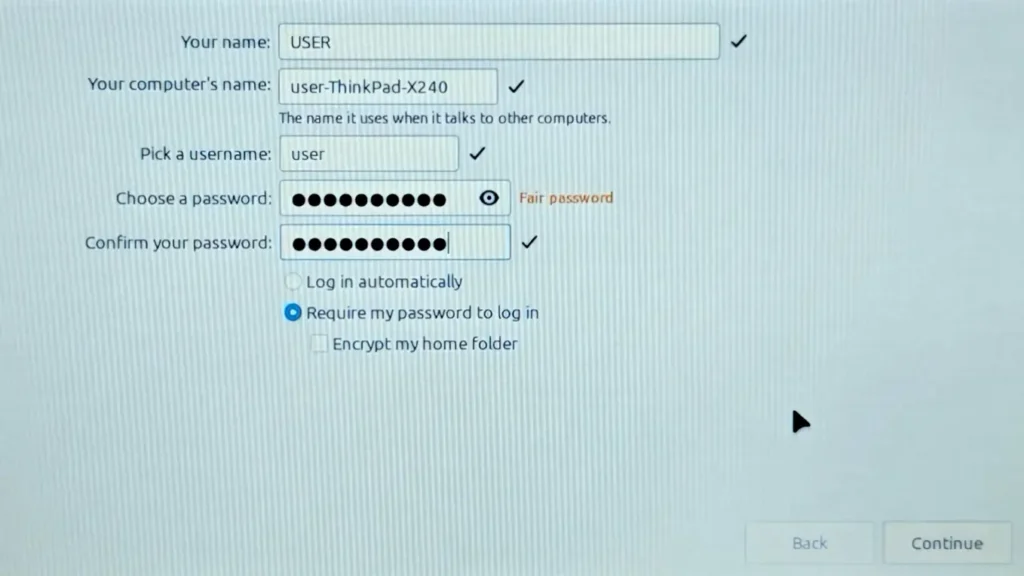
Linux focuses heavily on permissions and security.
Create a strong password that you can remember easily because you will use it often.
At first, entering the password so frequently felt slightly unusual coming from Windows, but after several days it became completely normal.
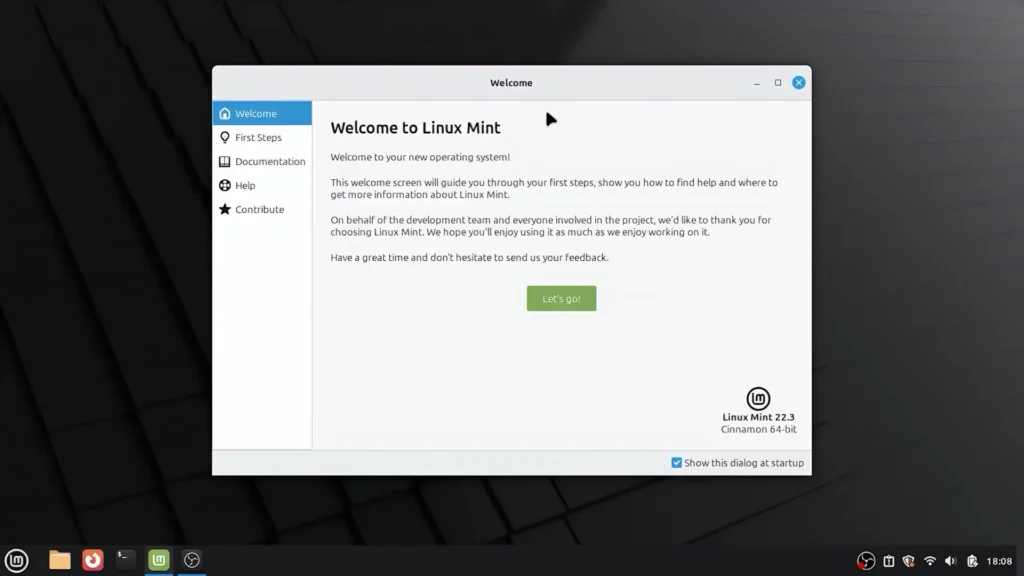
First Boot Experience
After installation:
- remove the USB drive;
- restart the laptop;
- enter your password.
This was the moment when the laptop genuinely started feeling lighter and more responsive than before.
The system booted quickly, the desktop felt clean, and even basic navigation felt smoother compared to Windows 10 on the same hardware.
First Things You Should Do After Installing Linux Mint
Many beginners stop immediately after installation.
But several settings dramatically improve the overall experience.
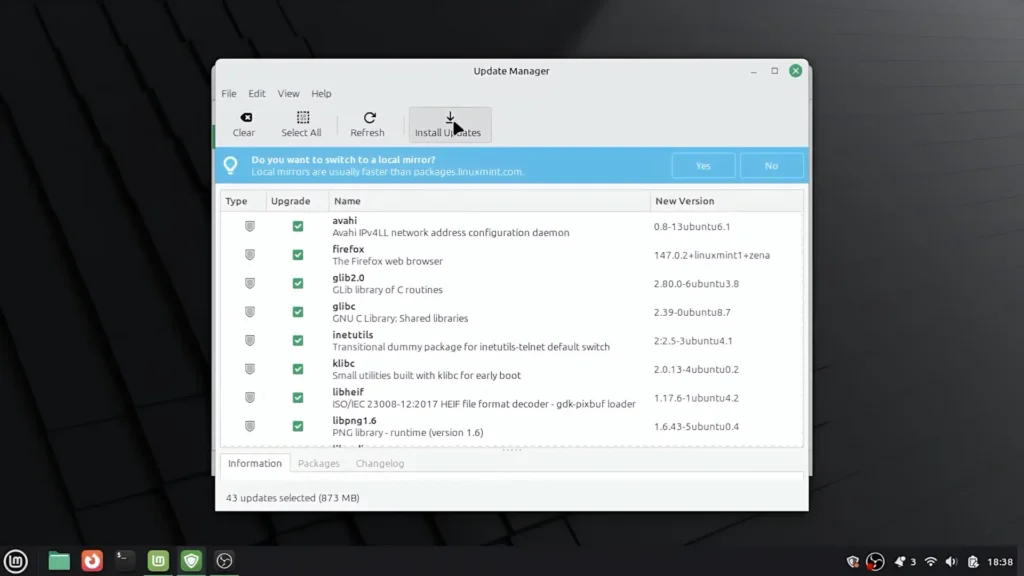
1. Install Updates
Open:
Update Manager
Install:
- security updates;
- package updates;
- system updates.
One thing I appreciated immediately is that Linux Mint gives you significantly more control over updates compared to Windows.
The system does not aggressively force restarts at random moments.
2. Configure Timeshift Snapshots
Linux Mint includes a built-in backup tool called:
Timeshift
It creates system snapshots similar to restore points on Windows.
If something breaks after:
- updates;
- drivers;
- package installation;
you can restore the previous working state.
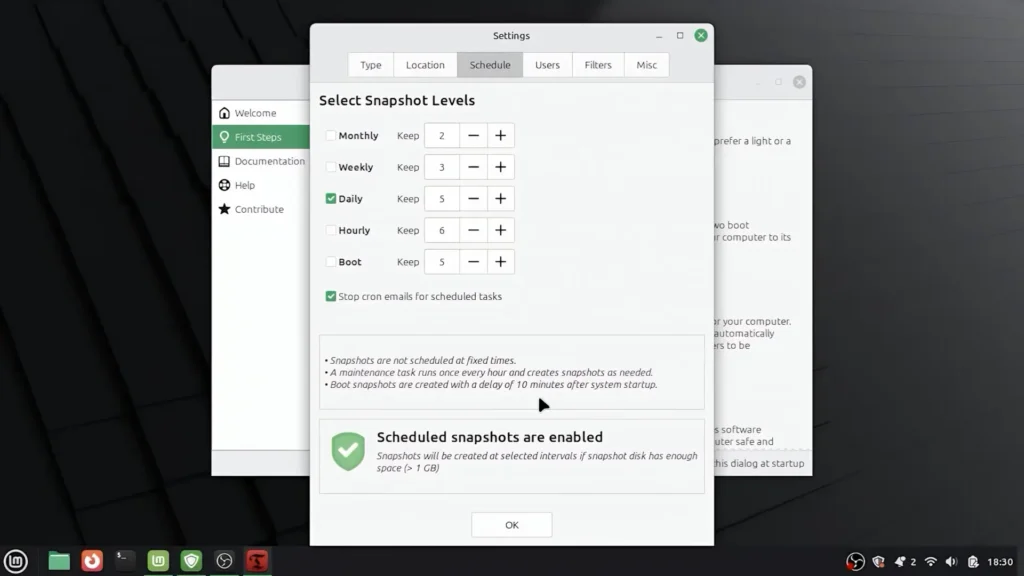
I highly recommend enabling scheduled snapshots.
Daily snapshots are usually enough for most users.
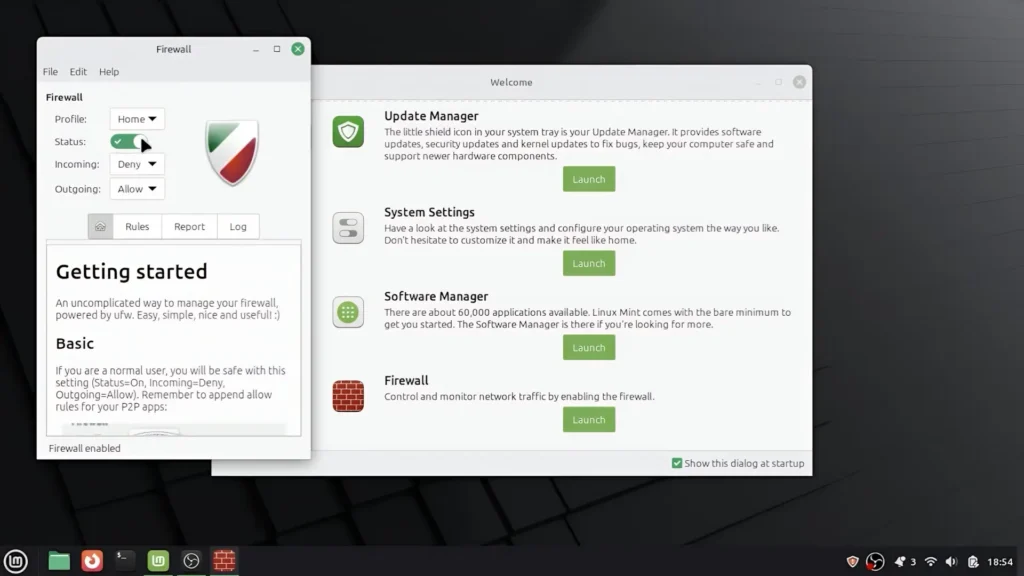
3. Enable Firewall
Linux Mint includes a built-in firewall.
Open:
Firewall Configuration
and simply enable it.
This improves network security and basic protection.
4. Check Drivers
One thing that surprised me was how well Linux Mint handled drivers automatically.
In my case:
- touchpad worked immediately;
- audio worked immediately;
- integrated graphics worked immediately.
On Windows, older laptops sometimes require:
- OEM utilities;
- Synaptics drivers;
- additional updates;
- multiple restarts.
Linux Mint handled most things automatically from the start.
Making Linux Mint Feel More Like Windows
At first, the desktop may feel slightly empty.
By default, Linux Mint hides many desktop shortcuts.
To make the system feel more familiar:
- Right-click desktop;
- Open Desktop Settings;
- Enable:
- Computer;
- Home;
- Trash;
- Network.
This instantly makes the desktop feel much closer to Windows.
Desktop Customization
You can also:
- resize icons;
- rearrange shortcuts;
- disable auto-arrange.
These small tweaks help Linux Mint feel more natural for long-time Windows users.
Touchpad Experience
One thing I noticed immediately was how well the touchpad worked.
Two-finger scrolling functioned properly right after installation.
On some Windows laptops, touchpad gestures often require:
- additional drivers;
- OEM utilities;
- Windows updates.
Linux Mint handled it automatically.
This was one of the first moments when the system started feeling polished rather than experimental.
Installing Applications on Linux Mint
Linux Mint includes:
Software Manager
You can think of it as something similar to:
- Google Play Store;
- Microsoft Store;
- App Store.
Most applications can be installed without using terminal commands.
For beginners, this makes Linux significantly less intimidating than many people expect.
That said, some Linux applications still look visually simpler compared to commercial Windows software. This is not necessarily a deal breaker, but it is something you may notice after switching.
Improving Battery Life With TLP
Battery life is one area where Linux sometimes struggles compared to Windows.
Many Windows laptops include aggressive manufacturer power optimizations by default.
Linux often requires some manual tweaking.
One of the best tools for this is:
TLP
TLP helps optimize:
- CPU power states;
- battery usage;
- laptop power behavior.
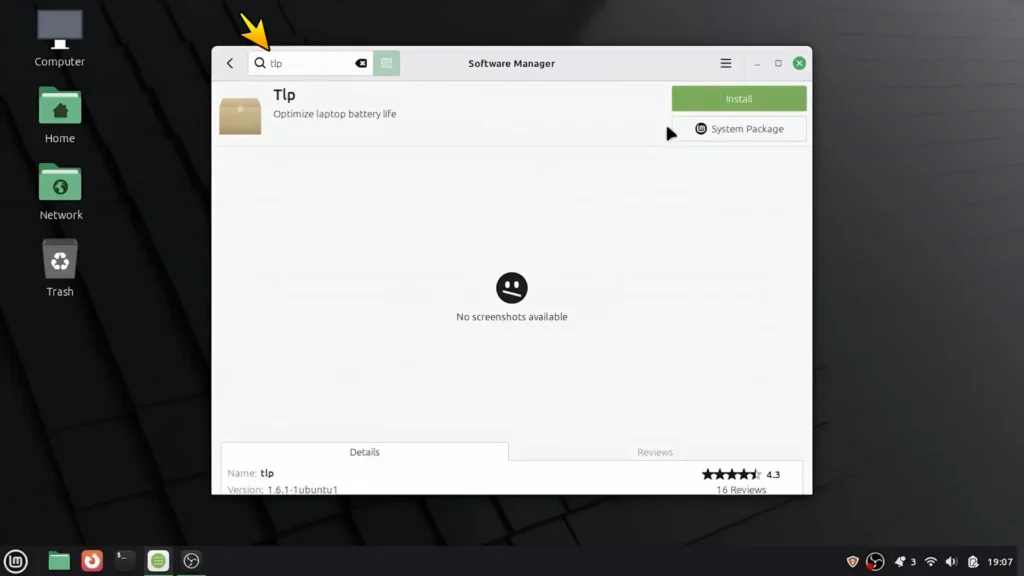
How to Install TLP
Open:
Software Manager
Search for:
TLP
Install it.
Then open Terminal and run:
sudo tlp start
Restart the laptop afterward.
Did TLP Actually Help?
Yes.
Battery life improved after enabling TLP.
The laptop still did not reach modern ultrabook battery life levels, but the difference became noticeable during normal everyday usage.
Without optimization, Linux Mint drained battery faster than Windows on my ThinkPad.
Hotkeys and Keyboard Controls
Brightness keys,
volume controls,
keyboard backlight shortcuts —
everything worked correctly.
This was another area where Linux Mint performed better than I initially expected.
The overall experience felt surprisingly polished on older hardware.
Best Linux Alternatives to Windows Applications
This is probably the biggest concern for many Windows users.
And realistically:
some Windows software simply does not exist on Linux.
Video Editing on Linux
Adobe Premiere Pro Alternative
Unfortunately, Adobe Premiere Pro does not run natively on Linux Mint.
However, one of the best free alternatives is:
Kdenlive
Kdenlive supports:
- timelines;
- transitions;
- effects;
- audio mixing;
- rendering.
Switching from Premiere Pro still requires adaptation.
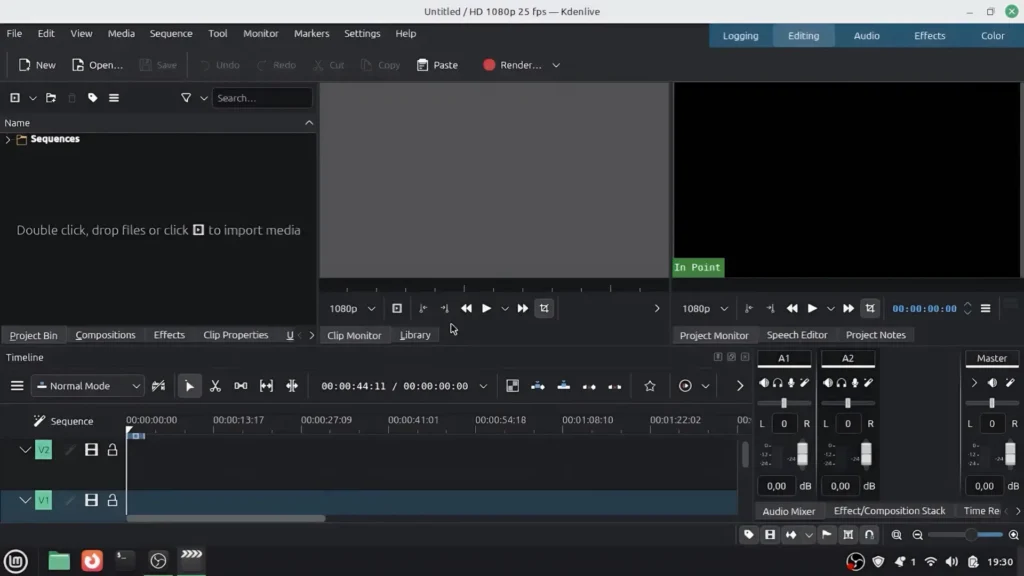
But after spending some time with it, Kdenlive feels much more capable than many people initially expect from free editing software.
Office Applications
You cannot normally run native:
Microsoft Office on Linux Mint.
Instead, Linux users typically rely on:
- LibreOffice;
- OnlyOffice;
- Google Docs.
For basic office work, these alternatives work perfectly fine.
However, advanced Microsoft Office workflows may still have compatibility issues.
That is important to understand before switching completely.
Browser Experience
Linux Mint ships with:
Mozilla Firefox
At first, I expected to immediately install Google Chrome.
But Firefox worked surprisingly well for my daily usage.
Extensions,
YouTube,
Google services,
syncing —
everything functioned normally.
Personally, I never felt a strong need to switch browsers after using Firefox for several days.
Gaming on Linux Mint
Now let’s talk about the most controversial topic:
gaming.
Can you game on Linux?
Yes.
But your experience depends heavily on:
- the game itself;
- anti-cheat systems;
- GPU drivers;
- your expectations.
Steam and Proton
Most modern Linux gaming relies on:
Steam Proton.
Very simplified:
- Windows games often use DirectX;
- Linux gaming commonly relies on Vulkan;
- Proton helps translate those instructions.
The progress Linux gaming made in recent years is impressive compared to how limited it used to be years ago.
If you want to check game compatibility before installing something, I strongly recommend using:
Native Linux Games
Some games run natively on Linux.
Examples include:
- Hollow Knight;
- Counter-Strike 2;
- many indie games.
On lightweight indie games, I honestly did not notice huge differences compared to Windows. Heavier titles, however, felt much more inconsistent depending on Proton compatibility.
The Main Gaming Downside
Compatibility and performance still vary depending on the game.
Some titles may lose performance because they rely on Proton translation layers instead of native Windows execution.
On weaker hardware, that difference can sometimes become noticeable.
If gaming performance is your absolute top priority, Windows still usually performs better overall.
Anti-Cheat Compatibility Issues
Some multiplayer games simply do not work properly on Linux because of:
- anti-cheat systems;
- launchers;
- DRM restrictions.
This is one of the most important things to understand before switching completely.
Who Should Probably Avoid Linux Mint
Linux Mint is excellent for many people.
But it is not perfect for everyone.
You should probably stay on Windows if:
- you heavily rely on Adobe software;
- gaming is your main priority;
- you use specialized Windows-only applications;
- you depend on advanced Microsoft Office features;
- you use older printers or niche hardware.
Linux sometimes still requires additional troubleshooting.
And that learning curve may not be worth it for every user.
Biggest Advantages of Linux Mint
After using Linux Mint on this older ThinkPad, these were the biggest advantages I noticed:
| Advantage | Why It Matters |
|---|---|
| Lower RAM usage | Better performance on old laptops |
| No telemetry | More privacy |
| No ads | Cleaner experience |
| Better responsiveness | Faster overall feel |
| Free | No license costs |
| User control | Updates happen when YOU decide |
| Stability | Fewer random slowdowns |
Biggest Downsides
To stay objective, here are the biggest downsides I experienced:
| Downside | Impact |
|---|---|
| No native Adobe apps | Major limitation for creators |
| Gaming compatibility | Mixed depending on the game |
| Some hardware drivers | May require troubleshooting |
| Learning curve | Especially for Windows users |
| Office compatibility | Not always perfect |
Final Thoughts — Is Linux Mint Worth It?
For older laptops:
yes.
Absolutely.
Linux Mint made this old ThinkPad feel useful again.
Not magically ultra-fast.
Not comparable to a modern gaming laptop.
But responsive and enjoyable to use again.
Web browsing felt smooth.
The desktop remained responsive.
RAM usage dropped noticeably.
And background clutter almost disappeared.
Most importantly, the laptop stopped feeling abandoned.
Linux Mint will not replace Windows for everyone.
But if:
- your old laptop feels slow;
- Windows 11 is unsupported;
- you mainly browse the web;
- you want a lightweight operating system;
- you value privacy and simplicity;
then Linux Mint might genuinely be one of the best ways to extend the life of older hardware instead of throwing it away.
If Linux Mint still feels too complex for your needs, I also tested Chrome OS Flex on an old laptop as another lightweight alternative for aging hardware.
And in a world where perfectly usable devices are often replaced too quickly, that alone makes Linux Mint worth trying.