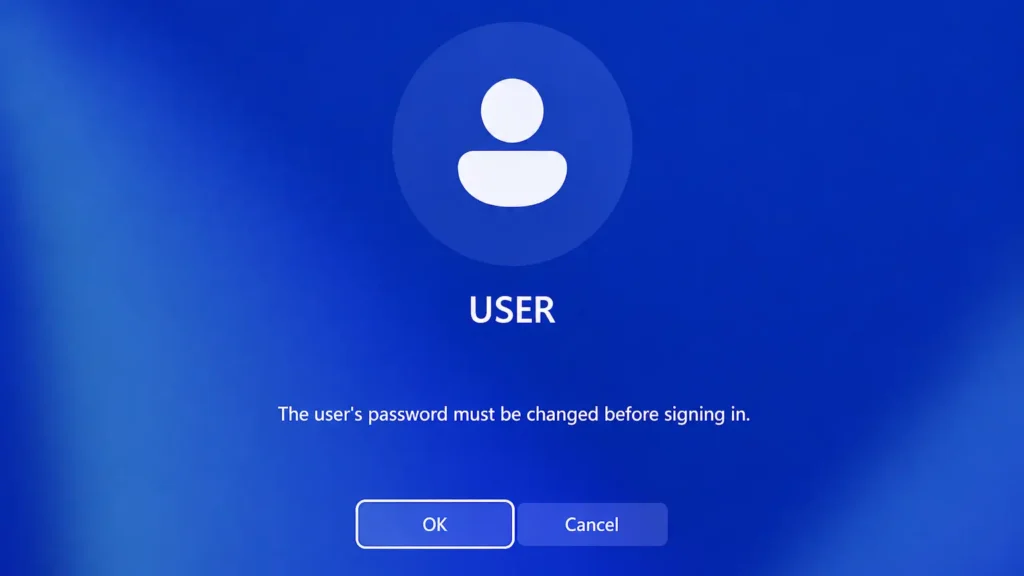
Are you unable to access Windows because you see the message “The user’s password must be changed before signing in”? This can be confusing, especially if you never created a password for your computer in the first place.
Fortunately, the problem is usually much easier to solve than it appears. In many cases, Windows is not asking you to remember an unknown password. Instead, it requires you to complete a password change before the selected user account can be opened.
Depending on how your account was configured, you may need to enter your current password and create a new one. However, if the local account never had a password, you can often leave the current password field empty. You may also be able to continue without creating a new password.
This guide explains how to fix “The user’s password must be changed before signing in” in Windows 11 and Windows 10, what causes the message, and what to do if the standard solution does not work.
What Does “The User’s Password Must Be Changed Before Signing In” Mean?
This message means that Windows has marked the selected account as requiring a password change during the next sign-in.
The feature is normally used when an administrator creates a new account or resets another user’s password. Instead of allowing the person to continue using a temporary password, Windows requires them to choose a new one before accessing the desktop.
Microsoft describes the User must change password at next logon option as a setting that forces the user to change their password the next time they sign in. It is commonly used to ensure that only the account owner knows the final password.
However, the same message can appear on a personal computer after:
- Installing or reinstalling Windows
- Creating a new local user account
- Restoring a Windows installation
- Using a preconfigured Windows image
- Resetting a local account password
- Buying a used or refurbished computer
- Changing account settings through Local Users and Groups
- Receiving a computer configured by another person
- Signing in to a work or school computer with a temporary password
In other words, the message does not necessarily mean that Windows is broken. It usually means that a password-related account option was enabled before you tried to sign in.
Quick Solution: Change the Password on the Sign-In Screen
When the message appears, click OK. Windows should display a password change screen containing several fields.
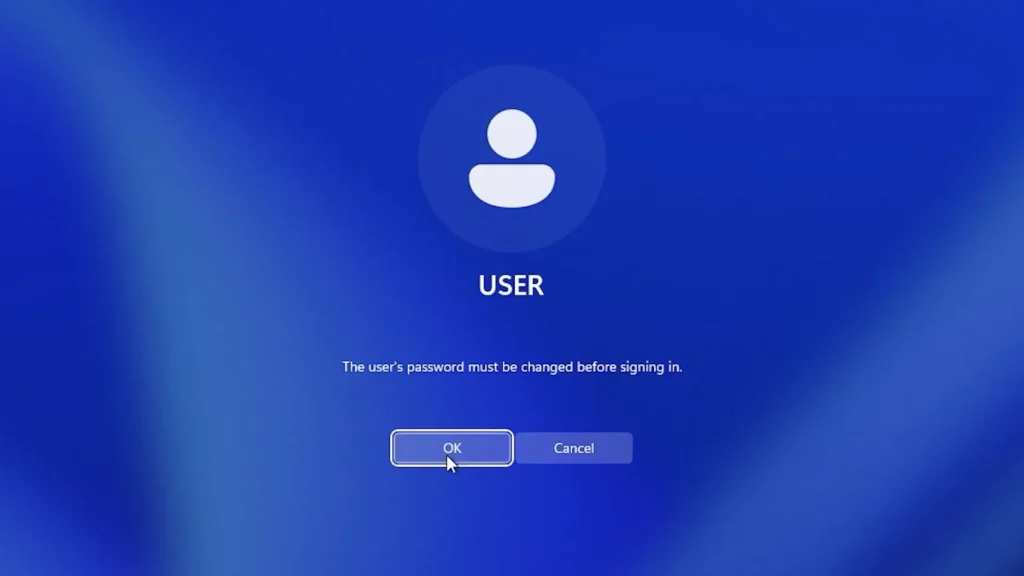
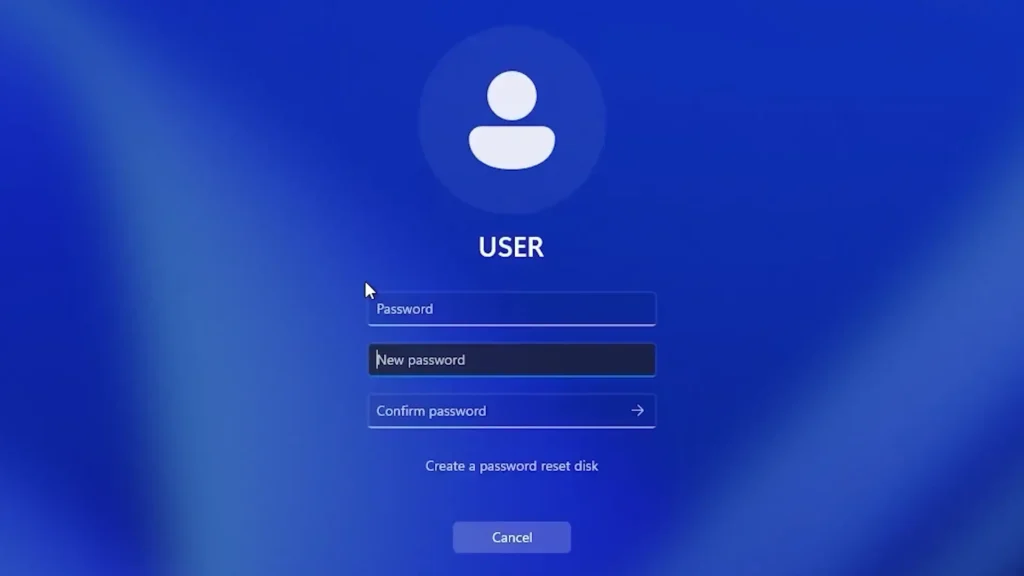
You may see fields similar to:
- Password
- New password
- Confirm password
The first field is for your current password. The next two fields are for the new password you want to use.
What you should enter depends on whether the account already has a password.
Method 1: Enter Your Current Password and Create a New One
Use this method if you know the existing password for the account.
- Click OK after seeing the message.
- Enter your current password in the first Password field.
- Enter a new password in the New password field.
- Enter the same new password again in the confirmation field.
- Click the arrow or press Enter.
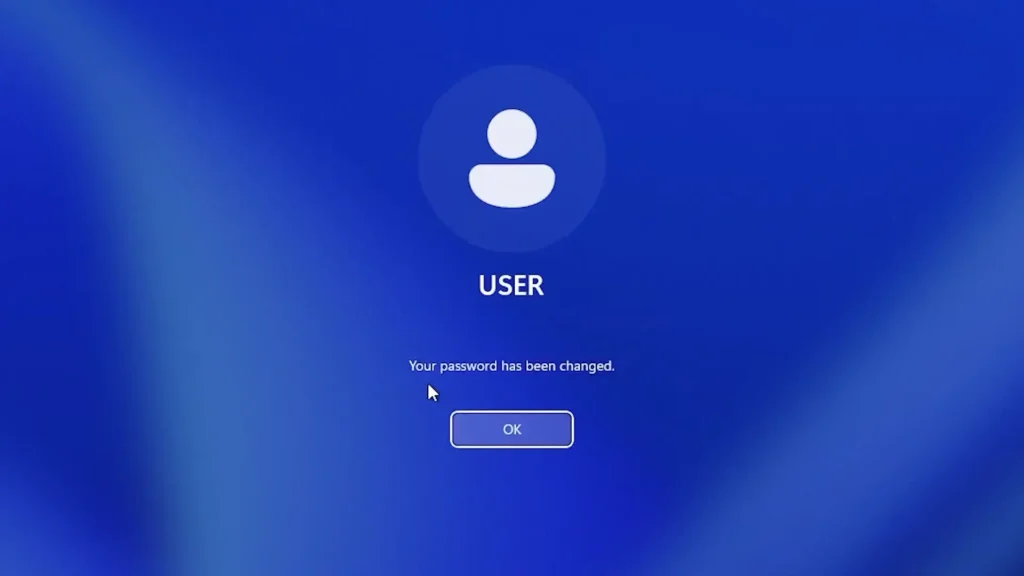
- Wait for the message confirming that the password has been changed.
- Click OK and sign in with your new password.
Make sure both copies of the new password are identical. Password fields are case-sensitive, so uppercase and lowercase letters are treated differently.
After the password is changed successfully, Windows should load normally. From that point forward, use the new password whenever Windows asks for your account password.
Remember that a Windows account password may not be the same as your Windows Hello PIN. If you normally enter a short numerical PIN, do not automatically assume that it is your account password.
Method 2: Leave the Current Password Empty
This is the most important solution if you have never created a password for your local Windows account.
When Windows asks for the current password, leave the first field empty. An empty field tells Windows that the account currently has no password.
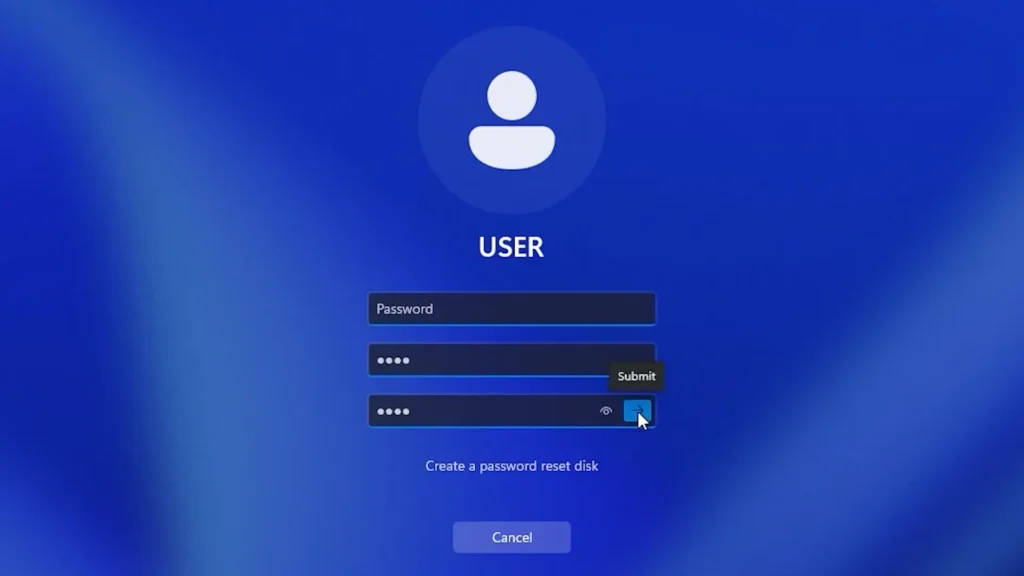
Then create a new password:
- Click OK on the warning message.
- Leave the current Password field empty.
- Enter a new password in the New password field.
- Enter the same password in the confirmation field.
- Click the arrow or press Enter.
- Click OK after Windows confirms the change.
- Sign in using the new password.
For example, if you did not set a password during Windows installation, you should not enter random combinations into the current password field. Simply leave it blank and create the new password twice.
This method is useful when Windows requires a password change even though the local account previously had no password.
Method 3: Continue Without Creating a Password
If the account did not previously have a password and you do not want to create one, try leaving all three fields empty.
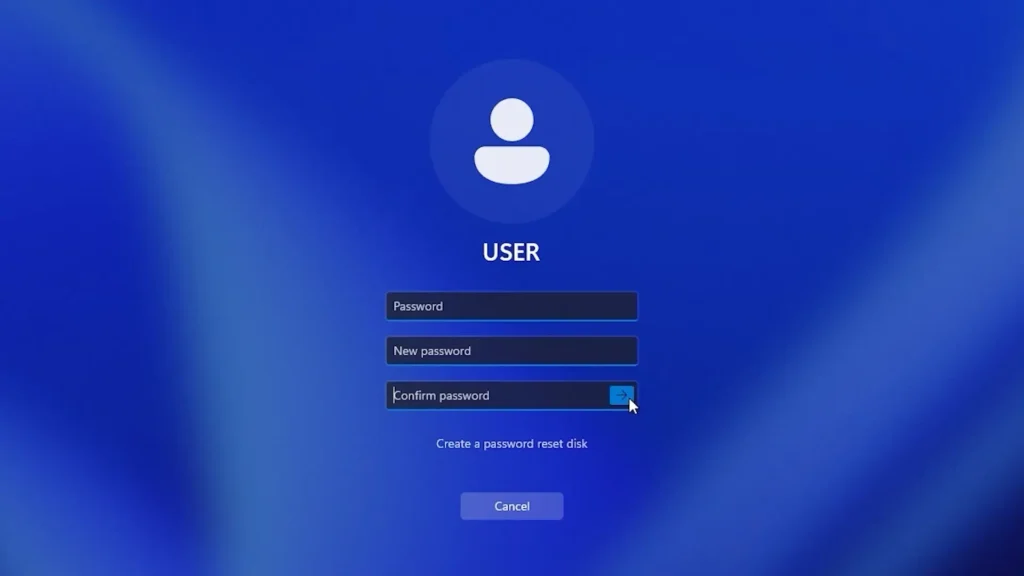
- Click OK on the original message.
- Leave the current password field empty.
- Leave the new password field empty.
- Leave the confirmation field empty.
- Click the arrow or press Enter.
- Click OK when Windows reports that the password has been changed.
If Windows accepts empty passwords for that local account, it should continue to the desktop without asking you to create one.
This option may be convenient on a home desktop computer that remains in a secure location. However, using an account without a password reduces security. Anyone with physical access to the computer may be able to open your account and access your files.
A password is strongly recommended for:
- Laptops used outside the home
- Shared family computers
- Computers containing personal documents
- Devices connected to financial or business accounts
- Work and school computers
- Computers that can be physically accessed by other people
Also, leaving the fields empty will not work in every situation. Windows may reject an empty password if the account already has a password or if a security policy requires one.
Password vs PIN: They Are Not the Same
One of the most common reasons this process fails is confusion between a Windows password and a Windows Hello PIN.
A password belongs to your local account, Microsoft account, or organizational account. A PIN is a Windows Hello sign-in method configured for a particular device.
Microsoft explains that Windows Hello can use a PIN, facial recognition, or fingerprint recognition instead of entering the password during a normal sign-in.
Therefore, the number you normally enter on the lock screen may be your PIN rather than your actual password.
For example:
- Windows Hello PIN:
4582 - Microsoft account password: a longer password used for your Microsoft services
- Local account password: a password stored for that Windows account
When Windows displays a password change form, it usually expects the actual account password in the current password field, not the Windows Hello PIN.
If your PIN does not work, select Sign-in options on the sign-in screen and look for the password icon. Microsoft also provides separate procedures for changing or resetting a Windows Hello PIN.
What If You Never Created a Password?
If you are certain that the account never had a password, first try the following combinations.
Option 1: Create a new password
Leave the current password field empty, but enter a new password twice.
This is the best option because it allows you to satisfy the Windows requirement while protecting the account.
Option 2: Keep the account without a password
Leave the current, new, and confirmation fields empty.
This may work with a local account when Windows permits blank passwords.
Option 3: Check whether you are using the correct account
Look at the account name shown on the sign-in screen. The computer may contain more than one local account, especially if Windows was installed or configured by somebody else.
You may also see an account created by:
- A computer repair shop
- A previous owner
- A system administrator
- A Windows deployment tool
- The manufacturer or seller
Use the account switching option on the sign-in screen to check whether another account is available.
What If Windows Does Not Accept the New Password?
Windows may reject the new password if it does not meet the security requirements configured for the account or computer.
Try creating a stronger password that contains:
- At least eight characters
- Uppercase letters
- Lowercase letters
- Numbers
- A special symbol
For example, do not use passwords such as:
1234567812341234passwordadminqwerty
These combinations are easy to guess and should only be treated as demonstration examples, not real passwords.
Instead, use a longer and unique password that you can remember. Avoid including easily discovered details such as your name, birthday, phone number, or computer model.
If Windows says that the new password does not meet the password policy requirements, create a longer combination with several character types.
What If You Use a Microsoft Account?
A Microsoft account is different from a traditional local Windows account. It is connected to an email address and can be used with services such as OneDrive, Outlook, Microsoft Store, and Microsoft 365.
If an email address appears under your name on the Windows sign-in screen, try entering your Microsoft account password rather than your PIN.
If you cannot remember the password, use the official Microsoft password recovery process. Microsoft allows users to reset a Microsoft account password from the sign-in screen or through its online account recovery tools.
Before resetting anything, make sure the computer is connected to the internet. A Microsoft account may need an internet connection to verify the updated credentials.
If you are preparing to reinstall Windows, you may also want to check how to find your Windows product key.
You can check the network icon in the lower-right corner of the Windows sign-in screen and connect to Wi-Fi if necessary.
Do not repeatedly guess the password. Too many incorrect attempts may temporarily restrict sign-in or require additional identity verification.
What If It Is a Local Windows Account?
A local account exists only on the computer and is not necessarily connected to a Microsoft email address.
If you forget a local account password, Windows may offer a Reset password option on the sign-in screen. You may need to answer the security questions created when the local account was set up.
Microsoft’s official local account recovery instructions recommend selecting the password sign-in option, choosing Reset password, and answering the configured security questions.
The option may not appear if:
- Security questions were never configured
- The account was created using an older Windows installation
- The computer belongs to an organization
- The account is managed through a domain
- Another sign-in method is currently selected
If another administrator account exists on the computer, that administrator may be able to manage the affected local account.
Use Another Administrator Account
This method is only possible if you can access a different administrator account on the same computer.
After signing in to the working administrator account:
- Press Win + R.
- Enter
lusrmgr.msc. - Press Enter.
- Open the Users folder.
- Double-click the affected account.
- Check its account properties.
- Look for User must change password at next logon.
The Local Users and Groups console is generally available in Windows Pro, Enterprise, and Education editions. It is not normally included with Windows Home.
Be careful when changing account properties. Simply disabling the checkbox may not resolve every situation, particularly when the account is already in a password-change state. It may be necessary to set or change the password correctly before the requirement is cleared.
Avoid deleting the account. Deleting a Windows user can make its associated files and settings more difficult to recover.
What If You Have Windows Home?
Windows Home usually does not include the full Local Users and Groups management console. If the lusrmgr.msc command displays an error or says that the snap-in cannot be used, this does not necessarily indicate a problem with Windows.
Instead, focus on the sign-in screen solutions:
- Leave the old password field empty if no password existed.
- Create a new password twice.
- Try leaving all password fields empty.
- Confirm that you are using a password rather than a PIN.
- Use the local account password reset option.
- Check whether another administrator account is available.
It is not necessary to install unofficial tools just to access Local Users and Groups on Windows Home. For this particular issue, the password change screen is normally the safest and simplest place to start.
What If the Message Appears Again?
If “The user’s password must be changed before signing in” appears again after you already completed the process, several explanations are possible.
The password may not have been changed successfully, the account may still be configured to require another change, or the computer may be managed by an organization.
Try these steps:
- Restart the computer.
- Confirm that you are entering the newly created password.
- Use Sign-in options to select the password icon.
- Make sure Caps Lock is disabled.
- Check the keyboard language shown on the sign-in screen.
- Connect the computer to the internet.
- Try the old and new password only when you are certain which account is selected.
- Contact the administrator if it is a managed computer.
The keyboard layout is particularly important when a password contains symbols. A password created with one keyboard language may produce different characters when another layout is selected.
Work or School Computers
Do not attempt to bypass account policies on a work, school, or university computer.
These devices may be connected to:
- Active Directory
- Microsoft Entra ID
- A company domain
- A remote management platform
- An organizational security policy
The message may appear because an administrator intentionally issued a temporary password and required you to replace it.
Enter the temporary password provided by the organization, then create a new password that satisfies its security requirements.
If the temporary password does not work, contact the IT department. The administrator may need to reset the password again, unlock the account, verify the network connection, or correct the account configuration.
Changing system files or using password-bypass utilities can violate organizational policies and may create additional problems.
Can You Disable the Password After Signing In?
After accessing Windows, you can review the available sign-in methods by opening:
Settings → Accounts → Sign-in options
From this page, Windows may allow you to manage:
- Password
- PIN
- Facial recognition
- Fingerprint recognition
- Security key
- Additional sign-in requirements
The available options depend on your hardware, account type, Windows edition, and organizational policies.
Removing a password is not recommended for a portable or shared computer. A safer alternative is to keep the account password and configure a convenient Windows Hello PIN.
The PIN is tied to the device and can be easier to enter while still protecting the account. Microsoft provides the PIN settings under Accounts → Sign-in options → PIN (Windows Hello).
Frequently Asked Questions
Why does Windows say that my password must be changed?
The account has been configured to require a password change at the next sign-in. This can happen after an administrator creates or resets an account, after reinstalling Windows, or when using a preconfigured system.
What should I enter as the old password if I never created one?
Leave the current password field empty. Then either enter a new password twice or try leaving all fields empty.
Can I leave the new password fields empty?
Sometimes. This may work with an unprotected local account when Windows permits blank passwords. It may not work with Microsoft accounts, domain accounts, or computers with password security policies.
Should I enter my Windows PIN as the old password?
Usually not. A Windows Hello PIN and an account password are separate credentials. Select the password sign-in option and enter the password associated with your local or Microsoft account.
Why does Windows reject my new password?
The new password may not meet the computer’s password policy. Try a longer password containing uppercase and lowercase letters, numbers, and symbols.
Does this solution work on both Windows 10 and Windows 11?
Yes. The interface may look slightly different, but the basic process is similar in Windows 10 and Windows 11.
Will I need to enter the new password every time?
Normally, Windows will require a sign-in method when the computer starts, wakes, or becomes locked. You can later configure a Windows Hello PIN, fingerprint, or facial recognition if your device supports these features.
What if I forgot my local account password?
Select Reset password on the sign-in screen and answer your security questions, if that option is available. You can also use another administrator account if one exists.
What if I forgot my Microsoft account password?
Use Microsoft’s official account recovery process and make sure the computer is connected to the internet.
Is it safe to use Windows without a password?
It is less secure. Anyone with physical access to the computer may be able to view your files and use your signed-in accounts. A password or Windows Hello sign-in method is recommended.
Final Thoughts
The message “The user’s password must be changed before signing in” looks serious, but it can often be fixed directly from the Windows sign-in screen.
If you know the current password, enter it and create a new one. If the account never had a password, leave the current password field empty. You can then either create a new password or try leaving all fields blank.
The most important thing is to distinguish between your actual account password and your Windows Hello PIN. If the computer uses a Microsoft account, enter the Microsoft account password or use the official recovery process. If it is a work or school computer, contact the administrator instead of attempting to disable security policies.
Once Windows confirms that the password has been changed, click OK and sign in using your updated credentials. In most cases, the desktop should then load normally.