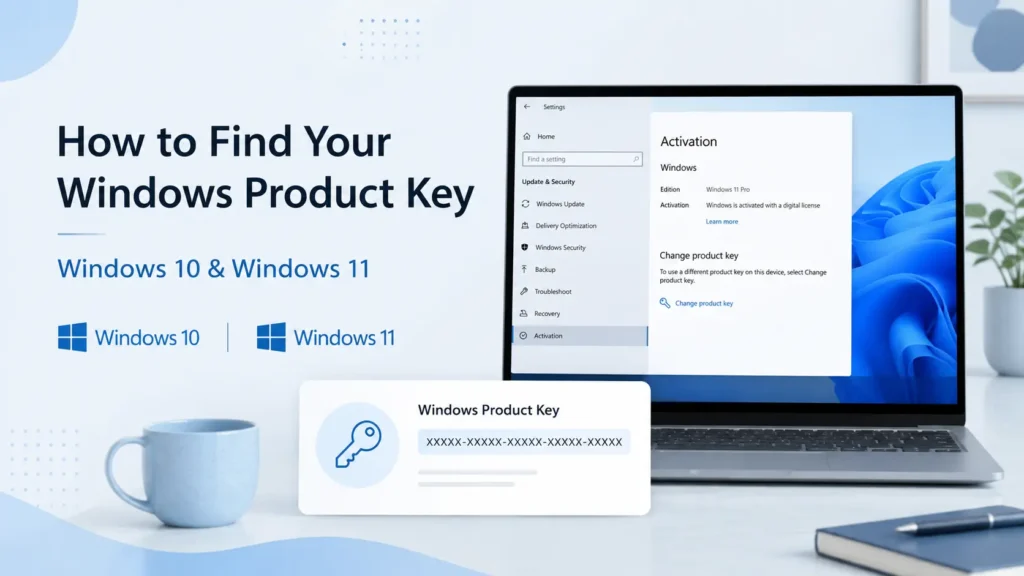
Find your Windows product key in Windows 10 or Windows 11 using PowerShell, WMIC, BIOS or UEFI, purchase records, and license stickers. This guide also explains how digital activation works and why some commands may return a blank result.
You may need this information before reinstalling Windows, replacing a drive, or checking whether you still have access to your license. However, not every method works on every PC.
On many modern laptops and prebuilt desktops, the original key is stored in the BIOS or UEFI firmware. Other systems rely on a digital license connected to the device’s hardware or a Microsoft account. Older PCs may still have a physical license sticker somewhere on the case.
That is why one command may display a 25-character code on one computer but return a blank line on another—even when both copies of Windows are activated correctly.
In this guide, I will show you how to check your Windows activation status, retrieve an OEM key with PowerShell, use the older WMIC method when it is still available, and locate license details in your purchase records or on the device itself.
What Is a Windows Product Key?
A Windows product key is a 25-character code used to activate a licensed copy of Windows 10 or Windows 11. It normally follows this format:
XXXXX-XXXXX-XXXXX-XXXXX-XXXXX
Microsoft uses activation to confirm that the operating system is properly licensed and is not being used on more devices than the license permits.
However, modern versions of Windows do not always require the user to enter or even know this code. Many computers are activated through a digital license instead.
Product Key vs Digital License
A traditional product key is a code that can be entered during Windows Setup or later through the Activation page in Settings. You may receive one after buying a boxed Retail copy, purchasing Windows from an authorized store, or obtaining a PC with an OEM license.
A digital license works differently. It allows Microsoft’s activation servers to recognize an eligible device without requiring you to manually type a 25-character code every time Windows is reinstalled.
A digital license may be associated with:
- A computer that was previously activated.
- A laptop or prebuilt desktop supplied with Windows.
- A qualifying upgrade from an earlier Windows version.
- A Windows edition upgrade purchased through the Microsoft Store.
- A Microsoft account connected to the activated device.
A modern prebuilt PC can have both an OEM key in its firmware and a digital activation record on Microsoft’s servers. These are related, but they are not exactly the same thing.
For example, a laptop may contain an original Windows Home key in UEFI while the current installation has been upgraded to Windows Pro through the Microsoft Store. A command that reads the firmware could still display the original Home key rather than the license currently activating Windows Pro.
Check Your Windows Activation Status First
Before trying to recover any key, check whether the operating system is already activated and which edition is installed.
Windows 11
- Open Settings.
- Select System.
- Open Activation.
- Check the information next to Activation state.
Windows 10
- Open Settings.
- Select Update & Security.
- Choose Activation.
- Read the status shown on the page.
You may see a message such as:
- Windows is activated.
- Windows is activated with a digital license.
- Windows is activated with a digital license linked to your Microsoft account.
- Windows is activated using your organization’s activation service.
- Windows is not activated.
This page also shows whether you are running Home, Pro, Education, Enterprise, or another edition.
Knowing the edition matters. If a computer was licensed for Windows 11 Home, installing Windows 11 Pro will not normally activate with that Home entitlement.
If Settings confirms that the system uses a digital license, you may not need to find a code before reinstalling Windows. During Setup, you can usually choose I don’t have a product key, install the same edition, connect to the internet, and allow the system to reactivate automatically.
Method 1: Find the Windows Product Key with PowerShell
The recommended modern method is to check whether the manufacturer stored an OEM key in the computer’s BIOS or UEFI firmware.
This is especially useful for laptops and branded desktops that originally came with Windows preinstalled.
Step 1: Open PowerShell or Windows Terminal
Right-click the Start button and select:
- Terminal (Admin);
- Windows Terminal (Admin); or
- Windows PowerShell (Admin).
The exact name depends on your Windows version and configuration.
You can also open the Start menu, search for PowerShell, and select Run as administrator.
Running this particular query as an administrator is not always required, but doing so can prevent avoidable permission issues and keeps the instructions consistent across different Windows installations.
Step 2: Enter the PowerShell command
Copy and paste the following line:
(Get-CimInstance -ClassName SoftwareLicensingService -Property OA3xOriginalProductKey).OA3xOriginalProductKey
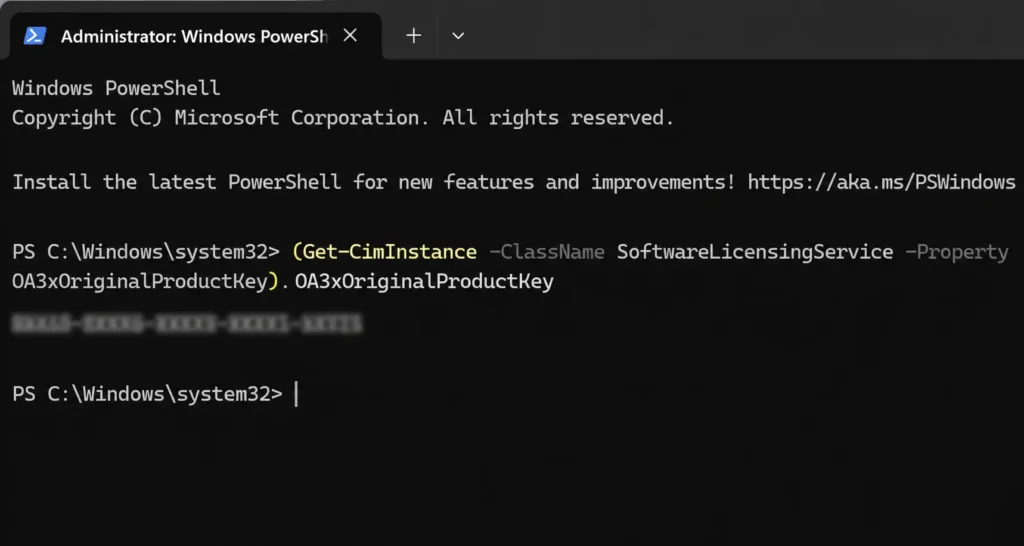
Press Enter.
When an OEM key is present in the firmware, PowerShell should return a code in this format:
XXXXX-XXXXX-XXXXX-XXXXX-XXXXX
Save it somewhere private if you genuinely need it. Do not show the real code in public screenshots, videos, forum posts, or support discussions.
What does this command actually retrieve?
The command reads the OA3xOriginalProductKey property from the SoftwareLicensingService class.
In simpler terms, it checks whether the PC manufacturer placed an OEM Activation 3.0 key in the motherboard’s firmware.
It is most likely to return a result on:
- Laptops supplied with Windows.
- Prebuilt desktops from major manufacturers.
- Systems originally shipped with Windows 8, 10, or 11.
- Devices being restored to their original Windows edition.
It does not search every possible location where license information might exist. In particular, it may not reveal a separately purchased Retail key or the code currently associated with an upgraded edition.
What If PowerShell Shows Nothing?
A blank result is common and does not, by itself, indicate that anything is wrong.
It simply means the query did not find an OEM key in the firmware.
Here are the most likely explanations.
The PC uses digital activation
Microsoft’s servers may recognize the hardware through a digital license. In that case, the system can be fully activated even when there is no visible code to retrieve from UEFI.
Return to the Activation page in Settings to verify the current status.
You purchased a Retail license
A code bought separately is not normally written into the motherboard’s firmware. It may instead be stored in an email, on a card inside the Windows box, or in the order history of the account used for the purchase.
The device was sold without Windows
A custom-built desktop or a laptop originally supplied without an operating system may not contain any embedded Microsoft license.
Even if Windows was purchased and activated later, the newly added license does not necessarily become an OA3xOriginalProductKey in the firmware.
The system belongs to a company or school
Business and educational devices may use volume licensing, KMS, MAK, subscription activation, or another organization-managed arrangement.
In that situation, the computer may not have an individual transferable license that belongs to the person using it. Contact the organization’s IT administrator before reinstalling or modifying the system.
The motherboard was replaced
An OEM entitlement is generally tied to the original device, with the motherboard being a particularly important part of that hardware identity.
After a motherboard replacement, the original embedded code may no longer be available, or Windows may require reactivation.
Method 2: Use the WMIC Command
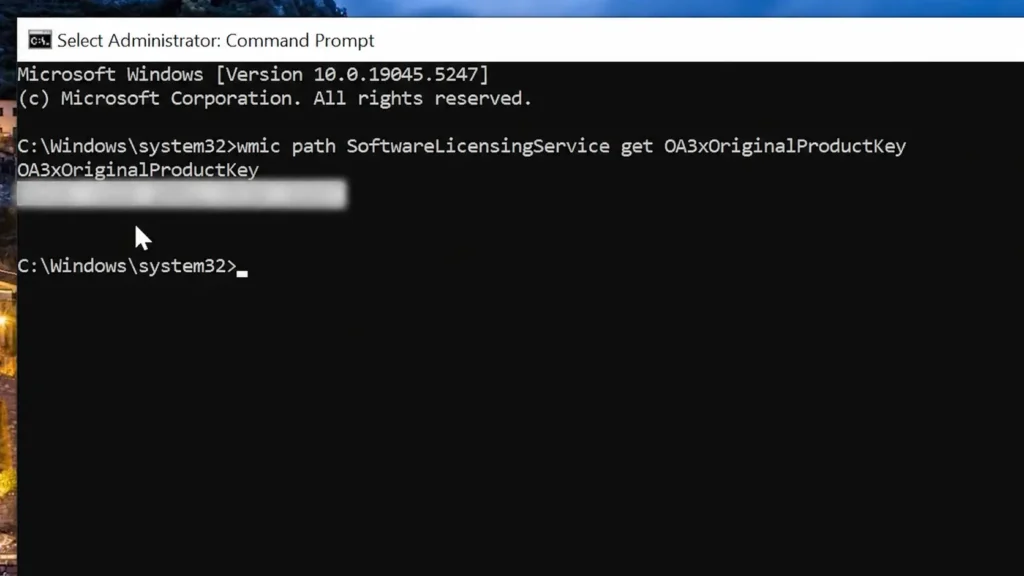
The method shown in my original video uses the Windows Management Instrumentation Command-line utility:
wmic path SoftwareLicensingService get OA3xOriginalProductKey
This command is still safe to use, and on compatible systems it can produce the same firmware-stored OEM key as the PowerShell query.
However, WMIC is now a legacy tool, so it should be treated as a secondary option rather than the default recommendation.
How to run the WMIC command
- Open the Start menu or Windows Search.
- Type CMD.
- Select Run as administrator.
- Paste this line:
wmic path SoftwareLicensingService get OA3xOriginalProductKey
- Press Enter.
When a firmware key is available, it should appear below the following heading:
OA3xOriginalProductKey
When is this older method still useful?
The WMIC approach is worth trying when:
- You are using Windows 10.
- You have an older Windows 11 installation.
- WMIC is already installed on the system.
- You prefer working in Command Prompt.
- PowerShell is unavailable or restricted.
- You are following along with my original video.
There is no need to avoid the command just because it is old. It performs a read-only query and does not modify Windows, activation settings, or the stored license.
Its main limitation is availability.
Does WMIC work on Windows 11 24H2?
Beginning with Windows 11 version 24H2, WMIC is not preinstalled by default.
As a result, a clean or newer Windows 11 installation may return an error such as:
'wmic' is not recognized as an internal or external command,
operable program or batch file.
This message has nothing to do with the validity of your Windows license. It only means that the legacy WMIC utility is not currently installed.
WMIC may still work on some upgraded computers where it was retained. Microsoft also lists it as a legacy optional capability on supported versions, but installing an obsolete component solely to run this one query is unnecessary.
Use the PowerShell alternative instead:
(Get-CimInstance -ClassName SoftwareLicensingService -Property OA3xOriginalProductKey).OA3xOriginalProductKey
What if WMIC displays only the heading?
You may see:
OA3xOriginalProductKey
with an empty line underneath it.
That generally means no OEM key was found in BIOS or UEFI. The result is equivalent to PowerShell returning nothing.
Check the Activation page in Settings before assuming that there is a licensing problem.
Method 3: Look for a License Sticker
Older PCs may have a Certificate of Authenticity, often shortened to COA, attached to the case.
Possible locations include:
- The bottom of a laptop.
- Under a removable battery.
- Inside the battery compartment.
- The rear or side panel of a desktop case.
- The original computer packaging.
- A card included with a boxed Windows copy.
The label may show the Windows edition, Microsoft branding, and a 25-character activation code.
Over time, printed characters can fade or become difficult to read. Similar-looking characters such as B and 8 can also be easy to confuse.
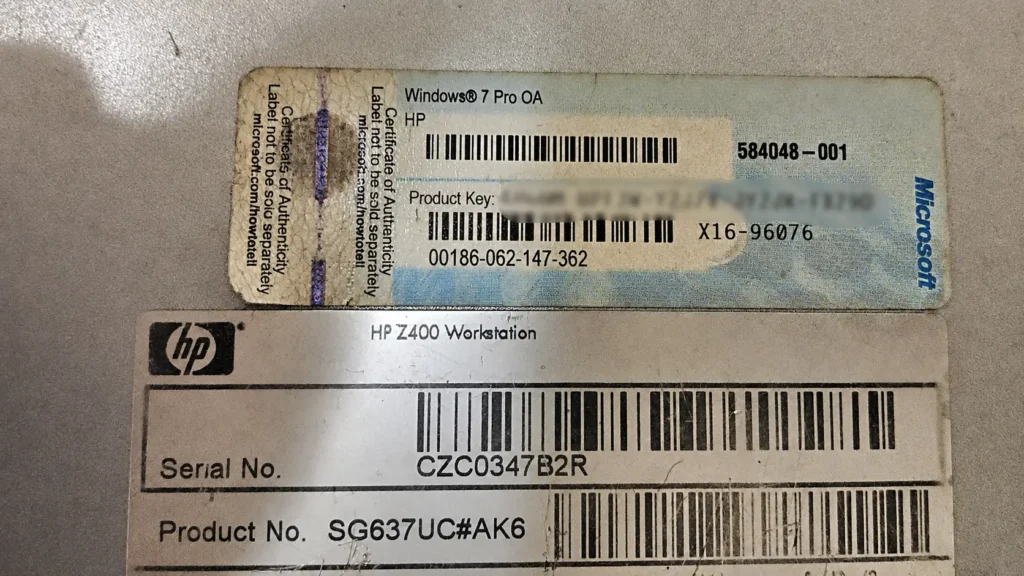
Most newer laptops no longer have an exposed product-key sticker. Manufacturers generally store the relevant OEM information in UEFI instead, where Windows Setup can read it automatically.
Method 4: Check Your Email and Purchase Records
Where you should look depends on how you originally obtained Windows.
Purchase from Microsoft
Review the order history of the Microsoft account used for the transaction and search for the confirmation email.
A separately purchased digital copy may include a key, while an edition upgrade purchased through the Microsoft Store may use a digital license instead.
Purchase from another retailer
Search your inbox for phrases such as:
- Windows product key
- Windows license
- Microsoft order
- Digital download
- Activation key
- Purchase confirmation
Make sure the message came from the store you actually used.
Be cautious with unusually cheap Windows keys sold on unfamiliar websites. Some may come from volume-license agreements, restricted regions, educational programs, or other channels that were not intended for ordinary resale.
A code may activate successfully at first and still be blocked later if it was distributed improperly.
Boxed copy
Inspect the card, label, or documentation supplied inside the box. Keep the proof of purchase as well as the key itself, especially if you plan to move a Retail license to another device in the future.
Prebuilt laptop or desktop
Start with the PowerShell query. On this type of machine, the original OEM information is more likely to be stored in firmware than printed on a visible sticker.
Method 5: Check License Details with SLMGR
Windows also includes the Software Licensing Management Tool, commonly accessed through slmgr.
These commands are useful for checking activation information, although they do not normally reveal the complete 25-character code.
Open Command Prompt and run:
slmgr /dli
After a short delay, a dialog box should display basic details such as:
- The installed Windows edition.
- The license description.
- The activation channel.
- The current license status.
- The final five characters of the installed key.
For more extensive information, use:
slmgr /dlv
To check whether activation is permanent or has an expiry date, run:
slmgr /xpr
The last five characters shown by slmgr can help identify which key or license entry is installed. They cannot be used to activate another copy of Windows.
Also keep in mind that some systems activated through KMS or another organization-managed service may report an expiration or renewal interval. That behavior can be normal for that type of activation.
Can You Reinstall Windows Without the Product Key?
In many cases, yes.
When Windows has already been activated on the same hardware, Microsoft’s activation servers may recognize the device after a clean installation.
During Windows Setup:
- Select I don’t have a product key when asked for one.
- Choose the same edition that was activated previously.
- Finish the installation.
- Connect the PC to the internet.
- Sign in with the connected Microsoft account when applicable.
- Check the Activation page after Setup is complete.
For example, reinstall Windows 11 Home if the device previously used an activated Home license. Choosing Pro by mistake may leave the new installation unactivated.
Before erasing the drive, it is sensible to confirm the current edition and activation status. This takes less than a minute and can prevent confusion later.
If you are replacing an old hard drive with an SSD, you may not need to reinstall Windows at all. You can follow my guide on how to upgrade from an HDD to an SSD without reinstalling Windows by cloning the existing system to the new drive.
Automatic reactivation is common, but it should not be treated as an absolute guarantee. Major hardware changes, licensing restrictions, an incorrect edition, or an organization-managed setup can affect the result.
What Happens After a Motherboard Replacement?
Replacing RAM, storage, or a graphics card normally has less effect on activation than replacing the motherboard.
A motherboard change can cause Windows to identify the machine as a different device. This is especially important for an OEM license supplied with a laptop or prebuilt computer.
A separately purchased Retail license usually offers more flexibility, but it still should not normally be active on several PCs at the same time.
Before a major upgrade:
- Confirm that the current installation is activated.
- Link the digital license to your Microsoft account where possible.
- Save the Retail key and proof of purchase, if you have them.
- Note the installed edition.
- Make sure you can access the connected Microsoft account.
After changing the hardware, open:
Settings > System > Activation
If activation has been lost, select Troubleshoot. When the option is available, choose I changed hardware on this device recently and sign in with the Microsoft account previously connected to the license.
Whether reactivation succeeds depends on the license type and the specific hardware change.
Should You Use Third-Party Key Finder Software?
Some utilities can inspect the Registry and licensing data to display product information. A reputable program may be useful in a few specialist situations, but most people do not need one.
Unknown key finders can:
- Bundle unwanted software.
- Display a generic installation key as though it were a personal license.
- Misidentify the activation channel.
- Collect system information.
- Advertise unnecessary activation or repair services.
- Trigger warnings from security software.
Another issue is that a third-party tool may display a key without clearly explaining what that key represents. It could be a generic installation code, a firmware-embedded OEM key, or information that does not match the current digital entitlement.
Using built-in Windows tools first is both safer and easier.
A sensible order is:
- Check the Activation page.
- Run the PowerShell query.
- Review the case, packaging, and purchase records.
- Try WMIC when it is already available.
- Use
slmgrto inspect the license status and channel. - Contact Microsoft, the retailer, or the computer manufacturer when necessary.
Frequently Asked Questions
Why does the command return a blank result?
The device probably does not contain an OEM key in BIOS or UEFI. It may still be activated through a digital license, Retail purchase, or organization-managed service.
Does the PowerShell command show the active Windows key?
Not necessarily. It reads the original OEM code stored in firmware. That value may differ from the method currently activating the installed edition.
Is the WMIC method safe?
Yes. The command reads licensing information and does not alter the activation status or system configuration.
Why is WMIC missing from my PC?
WMIC is a deprecated utility and is not preinstalled by default starting with Windows 11 24H2. Use the PowerShell command instead unless WMIC is already present.
Can I move an OEM key to another computer?
An OEM license supplied with a device is generally intended for that original machine. Moving it elsewhere may fail and may not comply with its licensing terms.
Can I move a Retail license?
A separately purchased Retail license is generally more transferable than an OEM one, but it should not be used simultaneously on multiple devices. The exact options can depend on how the license was purchased and activated.
Should I share my product key with technical support?
Do not post it publicly. A legitimate support agent may sometimes request limited licensing information, but there is rarely a reason to expose the full code in a public forum, video, or screenshot.
Will Windows activate after a clean installation?
It often will when you reinstall the same edition on the same hardware and the device already has a valid digital license or matching OEM key. Internet access is usually required for the activation check.
Can any of these commands activate an unlicensed copy?
No. They only display existing information. They cannot generate a genuine license or turn an unlicensed installation into an activated one.
Final Thoughts
For most Windows 10 and Windows 11 users, the best place to start is the Activation page in Settings. It immediately tells you whether the system is licensed and which edition is installed.
To check for an OEM key embedded by the manufacturer, use PowerShell:
(Get-CimInstance -ClassName SoftwareLicensingService -Property OA3xOriginalProductKey).OA3xOriginalProductKey
The method shown in my original video remains a useful alternative on Windows 10 and on Windows 11 systems where WMIC is still installed:
wmic path SoftwareLicensingService get OA3xOriginalProductKey
If either command returns nothing, do not panic. Many properly activated computers use a digital license or a licensing method that is not stored in the OA3xOriginalProductKey firmware property.
Check the activation status, confirm the installed edition, and review how Windows was originally purchased. In most cases, that information is more useful than the 25-character code itself.