Windows 11 is often criticized for being too demanding for older hardware. Microsoft officially requires newer processors, TPM 2.0, Secure Boot, and more modern system configurations. Because of this, many people assume that installing Windows 11 on an older laptop automatically results in poor performance and a frustrating user experience.
But does that assumption still hold true in 2026?
To find out, I decided to test Windows 11 on my Lenovo ThinkPad X240. This business laptop was released more than a decade ago, yet it remains surprisingly popular among enthusiasts thanks to its excellent keyboard, upgrade options, and solid build quality.
Instead of focusing on synthetic benchmarks, I wanted to see how the laptop performs during real everyday tasks. Most people don’t spend their day running benchmarks. They browse the web, watch YouTube, edit documents, read PDFs, and manage emails. Those are the tasks that truly determine whether a laptop is still usable.
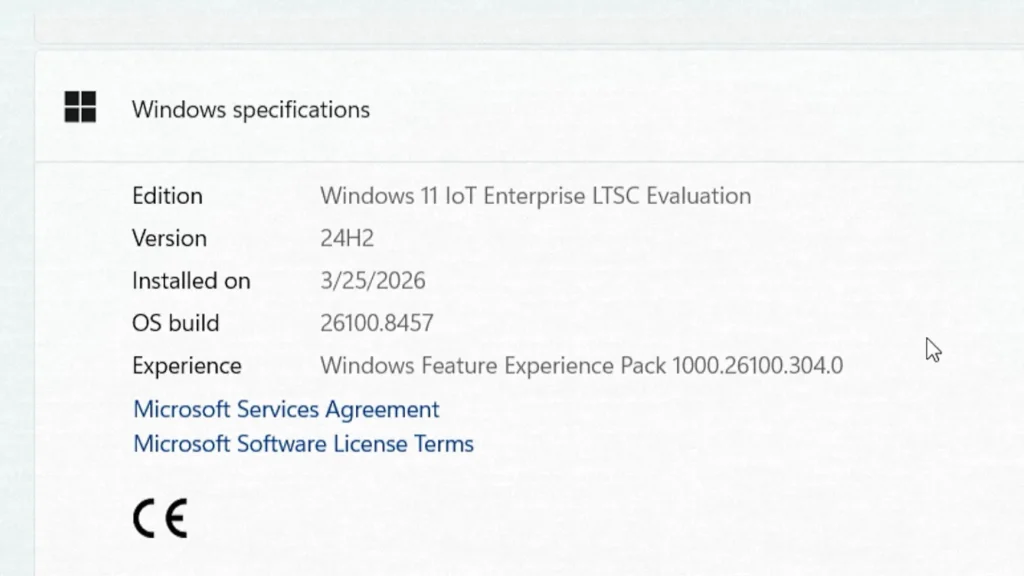
For this test, I used Windows 11 IoT Enterprise LTSC, a lightweight edition of Windows 11 that removes many unnecessary components and background services. If you’re interested in learning more about this version, I already have a dedicated video explaining its features and installation process.
Test Setup
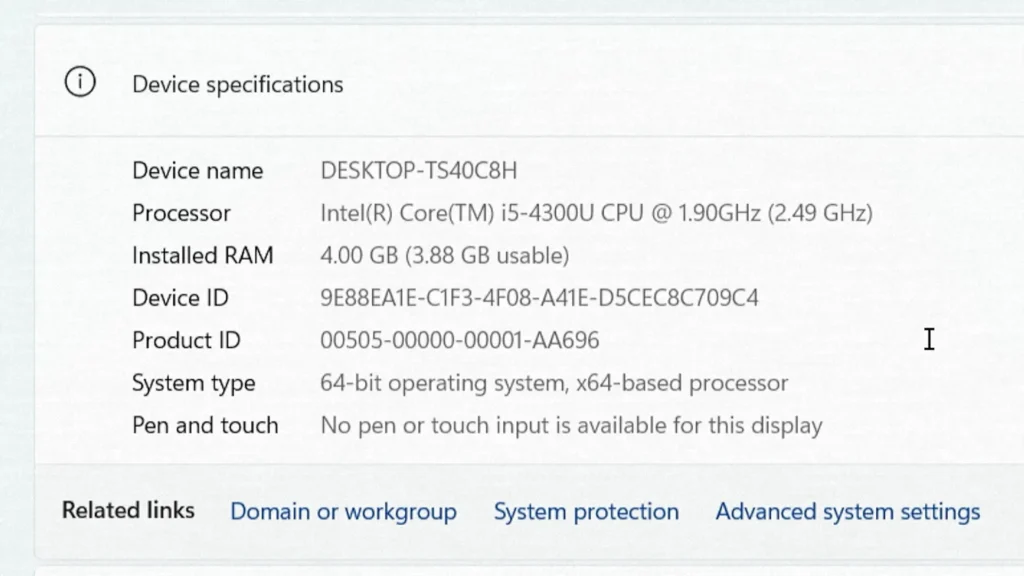
The laptop used in this test is a Lenovo ThinkPad X240 with the following specifications:
- Intel Core i5-4300U
- 4 GB DDR3 RAM
- 2.5-inch SATA SSD
- Intel HD Graphics 4400
- Windows 11 IoT Enterprise LTSC
Before testing, I fully updated Windows and installed all available drivers. I also cleaned the cooling system and replaced the thermal paste. The original thermal compound had become quite old, and the cooling fan was noticeably louder than usual.
This is an important point for anyone using an older laptop. Dust buildup and dried thermal paste can significantly affect temperatures and noise levels. In many cases, basic maintenance can make an aging system feel noticeably better during daily use.
All performance tests were recorded through a capture card, ensuring that the results shown in the video accurately represent the laptop’s real behavior.
This ThinkPad X240 is not officially supported by Windows 11. If you’re wondering whether installing Windows 11 on unsupported hardware is still a good idea in 2026, I also covered the pros, cons, and long-term experience in a separate guide.
Boot Time Test
The first thing I tested was startup performance.
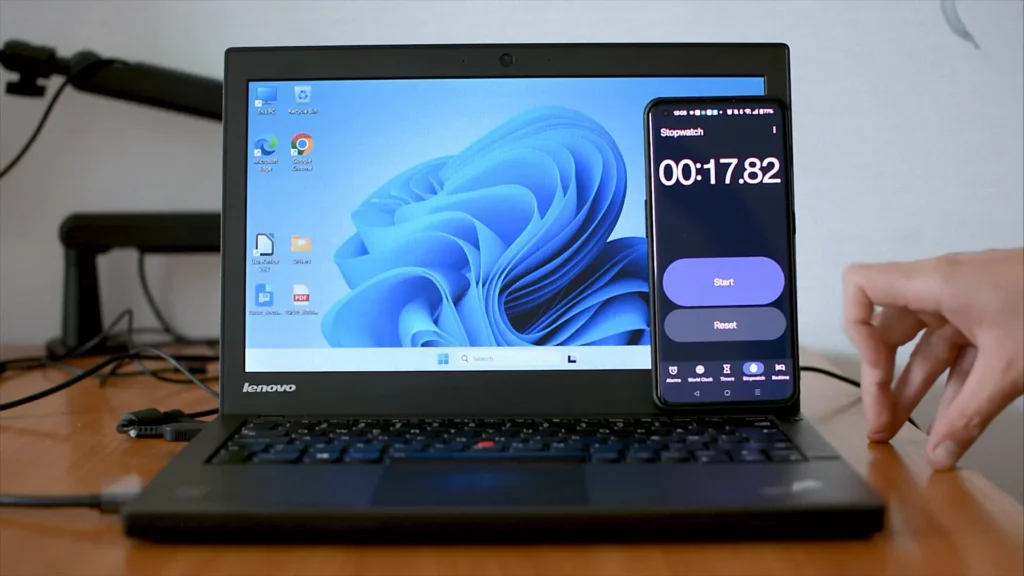
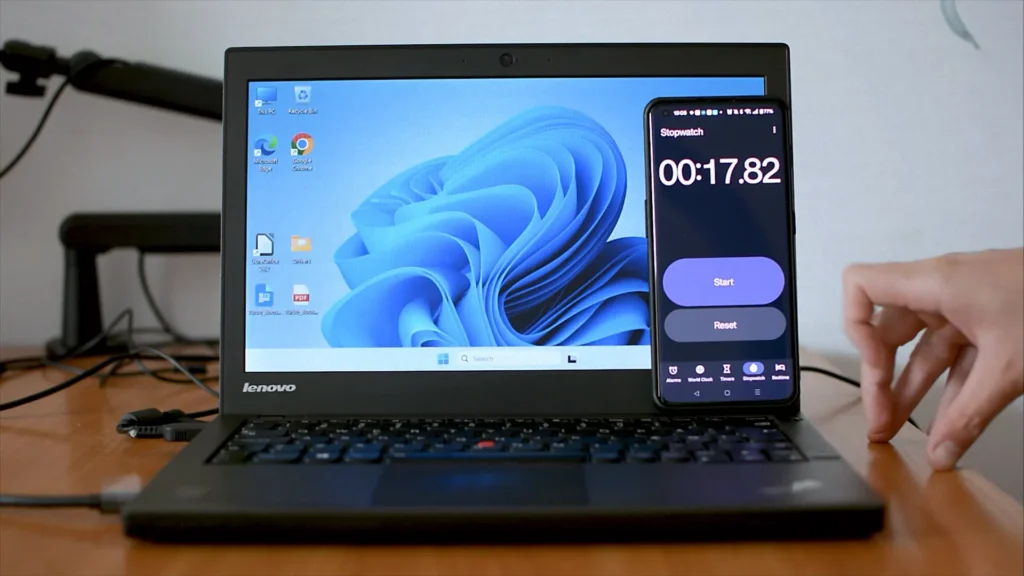
From pressing the power button to reaching a fully usable desktop, the system required approximately 17 seconds.
For a laptop released over twelve years ago, this result is genuinely impressive.
The biggest reason for this is not the processor but the SSD. Even a relatively modest SATA SSD dramatically improves responsiveness compared to a traditional hard drive. While modern NVMe SSDs are significantly faster on paper, everyday tasks such as booting Windows, opening applications, and launching browsers still benefit greatly from a standard SATA SSD.
If this same ThinkPad were running from its original hard drive, boot times would likely be several times longer, and the entire system would feel far less responsive.
For normal daily use, startup speed is certainly not a weakness of this machine.
RAM Usage Test
After startup, Windows consumed approximately 2.2 GB of RAM out of the available 4 GB.
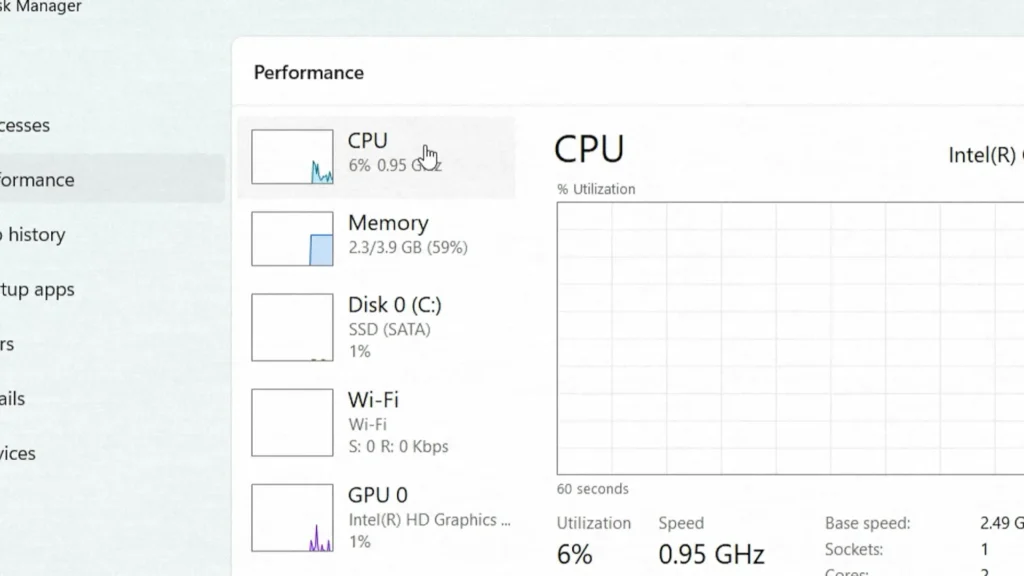
CPU utilization fluctuated between roughly 3% and 15%, averaging around 10% while the system was idle.
Task Manager reported:
- 51 background processes
- 86 Windows processes
Considering that this is Windows 11, these numbers are actually quite reasonable.
At first glance, seeing over half of the available memory already in use may seem concerning. However, modern operating systems intentionally use free memory for caching. Cached memory helps applications launch faster and improves overall responsiveness.
The more important question is not how much RAM Windows uses while idle but how the system behaves when applications are opened. If the laptop remains responsive during real workloads, memory usage alone becomes less important.
That is exactly what the following tests were designed to evaluate.
File Explorer Performance
Basic navigation is often overlooked when discussing performance, yet it has a huge impact on the overall user experience.
Opening folders, switching between directories, browsing photos, and moving between windows felt surprisingly smooth on this system.
File Explorer launched quickly, folder transitions were responsive, and animations remained fluid throughout testing.
There were no major freezes, long delays, or obvious stutters.
This may not sound impressive compared to a modern machine, but it is extremely important. If a computer struggles with simple navigation tasks, even basic daily use becomes frustrating.
Fortunately, Windows 11 IoT LTSC handled these tasks without any serious issues.
Web Browsing Performance
Web browsing is probably the most demanding task that many people perform daily.
Modern websites are significantly heavier than they were ten years ago. Multiple scripts, advertisements, background processes, and dynamic content can place a surprising amount of stress on older hardware.
For this test, I used Google Chrome because it remains the most popular browser despite its reputation for consuming considerable system resources.
I opened multiple tabs, including:
- Gmail
- YouTube
- My WordPress website
- Several blog articles
- Additional general websites
With a reasonable number of tabs open, the laptop remained surprisingly usable.
Scrolling through articles felt smooth, websites loaded at an acceptable speed, and switching between tabs rarely caused major delays.
CPU usage generally remained between 15% and 30%, while memory usage increased to roughly 3.5 GB.
At that point, the system was clearly approaching the limits of its 4 GB configuration, but it still remained functional.
Once most tabs were closed, RAM usage quickly dropped back down, and overall responsiveness improved immediately.
The conclusion is fairly simple: web browsing is absolutely possible on this hardware. You should not expect to keep dozens of Chrome tabs open simultaneously, but email, social media, online shopping, research, and general browsing remain perfectly manageable.
YouTube Playback Test
Video playback is where older systems often begin to show their age.
For testing, I used the Hollow Knight: Silksong trailer at 1080p resolution and 60 frames per second.
I also enabled YouTube’s Stats for Nerds feature to monitor dropped frames.
Using Google Chrome, the system dropped approximately 674 frames out of around 5,000 total frames.
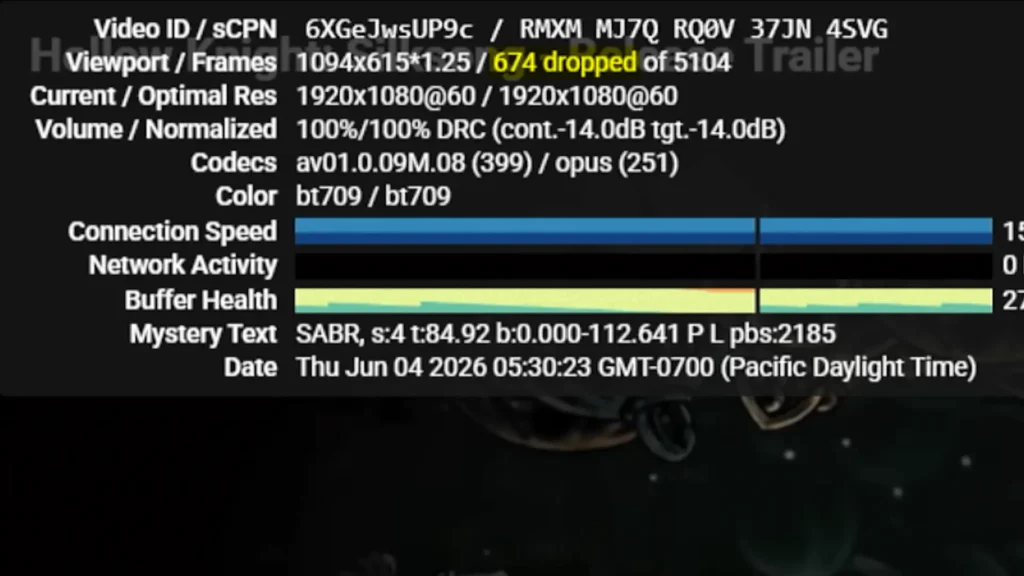
While the video remained watchable, smooth playback was clearly affected.
Interestingly, Microsoft Edge delivered noticeably better results.
Running the same video under identical conditions resulted in approximately 376 dropped frames.
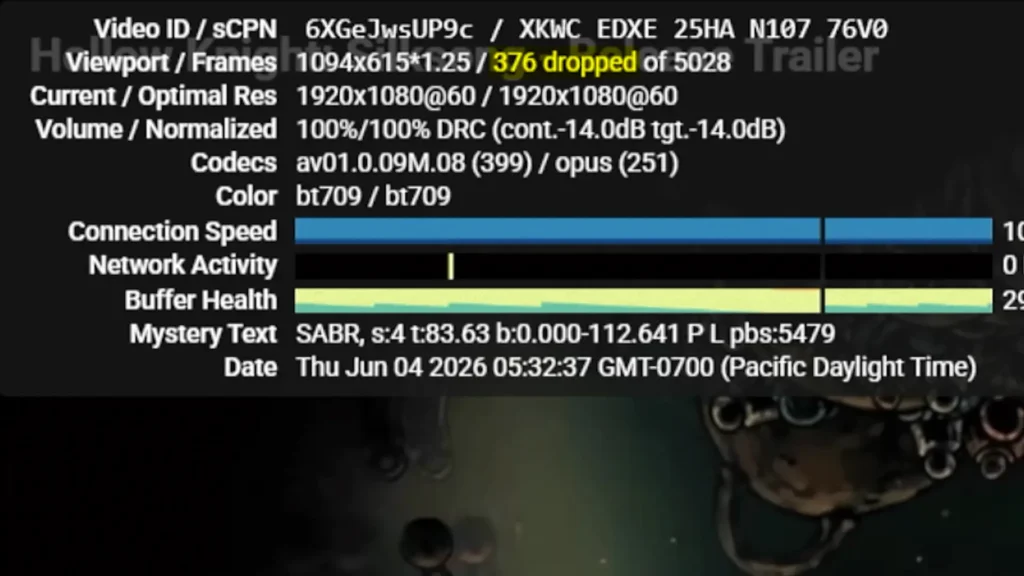
Although Edge was not perfect, it demonstrated a significant improvement over Chrome.
One possible explanation is that Edge utilizes Microsoft’s optimizations more effectively on older integrated graphics hardware.
It is also worth remembering that 60 FPS content is significantly more demanding than standard 30 FPS video. The system must decode and render twice as many frames every second.
Fortunately, regular 1080p 30 FPS content performed much better. After the initial loading period, playback was nearly flawless.
For users who primarily watch standard YouTube videos, online courses, documentaries, or general content, this ThinkPad remains perfectly usable.
Office Work Test
Office applications remain one of the most common workloads for older laptops.
For this test, I used LibreOffice.
The first launch required approximately 30 seconds, which is undeniably slow.
However, subsequent launches were much faster, taking only around 3 seconds after the application had been cached in memory.
Once open, document editing felt comfortable.
Typing text, selecting content, scrolling through pages, and saving files all worked without noticeable problems.
Students, office workers, and remote workers would likely find the experience entirely acceptable.
While it cannot compete with modern hardware, it remains more than capable of handling everyday productivity tasks.
PDF Performance
PDF files are another common part of daily computing.
Using both LibreOffice and Microsoft Edge, I tested a large document containing numerous pages.
Navigation remained smooth throughout the test.
Scrolling, zooming, and switching between pages worked consistently without significant delays.
Whether reading manuals, textbooks, technical documentation, or work-related files, the experience was perfectly adequate.
Multitasking Test
The final test was designed to push the laptop close to its limits.
I opened:
- Multiple Chrome tabs
- YouTube videos
- LibreOffice documents
- PDF files
I then rapidly switched between applications to simulate heavy multitasking.
As expected, CPU utilization increased dramatically, sometimes exceeding 95%.
RAM usage also approached the system’s 4 GB limit.
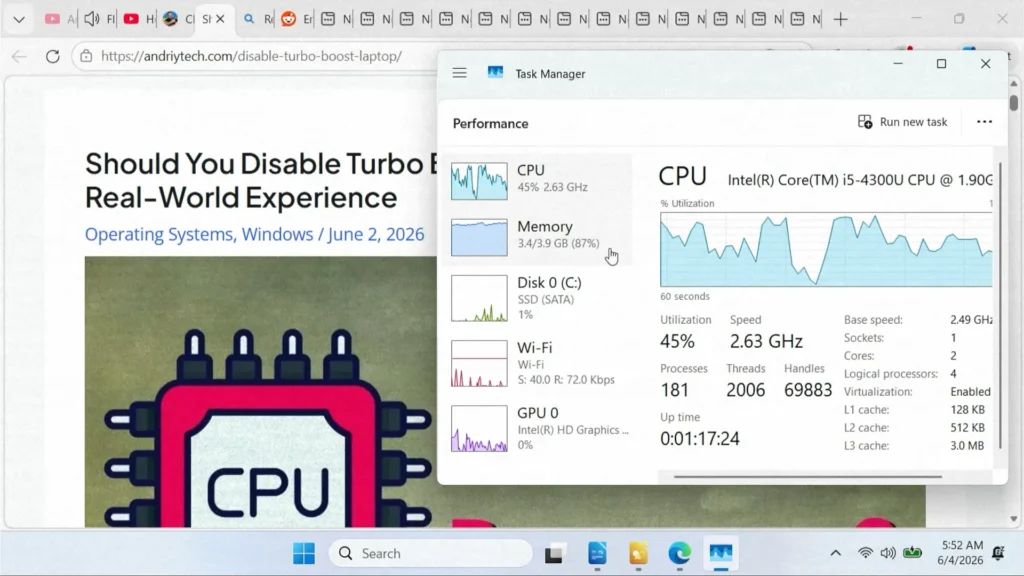
At this point, responsiveness began to decline.
Application switching became slower, YouTube playback suffered, and occasional delays became noticeable.
However, the most impressive observation was that the laptop never completely froze.
Even under substantial load, Windows continued responding to input.
Once applications were closed, memory usage quickly returned to normal levels and overall responsiveness recovered.
For a machine that is now more than twelve years old, that is genuinely impressive.
Who Is This Laptop Still Suitable For?
Based on these tests, the ThinkPad X240 running Windows 11 IoT LTSC is still a reasonable choice for:
- Students
- Web browsing
- Remote work
- Document editing
- PDF reading
- Online learning
- General home use
However, it is not ideal for:
- Modern gaming
- Video editing
- Large multitasking workloads
- Heavy content creation
- Multiple high-resolution video streams
The biggest limitations are still the 4 GB of RAM and the aging dual-core processor.
Final Verdict
So, is Windows 11 really too heavy for an old laptop?
Based on my testing, the answer is no.
At least when paired with an SSD and a lightweight edition such as Windows 11 IoT Enterprise LTSC.
This Lenovo ThinkPad X240 is over twelve years old, contains only 4 GB of RAM, and is not officially supported by Windows 11. Yet it still provides a surprisingly usable experience for many everyday tasks.
The largest weaknesses appear during 1080p 60 FPS video playback and heavy multitasking. Those workloads clearly expose the limitations of the hardware.
However, for browsing the web, checking emails, writing documents, reading PDFs, and performing general office tasks, the laptop remains far more capable than many people would expect.
One important detail is that these results were achieved using Windows 11 IoT Enterprise LTSC rather than the standard Home or Pro editions. The reduced number of background services and cleaner overall installation likely contribute to the positive experience.
If you already own a ThinkPad X240 or a similar laptop, there is a good chance that Windows 11 IoT LTSC can extend its useful life for several more years.